How Do I Change My Wifi Network Settings Right Now
Changing your wifi network settings is easier than most people think. Whether you want to update your network name, change your wifi password, or tweak your router configuration, this guide walks you through every step. You will learn how to access your router, adjust key settings, and keep your network secure.
Have you ever wanted to change your wifi network but did not know where to start? Maybe your current network name is boring, or perhaps you suspect someone is using your wifi without permission. Whatever the reason, changing your wifi network settings is one of the simplest things you can do to take control of your home internet.
This guide will show you exactly how to do it. We will walk through every step in plain language. You do not need to be a tech expert. By the end of this article, you will know how to log into your router, update your network name, change your password, and even adjust advanced settings like your wifi channel and frequency band.
We will also cover common mistakes people make when they try to change their wifi network and how to avoid them. Let us get started.
Key Takeaways
- Access your router: You can change wifi settings by logging into your router’s admin panel through a web browser.
- Change your network name and password: Updating your SSID and wifi password takes just a few minutes in the router settings.
- Boost security: Changing your wifi network settings helps protect your home network from unauthorized users.
- Consider mesh wifi: If you have a large home, adding mesh wifi to your existing router can improve coverage after you change your settings.
- Save your changes: Always write down your new settings before exiting the router admin panel.
📑 Table of Contents
- Why You Should Change Your Wifi Network Settings
- How to Access Your Router Admin Panel
- Changing Your Wifi Network Name (SSID)
- How to Change Your Wifi Password
- Advanced Wifi Settings You Can Adjust
- Common Mistakes When Changing Wifi Settings
- What to Do If You Cannot Connect After Changes
- When to Consider Upgrading Your Router
- Keeping Your Network Secure After Changes
- Final Thoughts
Why You Should Change Your Wifi Network Settings
There are many good reasons to change your wifi network settings. Some people do it for better security. Others do it because they just moved into a new home and want to set up their own network name. Here are the most common reasons:
- Security: Default wifi passwords are easy to guess. Changing them makes your network much safer.
- Personalization: A custom network name makes your wifi easy to identify among all the networks in your neighborhood.
- Performance: Adjusting your wifi channel and frequency band can improve your internet speed and reduce interference.
- Control: When you know your router configuration, you can manage connected devices and block unwanted users.
- Troubleshooting: Sometimes a simple reset of your network settings fixes slow internet or connection drops.
No matter your reason, the process is straightforward. Let us dive into the steps.
How to Access Your Router Admin Panel
The first step to changing your wifi network is logging into your router. Every router has an admin panel where you can adjust all settings. Here is how to find it.
Step 1: Connect to Your Router
Make sure your device is connected to the wifi network you want to change. You can also use an ethernet cable plugged directly into the router for a more stable connection. If your internet is not working at all, you can connect via ethernet and still access the admin panel.
Step 2: Find Your Router IP Address
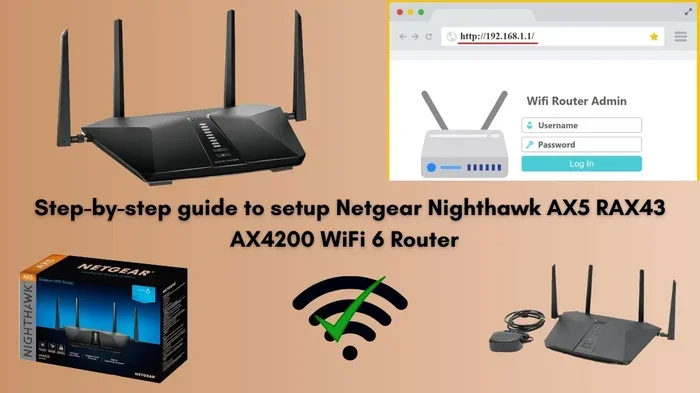
Open a web browser on your connected device. Type your router’s IP address into the address bar. Most routers use one of these default addresses:
- 192.168.1.1
- 192.168.0.1
- 10.0.0.1
You can also find your router IP by opening Command Prompt on Windows and typing ipconfig. Look for the Default Gateway address. On a Mac, go to System Settings and look under your network details.
Step 3: Log In
A login page will appear. Enter your admin username and password. If you never changed these, the default credentials are often printed on a sticker on the back of your router. Common defaults are:
- Username: admin
- Password: admin or password
If you changed your password and forgot it, you can reset your router to factory settings by pressing and holding the reset button for about 10 seconds. Keep in mind this will erase all custom settings.
Changing Your Wifi Network Name (SSID)
Once you are logged in, you can change your wifi network name, also called the SSID. This is the name that appears when someone searches for available networks on their phone or laptop.
Where to Find the SSID Setting
Look for a section called “Wireless Settings,” “Wifi Setup,” or “Network Name.” The exact label depends on your router brand. Popular brands like Netgear, TP-Link, and ASUS have slightly different layouts, but the process is similar.
Tips for Choosing a Good Network Name
Pick a name that is easy for you to recognize but does not reveal personal information. Avoid using your full name, address, or phone number. Here are some quick tips:
- Keep it short and memorable.
- Do not use special characters that might confuse some devices.
- Make it fun or unique to stand out.
After you type in your new name, click Save or Apply. Your network will restart, and the new name should appear within a minute.
How to Change Your Wifi Password
Changing your wifi password is just as important as changing your network name. A strong password keeps strangers from using your internet and protects your personal data.
Finding the Password Setting
In the router admin panel, go to the wireless security section. You will see options for your encryption type and password field. The most common and secure option is WPA3 or WPA2. Avoid using WEP, as it is outdated and easy to crack.
Creating a Strong Password
Your new password should be at least 12 characters long. Use a mix of uppercase letters, lowercase letters, numbers, and symbols. Here are some examples of strong passwords:
- BlueSky$2024!Home
- MyNet#Secure789
- FastWifi@River42
Write your new password down in a safe place. You will need it to connect all your devices again after the change.
Advanced Wifi Settings You Can Adjust
Once you have changed your basic settings, you can explore some advanced options that improve your wireless network setup. These settings are not required, but they can make a big difference.
Adjusting Your Wifi Channel
Your router broadcasts on a specific channel. If your neighbors are using the same channel, your signal can get crowded. Most routers are set to “Auto,” but you can manually select a less crowded channel. Use a free wifi analyzer app on your phone to see which channels are busiest in your area.
Switching Between 2.4GHz and 5GHz
Most modern routers broadcast on two frequency bands:
- 2.4GHz: Slower but reaches farther. Good for smart home devices and basic browsing.
- 5GHz: Faster but shorter range. Great for streaming, gaming, and video calls.
If you want to optimize your wifi frequency band, you can give each band a different network name. This way, you can connect fast devices to 5GHz and older devices to 2.4GHz.
Updating DHCP and DNS Settings
DHCP automatically assigns IP addresses to your devices. DNS translates website names into IP addresses. You can speed up your browsing by changing your DNS to a faster provider like Google DNS (8.8.8.8) or Cloudflare DNS (1.1.1.1). This is a small tweak that can noticeably improve your browsing experience.
Common Mistakes When Changing Wifi Settings
Even simple tasks can go wrong if you are not careful. Here are the most common mistakes people make when they try to change their wifi network:
- Forgetting to save changes: Always click Save or Apply before you close the admin panel. Otherwise, your changes will not take effect.
- Using weak passwords: Simple passwords like “123456” or “password” are easy targets. Always use a strong, unique password.
- Not writing down your new settings: If you forget your new password or network name, it can be hard to reconnect your devices.
- Resetting the router unnecessarily: A factory reset wipes everything. Only do it if you are completely stuck.
- Ignoring firmware updates: Router manufacturers release updates that fix bugs and improve security. Check for updates after you make your changes.
Avoiding these mistakes will save you time and frustration.
What to Do If You Cannot Connect After Changes
Sometimes your devices will not connect right away after you change settings. Do not panic. Here is what to do:
- Restart your router: Unplug it for 30 seconds, then plug it back in.
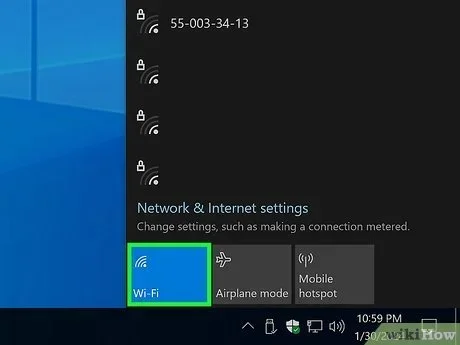
- Restart your device: Turn wifi off and back on, or reboot your phone or computer.
- Forget the network: On your device, go to wifi settings and “forget” the network. Then reconnect using your new password.
- Check your cable connections: Make sure the ethernet cable is securely plugged in if you are using one.
If you still cannot connect, you may need to reset your router to factory settings and start over. This is a last resort, but it works every time.
When to Consider Upgrading Your Router
If you find yourself constantly adjusting your wifi network settings and still experiencing slow speeds or dead zones, it might be time for a new router. Older routers may not support the latest wifi standards like Wi-Fi 6, which offers faster speeds and better handling of multiple devices.
Before buying a new router, check if your internet service provider lets you use your own equipment. For example, if you are with Spectrum, you can change out your router with Spectrum and bring your own compatible device. Having your own personal wifi router gives you more control over your network settings and can save you monthly rental fees.
Also, if your home is large or has many walls, consider a mesh system. You can add mesh wifi to your existing router to extend coverage without buying a whole new system. This is especially helpful after you change your network settings, since you want every corner of your home to have a strong signal.
Keeping Your Network Secure After Changes
Once you have successfully changed your wifi network settings, take a few extra steps to keep your network safe:
- Disable WPS: Wi-Fi Protected Setup is convenient but has known security vulnerabilities. Turn it off in your router settings.
- Enable network encryption: Make sure WPA3 or WPA2 is turned on.
- Check connected devices: Regularly review the list of devices connected to your network. If you see something unfamiliar, change your password immediately.
- Update your router firmware: Manufacturers release updates that patch security holes. Check for updates every few months.
- Create a guest network: If you have visitors, give them access to a guest network instead of your main one. This keeps your primary devices safe.
These habits will keep your network security strong and give you peace of mind.
Final Thoughts
Changing your wifi network settings does not have to be complicated. You now know how to access your router admin panel, update your network name, change your password, and adjust advanced settings like your wifi channel and frequency band. These simple steps give you more control over your home internet and help keep your network safe.
Remember to write down your new settings, use a strong password, and avoid common mistakes. If you run into trouble, restarting your router and device usually fixes most issues. And if your current router is outdated, consider bringing your own equipment or adding a mesh system to improve your coverage.
Take a few minutes today to review your wifi network settings. A small effort now can save you from headaches later. Your internet will be faster, safer, and more reliable.
Frequently Asked Questions
Can I change my wifi network name without logging into the router?
No, you need to access the router admin panel to change your network name. You can do this through a web browser on any device connected to the network. Simply type your router IP address into the browser and log in with your admin credentials.
Will changing my wifi password disconnect all my devices?
Yes, changing your wifi password will disconnect all devices that were previously connected. You will need to reconnect each device using the new password. This is why it is important to write down your new password before saving the changes.
How often should I change my wifi password?
Experts recommend changing your wifi password every three to six months. You should also change it immediately if you suspect someone unauthorized is using your network. Regular password changes are one of the best ways to maintain strong network security.
What is the difference between 2.4GHz and 5GHz wifi bands?
The 2.4GHz band covers a larger area but has slower speeds. The 5GHz band offers faster speeds but has a shorter range. You can set up both bands with different network names so you can choose which one your devices connect to based on your needs.
Can I change my wifi settings using my phone?
Yes, you can change your wifi settings from your phone as long as you are connected to the network. Open a browser, enter your router IP address, and log in. The process is the same as using a computer. If you want to get wifi on your own without relying on a provider setup app, using the router admin panel is the most reliable method.
What should I do if I forget my new wifi password?
If you forget your new password, you will need to reset your router to factory settings. Press and hold the reset button on the back of the router for about 10 seconds. This will restore the default settings, including the default password printed on the router. You will then need to set up your network again from scratch.