Can A Netgear Nighthawk Router Be Used As A Wifi Extender
Yes, you can use a Netgear Nighthawk router as a WiFi extender to boost your wireless range. By enabling repeater mode, your Nighthawk can repeat the signal from your main router. This simple trick helps eliminate dead zones and improves internet speed throughout your home.
Key Takeaways
- Repeater Mode Works: You can easily switch your Nighthawk to repeater mode to extend Wi-Fi.
- Boosts Signal Strength: It helps eliminate dead zones in your home network.
- Easy Setup: The Nighthawk app makes the wireless range extender setup simple.
- Dual-Band Support: You get good bandwidth across both 2.4GHz and 5GHz bands.
- Wired Option Available: Use an ethernet cable for the most stable connection.
- Firmware Matters: Always update your router settings before starting.
📑 Table of Contents
- Can A Netgear Nighthawk Router Be Used As A Wifi Extender
- Understanding How The Nighthawk Works As An Extender
- Step By Step Guide To Setting Up Your Nighthawk As An Extender
- Quick Tips For The Best Extender Setup
- Comparing Repeater Mode Vs Access Point Mode
- Common Mistakes To Avoid When Extending Wi-Fi
- Expert Insights On Nighthawk Extender Performance
- How To Maximize Your Wi-Fi Signal Strength
- Benefits Of Using A Nighthawk As Your Network Extender
- Troubleshooting Common Extender Issues
- Conclusion
Can A Netgear Nighthawk Router Be Used As A Wifi Extender
Many people wonder if they can use a Netgear Nighthawk as a WiFi extender. The good news is that you absolutely can. A Nighthawk router is a very powerful device. It has the features needed to boost your wireless signal. This means you do not have to buy a separate range extender.
Using your Nighthawk in this way is a smart move. It saves you money. It also uses the high-quality hardware already inside your Nighthawk. When you turn your router into a wireless range extender, you get better coverage. You can say goodbye to those frustrating dead zones in your home.
Dead zones are areas where your Wi-Fi signal is too weak. You might lose connection in your backyard or in a far bedroom. A Nighthawk placed in the right spot can fix this. It takes the signal from your main router and sends it further. This ensures your home network covers every square foot of your house.
In this guide, we will show you exactly how to do this. We will cover the setup process. We will also share tips to get the best internet speed. You will learn about repeater mode and access point mode. By the end, you will know if this method is right for your network coverage needs. Let us dive into the details and get your Nighthawk working as an extender.
Understanding How The Nighthawk Works As An Extender
To use your Nighthawk as a network extender, you need to understand how it works. A regular router connects to your modem and creates a Wi-Fi network. But when you switch it to extender mode, it changes its job. Instead of creating a new network from a modem, it repeats an existing network. This is the core function of any wireless range extender.
This process is called repeating. The Nighthawk receives the Wi-Fi signal from your main router. It then amplifies that signal and sends it out again. Think of it like a relay race. The Nighthawk is the runner who takes the baton from the main router and passes it to the far end of your house. This simple process can make a huge difference in your Wi-Fi range.
The Nighthawk line is built for this. These routers have strong antennas. They also have fast processors. This means they can handle the job of repeating without slowing down too much. Cheap extenders often hurt your speed because they have weak chips. But a Nighthawk keeps your signal strength much higher. It can manage the data flow much better than a basic extender.
When you use a Nighthawk in repeater mode, it creates a new network name. This is usually the original name with “_EXT” at the end. Your phone or laptop will need to connect to this new name. Some people do not like having two network names. But this setup ensures your devices always connect to the strongest available signal. It is a reliable way to expand your home network without buying new gear.
The Nighthawk uses advanced beamforming technology. This technology focuses the Wi-Fi signal directly at your devices. Instead of spreading the signal in all directions, it points it where it is needed. This makes your wireless connection much more efficient. You will get a stronger signal with less wasted energy.
What Is Repeater Mode?
Repeater mode is the most common way to extend Wi-Fi. In this mode, the Nighthawk connects to your main router wirelessly. It does not need a cable to talk to the main router. This makes it very easy to set up. You just place the Nighthawk in a spot where it can still see the main router’s signal. The Nighthawk then creates a new extended network for your devices.
Once connected, the Nighthawk broadcasts a new wireless signal. This signal carries the internet from your main router to the far ends of your house. The Nighthawk acts as a middleman. It receives data from the main router and sends it to your devices. It also receives data from your devices and sends it back to the main router. This two-way traffic is what makes repeater mode so useful for extending network coverage.
What Is Access Point Mode?
Access point mode is another great option. In this mode, you connect the Nighthawk to your main router with an ethernet cable. The cable carries the internet signal directly to the Nighthawk. Then the Nighthawk broadcasts a new Wi-Fi network. This method is much faster than repeater mode. Why? Because the Nighthawk does not have to use wireless to talk to the main router. It gets a full-speed wired connection.
If you have a long ethernet cable, this is the best way to extend your Wi-Fi range. It gives you the best bandwidth and the lowest latency. You will not lose any speed by using a cable. This is perfect for home offices or entertainment rooms where you need the fastest possible connection. Many gamers and streamers prefer access point mode for this exact reason.
Step By Step Guide To Setting Up Your Nighthawk As An Extender
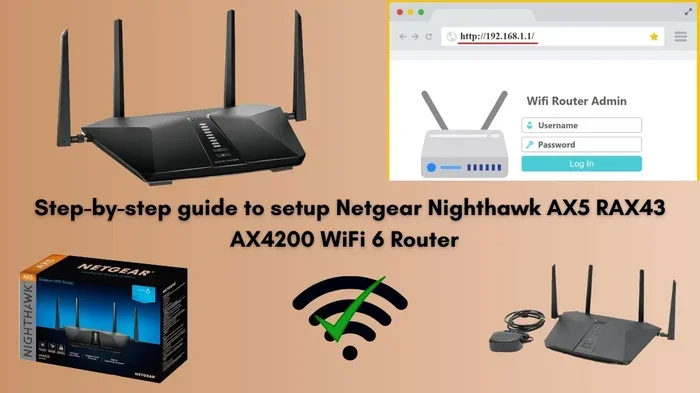
Setting up your Nighthawk as a WiFi extender is not hard. You can do it in less than fifteen minutes. You will need your Nighthawk router, a power outlet, and your main Wi-Fi password. Let us walk through the steps so you can get started right away.
First, you need to decide where to put the Nighthawk. You should place it in an area where the Wi-Fi from your main router is still decent. If you put it too far away, it will not have a good signal to repeat. A good rule is to place it halfway between your router and the dead zone. This spot gives it the best chance to catch and boost the signal.
Using The Nighthawk App
The easiest way to set this up is with the Nighthawk app. You can download it for free on your phone. Make sure your phone is connected to the Nighthawk’s default Wi-Fi network. Open the app and follow the on-screen steps. The app will guide you through the entire Nighthawk setup process.
- Plug your Nighthawk into a power outlet.
- Wait for the power LED to turn solid green.
- Open the Nighthawk app on your phone.
- Tap on the advanced setup option.
- Choose the wireless repeater or extender mode.
- The app will search for available Wi-Fi networks.
- Select your main home network from the list.
- Type in the password for your main router.
- Tap save and wait for the connection to complete.
Once the setup is done, the Nighthawk will start repeating your signal. You can now connect your devices to the new extended network. The Nighthawk app also lets you manage your connected devices easily. You can see who is online and how fast the connection is. This makes it very simple to monitor your home network performance.
After you finish the setup, it is a good idea to test the connection. Walk around your house with your phone. Check the signal strength in different rooms. Go to the areas that used to be dead zones. See if the signal is strong now. If the signal is still weak, try moving the Nighthawk to a different spot. Small changes in placement can make a big difference. You might be surprised how much a few feet of movement can improve your Wi-Fi signal. Take your time to find the perfect sweet spot for the extender. This small effort will pay off with a much better connection.
Using The Web Browser
If you prefer a computer, you can use a web browser. Connect your laptop to the Nighthawk. Open your browser and type routerlogin.net in the address bar. Log in with the default admin password. Go to the advanced settings and choose repeater mode. Follow the prompts to select your main network and enter the password. This method gives you more detailed router settings to adjust. You can fine-tune the channel and bandwidth settings for the best performance.
Quick Tips For The Best Extender Setup
Getting your Nighthawk set up is just the first step. To get the best performance, you need to follow a few quick tips. These small changes can make a big difference in your wireless signal. Here are some practical tips that actually work.
- Keep it elevated: Place the Nighthawk on a shelf or table. Do not put it on the floor. Signals travel better when the antennas are up high. Floors and walls can block the signal.
- Stay away from walls: Thick walls block Wi-Fi signals. Keep the extender in an open space. This helps the Nighthawk talk to the main router more clearly. A clear line of sight is best.
- Avoid interference: Keep the Nighthawk away from microwaves and cordless phones. These devices can cause interference on the 2.4GHz band. Interference can slow down your internet speed a lot.
- Use the 5GHz band: If your Nighthawk is dual-band, use the 5GHz band for the extended network. It is faster and less crowded than the 2.4GHz band. Use the 2.4GHz band only if you need to reach very far distances.
- Check the LEDs: The Nighthawk has signal lights. If the extender light is dim, move the unit closer to the main router. A solid green light means you have a great connection.
Comparing Repeater Mode Vs Access Point Mode
When you use a Nighthawk to expand your network, you have two main choices. You can use repeater mode or access point mode. Both extend your Wi-Fi range, but they work differently. It is important to know the difference so you can pick the best one for your home.
Repeater mode is the easiest to set up. You do not need any extra cables. Just plug the Nighthawk in and follow the app instructions. It is perfect for people who rent their homes or who cannot run cables through walls. Access point mode requires an ethernet cable, but it gives you the best speed and stability.
| Feature | Repeater Mode | Access Point Mode |
|---|---|---|
| Connection Type | Wireless to main router | Wired to main router |
| Internet Speed | Slightly slower due to double hop | Full speed maintained |
| Setup Difficulty | Very easy, no cables needed | Requires an ethernet cable |
| Best For | Quick fixes and rental homes | Stable home network setups |
| Placement Flexibility | High, anywhere there is signal | Low, must be near cable |
| Latency | Slightly higher | Very low |
| Signal Loss | Some loss due to wireless backhaul | No loss, wired backhaul |
For most people, repeater mode is the go-to choice. It is fast and simple. You do not need to run a cable through your house. But if you care about maximum bandwidth and speed, access point mode is better. You just need a long ethernet cable to connect the two routers. Many people use this method in their home office for the best internet speed. You can also use this method to connect a smart TV or gaming console directly to the Nighthawk for a rock-solid connection.
Common Mistakes To Avoid When Extending Wi-Fi
Many users make mistakes when they try to boost their wireless signal. Avoiding these errors will save you a lot of frustration and time. Here are the most common mistakes people make when using a Nighthawk as an extender.
Placing The Extender Too Far Away
If you put the Nighthawk too far from the main router, it will not get a strong enough signal to repeat. This creates a weak spot in your home network. The extender needs a strong source signal to give a strong extended signal. Keep the Nighthawk close enough to the main router so it gets a solid connection. A good test is to stand where you want the extender and check if your phone gets at least two or three bars from the main router.
Ignoring Firmware Updates
Old router settings can cause slow speeds or connection drops. Always check for a firmware update before you start. The Nighthawk app will tell you if a new update is ready. Updating ensures your connected devices work smoothly and securely. A simple firmware update can fix many bugs and improve performance. Manufacturers release updates to fix bugs and improve network coverage. Always keep your router up to date.
Using The Same Network Name And Password
Some people try to use the same SSID for both the main router and the extender. This can confuse your wireless devices. Your phone might stick to a weak signal from the main router instead of switching to the stronger extender signal. It is better to give the extender a slightly different name. That way, you know exactly which router you are connected to. You can also manually switch networks if needed.
Not Rebooting The Extender Regularly
Like any computer, a Nighthawk router needs a fresh start sometimes. If you notice slow speeds, try rebooting the Nighthawk. Unplug the power, wait thirty seconds, and plug it back in. This clears the memory and can fix many minor connection issues. It keeps your network coverage running at its best. A simple reboot can often solve more problems than you might expect.
Expert Insights On Nighthawk Extender Performance
Expert Insight: Network engineers say that using a high-end router like a Nighthawk as an extender works better than cheap store-bought extenders. The Nighthawk has a powerful processor and large antennas. This means it can handle many connected devices without slowing down. A cheap extender might cut your speed in half. But a Nighthawk keeps most of your speed intact. It is a huge upgrade over basic network extenders.
Also, the dual-band technology on the Nighthawk is a big plus. It uses both the 2.4GHz and 5GHz bands. The 2.4GHz band reaches further into your house. The 5GHz band gives faster speeds for streaming and gaming. You can choose which band to extend based on your needs. This flexibility is something cheap extenders do not have. It allows you to optimize your home network for different tasks.
Expert Insight: If you have a very large home, one Nighthawk might not be enough. You may need to add a second extender or use a mesh system. But for most average homes, a single Nighthawk works perfectly as a range booster. It covers about 2000 to 2500 square feet very well. You can also use the Nighthawk as a wired access point for your smart TV or gaming console. This gives you the best of both worlds. You get the range of an extender and the speed of a wired connection.
How To Maximize Your Wi-Fi Signal Strength
Just setting up the extender is not enough. You need to manage your network coverage for the best results. Here are a few ways to make sure you get the most out of your Nighthawk extender. These tips will help you squeeze every bit of performance out of your setup.
- Adjust the antennas: Point the antennas up or at an angle to spread the signal wider. Straight up antennas send signal horizontally. This is a simple trick that can improve your signal strength a lot.
- Change the channel: If your neighbors have crowded Wi-Fi, change the channel on your Nighthawk to reduce interference. Use the Nighthawk app to find the least crowded channel. Less interference means a faster and more stable connection.
- Restart regularly: A quick restart every few weeks clears the memory and keeps the internet speed fast. Set a reminder to do this once a month. It takes less than a minute and can prevent many issues.
- Check the LED lights: The Nighthawk has signal lights. If the extender light is dim, move the unit closer to the main router. A solid green light means you have a great connection. A red or dim light means the signal is too weak.
- Update the drivers: Make sure the wireless adapters on your laptops and phones are up to date. Old drivers can cause slow speeds even with a great extender. Keeping your devices updated helps them talk to the Nighthawk better.
- Limit background apps: Some apps use a lot of bandwidth in the background. Close apps you are not using to free up bandwidth for important tasks like video calls or streaming.
By following these simple steps, you will enjoy a strong and stable connection everywhere in your house. You will be able to stream movies in the backyard. You will also have fast internet in your basement office. A little effort goes a long way in improving your wireless signal.
Benefits Of Using A Nighthawk As Your Network Extender
There are many great reasons to use your existing Nighthawk router as an extender. It saves you money and boosts your home network in many ways. Let us look at the top benefits of this approach. You might be surprised at how much better your network can be.
1. Save Money On New Equipment
Buying a separate wireless range extender can cost fifty to one hundred dollars. If you already own a Nighthawk, you do not need to buy a new gadget. You just change a setting in the router settings. This is a very cost-effective way to improve your home network. You get the benefits of an extender without spending an extra dime.
2. Better Hardware Than Standard Extenders
Cheap extenders often slow down your internet. The Nighthawk is a full router. It has better antennas and a faster processor. This means your signal strength will be much stronger than a basic extender. You get the same high-quality hardware that you paid for in the first place. It is like getting two devices for the price of one.
3. Easy To Manage
The Nighthawk app lets you control everything from your phone. You can see which devices are connected and how fast the speed is. You can also update the firmware right from the app. It gives you full control over your home network from the palm of your hand. You do not need to be a tech expert to manage your network this way.
4. Improved Device Handling
A Nighthawk can handle many connected devices at the same time. It has a powerful CPU that manages traffic well. If you have a smart home with many gadgets, the Nighthawk will not crash. It keeps your bandwidth flowing smoothly to all your devices. You can have dozens of phones, tablets, and smart speakers all running at once without a problem.
5. Future Proofing Your Network
Using a Nighthawk as an extender also future proofs your network. Nighthawk routers get regular updates from Netgear. These updates add new features and fix security holes. A cheap extender might become outdated quickly. But your Nighthawk will stay relevant for years. You are investing in long-term network coverage when you use your Nighthawk this way. You also get access to advanced features like parental controls and guest networks.
Troubleshooting Common Extender Issues
Sometimes things do not work perfectly the first time. If your Nighthawk extender is not working well, do not worry. Here are a few simple fixes for common problems. Most issues can be solved in just a few minutes.
If the internet is slow, try moving the Nighthawk closer to the main router. The signal might be too weak to repeat effectively. Also, check if too many devices are using the network at the same time. This can slow down your internet speed. Try disconnecting a few devices to see if the speed improves.
If the extender keeps dropping the connection, restart it. Unplug the power, wait a few seconds, and plug it back in. If that does not work, log into the router settings and check for a firmware update. Sometimes a simple update fixes all your connection problems. You can also try changing the wireless channel. Interference from your neighbors can cause dropouts. The Nighthawk app has a tool to find the best channel for your area. This can greatly improve your Wi-Fi range and stability.
If you still have problems after restarting, you can try resetting the Nighthawk to factory settings. Press the reset button on the back of the router for ten seconds. This will wipe all your custom settings. You will need to set it up again from scratch. Make sure you have your main Wi-Fi password ready before you reset. A factory reset can fix stubborn issues that a simple restart cannot solve.
Conclusion
So, can a Netgear Nighthawk be used as a WiFi extender? Absolutely. It is a fantastic way to get more network coverage without buying extra gear. By using repeater mode or access point mode, you can kill those annoying dead zones in your home.
Just remember to place the router correctly and keep the firmware updated. With a little effort, your Nighthawk will act as a powerful wireless bridge for your whole house. You will enjoy faster internet in every room and on every floor. Try it out today and feel the difference in your Wi-Fi range! Your home network will thank you for it.
Using your existing Nighthawk as a WiFi extender is a great way to improve your home network. It is easy to set up and works very well. You will enjoy a stronger signal in every room. Your family will appreciate the faster internet speeds. Give it a try and see the difference for yourself.
Frequently Asked Questions
Can I use my Nighthawk as a WiFi extender without the app?
Yes, you can. You can also set it up by typing routerlogin.net into your web browser. The web interface gives you the same options to enable repeater mode and connect to your main network.
Will using a Nighthawk as an extender slow down my internet?
It might slow it down a little if you use wireless repeater mode. This is because the router has to receive and send data at the same time. Using an ethernet cable in access point mode keeps your full speed.
How many devices can the Nighthawk extender support?
A Nighthawk router can handle many connected devices at once. It has a powerful processor designed for heavy use. You can connect phones, laptops, and smart home devices without losing speed.
Do I need to buy special cables to use it as an extender?
No, you do not need special cables for wireless repeater mode. However, if you want to use access point mode for the best speed, you will need a long ethernet cable to connect it to your main router.
Is it better to buy a dedicated extender or use a Nighthawk?
Using your Nighthawk is usually better. Dedicated extenders often have weaker hardware. A Nighthawk has strong antennas and fast processors, making it a superior network extender for your home.
Where should I place my Nighthawk when using it as an extender?
Place it halfway between your main router and the area with the weak signal. This spot gives it a strong source signal to repeat while still reaching the dead zone in your house.