How Do I Change My WiFi Username And Password Easily
Changing your WiFi username and password is one of the simplest ways to keep your home network safe and secure. Whether you want to update your network name or create a stronger password, this guide walks you through every step with ease. You do not need to be a tech expert to get this done right.
Your WiFi network is the gateway to all your internet-connected devices. It handles your streaming, browsing, smart home gadgets, and more. That is exactly why keeping it secure matters so much. One of the best ways to protect your home network is by changing your WiFi username and password on a regular basis.
Many people never bother to update their default network name or password. This leaves them vulnerable to unauthorized users and potential security threats. The good news is that changing these settings does not require any special skills or expensive tools. You just need access to your router and a few minutes of your time.
In this guide, we will walk you through the entire process step by step. You will learn how to find your router admin panel, where to look for wireless settings, and how to create a strong new password. We will also cover common problems you might run into and how to fix them. By the end, you will feel confident managing your WiFi password and network name like a pro.
Before we dive in, it helps to understand what you are actually changing. Your WiFi username is also called the SSID, which stands for Service Set Identifier. This is the name that appears when someone searches for available networks on their device. Your WiFi password is the key people need to type in before they can connect to your wireless network. Together, these two pieces of information control who gets access to your internet connection.
Key Takeaways
- Access your router admin panel by typing your default gateway into a browser to start the process.
- Changing your WiFi username (SSID) is quick and can be done from the wireless settings page.
- A strong WiFi password should be at least 12 characters and include a mix of letters, numbers, and symbols.
- You can reset your router to factory settings if you forget your login credentials.
- Updating both your username and password regularly helps protect your network from unauthorized access.
- Write down your new credentials in a safe place so you do not get locked out of your network.
- Contact your internet provider if you cannot access your router admin panel through standard methods.
📑 Table of Contents
- Why You Should Change Your WiFi Username and Password
- How to Find Your Router Admin Panel
- How to Change Your WiFi Username
- How to Change Your WiFi Password
- What If You Forget Your New Password?
- Common Mistakes to Avoid When Changing WiFi Settings
- When to Contact Your Internet Provider
- How Often Should You Change Your WiFi Password?
- Final Thoughts
Why You Should Change Your WiFi Username and Password
There are many reasons to update your WiFi password and network name. Some of them are obvious, while others might surprise you. Let us look at the biggest reasons you should make this change today.
Security Is Your Top Priority
The most important reason is security. When you keep your default login credentials, anyone nearby can easily guess them. Many routers come with generic usernames like “admin” and simple passwords like “password” or “123456.” Hackers know this and can exploit it quickly. Changing your WiFi username and password adds a strong layer of protection to your home network.
A strong network password keeps strangers from using your internet without permission. It also prevents them from accessing any devices connected to your network. This includes your computers, phones, smart cameras, and even your smart TV. The more secure your wireless network is, the safer all your personal data stays.
You Just Moved or Got a New Router
If you recently moved into a new home or got a new router, you should absolutely change the default settings. Previous owners or renters might still know the old WiFi password. Even if you bought a used router, factory settings mean anyone can access it. A quick update gives you full control over who can join your wireless network.
Too Many People Know Your Network
Think about how many people have had access to your WiFi over the years. Guests, former roommates, neighbors, and even delivery workers who visited your home. If you have never changed your WiFi password, there is no telling how many devices are connected to your network right now. Changing it kicks off anyone who should not be there.
How to Find Your Router Admin Panel
Before you can change anything, you need to access your router settings. This is done through what is called the admin panel. It might sound technical, but it is really quite simple. Here is how to get started.
Step 1: Find Your Default Gateway
The default gateway is the address that connects your computer to your router. You need this address to open the admin panel. On most computers, you can find it easily.
For Windows users, open the Command Prompt and type “ipconfig.” Look for the line that says “Default Gateway.” The number you see there is what you need. For Mac users, go to System Preferences, then Network, and click on your active connection. Your router address will be listed there.
Step 2: Open Your Browser
Once you have your default gateway address, open any web browser. Type the address into the URL bar at the top and press Enter. You should see a login page for your router. This is your admin panel where all the settings live.
If you cannot remember your router login details, check the sticker on the back or bottom of your router. Most manufacturers print the default username and password right there. Common combinations include “admin” for both fields or “admin” and “password.”
Step 3: Log In
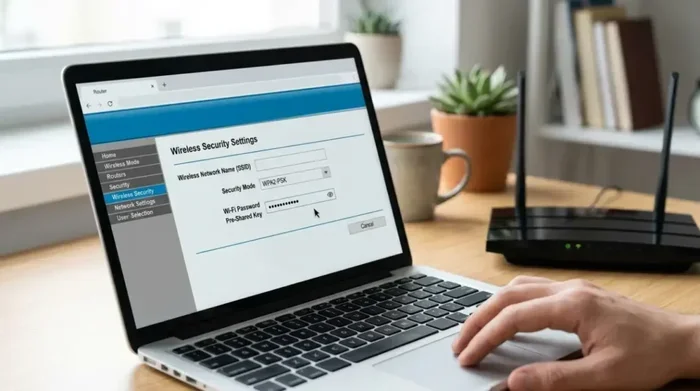
Enter the username and password when prompted. If you have never changed these before, use the defaults from the sticker. Once you log in, you will see a dashboard with different settings and options. Look for a section labeled “Wireless,” “WiFi Settings,” or “Network Configuration.”
Every router brand has a slightly different layout, but the basic structure is the same. You will find your wireless settings somewhere in the main menu. Do not worry if it looks different from what we describe. The core options are always there.
How to Change Your WiFi Username
Your WiFi username is also known as the SSID or network name. This is the name that shows up when someone scans for available networks on their phone or laptop. Changing it is a simple process that can be done in just a few clicks.
Finding the Wireless Settings
Once you are logged into your router admin panel, look for the wireless settings section. This is usually found under a tab called “Wireless,” “WiFi,” or “Network.” Click on it to expand the options.
You should see a field labeled “SSID,” “Network Name,” or “WiFi Name.” This is where your current username is displayed. Click inside the field and type in your new preferred name. Make sure it is something easy for you to recognize but not something personal that strangers could guess.
Tips for Choosing a Good WiFi Name
When choosing a new WiFi username, keep a few things in mind. Avoid using your real name, address, or phone number. These details can make it easier for strangers to identify you and target your network.
Instead, pick something fun or generic. Some people use the name of their street or a playful nickname. Others choose a name that hints at their household without giving away personal details. The key is to make it memorable for you while keeping it vague enough for security.
Save Your Changes
After typing in your new network name, scroll down and click “Save” or “Apply.” Your router may take a few moments to update. Once it does, your new WiFi username will appear in the list of available networks on all your devices. You will need to reconnect each device using the new name.
How to Change Your WiFi Password
Now for the most important part: changing your WiFi password. A strong password keeps your network safe from intruders and ensures only trusted devices can connect. Let us walk through this step by step.
Locate the Password Field
In the same wireless settings section where you changed your network name, you will also find the password field. It might be labeled “Password,” “Passphrase,” “Network Key,” or “Security Key.” Click inside this field to edit it.
Before you type anything new, delete the old password completely. Do not just add a few characters to the end. Starting fresh ensures there are no weak spots left in your network password.
Create a Strong Password
A strong WiFi password is your first line of defense. Here are some quick tips for creating one that is hard to crack but easy for you to remember.
- Make it at least 12 characters long. Longer passwords are harder to guess.
- Mix uppercase and lowercase letters. This adds complexity to your wireless network security.
- Include numbers and special symbols. Characters like !, @, #, and $ make your password stronger.
- Avoid common words or phrases. Things like “password123” or “iloveyou” are too easy to crack.
- Use a passphrase instead of a single word. For example, “BlueCoffee$Rain42!” is much harder to guess than “sunshine.”
Think of a sentence or phrase that means something to you but would not make sense to anyone else. Then turn it into a password by mixing in numbers and symbols. This method gives you a password that is both strong and memorable.
Save and Reconnect
Once you have typed in your new WiFi password, click “Save” or “Apply” again. Your router will update the settings, and all connected devices will be temporarily disconnected. You will need to reconnect each device by selecting your network and entering the new password.
Do this for every device in your home. Your phones, tablets, laptops, smart speakers, and any other WiFi-connected gadgets will need the updated login credentials. This might take a few minutes, but it is worth the effort for the added security.
What If You Forget Your New Password?
Forgetting your WiFi password happens to everyone at some point. The good news is there are several ways to recover or reset it. Let us look at your options.
Check the Router Sticker
If you have not changed your router admin password, you can log back into the admin panel using the default credentials. From there, you can view or reset your WiFi password. Look at the sticker on the bottom or back of your router for the default login details.
Reset Your Router to Factory Settings
If you have changed your router admin password and forgotten it, you can perform a factory reset. Most routers have a small reset button on the back. Press and hold it for about 10 to 15 seconds using a paperclip or similar object.
Keep in mind that a factory reset erases all your custom settings. This means you will need to set up your wireless network from scratch again. You will need to choose a new network name, create a new WiFi password, and adjust any other settings you had configured.
Check Connected Devices
Some devices will remember your WiFi password even after you change it. On your phone or computer, go to the WiFi settings and look for saved networks. You might be able to view the password there if the device is already connected to the network.
On iPhone, you can check saved WiFi passwords through your iCloud Keychain or Settings. On Android, go to WiFi settings, tap on the connected network, and look for a share or show password option. On Windows, go to Network and Sharing Center and click on your active connection to view the password.
Common Mistakes to Avoid When Changing WiFi Settings
Even though changing your WiFi settings is straightforward, some common mistakes can cause problems. Here are a few things to watch out for.
Using Weak or Easy Passwords
The biggest mistake people make is using a password that is too simple. Names, birthdays, phone numbers, and common words are all easy targets for hackers. Take the time to create a truly strong network password that would be difficult to guess.
Not Updating All Connected Devices
After you change your WiFi password, every device needs to be reconnected. If you skip even one device, it will lose internet access until you update the password on that device. Make sure to go through all your gadgets, including smart home devices and gaming consoles.
Writing Down Passwords in Unsafe Places
It is okay to write down your new WiFi password somewhere, but make sure it is a safe place. Avoid sticking a note on your router or leaving it out in the open. A locked drawer or a password manager app is a much better option.
Skipping the Admin Password
While you are in the router settings, consider changing your router admin password too. This is different from your WiFi password. The admin password controls access to your router settings. If someone gets into your admin panel, they can change all your network settings. Most people never update this, which is a big security risk.
When to Contact Your Internet Provider
Sometimes, changing your WiFi settings is not as simple as following a few steps. If you run into issues that you cannot resolve, it may be time to contact your internet provider. They can walk you through the process and help troubleshoot any problems.
If you have a router provided by your internet service provider, they may have locked certain settings. In some cases, you might need to replace your router with your own to get full control over your wireless network settings. This gives you the freedom to customize your network exactly the way you want it.
Similarly, if you are looking to set up your own network from scratch, you might want to learn how to get WiFi on your own without relying on a provider-supplied router. Understanding your options gives you more control and can save you money in the long run.
Another great resource is learning how to buy and install your own router. This is a valuable skill that gives you complete control over your home network setup and security settings.
How Often Should You Change Your WiFi Password?
There is no set rule for how often you should update your WiFi password. However, most security experts recommend changing it at least every three to six months. This keeps your wireless network fresh and reduces the risk of unauthorized access.
You should also change your password immediately if you suspect someone has gained access to your network. Signs of unauthorized access include slower internet speeds, devices you do not recognize showing up in your network list, or changes to your router settings that you did not make.
Changing your WiFi username at the same time adds an extra layer of security. It lets you start fresh and ensures no old connections or configurations linger in the background. Making this a regular habit keeps your home network safe and your internet experience smooth.
Final Thoughts
Changing your WiFi username and password is one of the simplest yet most effective things you can do to protect your home network. It takes just a few minutes and gives you peace of mind knowing your internet connection is secure. You do not need to be a tech expert, and the steps are the same no matter what type of router you have.
Remember to create a strong network password that is long, complex, and unique. Choose a network name that is memorable but does not reveal personal information. And make sure to update all your connected devices after making any changes. These small steps go a long way in keeping your wireless network safe from intruders.
Take a few minutes today to review your current settings. If it has been a while since you last updated your WiFi password, there is no better time than now. Your future self will thank you for taking this simple but important step toward better online security.
Frequently Asked Questions
Can I change my WiFi username and password from my phone?
Yes, you can access your router admin panel from your phone using any web browser. Simply type your default gateway address into the URL bar, log in, and navigate to the wireless settings. The process is the same whether you use a phone, tablet, or computer.
What is the difference between my WiFi password and my router admin password?
Your WiFi password is what devices use to connect to your wireless network. Your router admin password is what you use to log into your router settings. They are separate passwords, and it is a good idea to change both for better security.
Will changing my WiFi password disconnect all my devices?
Yes, changing your WiFi password will temporarily disconnect all devices from your network. You will need to reconnect each device using the new password. This includes phones, laptops, smart TVs, and any other WiFi-connected gadgets.
Can I see who is connected to my WiFi network?
Yes, most router admin panels have a section that shows all connected devices. Look for a tab called “Connected Devices,” “Device List,” or “DHCP Client List.” If you see devices you do not recognize, it is a good sign to change your WiFi password immediately.
What should I do if I forget my router admin password?
If you forget your router admin password, you can perform a factory reset by pressing and holding the reset button on the back of your router for 10 to 15 seconds. This will restore all settings to their defaults, including the default login credentials printed on the router sticker.
How do I make my WiFi password stronger?
A strong WiFi password should be at least 12 characters long and include a mix of uppercase letters, lowercase letters, numbers, and special symbols. Avoid using personal information or common words. Using a passphrase made of multiple random words is an excellent way to create a strong yet memorable password.
=== CONCLUSION ===
Changing your WiFi username and password is a quick and powerful way to boost your home network security. With just a few simple steps, you can protect your internet connection from unauthorized users and keep your personal data safe. The process is straightforward, and you do not need any special technical knowledge to get it done.
Take the time today to update your network password and choose a new WiFi username that works for you. Your future self will appreciate the extra layer of protection. Stay safe, stay secure, and enjoy peace of mind knowing your wireless network is in your hands.