How Can I Share My WiFi With Another Device Without Password
Sharing your WiFi with another device without a password is easier than you think. You can use built-in hotspot features, WiFi sharing apps, or QR codes to give someone internet access without typing a long password. This guide covers every practical method so you can connect devices fast and securely.
Have you ever had a friend or family member ask for your WiFi password and you just did not want to type it out? Or maybe you need to connect a new smart TV or laptop but do not want to share your main password with everyone. The good news is that how can I share my WiFi with another device without password is a question with several easy answers.
You do not need to be a tech expert to figure this out. Whether you are at home, at a party, or in a hotel room, there are simple ways to let another device get online without ever revealing your password. This guide walks you through every method step by step. You will learn how to use your phone as a hotspot, generate QR codes, use sharing apps, and more. By the end, you will know exactly which method works best for your situation.
Let us be real for a second. Typing long WiFi passwords on smart TVs or game consoles is annoying. Even worse, giving out your main password means anyone can access your network. The methods below solve both problems. They keep your password private while still getting your friend or device connected to the internet quickly.
Key Takeaways
- Mobile Hotspot: Turn your phone into a WiFi router and share internet instantly without revealing your password.
- WiFi QR Codes: Generate a scannable code that lets devices connect automatically without manual password entry.
- WiFi Sharing Apps: Use trusted apps to share your network credentials securely between devices.
- WPS and NFC: Leverage built-in hardware features for quick, password-free connections.
- Security Matters: Always monitor shared connections and set limits to protect your network.
- Guest Networks: Create a separate guest network for safer, password-free sharing with visitors.
📑 Table of Contents
- Why Share WiFi Without a Password?
- Method 1: Use Your Phone as a Mobile Hotspot
- Method 2: Share WiFi Using QR Codes
- Method 3: Use WiFi Sharing Apps
- Method 4: Use WPS (WiFi Protected Setup)
- Method 5: Use NFC or Bluetooth Pairing
- Method 6: Set Up a Guest Network
- Which Method Should You Choose?
- Common Mistakes to Avoid
- Expert Tips for Seamless WiFi Sharing
- Final Thoughts
Why Share WiFi Without a Password?
Sharing your WiFi without a password makes life simpler in many ways. First, it saves time. You do not have to sit there spelling out a 16-character password with letters, numbers, and symbols. Second, it protects your network security. When you share your actual password, anyone who overhears it or writes it down can access your network anytime. Third, it is just more convenient for guests and temporary connections.
Think about it. You are hosting a dinner party. Five people want to connect their phones. Instead of telling everyone your password, you can use one of the methods below and get them all online in seconds. No fuss, no stress.
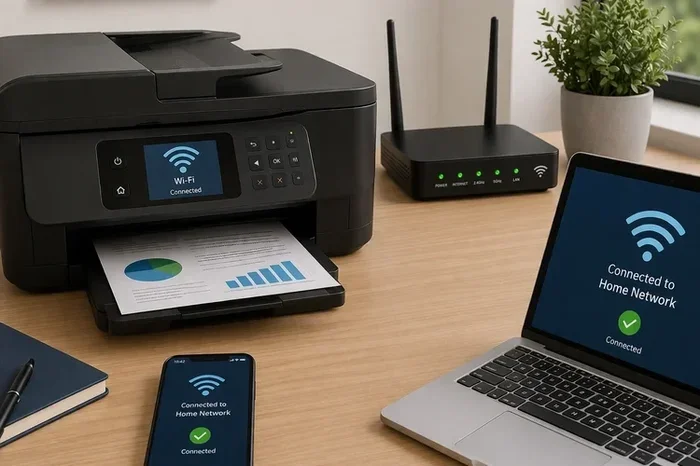
There is also a practical angle. Some devices like smart printers, streaming sticks, or gaming consoles do not have easy keyboard inputs. Sharing WiFi without a password removes that barrier entirely. You can learn more about getting WiFi on your own device here if you need help setting up your base connection first.
Method 1: Use Your Phone as a Mobile Hotspot
The most popular way to share WiFi without a password is to turn your phone into a mobile hotspot. This works on both Android and iPhone. Your phone uses its own data connection and broadcasts it as a new WiFi network. Other devices connect to this network just like any regular WiFi network.
How to Set Up a Mobile Hotspot on Android
- Open your Settings app.
- Tap on Network and Internet or Connections (the name varies by phone).
- Select Hotspot and Tethering.
- Tap WiFi Hotspot and turn it on.
- Set a hotspot name and password of your choice.
- Connect your other device to this new network.
That is it. Your other device now has internet access. Your actual WiFi password stays completely private. You can also check if you can get WiFi without a password on other networks here for more tips.
How to Set Up a Personal Hotspot on iPhone
- Open Settings on your iPhone.
- Tap Personal Hotspot.
- Toggle Allow Others to Join to on.
- Set a password for the hotspot.
- On the other device, find your iPhone in the WiFi settings list.
- Enter the hotspot password and connect.
iPhone also supports a feature called Instant Hotspot. If your iPhone and the other device are signed into the same Apple ID and have Bluetooth and WiFi turned on, the other device can connect automatically without even typing a password. This is incredibly seamless and works like magic.
| Feature | Android Hotspot | iPhone Hotspot |
|---|---|---|
| Setup Time | 1-2 minutes | 1-2 minutes |
| Password-Free Option | Limited (depends on model) | Yes (Instant Hotspot) |
| Data Usage | Uses mobile data | Uses mobile data |
| Max Connected Devices | Usually 5-10 | Usually 5-8 |
| Battery Impact | Moderate to high | Moderate to high |
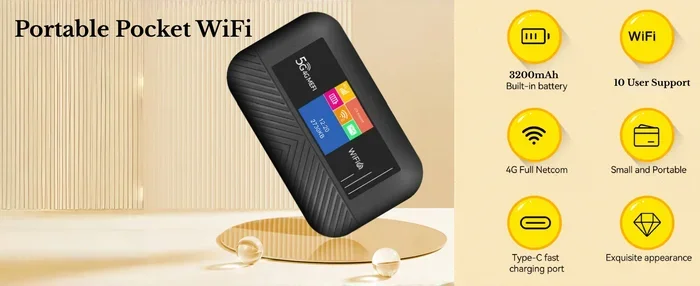
Keep in mind that using your phone as a hotspot drains your battery faster. It also uses your mobile data plan. If you plan to do this often, consider a portable WiFi device or check if your carrier offers a dedicated hotspot plan. You can also learn how to share your mobile data with another phone here for additional options.
Method 2: Share WiFi Using QR Codes
This is one of the coolest and simplest methods. You can generate a QR code that contains your WiFi network name and password. When someone scans the code with their phone camera, it connects automatically. No typing, no errors, no sharing your password out loud.
How to Generate a WiFi QR Code
You can use free websites or apps to create a WiFi QR code. Here is how it works:
- Go to a WiFi QR code generator website on your phone or computer.
- Enter your network name (SSID) and password.
- Choose the security type (usually WPA2).
- The generator creates a QR code instantly.
- Display the QR code on your phone screen or print it out.
- The other person scans it with their phone camera.
- The device connects automatically.
Some routers also let you generate a QR code directly from their admin panel. Check your router settings under Wireless Settings or WiFi Settings. If your router supports this, it is the easiest method of all.
You can also create a QR code for your WiFi and share it with guests without them ever needing to know the actual password. This is especially useful for Airbnb hosts, small business owners, or anyone who frequently has visitors. You can read more about creating a QR code for your WiFi here.
Another great option is to scan an existing QR code to retrieve a WiFi password. If you have seen a QR code posted somewhere but do not know the network name, you can decode it easily. Learn how to see WiFi passwords from QR codes here.
Method 3: Use WiFi Sharing Apps
Several apps are designed specifically to share your WiFi connection with other devices securely. These apps create a bridge between your network and the other device without exposing your main password.
Popular WiFi Sharing Apps
- WiFi Share (Android): A simple app that lets you share your connection with nearby devices using a temporary code.
- ShareMe (Android/iOS): Allows file sharing and network sharing between devices on the same network.
- Xender: Primarily a file-sharing app but also supports network connection sharing.
- ShareIt: Similar to Xender, it can help you transfer data and share connections between devices.
These apps work best when both devices are on the same network or within close range. They use local connections rather than sending data over the internet, which keeps things fast and private.
When choosing a sharing app, stick with well-known options from trusted developers. Avoid lesser-known apps that ask for excessive permissions. Your network security should always come first.
Method 4: Use WPS (WiFi Protected Setup)
WPS is a built-in feature on most modern routers. It allows devices to connect to your WiFi network without typing a password. Instead, you press a button on your router or enter a PIN code, and the device connects automatically.
How to Use WPS to Connect a Device
- Make sure your router has WPS enabled (check the router manual or admin panel).
- On the device you want to connect, go to WiFi settings.
- Select Connect using WPS or Push Button Configuration.
- Press the WPS button on your router within two minutes.
- The device connects automatically.
WPS is convenient but it does have security limitations. Some cybersecurity experts recommend disabling WPS on your router because it can be vulnerable to brute-force attacks. Use it for quick guest connections, but do not rely on it as your primary security method.
If you are looking for ways to get a WiFi connection without an adapter or special hardware, you can find helpful tips here.
Method 5: Use NFC or Bluetooth Pairing
Near Field Communication (NFC) and Bluetooth can also help you share an internet connection without a password. NFC works by tapping two devices together, while Bluetooth creates a direct wireless link between devices.
NFC Sharing
Some Android phones support NFC-based WiFi sharing. You simply tap your phone against another NFC-enabled device, and the WiFi credentials transfer automatically. This is super fast and requires no typing at all.
Bluetooth Tethering
Bluetooth tethering shares your phone’s internet connection through a Bluetooth link. It is slower than WiFi hotspot but works well for basic browsing and messaging. Here is how to set it up:
- Pair both devices via Bluetooth in your settings.
- On the sending device, go to Hotspot and Tethering.
- Enable Bluetooth Tethering.
- The receiving device now has internet access through the Bluetooth connection.
Bluetooth tethering is ideal when you need a low-power, short-range connection. It is also more secure than an open WiFi network because Bluetooth connections require pairing and authentication.
Method 6: Set Up a Guest Network
If you frequently have guests or need to share your WiFi without giving out your main password, a guest network is the best long-term solution. Most modern routers support guest networks. This creates a separate WiFi network with its own name and password (or no password at all).
How to Set Up a Guest Network
- Log in to your router’s admin panel (usually 192.168.1.1 or 192.168.0.1).
- Find the Guest Network section in the settings.
- Enable the guest network and set a name.
- Choose whether to add a password or leave it open.
- Save your settings and connect your guest device.
The guest network keeps your main network private. Guests can access the internet but cannot see your shared files, printers, or other devices on your main network. This is the safest and most professional way to share WiFi without exposing your primary credentials.
If you are wondering about getting a hotspot as an alternative to your main WiFi, you can explore that option here.
Which Method Should You Choose?
Each method has its strengths. Here is a quick guide to help you decide:
- Mobile Hotspot: Best for quick, temporary sharing when you are on the go.
- QR Code: Best for sharing with guests at home or in a business setting.
- Sharing Apps: Best for sharing between similar devices on the same network.
- WPS: Best for one-time connections when you want zero typing.
- NFC/Bluetooth: Best for low-power, short-range connections.
- Guest Network: Best for regular sharing with visitors or tenants.
The right choice depends on your situation. If you are at a coffee shop and need to connect a laptop, use your phone hotspot. If you are at home and a friend is visiting, use a QR code or guest network. For smart devices like TVs or consoles, WPS or QR codes work great.
Common Mistakes to Avoid
When sharing WiFi without a password, people often make a few common mistakes. Avoid these to keep your network safe and your connections smooth.
- Leaving your hotspot on forever: Always turn off your mobile hotspot when you are done. It drains your battery and uses your data plan.
- Using weak or no passwords on guest networks: Even a guest network should have some protection. Use at least a simple password.
- Connecting unknown devices: Only share with devices you trust. Unauthorized connections can slow down your network.
- Ignoring data limits: Mobile hotspot sharing eats through data quickly. Monitor your usage to avoid overage charges.
- Using sketchy sharing apps: Stick to well-reviewed apps from official app stores. Unknown apps can compromise your security.
Being mindful of these mistakes ensures that your WiFi stays fast, secure, and available whenever you need it.
Expert Tips for Seamless WiFi Sharing
Here are some pro tips that make WiFi sharing even easier:
- Label your guest network: Put the network name and password (if any) on a small card near your front door. Guests will thank you.
- Use a WiFi manager app: Apps like WiFi Map or WiFi Analyzer help you monitor connected devices and manage bandwidth.
- Set data limits: Many phones let you set a data usage limit on your hotspot. This prevents accidental overuse.
- Update your router firmware: Keeping your router updated ensures WPS and guest network features work properly and securely.
- Restart your router monthly: A simple restart clears glitches and keeps your WiFi sharing features running smoothly.
Final Thoughts
Sharing your WiFi with another device without a password is not just possible, it is actually quite simple once you know the right method. Whether you use a mobile hotspot, QR codes, sharing apps, WPS, Bluetooth tethering, or a guest network, each option gives you a clean way to get devices online without exposing your main password.
The key is choosing the right method for your situation. Quick get-together? Use a QR code or mobile hotspot. Regular guests? Set up a guest network. On the go? Bluetooth tethering or WPS will do the trick. With these tools in your pocket, you will never have to fumble with long passwords again.
Start with the method that feels most comfortable to you. Practice it once or twice, and it will become second nature. Your friends, family, and guests will appreciate the easy, seamless connection. And your network will stay secure and private. That is a win-win for everyone.
Frequently Asked Questions
Can I share my WiFi password without telling anyone the actual password?
Yes, absolutely. Using QR codes is the easiest way to share your WiFi without revealing the password. Simply generate a QR code with your network details, and anyone who scans it connects automatically. You can also use a guest network with no password or a mobile hotspot to keep your main credentials private.
Is it safe to share my WiFi using a QR code?
Yes, it is safe. A QR code only shares your network credentials with the person who scans it. It does not give them access to your router settings or other devices on your network. However, always make sure you trust the person you are sharing with, and consider changing your password periodically.
Can I share my WiFi without using mobile data?
Yes, you can. Methods like QR codes, WPS, guest networks, and NFC all work with your existing WiFi connection and do not use any mobile data. Only the mobile hotspot method uses your cellular data plan to create a new shared network.
What is the fastest way to share WiFi with a guest?
The fastest way is using a QR code or NFC pairing. Both methods take just a few seconds. The guest scans the code or taps their phone against yours, and they are connected instantly without typing anything. Mobile hotspot is also very fast but requires the other person to find and select the network first.
Can I limit how many devices connect when I share my WiFi?
Yes, you can. Most routers let you set a limit on the number of devices connected to your guest network. You can also manage connected devices through your router admin panel. On mobile hotspots, you can usually see connected devices and disconnect any that should not be there.
Do I need special equipment to share WiFi without a password?
No special equipment is needed. Your smartphone and your existing WiFi router are all you need for most methods. Some methods like NFC require both devices to support NFC, but this is common in modern phones. QR code sharing only requires a camera on the receiving device, which every smartphone has today.
=== CONCLUSION ===
Now you know exactly how can I share my WiFi with another device without password using six different practical methods. From mobile hotspots and QR codes to guest networks and Bluetooth tethering, you have plenty of options to choose from. Each method keeps your main password private while getting your friend or device connected to the internet quickly and easily.
Pick the method that fits your situation best and give it a try today. Once you start using QR codes or guest networks, you will wonder how you ever lived without them. Share this guide with anyone who struggles with WiFi password sharing, and help make connections easier for everyone.