Does Changing Your Wi Fi Password Disconnect Everyone
Changing your Wi-Fi password will disconnect all currently connected devices. Every gadget on your network loses access until the new password is entered. Understanding how this process works helps you avoid frustration and plan your password update with minimal disruption.
This is a comprehensive guide about Does Changing Wi Fi Password Disconnect Everyone.
Key Takeaways
- All devices get disconnected: Every phone, laptop, and smart home gadget loses connection when you change the password.
- Reconnection is required: Each device needs the new password entered before it can access the network again.
- Smart home devices may need extra attention: IoT gadgets like cameras and thermostats often reconnect slowly or need manual setup.
- Guest networks stay separate: If you have a guest network, changing the main password does not affect it.
- QR codes simplify reconnection: You can create a new QR code for your Wi-Fi to make reconnecting easier for guests.
- Schedule changes wisely: Pick a time when fewer people need internet access to minimize disruption.
[FEATURED_IMAGE_PLACEHOLDER]
Does changing your Wi-Fi password disconnect everyone? The short answer is yes. When you update the password on your wireless router, every single device currently connected to that network gets kicked offline. This includes phones, laptops, tablets, smart TVs, and even smart home gadgets like thermostats and cameras.
But here is the thing. It is not as scary as it sounds. Once you know what to expect and how to handle it, the whole process becomes quick and painless. Changing your Wi-Fi password is one of the most important steps you can take to keep your home network secure. Whether you suspect someone is using your internet without permission or you just want to refresh your security, this guide covers everything you need to know.
Your home network is the backbone of your daily internet life. Every device that goes online in your house runs through your router. So when you change the network password, it affects all of them at once. Understanding this helps you plan ahead and avoid the panic of suddenly losing internet access mid-task.
This article walks you through exactly what happens when you change your password, which devices get affected, and how to reconnect everything smoothly. You will also learn best practices for keeping your wireless network safe without making your life harder. Let us dive in.
## What Happens When You Change Your Wi-Fi Password
### The Disconnection Process
The moment you save a new password on your router, all active connections are terminated. Your router stops accepting the old credentials and only recognizes the new one. This is by design. It is how your network security stays intact.
Think of it like changing the lock on your front door. Anyone who had the old key can no longer get in. They need the new key. The same principle applies to your Wi-Fi connection. Every device that was connected now shows a “disconnected” or “no internet” status until someone enters the updated password.
This disconnection happens instantly. There is no gradual fade-out. One second everything works, and the next second, nothing does. For most people, this goes unnoticed. But if you are in the middle of a video call or downloading something, it can be annoying.
### Which Devices Are Affected?
Pretty much everything that uses Wi-Fi in your home will be affected. Here is a quick look at the common culprits:
- Smartphones and tablets – Both Android and iOS devices lose connection and prompt you to re-enter the password.
- Laptops and desktops – Computers that saved the old password will need to be updated in their network settings.
- Smart TVs and streaming devices – Roku, Apple TV, Chromecast, and similar devices will show a connection error.
- Smart home gadgets – Smart speakers, security cameras, and smart plugs may struggle to reconnect automatically.
- Gaming consoles – PlayStation, Xbox, and Nintendo Switch all need the new password re-entered.
- Printers and scanners – Wireless printers will lose their network connection until updated.
The number of devices affected depends on how many gadgets you have connected to your home network. The average household has anywhere from 10 to 25 connected devices. That is a lot of reconnection work if you are not prepared.
## Why People Change Their Wi-Fi Password
### Security Concerns
The most common reason people change their Wi-Fi password is security. If you have ever shared your password with a visitor and forgot to change it afterward, your network could be vulnerable. Network password hygiene is important for keeping strangers off your connection.
Another security concern is when neighbors or nearby users piggyback on your network. This can slow down your speeds and put your personal data at risk. Changing the password kicks out anyone who should not be there. It is a simple but effective way to protect your internet router and all the data flowing through it.
### Moving Into a New Home
If you have just moved into a new place, changing the default Wi-Fi password is a smart move. Many routers come with generic passwords printed on a sticker. These are easy to guess and not secure at all. Setting a strong, unique password from day one keeps your wireless network safe from the start.
### After a Data Breach or Suspicious Activity
Sometimes you do not even know someone is on your network until you notice slow speeds or unusual activity in your router logs. In these cases, changing the password is an immediate response to regain control of your network configuration. It is like locking the windows after noticing someone peeking in.
## How to Change Your Wi-Fi Password Without Losing Your Mind
### Step-by-Step Guide
Changing your Wi-Fi password does not have to be chaotic. With a little planning, you can do it smoothly and reconnect everything in minutes.
- Write down the current password. Before you do anything, make sure you know the existing password in case you need to reference it.
- Log into your router admin panel. Open a browser and type in your router’s IP address, usually 192.168.1.1 or 192.168.0.1.
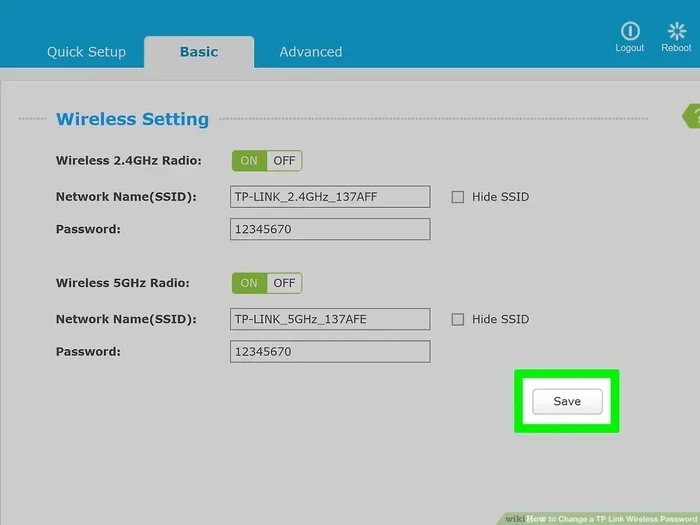
- Navigate to wireless settings. Look for the wireless or Wi-Fi settings section in your router dashboard.
- Enter the new password. Choose a strong password that is at least 12 characters long with a mix of letters, numbers, and symbols.
- Save and apply the changes. Your router will restart the wireless signal, and all devices will disconnect.
- Reconnect your own devices first. Start with the devices you use most often, like your phone and laptop.
- Reconnect all other devices. Go through the rest of your gadgets one by one and enter the new password.
Following these steps keeps you organized. You will not be left wondering why your smart speaker stopped working or why your printer will not print.
### Quick Tips for a Smooth Transition
Here are some practical tips that make the process easier:
- Do it during off-peak hours. Change the password late at night or early in the morning when fewer people need the internet.
- Have the new password ready on your phone. Keep the new password in your notes app so you can pull it up quickly for each device.
- Update your devices in batches. Group similar devices together, like all Apple products first, then all smart home gadgets.
- Restart your router after changing the password. This ensures the new settings take full effect across the network.
- Use a password manager. Save the new Wi-Fi password in a trusted password manager so you never forget it.
A little preparation goes a long way. The smoother your transition, the less frustrating the whole experience will be.
## How Long Does It Take to Reconnect Everything?
### For Small Households
If you live alone or with one other person and have around 5 to 10 connected devices, reconnecting should take about 10 to 15 minutes. Most modern devices make it easy. You just go to your Wi-Fi settings, select your network, and type in the new password.
### For Larger Households
Larger families with 20 or more connected devices can expect the process to take 30 minutes or more. Smart home devices in particular can be tricky. Some gadgets like smart plugs and sensors do not have a screen or keyboard, which means you may need to use a companion app to re-enter the password.
### For Smart Home Devices Specifically
Smart home devices deserve special attention because they do not always reconnect automatically. Devices like security cameras, smart doorbells, and baby monitors often need to be put into pairing mode before you can update their network credentials. This can add extra time to the reconnection process.
If you want to make sharing your new password easier for guests, consider creating a QR code for your Wi-Fi. You can check out how to create a QR code for your Wi-Fi to simplify things for visitors.
## Common Mistakes People Make When Changing Their Wi-Fi Password
### Forgetting to Update Smart Home Devices
This is the number one mistake people make. They reconnect their phones and laptops but forget about the smart thermostat, the wireless camera, or the smart lock. These devices stay offline until someone manually updates their connection. To avoid this, make a checklist of all your smart gadgets before you start the password change.
### Choosing a Weak New Password
Some people change their password but pick something easy to guess, like “password123” or their street name. A weak password defeats the whole purpose of changing it. Always choose a strong, unique password that is hard to crack. Use a mix of uppercase letters, lowercase letters, numbers, and special characters.
### Not Writing Down the New Password
It sounds simple, but many people change the password and then forget it a week later. Write it down in a safe place or save it in a password manager. If you need to change your password again later, you will be glad you did.
### Changing the Password Too Often Without Reason
There is no need to change your Wi-Fi password every month unless you have a specific reason to do so. Frequent password changes can lead to confusion and make it harder to keep track of which password is current. Stick to a reasonable schedule, like every 6 to 12 months, or whenever you suspect a security issue.
## Does Changing the Password Affect Your Internet Speed?
### The Short Answer
No. Changing your Wi-Fi password does not affect your internet speed. The password is just a gatekeeper. It controls who can access the network. It does not change how fast data flows through your connection.
### Why People Think It Affects Speed
After changing a password, some users notice slower speeds. But this is usually because too many devices are trying to reconnect at the same time. When all your gadgets hit the router simultaneously, it can cause temporary slowdowns. Once everything is reconnected, your speeds should return to normal.
### When Speed Issues Are Real
If you notice ongoing speed problems after changing the password, the issue is likely not the password itself. It could be a router overload, interference from other networks, or an issue with your internet service provider. Try restarting your router and checking for any firmware updates to resolve these issues.
## Guest Networks: Do They Stay Connected?
### How Guest Networks Work
Most modern routers let you set up a separate guest network. This is a second Wi-Fi network that visitors can use without accessing your main network. The great thing about a guest network is that changing your main password does not affect it at all.
### Should You Change Guest Passwords Too?
If you want full control over who accesses your network, you should update the guest network password as well. However, if you keep the guest password the same, your visitors will still have internet access while you change the main one. This can be a nice trick if you do not want to disrupt your own devices during the change.
If you are concerned about privacy on your guest network, you might want to check whether guests can see your browsing activity. You can learn more about whether guest Wi-Fi can see what you search to understand the privacy implications.
## Expert Insights on Wi-Fi Password Management
### Keep Your Router Firmware Updated
Security experts always recommend keeping your router firmware up to date. Firmware updates patch vulnerabilities that hackers could exploit. A strong password paired with updated firmware gives you the best protection for your home network.
### Use WPA3 Encryption When Possible
If your router supports WPA3 encryption, use it. WPA3 is the latest and most secure Wi-Fi encryption standard. It provides better protection than older standards like WPA2. Even with a strong password, using outdated encryption leaves your network more vulnerable.
### Monitor Connected Devices Regularly
Make it a habit to check your router’s connected devices list every few weeks. Most router admin panels show a list of all devices currently on the network. If you see something you do not recognize, it is time to change your password and tighten your security.
## Frequently Asked Questions
Will changing my Wi-Fi password disconnect my smart home devices?
Yes, changing your Wi-Fi password will disconnect all smart home devices. These devices need to be manually reconnected using the new password, often through their companion app. Smart plugs, cameras, and sensors are especially affected because they do not have easy-to-use screens for entering passwords.
How long does it take to reconnect all devices after a password change?
For most households, reconnecting all devices takes between 15 and 30 minutes. The exact time depends on how many devices you have and whether any of them are smart home gadgets that require extra setup steps. Being organized and having the new password ready helps speed things up significantly.
Do I need to restart my router after changing the password?
Most routers apply the new password immediately without needing a restart. However, restarting your router can help ensure all settings are fully applied and that the network runs smoothly. It is a good habit to restart after making any changes to your router settings.
Can I change my Wi-Fi password from my phone?
Yes, you can change your Wi-Fi password from your phone if you have access to your router’s admin panel through a mobile browser or a router companion app. You will need to log in with your admin credentials first. You can also change your password from your phone using specific apps or settings depending on your device.
What happens to devices that are turned off during the password change?
Devices that are turned off or offline during the password change will not be disconnected in real time. However, when you turn them back on, they will try to connect using the old password and fail. You will need to manually update the password on those devices before they can reconnect to the network.
Should I use the same password for my main and guest networks?
No, it is best to use different passwords for your main and guest networks. This adds an extra layer of security and prevents guests from accidentally accessing shared files or devices on your primary network. Keeping them separate gives you better control over who sees what on your wireless network.
## Conclusion
Changing your Wi-Fi password does disconnect everyone on the network. There is no way around it. Every device that was connected will lose access and need the new password to get back online. But with the right approach, this process does not have to be stressful or time-consuming.
The key is preparation. Know which devices you have, write down the new password, and reconnect everything in a logical order. Start with the devices you use most and work your way through the rest. Give special attention to smart home gadgets that may need extra steps to reconnect.
Changing your Wi-Fi password is one of the simplest and most effective things you can do to protect your home network. It keeps your personal data safe, prevents unauthorized users from slowing down your connection, and gives you peace of mind. Make it a regular part of your digital hygiene routine, and you will never have to worry about unwanted guests on your network.
Take action today. Pick a time when your household is not heavily using the internet, follow the steps in this guide, and enjoy a safer, more secure Wi-Fi connection for everyone.
Frequently Asked Questions
What is Does Changing Wi Fi Password Disconnect Everyone?
Does Changing Wi Fi Password Disconnect Everyone is an important topic with many practical applications.