How Do I Change My Bluetooth Audio Settings Quickly
Changing your bluetooth audio settings is easier than you think. Whether you want better sound quality, faster pairing, or to switch audio outputs, this guide covers everything. You will learn how to adjust settings on Windows, Mac, Android, and iPhone in just minutes.
Ever found yourself stuck with poor sound coming from your bluetooth audio settings? Maybe your wireless headphones keep cutting out, or your audio output is routed to the wrong device. Whatever the issue, knowing how to change your bluetooth audio settings quickly can save you a ton of frustration.
Bluetooth technology has come a long way, but many people still struggle to get the most out of their wireless audio devices. The good news is that adjusting these settings does not require any technical expertise. In this guide, we will walk you through everything you need to know. We will cover every major platform and give you practical tips you can use right away.
By the end of this article, you will understand how bluetooth connectivity works, how to tweak your audio output for the best sound, and how to fix common problems. Let us dive in and take control of your wireless audio experience.
Key Takeaways
- Quick Access: You can change bluetooth audio settings in seconds using built-in device tools.
- Multiple Devices: The process works on Windows, Mac, Android, and iPhone with slight differences.
- Sound Quality Matters: Adjusting audio codecs and profiles can significantly improve your listening experience.
- Troubleshooting Helps: Simple fixes like resetting paired devices solve most bluetooth audio problems.
- Advanced Options Exist: Expert settings let you fine-tune latency, range, and output preferences.
📑 Table of Contents
- Understanding Bluetooth Audio Settings
- How to Change Bluetooth Audio Settings on Windows
- How to Change Bluetooth Audio Settings on Mac
- How to Change Bluetooth Audio Settings on Android
- How to Change Bluetooth Audio Settings on iPhone and iPad
- Troubleshooting Common Bluetooth Audio Issues
- Expert Tips for Optimizing Bluetooth Audio
- Quick Tips Summary
- Final Thoughts
Understanding Bluetooth Audio Settings
Before you start changing settings, it helps to understand what you are working with. Bluetooth audio settings control how your device connects to wireless speakers, headphones, and other audio gear. These settings determine things like sound quality, volume balance, and which device plays your audio.
When you pair a bluetooth device, your operating system creates a bluetooth profile. This profile defines what the device can do. For example, the A2DP profile handles high-quality music playback, while the HFP profile handles calls. Understanding these profiles helps you make smarter choices when adjusting your audio preferences.
What Is a Bluetooth Audio Profile?
A bluetooth profile is basically a set of rules that tells your device how to communicate with another device over bluetooth. Think of it like a language two devices use to talk to each other. The most common profiles you will encounter include:
- A2DP (Advanced Audio Distribution Profile): This handles high-quality stereo audio for music and media playback.
- HFP (Hands-Free Profile): This manages calls and microphone input for headsets.
- AVRCP (Audio/Video Remote Control Profile): This lets you control playback with play, pause, and skip buttons.
When you change your bluetooth audio settings, you are essentially choosing which profile to prioritize. This choice directly affects your sound quality and what features are available.
Why Sound Quality Varies Between Devices
Not all bluetooth audio sounds the same. Several factors influence the quality of your wireless connection. Your bluetooth version matters a lot. Newer versions like Bluetooth 5.0 and above offer better range and audio codecs. Older versions may limit your sound quality even if your headphones are top-notch.
Another factor is the audio codec your device supports. Codecs are like compression formats for audio. Some codecs like aptX and LDAC deliver near-lossless sound over bluetooth. Others like the default SBC codec provide standard quality. When you know which codec your device uses, you can make better decisions about your wireless audio setup.
How to Change Bluetooth Audio Settings on Windows
Windows makes it relatively easy to adjust your bluetooth audio settings. Whether you want to switch your default audio output or fine-tune your sound preferences, Windows has built-in tools for the job.
Step-by-Step: Changing Default Audio Output
Follow these steps to change which bluetooth device plays your audio on Windows:
- Click the Start menu and open Settings.
- Go to System and then click on Sound.
- Scroll down to the Output section.
- You will see a list of available devices. Click on your bluetooth headphones or speaker.
- Your audio will now route to that device.
This is the fastest way to switch between your wired speakers and wireless connection. You can also do this from the volume icon in your taskbar. Just click the volume slider and select your output device from the list.
Adjusting Audio Quality and Codecs on Windows
For more advanced control, you can tweak your audio codec settings. Here is how:
- Right-click the Start button and open Device Manager.
- Expand the Bluetooth section.
- Right-click your bluetooth adapter and select Properties.
- Go to the Advanced tab to explore codec and quality options.
Keep in mind that not all bluetooth adapters support every codec. If you do not see certain options, your hardware may not support them. In that case, updating your audio driver can sometimes unlock additional features.
How to Change Bluetooth Audio Settings on Mac
Mac users have a slightly different but equally straightforward process. Apple keeps things clean and simple, which makes adjusting your bluetooth audio settings a breeze.
Switching Audio Output on macOS
Here is how to change your audio output on a Mac:
- Click the Apple menu and go to System Preferences.
- Select Sound.
- Click on the Output tab.
- Choose your bluetooth device from the list.
Your Mac will remember your preferred output device. However, sometimes it switches back to built-in speakers after a restart. If this happens, simply repeat the steps above to set your wireless headphones as the default again.
Managing Bluetooth Profiles on macOS
macOS handles bluetooth profiles automatically in most cases. When you connect a headset for calls, it switches to the HFP profile. When you play music, it switches back to A2DP. You do not need to manually change profiles unless you are experiencing issues.
If your bluetooth connectivity feels slow or your audio sync is off, try turning your bluetooth off and back on. This simple reset often fixes minor glitches without any technical know-how.
How to Change Bluetooth Audio Settings on Android
Android phones give you a lot of control over your bluetooth audio settings. The exact steps may vary slightly depending on your phone brand and Android version, but the general process is similar across devices.
Switching Audio Output on Android
Here is how to route your audio to a different bluetooth device:
- Open your phone Settings.
- Go to Connected Devices or Bluetooth (the name varies by brand).
- Find your paired device and tap the gear icon next to it.
- Look for audio output options and select your preferred device.
Some Android phones also let you change audio quality settings for each paired device. Look for options like LDAC or aptX in the developer settings if your phone supports them. These high-quality codecs can make a big difference in sound quality.
Managing Bluetooth Audio on Samsung and Google Pixel
Samsung phones have a dedicated bluetooth settings menu under Connections. Google Pixel phones keep it under Connected Devices. Both offer similar features but with slightly different layouts. On Samsung, you can also adjust the audio balance between left and right channels directly in the bluetooth settings menu.
If you use wireless headphones for gaming or video calls, pay attention to audio latency. Some codecs reduce lag better than others. Experiment with different settings to find what works best for your use case.
How to Change Bluetooth Audio Settings on iPhone and iPad
Apple devices keep bluetooth audio settings simple and accessible. You can quickly switch between devices and adjust audio preferences without digging through complex menus.
Switching Audio Output on iPhone
Here is the quickest way to change your audio output on an iPhone:
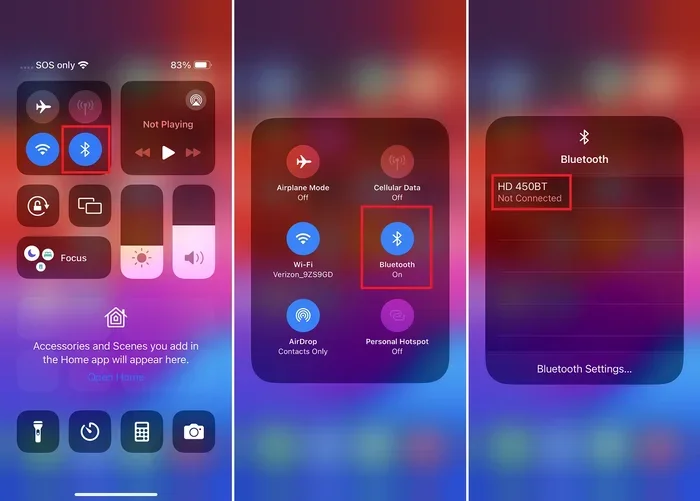
- Open Control Center by swiping down from the top-right corner.
- Tap and hold the audio control card in the top-right corner.
- Tap the Output icon (it looks like a triangle with lines above it).
- Select your bluetooth device from the list.
This method works instantly and is much faster than going through Settings. You can use it to switch between your AirPods, car stereo, or a bluetooth speaker in seconds.
Customizing Bluetooth Audio on iPad
The process on iPad is nearly identical. You can also go to Settings > Bluetooth to manage individual device settings. On iPad, you have the option to share audio across multiple bluetooth devices simultaneously. This feature is great for watching movies with a friend using two pairs of wireless headphones.
If you experience audio latency or intermittent bluetooth connectivity, restarting both your iPhone and the audio device usually resolves the issue. Keeping your iOS updated also helps, as Apple regularly improves bluetooth audio performance with each update.
Troubleshooting Common Bluetooth Audio Issues
Even with the best bluetooth audio settings, you may run into problems from time to time. The good news is that most issues have simple fixes. Here are the most common problems and how to solve them.
Audio Keeps Cutting Out or Disconnecting
Intermittent disconnections are one of the most annoying bluetooth troubleshooting issues. They usually happen because of distance or interference. Try these fixes:
- Move closer to your bluetooth device. The typical bluetooth range is about 30 feet.
- Remove physical obstacles like walls between your devices.
- Turn off other wireless devices nearby that might cause interference.
- Forget the device on your phone and re-pair it from scratch.
If the problem persists, your bluetooth adapter or headphones may need a firmware update. Check the manufacturer’s app for available updates.
Audio and Video Are Out of Sync
Audio sync issues are common when watching videos or playing games. This delay is called latency, and it happens because bluetooth takes time to transmit audio. Here is how to reduce it:
- Use a lower-latency audio codec like aptX Low Latency if your device supports it.
- Reduce the distance between your device and the audio output.
- Close other apps that might be using bandwidth on your phone or computer.
Some users find that switching from one bluetooth device to another temporarily fixes sync issues. This is because different devices handle latency differently.
Poor Sound Quality or Static Noise
If your wireless audio sounds muffled or has static, try these steps:
- Check that your bluetooth device is fully charged. Low battery can reduce audio quality.
- Go to your audio settings and make sure the volume is not being limited by software.
- Reset your bluetooth connection by turning it off and back on.
- If you are using a bluetooth speaker, check if it has an equalizer app you can use to adjust the sound.
In some cases, the issue comes from your source device. For example, if you are streaming music, the app’s own audio settings might be compressing the sound. Try adjusting the equalizer within the music app itself.
Device Not Showing Up in Bluetooth List
Sometimes your bluetooth device simply does not appear when you search for it. This can be frustrating, but it is usually easy to fix:
- Make sure your device is in pairing mode. Most devices need to be held in a specific button combination to enter pairing mode.
- Turn off bluetooth on your phone or computer, wait five seconds, and turn it back on.
- Remove old or unused pairings from your device list to free up space.
- Restart both devices and try again.
If none of these work, the bluetooth adapter on your computer might need updating. On Windows, you can do this through Device Manager. On Mac, system updates usually handle driver updates automatically.
Expert Tips for Optimizing Bluetooth Audio
Once you have your bluetooth audio settings dialed in, a few extra tips can help you get even better performance from your wireless devices.
Keep Your Devices Close
Bluetooth range can be affected by walls, furniture, and even your body. For the best bluetooth connectivity, keep your audio source within a few feet of your wireless device. This is especially important for activities like gaming or watching movies where audio sync matters.
Update Your Firmware Regularly
Manufacturers often release firmware updates that improve bluetooth audio performance. These updates can fix bugs, improve sound quality, and add support for new codecs. Check your device manufacturer’s app regularly for updates.
Use the Right Codec for the Right Task
Not every situation needs the highest-quality codec. For phone calls, the HFP profile is perfectly fine. For listening to music, switch to A2DP with a high-quality codec like aptX or LDAC. Understanding when to use each profile helps you balance sound quality with battery life.
Consider a Bluetooth Adapter for Older Devices
If your laptop or desktop does not have built-in bluetooth, a USB bluetooth adapter can add wireless audio capability. Look for adapters that support Bluetooth 5.0 or higher for the best performance. This is a great way to upgrade older computers without spending a lot of money.
Some adapters also support multipoint connections, which let you connect to two bluetooth devices at the same time. This is handy if you want to switch between your phone and your laptop seamlessly.
Quick Tips Summary
Here are some fast reminders to keep your bluetooth audio settings working at their best:
- Restart both devices when you experience connection issues.
- Keep firmware updated on your headphones, speakers, and source device.
- Check your audio output before assuming there is a hardware problem.
- Use high-quality codecs like aptX or LDAC when available for better sound quality.
- Reduce distance between devices to improve bluetooth connectivity and reduce latency.
- Forget and re-pair devices if connection problems persist after a restart.
These simple habits will keep your wireless audio running smoothly and help you avoid most common bluetooth troubleshooting headaches.
Final Thoughts
Changing your bluetooth audio settings does not have to be complicated. With the right knowledge, you can adjust your audio output, improve sound quality, and fix most problems in just a few minutes. Whether you are on Windows, Mac, Android, or iPhone, the process is straightforward once you know where to look.
Remember that bluetooth connectivity depends on several factors, including your device’s hardware, the bluetooth version you are using, and even your physical environment. By following the tips in this guide, you are setting yourself up for the best possible wireless audio experience.
Take a few minutes today to review your bluetooth audio settings on each of your devices. You might be surprised at how much better your sound can be with just a few small changes. Happy listening!
Frequently Asked Questions
Can I change my Bluetooth audio settings on a smart speaker?
Yes, most smart speakers let you adjust bluetooth audio settings through their companion app. You can change the output device, adjust volume, and even switch between different paired devices. The exact steps depend on your speaker brand.
Why does my Bluetooth audio sound different on different devices?
Different devices support different audio codecs and bluetooth versions. A newer phone may use a better codec than an older laptop, resulting in noticeably different sound quality. Always check which codecs your devices support for the best experience.
How do I switch my Bluetooth audio output while watching a movie?
On most devices, you can swipe down to access quick settings and tap the audio output icon. On Windows, right-click the volume icon and select your bluetooth device. On iPhone, open Control Center and tap the audio output button. This works on any wireless headphones or speaker you have paired.
Can I use my Bluetooth headset for both calls and music?
Yes, most bluetooth headsets support both the HFP profile for calls and the A2DP profile for music. Your device will automatically switch between them based on what you are doing. You can also check your audio preferences to prioritize one profile over the other.
Does changing Bluetooth audio settings affect battery life?
Yes, it can. Using high-quality audio codecs like aptX or LDAC uses more battery than the standard SBC codec. If battery life is a concern, switch to a simpler codec. Also, keeping your bluetooth device close to the source reduces power consumption.
What should I do if my Bluetooth audio keeps cutting out?
Start by moving closer to your bluetooth device and removing physical barriers. If that does not work, forget the device and re-pair it. Also check for firmware updates on both devices. Persistent issues may indicate a problem with your bluetooth adapter or the audio device itself.