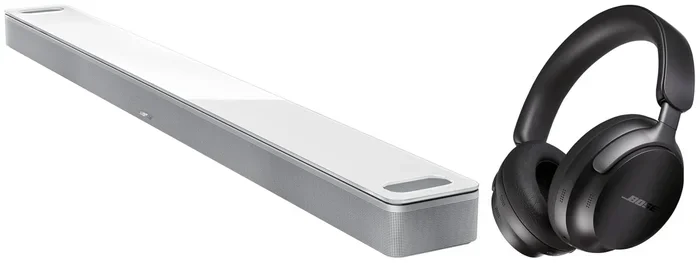
Can You Pair Headphones To A Soundbar For Better Sound
Yes, you can pair headphones to a soundbar in most cases, and it is a great way to enjoy better sound without disturbing others. Whether you use Bluetooth, a 3.5mm cable, or an optical adapter, connecting headphones to your soundbar opens up new listening options for late-night watching, gaming, and focused audio sessions.
Have you ever wanted to watch a movie or play a game with great audio, but did not want to wake up the whole house? Pairing headphones to a soundbar solves that problem fast. It lets you enjoy rich, deep sound through your headphones while your soundbar handles the heavy lifting of audio processing.
The good news is that this is easier than most people think. You do not need to be a tech expert to make it work. In this guide, we walk you through every method, every problem, and every tip you need to know about pairing headphones to a soundbar for better sound. Let us dive in.
Key Takeaways
- Bluetooth pairing is the most common method: Most modern soundbars support Bluetooth headphone connections out of the box.
- Wired connections work too: A 3.5mm cable or optical adapter can link headphones to a soundbar when Bluetooth is not available.
- Latency can be an issue: Wireless connections may introduce a slight audio delay, especially during gaming or fast video scenes.
- Not all soundbars support headphone output: Check your model’s specs before buying, since some brands limit audio output options.
- You can use this setup for gaming: Pairing headphones to a soundbar improves immersion and keeps your audio private.
- Multiple headphones can connect: Some soundbars allow two pairs of Bluetooth headphones to connect at the same time.
📑 Table of Contents
- What Happens When You Pair Headphones To A Soundbar
- How To Pair Headphones To A Soundbar Step By Step
- Best Headphones To Use With A Soundbar
- Common Problems When Pairing Headphones To A Soundbar
- Can You Use A Soundbar Without Speakers When Headphones Are Connected
- Expert Tips For The Best Audio Experience
- Final Thoughts
What Happens When You Pair Headphones To A Soundbar
When you connect headphones to a soundbar, the soundbar acts like a middleman. It takes the audio signal from your TV or source device, processes it, and then sends it to your headphones. This means you still get the full sound quality and effects your soundbar is designed to deliver, but now it goes straight to your ears.
Here is what changes when you make this connection:
- Private listening: No one else hears the audio unless they also wear headphones.
- Better focus: You hear every detail in movies, music, and games without background noise.
- Late-night watching: Watch shows at any hour without worrying about volume levels.
- Shared listening: Some soundbars let two pairs of headphones connect at once.
- Reduced echo: Headphones eliminate the sound bouncing around your room.
The experience feels almost like having a personal theater in your ears. The soundbar still processes the audio, so you keep all the surround effects, bass enhancement, and clarity upgrades. You just get them delivered privately through your headphones.
How The Audio Signal Travels
Understanding the signal path helps you troubleshoot problems later. The audio starts at your TV or streaming device. It travels to the soundbar through an HDMI cable, optical cable, or Bluetooth connection. Then the soundbar processes the audio and sends it to your headphones using one of several output methods.
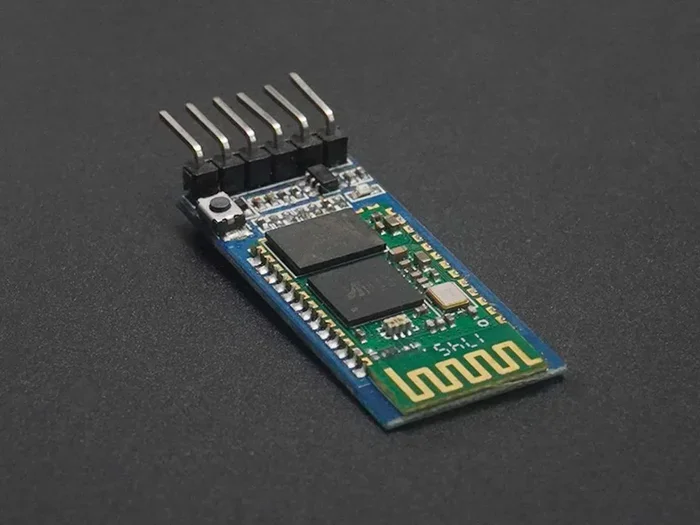
Some soundbars use Bluetooth technology to send audio directly to wireless headphones. Others use a physical 3.5mm headphone jack or a USB output. The method depends on your soundbar model and the type of headphones you own.
For more on how soundbars handle different audio connections, check out our guide on Can I Connect A Soundbar With Hdmi Without Arc to understand the various input and output options available.
How To Pair Headphones To A Soundbar Step By Step
The pairing process depends on whether your headphones and soundbar both support Bluetooth or if you need a wired connection. Below we cover the three most common methods.
Method 1: Bluetooth Pairing (Wireless)
This is the easiest and most popular way to connect headphones to a soundbar. Most soundbars made after 2020 include Bluetooth headphone support built in.
- Turn on your soundbar and make sure it is connected to your TV.
- Put your headphones in pairing mode. Usually you hold down the Bluetooth button until a light flashes.
- On your soundbar remote, press the Bluetooth or Pairing button.
- Select your headphones from the list of available devices.
- Wait for the connection to confirm. You will hear a tone or see a light change.
Once paired, the soundbar sends audio directly to your headphones. You can adjust the volume using either the soundbar remote or your headphone controls.
If you are into gaming, this setup works great for immersive gaming audio. You get the rich sound from your soundbar without any lag that breaks your experience. For tips on optimizing Bluetooth audio for gaming, see our article on Can I Use Bluetooth Headphones For Gaming.
Method 2: Using A 3.5mm Cable (Wired)
Not every soundbar has Bluetooth headphone support. In that case, a simple wired connection saves the day. Most soundbars have a headphone output jack on the back or side panel.
- Find the headphone jack on your soundbar. It is usually labeled “HP OUT” or “HEADPHONE.”
- Plug one end of a 3.5mm audio cable into the soundbar.
- Plug the other end into your headphones.
- Turn on the soundbar and play audio. It now routes through your headphones.
This method works with any headphones that have a standard 3.5mm plug. You do not need batteries or Bluetooth. The connection is instant and reliable. The only downside is a cable limits your movement.
Method 3: Using An Adapter (Optical Or USB)
Some soundbars do not have a direct headphone jack. In this situation, an adapter bridges the gap. You can use an optical-to-3.5mm adapter or a USB-to-headphone adapter depending on what outputs your soundbar offers.
- Optical-to-3.5mm adapter: Connects to the optical out port on your soundbar and converts the signal to a headphone-compatible output.
- USB audio adapter: Plugs into a USB port on the soundbar and provides a headphone jack output.
Adapters are inexpensive and widely available online. They work with almost any headphone type and give you flexibility when the built-in options fall short.
Best Headphones To Use With A Soundbar
Not all headphones pair well with soundbars. The best choice depends on your needs, budget, and how you plan to use the setup. Here are the top options that work great with soundbar pairing.
| Headphone Type | Best For | Connection | Pros | Cons |
|---|---|---|---|---|
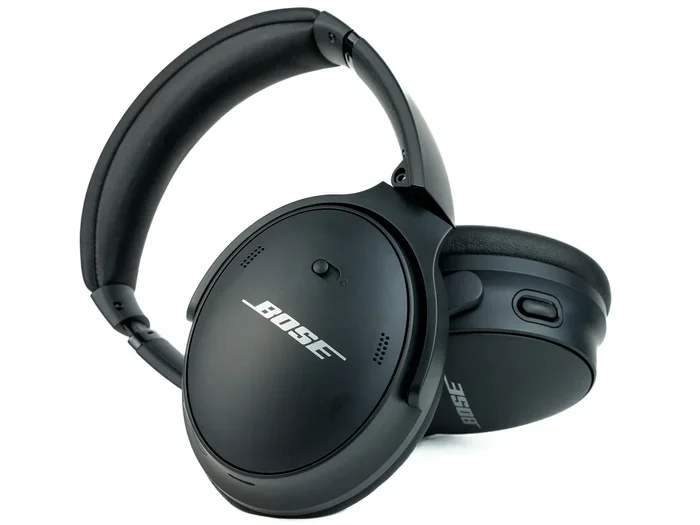
| Bluetooth Over-Ear | Movie nights | Wireless | Comfort, great bass, long battery | Slight audio delay possible |
| Bluetooth In-Ear | Light gaming | Wireless | Portable, lightweight, easy to store | Smaller drivers, less bass |
| Wired Over-Ear | Gaming and music | 3.5mm cable | Zero latency, consistent quality | Cable limits movement |
| Wireless Gaming Headset | Competitive gaming | USB dongle or Bluetooth | Low latency, mic included, surround sound | Expensive, needs charging |
For the best experience, choose headphones with low latency Bluetooth support. Standard Bluetooth headphones may have a slight delay between the video and audio. Gaming headsets with dedicated wireless receivers solve this problem almost completely.
Many people also ask about using headphones with gaming consoles. If you use a Nintendo Switch, you can check out our guide on Can I Use Bluetooth Headphones With Switch for more pairing tips that apply to soundbar setups too.
What To Look For In Soundbar-Compatible Headphones
When shopping for headphones to pair with your soundbar, keep these factors in mind:
- Bluetooth version: Look for Bluetooth 5.0 or higher for a more stable connection and less lag.
- Codec support: Headphones that support aptX or LDAC codecs deliver better audio quality over Bluetooth.
- Battery life: Choose headphones that last at least 20 hours for long movie sessions.
- Comfort: Over-ear designs are best for extended listening without ear fatigue.
- Multipoint connection: Some headphones can connect to two devices at once, which is handy for switching between TV and phone.
Common Problems When Pairing Headphones To A Soundbar
Even though the process is simple, problems can pop up. Here are the most common issues and how to fix them fast.
Headphones Will Not Connect
If your headphones will not pair with the soundbar, try these steps:
- Turn off Bluetooth on both devices and turn them back on.
- Make sure your headphones are in pairing mode.
- Move the headphones closer to the soundbar.
- Check if the soundbar has a headphone output mode you need to enable in the settings.
- Remove old paired devices from the soundbar’s Bluetooth memory and try again.
Audio Delay Or Lag
A slight delay between the video and audio is the most common complaint with wireless headphone connections. This happens because Bluetooth takes a tiny bit of time to transmit the audio signal.
To reduce lag:
- Use headphones with low-latency Bluetooth codecs like aptX Low Latency.
- Sit closer to the soundbar to strengthen the Bluetooth signal.
- For gaming, consider a wired connection or a USB wireless dongle instead.
- Check if your TV has an audio delay setting you can adjust.
Sound Cuts Out Intermittently
Intermittent cutouts usually happen because of wireless interference. Other Bluetooth devices, Wi-Fi routers, and even microwaves can disrupt the signal.
Try moving your soundbar and headphones away from other wireless devices. Also, make sure you are not too far from the soundbar. Bluetooth works best within about 30 feet with no walls in between.
No Sound Through Headphones
If you connect your headphones but hear nothing, the soundbar may still be sending audio to its own speakers. Check the soundbar settings for a headphone mode or audio output option. Some soundbars require you to manually switch the output from speakers to headphones in the on-screen menu.
For more troubleshooting on soundbar audio routing, you might find our article on Can I Upgrade My Car Stereo To Bluetooth helpful, as it covers Bluetooth audio output settings that apply to soundbars as well.
Can You Use A Soundbar Without Speakers When Headphones Are Connected
This is a common question, and the answer depends on your soundbar model. Some soundbars automatically mute their own speakers when headphones are connected. Others keep both outputs active at the same time.
Here is how each scenario works:
- Auto-mute mode: The soundbar detects the headphones and turns off the built-in speakers. This is ideal for private listening.
- Dual output mode: Both the speakers and headphones play audio at the same time. This is useful when multiple people want to listen.
- Manual mode: You need to go into the settings and choose between speaker output and headphone output each time.
Check your soundbar manual or the manufacturer’s website to find out which mode your model uses. If your soundbar does not support headphone output at all, an external Bluetooth transmitter can add this capability.
Expert Tips For The Best Audio Experience
Once you have your headphones paired to your soundbar, a few simple tweaks can make a huge difference in sound quality.
Adjust The EQ Settings
Most soundbars come with equalizer presets like Movie, Music, and Sports. Try different presets to find what sounds best with your headphones. Bass-heavy presets often feel amazing with headphones because the close fit lets you feel every low note.
Keep Firmware Updated
Soundbar manufacturers release firmware updates that improve Bluetooth stability and audio quality. Check the manufacturer’s app or website regularly for updates. An up-to-date soundbar pairs more reliably and fixes known audio bugs.
Use The Soundbar Remote For Volume Control
When your headphones are connected, use the soundbar remote to adjust volume instead of the headphone volume buttons. This gives you more precise control and keeps the volume levels consistent across different content.
Clean Your Connections
Dust and lint can build up in headphone jacks and Bluetooth sensors. A quick wipe with a dry cloth keeps connections clean and prevents audio dropouts. This simple habit extends the life of both your soundbar and headphones.
Position Your Soundbar Correctly
Place your soundbar at ear level or slightly below for the best Bluetooth signal strength. Avoid hiding it inside closed cabinets or behind thick walls. A clear line of sight between the soundbar and headphones gives you the most reliable wireless connection.
Quick Tips
- Restart both devices before troubleshooting connection issues.
- Forget old pairings on your soundbar to avoid connection conflicts.
- Use a dedicated Bluetooth transmitter if your soundbar lacks headphone support.
- Keep headphones charged before a long movie night to avoid interruptions.
- Test with different audio sources to confirm the issue is not with your TV or streaming app.
Common Mistakes To Avoid
- Pairing in a crowded Bluetooth environment: Too many wireless devices can interfere with the connection.
- Using low-quality cables: Cheap 3.5mm cables can cause static or weak audio.
- Ignoring firmware updates: Outdated software often causes pairing problems.
- Placing the soundbar too far away: Distance weakens Bluetooth signals and increases latency.
- Assuming all soundbars support headphone output: Always check the specs before buying.
Final Thoughts
Pairing headphones to a soundbar is one of the best upgrades you can make for your home entertainment setup. It gives you the power to enjoy rich, immersive audio on your terms. Whether you choose Bluetooth for convenience or a wired connection for zero delay, the setup works beautifully in almost every situation.
The process is straightforward, the equipment is affordable, and the results are immediate. You get private listening, better focus, and the full sound quality your soundbar was designed to deliver. No more worrying about volume levels or waking up the household.
Start with the method that fits your setup best. Test it out during a movie night or a gaming session. Once you experience the difference, you will wonder how you ever watched without it. The combination of a good soundbar and a quality pair of headphones creates an audio experience that is hard to beat.
Experiment with the tips in this guide, adjust your settings, and find what works best for you. Happy listening!
Frequently Asked Questions
Can I connect any headphones to any soundbar?
Most modern soundbars support Bluetooth headphone connections, but not all models do. Check your soundbar’s manual or specs to confirm headphone output support. If Bluetooth is not available, you can use a 3.5mm cable or an optical adapter to make it work.
Does pairing headphones to a soundbar affect audio quality?
Generally, no. Bluetooth headphones preserve most of the soundbar’s audio quality. Wired headphones can actually deliver slightly better quality since there is no wireless compression. The codec your headphones support also plays a role in the final sound quality.
Can I connect two pairs of headphones to one soundbar?
Some soundbar models support dual Bluetooth pairing, which lets two pairs of headphones connect at the same time. Check your soundbar’s features or look for a “dual pairing” or “multi-point” option in the settings menu.
Why is there a delay when I use Bluetooth headphones with my soundbar?
Bluetooth transmission introduces a small amount of latency, usually between 50 and 200 milliseconds. This is normal and barely noticeable during movies. For gaming or fast-action content, use a wired connection or headphones with low-latency Bluetooth codecs to minimize the delay.
Do I need special headphones to pair with a soundbar?
No special headphones are required. Any Bluetooth headphones or headphones with a 3.5mm jack will work. However, headphones with low-latency support and good codec compatibility will give you a smoother and higher-quality listening experience.
Can I use my soundbar and headphones at the same time?
This depends on your soundbar model. Some soundbars automatically mute their speakers when headphones are connected. Others allow both outputs to play simultaneously. Check your soundbar’s settings for a headphone mode or dual output option.