How Can I Increase My Ethernet Wifi Speed Right Now
Boosting your ethernet wifi speed is easier than you think. You can start with simple fixes like updating your router firmware, checking your cable quality, and adjusting network settings. With the right combination of hardware upgrades and smart configuration, you can significantly improve your ethernet wifi speed and enjoy smoother browsing, streaming, and gaming.
Slow internet is one of the most frustrating things in daily life. You are trying to stream a movie, join a video call, or finish work, and everything buffers or lags. If you have been wondering how to increase your ethernet wifi speed, you are in the right place. This guide walks you through every practical step you can take right now to get faster, more reliable connections.
Whether you are using a home network or a small office setup, your ethernet wifi speed depends on several factors. The good news is that most of these factors are within your control. You do not need to be a tech expert to make meaningful improvements. With a few adjustments and some smart choices, you can noticeably speed up your network today.
Key Takeaways
- Upgrade your ethernet cable: A Cat6 or Cat6a cable can dramatically boost your speed compared to older Cat5 cables.
- Update your router firmware: Manufacturers release updates that improve performance and fix bugs slowing down your connection.
- Optimize your router settings: Adjusting duplex mode, disabling power-saving features, and changing channels can make a big difference.
- Reduce network congestion: Limiting connected devices and managing bandwidth usage keeps your ethernet wifi speed high.
- Consider hardware upgrades: A newer router or a better network adapter can unlock faster speeds you are not getting now.
- Run regular speed tests: Tracking your performance helps you identify problems and measure improvements over time.
📑 Table of Contents
- Understanding Your Current Ethernet Wifi Speed
- Check Your Ethernet Cable and Hardware
- Optimize Your Router and Network Settings
- Reduce Network Congestion and Interference
- Upgrade Your Equipment for Faster Speeds
- Advanced Tips to Maximize Ethernet Wifi Speed
- Common Mistakes That Slow Down Your Ethernet Wifi Speed
- Expert Insights on Boosting Network Performance
- Conclusion
Understanding Your Current Ethernet Wifi Speed
Why Knowing Your Baseline Matters
Before you make any changes, you need to know where you stand. Run a speed test using a reliable tool like Speedtest.net or Fast.com. Write down your download speed, upload speed, and ping rate. These numbers give you a baseline to compare against after you make adjustments.
Your ethernet wifi speed is measured in megabits per second, or Mbps. Most modern plans offer speeds between 50 and 1,000 Mbps. If your test results are far below what your internet plan promises, something is holding your connection back. Common culprits include old cables, outdated router hardware, network congestion, and incorrect settings.
Understanding your current speed also helps you set realistic goals. For example, if your plan offers 100 Mbps and you are only getting 30 Mbps, you know there is room for improvement. But if you are already getting 95 Mbps, you may only need minor tweaks rather than major hardware changes.
Check Your Ethernet Cable and Hardware
The Cable You Use Makes a Big Difference
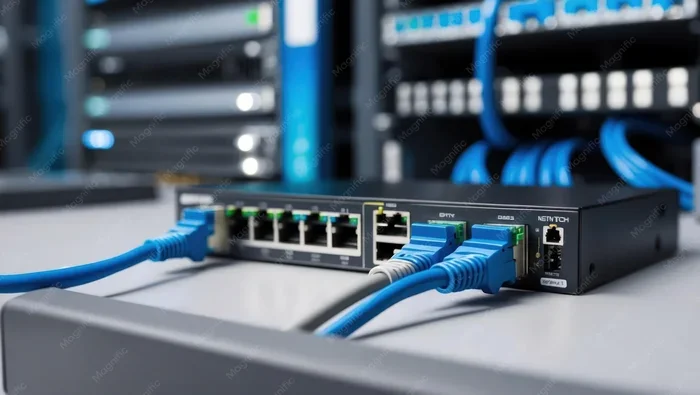
The ethernet cable connecting your device to the router is one of the most overlooked speed factors. An old or damaged cable can severely limit your ethernet wifi speed. If you are still using a Cat5 cable, upgrading to a Cat5e, Cat6, or Cat6a cable can unlock much faster speeds.
Here is a quick comparison of common ethernet cable categories:
- Cat5: Supports up to 100 Mbps. Fine for basic browsing but too slow for streaming or gaming.
- Cat5e: Supports up to 1,000 Mbps (1 Gbps). A solid upgrade at an affordable price.
- Cat6: Supports up to 1,000 Mbps at longer distances and handles more bandwidth. Great for most homes.
- Cat6a: Supports up to 10 Gbps. Best for power users and future-proofing your setup.
Also, check the physical condition of your cable. Frayed ends, bent connectors, and cables running near power cords can cause interference and signal loss. Replace any cable that looks worn or damaged. A high-quality cable is one of the cheapest ways to improve your network performance.
Inspect Your Router and Modem
Your router and modem are the backbone of your network. Older models may not support the latest wifi standards like Wi-Fi 6 or Wi-Fi 6E. If your router is more than five years old, it might be time to consider an upgrade. Modern routers handle multiple devices better and deliver faster ethernet wifi speed thanks to improved hardware and smarter software.
If you rent equipment from your internet service provider, ask them about newer models. Sometimes simply swapping out an old router for a newer one makes a huge difference. You can also check if your ISP offers upgraded equipment at no extra cost.
Optimize Your Router and Network Settings
Update Your Router Firmware
Router manufacturers release firmware updates to fix bugs, improve stability, and boost performance. An outdated firmware version can actually slow down your connection. Log into your router’s admin panel (usually by typing 192.168.1.1 or 192.168.0.1 into your browser) and check for available updates.
Most modern routers have an automatic update feature. Turn it on if it is available. This ensures your router always runs the latest software without you needing to remember to check manually. Keeping your firmware current is one of the simplest ways to maintain strong ethernet wifi speed.
Adjust Duplex and Speed Settings
Your network adapter has settings that control how it communicates with the router. One important setting is the duplex mode. Setting it to “Full Duplex” allows data to flow in both directions at the same time, which can improve your speed.
To check this setting on Windows, go to Device Manager, find your network adapter, right-click, select Properties, and look at the Advanced tab. Search for “Speed & Duplex” and set it to “Auto-Negotiation” or “Full Duplex.” On a Mac, these settings are usually handled automatically, but you can reset your network settings if you notice issues.
Disable Power-Saving Features
Many computers and routers have power-saving modes that reduce performance to save energy. On Windows, go to your network adapter settings and disable “Green Ethernet” or “Energy Efficient Ethernet” if available. On your router, look for any eco mode or power-saving options in the settings menu and turn them off.
These features can limit your ethernet wifi speed by reducing the power sent to your ethernet port. Disabling them ensures your hardware runs at full capacity. The slight increase in power consumption is worth the speed gain.
Reduce Network Congestion and Interference
Limit Connected Devices
Every device connected to your network uses a share of your bandwidth. If you have dozens of devices connected, your ethernet wifi speed can drop significantly. Go through your connected devices list in your router settings and remove any that you do not recognize or no longer use.
Smart home devices, old phones, and forgotten tablets can quietly drain your bandwidth in the background. By keeping your network lean, you ensure that your important devices get the speed they need. If you have many household members sharing the same network, consider setting up a separate guest network to keep traffic organized.
Position Your Router Strategically
Physical placement matters more than most people realize. Your router should be in a central location, elevated off the floor, and away from walls, metal objects, and electronic devices that cause interference. Microwaves, baby monitors, and cordless phones can all disrupt your wifi signal.
If your router is tucked away in a closet or basement, move it to a more open area. Even a small change in placement can improve your signal strength and boost your overall speed. For larger homes, consider adding mesh wifi to your existing router to extend coverage without losing speed.
Change Your Wifi Channel
If you live in a dense neighborhood, nearby networks might be using the same wifi channel as yours. This causes interference and slows down your connection. Use a wifi analyzer app to see which channels are least crowded and switch your router to one of them.
For 2.4 GHz networks, channels 1, 6, and 11 are usually the best options because they do not overlap. For 5 GHz networks, there are more channels available, so interference is less of a problem. Changing your channel is a quick fix that can noticeably improve your ethernet wifi speed.
Upgrade Your Equipment for Faster Speeds
When to Upgrade Your Router
If you have tried all the software fixes and your speed is still slow, it may be time for new hardware. Modern routers with Wi-Fi 6 or Wi-Fi 6E support offer much faster speeds, better range, and improved handling of multiple devices. Look for routers that support gigabit ethernet ports and have strong processing power.
If you currently use equipment provided by your ISP, upgrading to a personal router can make a big difference. Changing your router with Spectrum or other providers is often straightforward and can immediately improve your network performance. Just make sure your new router is compatible with your internet plan and modem.
Add a Network Adapter or Upgrade Your Ethernet Port
If your computer or laptop has an older ethernet port, it might be limiting your speed. A USB-to-ethernet adapter with gigabit support can solve this problem. These adapters are affordable and easy to use. Simply plug them into a USB port, connect your ethernet cable, and enjoy faster speeds.
For desktop computers, you can also install a PCIe network adapter card. These offer even better performance than USB adapters because they connect directly to the motherboard. Either option is a great way to ensure your device can handle the ethernet wifi speed your internet plan provides.
Consider a Wired Connection for Critical Devices
While wifi is convenient, a wired ethernet connection is always faster and more stable. If your gaming console, desktop PC, or smart TV supports ethernet, plug it in directly. You will notice an immediate improvement in speed and latency compared to wifi.
If running a long cable is not practical, you can use powerline adapters or mojo adapters. These devices send your internet signal through your home’s electrical wiring. They are not as fast as a direct ethernet connection, but they are much better than wifi in many cases. For more on this, check out our guide on extending your wifi with an ethernet cable.
Advanced Tips to Maximize Ethernet Wifi Speed
Enable QoS (Quality of Service) Settings
Quality of Service is a router feature that lets you prioritize certain types of traffic. For example, you can tell your router to give priority to video streaming or gaming over background downloads. This ensures that your most important activities get the bandwidth they need.
To enable QoS, log into your router’s admin panel and look for the QoS or Traffic Management section. You can usually set priority rules based on device, application, or traffic type. This is especially helpful in households where multiple people share the same network and compete for bandwidth.
Use DNS Servers for Faster Lookups
Your DNS server translates website names into IP addresses. A slow DNS server can make websites feel sluggish even when your connection is fast. Switching to a faster DNS provider like Google DNS (8.8.8.8) or Cloudflare DNS (1.1.1.1) can speed up your browsing experience.
To change your DNS settings, go to your network adapter settings or your router’s configuration page. Enter the new DNS addresses and save your changes. This is a simple tweak that improves your overall internet experience and complements your efforts to boost ethernet wifi speed.
Run Regular Speed Tests and Monitor Performance
Making changes without tracking results is like driving blind. Run speed tests before and after each change to see what works. Tools like Speedtest.net, Fast.com, and your router’s built-in speed test feature make this easy.
Keep a simple log of your results. Over time, you will see patterns and understand what changes have the biggest impact on your ethernet wifi speed. This data also helps you troubleshoot problems if your speed drops again in the future.
Secure Your Network
An unsecured network lets neighbors and strangers use your wifi, which slows down your connection. Make sure your wifi is password-protected with WPA3 or WPA2 encryption. Change your default password to something strong and unique.
You should also regularly check your connected devices list and remove any unknown devices. If you suspect someone is using your network without permission, change your wifi password immediately. A secure network runs faster and safer for everyone connected to it.
Common Mistakes That Slow Down Your Ethernet Wifi Speed
Many people make simple mistakes that silently hurt their network performance. Here are the most common ones to avoid:
- Using a damaged or old ethernet cable: Even a small defect can cut your speed in half. Replace frayed or bent cables regularly.
- Ignoring router updates: Outdated firmware means missed performance improvements and security patches.
- Placing the router in a poor location: Corners, closets, and basements block signal and reduce speed.
- Overloading your network: Too many devices streaming, downloading, and gaming at once will slow everyone down.
- Not restarting your router: A simple reboot clears cache, refreshes connections, and often fixes temporary speed issues.
- Using the wrong wifi band: 2.4 GHz is more prone to interference than 5 GHz. Use 5 GHz when you are close to the router for better ethernet wifi speed.
Avoiding these mistakes alone can improve your speed without any additional cost. It is amazing how much difference these small changes make over time.
Expert Insights on Boosting Network Performance
Network professionals agree that the biggest gains come from combining multiple small improvements rather than relying on one single fix. Start with your cable and settings, then move to placement and congestion management. Finally, consider hardware upgrades if needed. This layered approach ensures you get the most out of every change you make.
Another expert tip is to keep your devices and router software updated at all times. Manufacturers continuously optimize performance through updates. Setting your router to auto-update saves you time and keeps your network running at its best. For home networks with many devices, setting up a dedicated wifi network for high-speed activities like gaming and streaming can also help isolate traffic and maintain strong speeds.
Conclusion
Improving your ethernet wifi speed does not have to be complicated or expensive. You can start with simple steps like checking your cable, updating your firmware, and adjusting your router settings. These changes cost nothing but can deliver noticeable results right away. If you need more speed, consider upgrading your hardware, enabling QoS, and optimizing your network placement.
The key is to be proactive. Do not wait until your connection becomes unbearable before taking action. Run regular speed tests, monitor your network, and make adjustments as needed. With the right approach, you can enjoy faster, more reliable internet every single day. Apply the tips in this guide today and feel the difference in your ethernet wifi speed almost immediately.
Frequently Asked Questions
Why is my ethernet wifi speed so slow?
Slow speeds are usually caused by old cables, outdated router firmware, network congestion, or incorrect settings. Start by running a speed test and checking your cable quality. These two steps alone often reveal the problem and lead to quick fixes.
Can I increase my ethernet wifi speed without buying new equipment?
Yes, many speed improvements are free. Updating your router firmware, changing your wifi channel, adjusting duplex settings, and reducing connected devices can all boost your speed without spending a dime.
What is the best ethernet cable for fast wifi speeds?
Cat6 or Cat6a cables offer the best balance of speed and affordability for most users. They support gigabit speeds and handle interference well. If you need even faster speeds, Cat6a or Cat7 cables are excellent choices.
Does router placement really affect wifi speed?
Absolutely. Your router’s location affects signal strength and stability. Place it in a central, open area away from walls and electronic devices. Good placement alone can improve your ethernet wifi speed significantly.
How often should I restart my router?
Restarting your router once a week helps clear temporary glitches and maintain optimal performance. If you notice slow speeds, a quick reboot is often the first thing to try before making other changes.
Should I use a wired ethernet connection instead of wifi?
Yes, a wired connection is always faster and more stable than wifi. For devices like desktop PCs, gaming consoles, and smart TVs, plugging in with an ethernet cable gives you the best possible ethernet wifi speed and lowest latency.