Can You Run A Monitor Through Usb C And Why It Matters
Yes, you can run a monitor through USB-C, and it is one of the simplest upgrades you can make to your workspace. USB-C supports video output through a feature called Alt Mode, letting you connect laptops, tablets, and even phones to external displays with a single cable. This guide covers everything you need to know about running a monitor through USB-C, from cable types and compatibility to setup tips and common mistakes.
Key Takeaways
- USB-C can carry video signals: Most modern USB-C ports support DisplayPort Alt Mode, allowing you to connect a monitor directly.
- Thunderbolt 3 and 4 make it even better: These protocols deliver video, data, and power through one cable.
- Not all USB-C cables are equal: Using the wrong cable can lead to poor resolution or no display at all.
- USB-C hubs expand your setup: A good hub lets you connect a monitor, mouse, and other peripherals from a single laptop port.
- Check your device first: Always verify that your laptop or tablet supports video output over USB-C before buying a cable or monitor.
📑 Table of Contents
- Can You Run A Monitor Through Usb C? Here Is Everything You Need to Know
- What Is USB-C and Why Does It Matter for Monitors?
- How to Connect a Monitor Through USB-C
- USB-C Monitor Compatibility: What to Watch For
- Common Problems When Running a Monitor Through USB-C
- Best Practices for a USB-C Monitor Setup
- Why USB-C Monitors Are the Future
- Conclusion
Can You Run A Monitor Through Usb C? Here Is Everything You Need to Know
Let us start with the short answer. Yes, you can run a monitor through USB-C. It is one of the most convenient ways to hook up an external display today. Whether you are using a laptop, a desktop, or even a tablet, a USB-C connection can carry video, audio, and power all at once. This is why so many people are switching to USB-C monitor setups instead of dealing with a mess of cables.
But here is the thing. Not every USB-C port does the same thing. Some ports only charge your device. Others can send video to a display. And some can do both while moving data at blazing speeds. This is exactly why running a monitor through USB-C can be confusing. You need to know what your port supports, which cable to use, and what kind of monitor will work. In this article, we break it all down in plain language.
By the end, you will know exactly how to set up your monitor through USB-C, what to watch out for, and how to get the best picture quality. Let us dive in.
What Is USB-C and Why Does It Matter for Monitors?
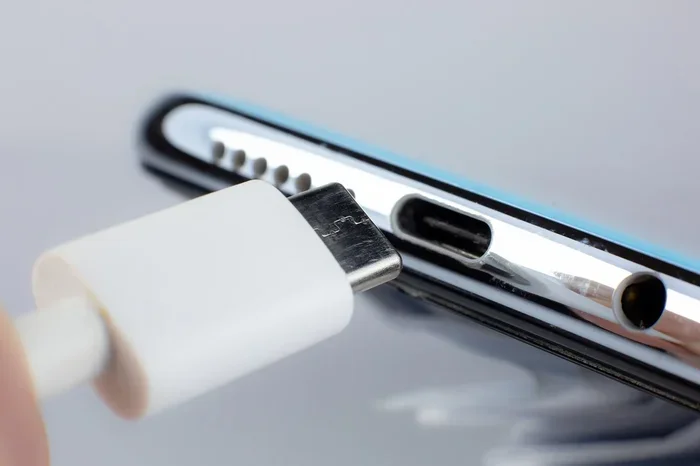
USB-C is a type of connector that has become the standard for many modern devices. You will find it on laptops, smartphones, tablets, and even some monitors. It is small, reversible, and fast. But what makes it special for monitor users is its ability to carry multiple types of signals through one tiny port.
USB-C Alt Mode: The Key to Video Output
Here is where things get interesting. USB-C Alt Mode is a feature that lets the port carry a video signal. When a device supports Alt Mode, it can send DisplayPort or HDMI signals through the USB-C connector. This means you can plug a monitor directly into your laptop and get a picture.
Not every USB-C port supports Alt Mode, though. Some ports are designed only for data transfer or charging. This is a common point of confusion. If your laptop has a USB-C port but does not support Alt Mode, you will not get video output from it. Always check your device specifications before buying a cable or adapter.
Thunderbolt 3 and Thunderbolt 4: The Upgrade Path
If your device has a Thunderbolt 3 or Thunderbolt 4 port, you are in great shape. Thunderbolt combines PCIe, DisplayPort, and USB power delivery into one connector. This means you can run a high-resolution monitor, charge your laptop, and connect peripherals all through a single cable.
Thunderbolt 4 is even better. It supports up to two 4K displays or one 8K display. If you are building a professional workstation, Thunderbolt is the way to go. It gives you flexibility and speed that standard USB-C sometimes cannot match.
How to Connect a Monitor Through USB-C
Setting up a monitor through USB-C is simpler than most people think. Here is a step-by-step look at how it works.
Step 1: Check Your Port and Device
First, look at your laptop or device. Does it have a USB-C port? Does that port support video output? You can usually find this information in the device manual or on the manufacturer’s website. Look for terms like “DisplayPort Alt Mode” or “Thunderbolt.”
If you are not sure, try searching your device model online. Most modern laptops from Dell, HP, Lenovo, Apple, and Asus support video output over USB-C. Older models or budget devices may not.
Step 2: Choose the Right Cable
Not all USB-C cables are created equal. A charging cable will not carry video. You need a cable that supports DisplayPort Alt Mode or Thunderbolt. Look for cables labeled with “DP Alt Mode,” “Thunderbolt,” or “USB-C with video support.”
Here are some quick tips for choosing the right cable:
- Check the bandwidth: For 4K at 60Hz, you need a cable rated for at least 10 Gbps or 20 Gbps.
- Go with certified cables: Look for USB-IF certification or Thunderbolt certification on the packaging.
- Length matters: Longer cables can lose signal quality. Keep cables under 6 feet for the best results.
Step 3: Connect and Configure
Once you have the right cable, plug one end into your laptop and the other into your monitor. Most modern monitors will auto-detect the signal. If the screen stays black, try switching the monitor input to USB-C or DisplayPort.
On your laptop, go to display settings and choose to extend or duplicate your screen. On Windows, right-click the desktop and select Display Settings. On macOS, go to System Settings and click Displays. You should see your external monitor listed there.
Using a USB-C Hub or Docking Station
Sometimes one USB-C port is not enough. You might want to connect a monitor, a computer mouse, a keyboard, and a flash drive all at the same time. This is where a USB-C hub or docking station comes in handy.
A good hub takes one USB-C port and expands it into multiple ports, including HDMI, USB-A, and Ethernet. Before you buy one, check if it supports video output. Not every hub does. If you are looking for a reliable hub, you might want to review the advantages and disadvantages of a computer mouse and other peripherals to make sure your full setup works well together.
USB-C Monitor Compatibility: What to Watch For
Not every monitor and every USB-C connection will work perfectly together. Here are the main compatibility factors you should understand before making a purchase.
Resolution and Refresh Rate Limits
The quality of your display depends on the cable, the port, and the monitor itself. A basic USB-C cable might only support 1080p or 4K at 30Hz. If you want 4K at 60Hz or even higher, you need a better cable and a port that supports it.
Here is a quick comparison of what different USB-C standards can handle:
- USB 3.1/3.2 (10 Gbps): Supports 4K at 60Hz with DP Alt Mode.
- Thunderbolt 3 (40 Gbps): Supports 4K at 120Hz or dual 4K at 60Hz.
- Thunderbolt 4 (40 Gbps): Supports the same as Thunderbolt 3 but with stricter certification.
- USB4 (40-80 Gbps): The newest standard with even higher display capabilities.
Power Delivery and Charging
One of the best things about USB-C is USB Power Delivery (USB PD). This lets your monitor charge your laptop through the same cable. Many USB-C monitors come with a built-in USB-C port that delivers up to 90W or 100W of power.
This means you only need one cable for video and charging. It is a huge space saver on your desk. Just make sure your laptop supports USB PD and that your cable can handle the wattage you need.
Adapter and Converter Considerations
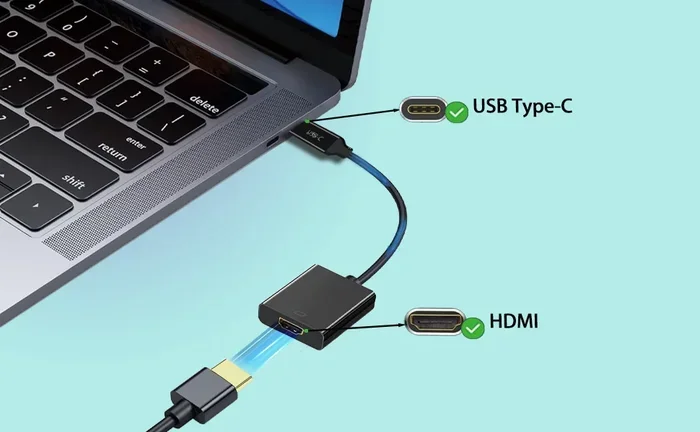
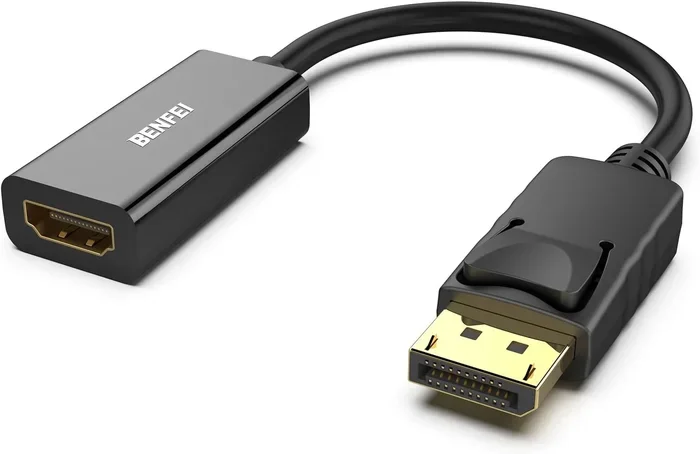
If your monitor does not have a USB-C input, you can use an adapter. A USB-C to HDMI adapter or a USB-C to DisplayPort adapter will work in most cases. Make sure the adapter supports video output and not just data transfer.
Cheap adapters can cause problems. They might not support the resolution or refresh rate you need. Always buy adapters from reputable brands and check the specifications before purchasing.
Common Problems When Running a Monitor Through USB-C
Even with the right equipment, you might run into issues. Here are the most common problems and how to fix them.
No Signal or Black Screen
If your monitor shows nothing after connecting, try these steps:
- Check that your cable supports video output.
- Switch the monitor input to USB-C or DisplayPort.
- Restart your laptop and reconnect the cable.
- Update your display drivers on Windows or macOS.
Sometimes the issue is as simple as a loose connection. Unplug the cable and plug it back in firmly. If you are using a hub, try connecting the cable directly to your laptop to rule out the hub as the problem.
Flickering or Low Resolution
Flickering screens or low resolution are often caused by an incompatible cable. If your cable does not support the bandwidth needed for your monitor’s resolution, you will get poor results.
Upgrade to a certified USB-C cable that supports the resolution you want. Also, check your display settings and make sure your laptop is outputting the correct signal. On Windows, go to Display Settings and select the recommended resolution for your monitor.
Display Issues Affecting Productivity
Sometimes display problems can affect your workflow in unexpected ways. For example, if you are working with spreadsheets and notice a line that won’t delete in Microsoft Excel, a poor monitor connection might make it harder to spot and fix the issue. A stable, high-quality USB-C monitor connection ensures your display is clear and responsive, which helps you work more efficiently.
Audio Problems
USB-C can carry audio too, but sometimes it does not work automatically. If your monitor has built-in speakers and you are not getting sound, check your audio output settings. On Windows, click the speaker icon in your taskbar and select the correct playback device. On macOS, go to Sound Settings and choose your monitor under Output.
Best Practices for a USB-C Monitor Setup
Now that you know the basics, here are some best practices to get the most out of your USB-C monitor setup.
Invest in Quality Cables and Hubs
Cheap cables might seem like a good deal, but they often cause frustration. A well-made USB-C cable with proper certification will give you reliable video, faster data transfer, and stable power delivery. Look for cables from brands like Anker, Belkin, Cable Matters, or CalDigit.
Keep Your Drivers Updated
Display drivers play a big role in how well your USB-C monitor works. Outdated drivers can cause flickering, resolution issues, or no signal at all. Make it a habit to check for driver updates regularly, especially after a major operating system update.
Use a Docking Station for Multi-Monitor Setups
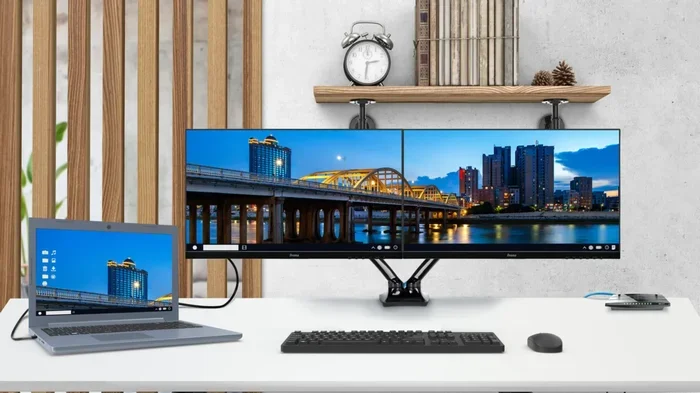
If you want to connect two or more monitors, a USB-C docking station is your best friend. Many docking stations support multi-display output through a single laptop port. This is perfect for people who need extra screen space for multitasking, coding, or creative work.
Match Your Cable to Your Needs
Think about what you need before you buy. Are you just browsing and working with documents? A basic USB-C cable will do. Are you editing video or working with high-resolution images? You need a Thunderbolt or USB4 cable with high bandwidth.
Here is a quick reference guide:
- Basic office work: USB-C cable with 10 Gbps support.
- 4K video editing: Thunderbolt 3 or 4 cable with 40 Gbps support.
- Multi-monitor setup: Thunderbolt docking station with DisplayPort output.
- Travel-friendly setup: USB-C hub with HDMI output and built-in power delivery.
Why USB-C Monitors Are the Future
The shift toward USB-C is not slowing down. More and more monitors now come with USB-C inputs built in. Laptops are dropping older ports like HDMI and VGA in favor of USB-C. Even smartphones and tablets now support video output through USB-C.
This trend makes sense. A single cable that handles video, data, and power is incredibly convenient. It reduces cable clutter, simplifies setup, and makes your workspace cleaner and more efficient. As USB-C monitor technology continues to improve, we can expect even faster speeds, higher resolutions, and better compatibility across devices.
If you are still using an older monitor with HDMI or VGA, now is a great time to consider upgrading. A USB-C monitor will future-proof your setup and make your daily workflow smoother.
In short, running a monitor through USB-C is not just possible. It is one of the best upgrades you can make for your workspace. Whether you are a student, a remote worker, or a creative professional, a USB-C monitor setup gives you speed, simplicity, and flexibility.
Conclusion
Can you run a monitor through USB-C? Absolutely. With the right cable, the right port, and a little bit of knowledge, you can connect an external display to almost any modern device. USB-C has become the universal standard for video, data, and power, and it is only getting better.
Remember to check your device compatibility, invest in quality cables, and consider a USB-C hub or docking station if you need more ports. Avoid common mistakes like using the wrong cable or skipping driver updates. With these tips, your USB-C monitor setup will work flawlessly for years to come.
Take the leap. Simplify your desk, boost your productivity, and enjoy the clean, cable-free setup that USB-C makes possible. Your future self will thank you.
Frequently Asked Questions
Can any USB-C cable be used for a monitor?
No, not every USB-C cable supports video output. You need a cable that specifically supports DisplayPort Alt Mode or Thunderbolt. Check the cable specifications before buying to make sure it can carry a video signal to your monitor.
Do I need a Thunderbolt monitor to use USB-C?
No, you do not need a Thunderbolt monitor. Any monitor with a USB-C input that supports DisplayPort Alt Mode will work. Thunderbolt monitors just offer faster speeds and higher bandwidth, which is great for 4K and multi-monitor setups.
Can I connect multiple monitors through one USB-C port?
Yes, but it depends on your device. Thunderbolt 3 and Thunderbolt 4 ports can support multiple monitors through a docking station or hub. Check your device specifications to see how many displays it can support simultaneously.
Why is my USB-C monitor not showing a signal?
This is usually caused by an incompatible cable or a disabled video output setting. Try using a certified USB-C cable that supports video, check your monitor input source, and make sure your laptop display settings are configured to extend or duplicate to the external screen.
Can I charge my laptop and run a monitor through the same USB-C cable?
Yes, if your monitor supports USB Power Delivery and your laptop supports USB PD. This is one of the biggest advantages of USB-C. You get video output and charging through a single cable, which keeps your desk neat and organized.
What is the difference between USB-C and Thunderbolt for monitors?
USB-C is a connector type, while Thunderbolt is a protocol that runs through USB-C ports. Thunderbolt offers much higher bandwidth, which means better resolution, higher refresh rates, and support for more displays. All Thunderbolt ports use USB-C connectors, but not all USB-C ports support Thunderbolt.
=== CONCLUSION ===
Running a monitor through USB-C is simple, fast, and incredibly convenient. With the right equipment and a little know-how, you can turn any modern device into a powerful workstation. The days of tangled cables and multiple adapters are fading fast. USB-C is here, and it is making our setups cleaner and our workflows smoother.