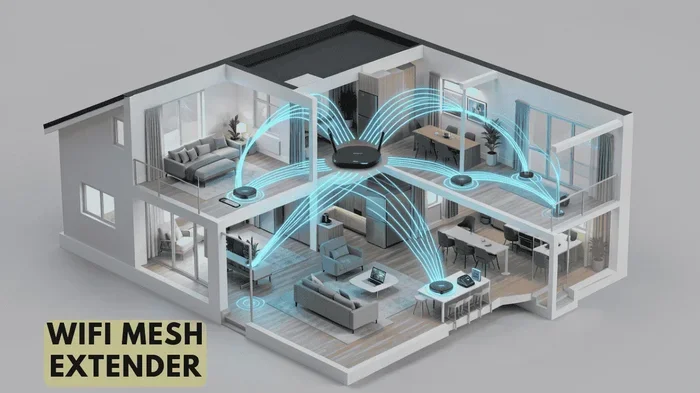
How Can I Get Wifi In My Whole House With These Tips
Struggling with dead zones? You can get wifi in your whole house by choosing the right mesh wifi system, optimizing your router placement, using wifi extenders, or running ethernet cables. This guide covers every practical solution to eliminate weak signals and boost your home network coverage fast.
Have you ever walked from your living room to the bedroom and watched your internet connection drop like clockwork? You are not alone. Many homes have wireless dead zones that make it impossible to browse, stream, or work from certain rooms. The good news is that there are real, practical ways to fix this. You do not need to be a tech expert to get wifi in your whole house.
Whether you live in a small apartment or a two-story home, this guide walks you through every option. From mesh wifi systems to simple router tweaks, you will find the right fix for your space. Let us dive in and make sure every corner of your home has a strong wireless signal.
Key Takeaways
- Mesh wifi systems are the best way to cover large homes with seamless wireless signal throughout every room.
- Router placement matters a lot — central, elevated, and away from walls gives you the strongest wifi range.
- Wifi extenders and repeaters are budget-friendly options to boost your internet coverage in dead zones.
- Powerline adapters use your home’s existing wiring to deliver network coverage to hard-to-reach areas.
- Ethernet backhaul provides the most reliable and fastest connection for extended home network setups.
- Dual-band routers help reduce congestion and improve signal strength across your entire house.
- Testing your wifi coverage before and after changes ensures you actually solved the problem.
📑 Table of Contents
- Why Does Your Wifi Not Reach Every Room?
- How to Get Wifi in Your Whole House With Mesh Systems
- Optimize Your Router Placement for Better Coverage
- Use Wifi Extenders and Repeaters
- Extend Wifi With Ethernet Cable for Rock-Solid Coverage
- Powerline Adapters: Use Your Home Wiring to Spread Wifi
- Compare the Best Options for Whole House Wifi
- Common Mistakes That Hurt Your Wifi Coverage
- How to Test Your Wifi Coverage After Setup
- Final Thoughts on Getting Wifi Everywhere in Your Home
Why Does Your Wifi Not Reach Every Room?
Before you fix a problem, you need to understand what causes it. Wifi signals travel from your router through the air, and they weaken as they pass through walls, floors, and furniture. A single router in one corner of your house simply cannot push a strong signal everywhere.
Common Causes of Weak Wifi Coverage
- Thick walls and concrete block wireless signals more than drywall does.
- Long distances between your router and devices reduce signal strength.
- Interference from other electronics like microwaves and baby monitors can disrupt your wireless signal.
- Old or outdated routers may not have the power to cover a large home.
- Basements and upper floors are notorious for weak or no wifi coverage at all.
Once you know what is causing the problem, you can pick the best solution. The next sections cover every option in detail.
How to Get Wifi in Your Whole House With Mesh Systems
A mesh wifi system is hands-down the best way to get full home network coverage. Instead of one router doing all the work, a mesh system uses multiple devices called nodes. You place one node near your modem and others around your house. Each node talks to the others and creates one seamless wireless network.
Here is why mesh systems work so well:
- They create a single wifi name (SSID) that your devices connect to automatically.
- They use smart routing to send your data through the fastest path between nodes.
- They are easy to set up and manage through a phone app.
- They scale well — you can add more nodes if your house is very large.
If you already have a router and want to keep it, you might wonder whether you can add a mesh system. The answer is yes. Can I add mesh wifi to existing router? Many mesh systems work in bridge mode, so you can keep your current setup and still get better network coverage. Check out our guide on adding mesh wifi for step-by-step instructions.
Popular mesh systems like Google Nest Wifi, Eero, and TP-Link Deco are affordable and effective. They typically cost between $100 and $300 for a two- or three-pack. For most homes, a two-pack covers up to 2,000 square feet easily.
Optimize Your Router Placement for Better Coverage
Sometimes the simplest fix makes the biggest difference. Router placement has a huge impact on your wifi range. If your router is tucked behind a TV stand or sitting in a corner closet, the signal has a hard time reaching other rooms.
Best Practices for Router Placement
- Put your router in a central location. This gives the signal equal distance to every room in your house.
- Place it on a high shelf. Signals travel downward better than upward. A tall bookshelf or wall-mounted shelf works great.
- Keep it away from thick walls and metal objects. Metal cabinets and appliances block wireless signals.
- Stay away from microwaves and cordless phones. These devices operate on similar frequencies and cause interference.
- Do not hide your router inside a cabinet. Enclosed spaces weaken the wireless signal significantly.
After you move your router, test the signal strength in different rooms. Walk around with your phone and check where the bars drop. This quick test tells you exactly where you still need help.
Use Wifi Extenders and Repeaters
If a mesh system feels like too much investment, a wifi extender or repeater is a great budget option. These small devices plug into a wall outlet and rebroadcast your existing wifi signal to areas that need it.
Here is how they work in simple terms:
- Your router sends a wireless signal to the extender.
- The extender picks up that signal and sends it further.
- Devices in the extended area connect to the rebroadcast network coverage.
The tradeoff? Extenders usually cut your bandwidth in half because they use the same radio to receive and send data. For basic browsing and email, this is fine. For heavy streaming or gaming, you may notice a slowdown.
When shopping for an extender, look for one that supports dual-band or tri-band frequencies. These models handle the signal loss better and give you a faster internet connection in extended areas.
Quick Tip: Placement Matters for Extenders Too
Do not place your extender in the dead zone. Instead, put it halfway between your router and the area with weak signal. This way, it gets a strong signal from the router and repeats it effectively to the far rooms.
Extend Wifi With Ethernet Cable for Rock-Solid Coverage
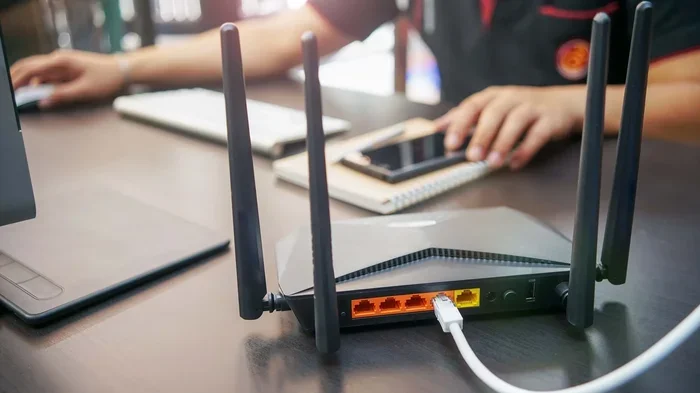
If you want the fastest and most reliable home network possible, nothing beats an ethernet cable. Running a cable from your router to a second access point in another room gives you full bandwidth without any wireless loss.
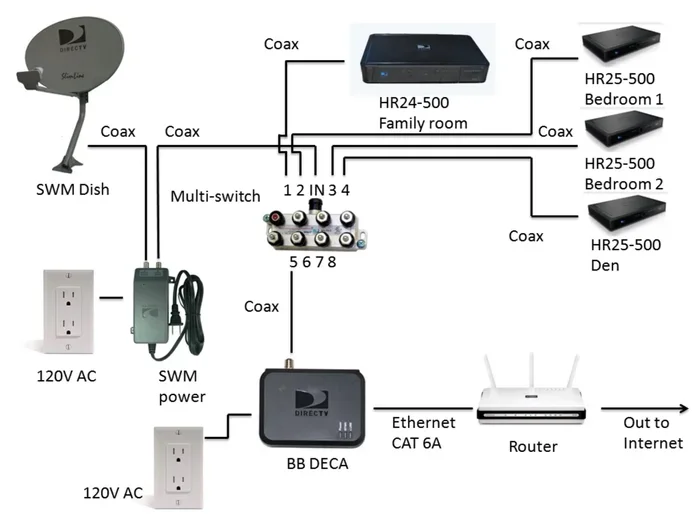
You can also use ethernet cables to extend wifi by connecting an access point or a second router at the other end. This creates a wired backbone that your wireless devices connect to. The result is a strong, stable wireless signal in rooms that were previously dead zones.
Not sure how to do this? Our guide on extending wifi with ethernet cable covers everything you need. It is simpler than most people think, and the performance boost is incredible.
When to Choose Ethernet Over Wireless
- You have a home office that needs a stable, fast connection.
- You are a heavy gamer who cannot afford lag or latency.
- Your house has thick walls that block wireless signals.
- You want the best possible network coverage for smart home devices.
Powerline Adapters: Use Your Home Wiring to Spread Wifi
Not every home has easy access to ethernet wiring. That is where powerline adapters come in. These clever devices use your home’s existing electrical wiring to carry data from one point to another.
You plug one adapter into a wall outlet near your router and connect it with a short ethernet cable. Then you plug the second adapter into an outlet in the room that needs better wifi coverage. The second adapter can connect to a wifi access point or a second router to broadcast signal in that room.
Powerline adapters are not as fast as a direct ethernet connection, but they are much faster than a wifi extender in many cases. They also avoid the interference issues that wireless repeaters face. If your home has older wiring, test the setup first because very old electrical systems may not work well with powerline technology.
Compare the Best Options for Whole House Wifi
With so many solutions available, it helps to see them side by side. Here is a quick comparison of the most popular methods to get wifi in your whole house.
| Solution | Pros | Cons | Best For |
|---|---|---|---|
| Mesh Wifi System | Seamless coverage, easy setup, scalable | Higher cost ($100-$300+) | Large homes, multiple floors |
| Wifi Extender | Cheap, easy to install | Half the bandwidth, creates separate network | Small dead zones, budget setups |
| Ethernet + Access Point | Fastest, most reliable | Requires running cables | Home offices, gamers |
| Powerline Adapter | Uses existing wiring, no new cables | Speed varies with wiring quality | Homes without ethernet access |
| Router Repositioning | Free, quick fix | Limited improvement for large homes | Minor coverage issues |
Each solution has its place. The right choice depends on your home size, budget, and how much bandwidth you need in the covered areas.
Common Mistakes That Hurt Your Wifi Coverage
Even after you invest in a solution, certain mistakes can hold back your wireless signal. Here are the ones to avoid:
- Placing the router on the floor. Ground-level placement limits how far the signal travels.
- Ignoring firmware updates. Old router firmware can cause slow speeds and weak signal strength.
- Using the wrong wifi channel. Crowded channels in apartment buildings slow everyone down. Switching to a less congested channel helps.
- Buying the wrong extender. Not all extenders support the same speeds as your router. Match the specs for the best results.
- Expecting one solution to do everything. Large homes often need a combination of approaches, like a mesh system plus ethernet backhaul.
Avoiding these mistakes saves you time and money. It also ensures that your home network performs at its best from day one.
How to Test Your Wifi Coverage After Setup
Once you have set up your solution, you should test the wifi coverage to make sure it actually works. Do not guess — measure.
Here is a simple way to test:
- Walk through every room in your house with your phone.
- Use a wifi speed test app to check signal strength and internet speed.
- Note any rooms where the signal drops below three bars.
- Adjust your extender or access point placement if needed.
- Retest until you have strong coverage in every room.
Some mesh systems come with built-in coverage maps in their apps. These visual tools show you exactly where your wireless signal is strong and where it is weak. They make optimization much easier.
Final Thoughts on Getting Wifi Everywhere in Your Home
Getting wifi in your whole house is completely achievable no matter what type of home you live in. You have many options, from free router tweaks to full mesh systems. The key is to understand your home’s layout, identify the dead zones, and choose the right solution for your needs and budget.
Start with the simplest fix — reposition your router. If that does not solve the problem, consider a wifi extender or powerline adapter for a budget-friendly boost. For the best experience, invest in a mesh wifi system and run ethernet backhaul where possible.
Remember that network coverage is not just about having a signal. It is about having a fast, reliable signal everywhere you need it. With the right setup, you can stream movies in the bedroom, work from the basement, and browse the web in the backyard — all without a single buffering spinner.
Take action today. Pick the solution that fits your home and start enjoying full wifi coverage in every room. Your internet experience will never be the same.
Frequently Asked Questions
What is the easiest way to get wifi in my whole house?
The easiest way is to reposition your existing router to a central, elevated location. This free fix often solves minor coverage issues. If that does not work, a mesh wifi system is the next simplest and most effective option.
How much does a whole house wifi setup cost?
Costs vary widely. A wifi extender costs $20 to $50. A mesh wifi system runs $100 to $300 for a two- or three-pack. Running ethernet cables costs more in labor but gives the best performance. Powerline adapters typically cost $40 to $80 for a pair.
Can I use my own personal wifi router to cover my whole house?
Yes, but a single router has limits. If your house is large or has multiple floors, one router may not reach everywhere. You can pair your router with an extender, access point, or mesh node for better whole house coverage.
Does a mesh wifi system replace my regular router?
Most mesh systems replace your router entirely. They connect directly to your modem and handle all routing and wifi duties. However, some mesh systems can work in bridge mode alongside your existing router if you prefer to keep it.
Why does my wifi signal get weak in certain rooms?
Thick walls, distance, and interference are the main culprits. Concrete and brick walls block wireless signals more than drywall. The further you are from the router, the weaker the signal gets. Electronics like microwaves and cordless phones can also cause interference.
Is it better to use a wifi extender or a mesh system?
A mesh system is better for whole house coverage. It creates one seamless network and handles signal routing intelligently. A wifi extender is cheaper and works for small dead zones, but it often halves your bandwidth and creates a separate network name.
=== INTERNAL LINKS ===
If you want to learn more about setting up your own home network, check out our article on Can I Get Just Wifi At Home for helpful tips on standalone internet setups.
Looking to expand your existing setup? Our guide on Can I Add Mesh Wifi To Existing Router walks you through the process step by step.
For those considering wired connections, our article on Can I Extend Wifi With Ethernet Cable covers everything you need to know about running cables for the best performance.
Thinking about getting your own equipment? Learn more in our piece on Can I Have My Own Personal Wifi Router and understand your options.