How Can I Control My Ps4 Without A Controller Easily
Controlling your PlayStation 4 without a physical controller is easier than you think. You can use your smartphone, a keyboard and mouse, the PlayStation App, or even motion controls to navigate your console. This guide covers every practical method so you can keep gaming even when your DualShock is out of reach.
There is nothing worse than settling in for a gaming session only to realize your PS4 controller is dead, lost, or broken. Whether you are in the middle of a competitive match or just want to browse the PlayStation Store, losing your primary input device can feel like a disaster. But here is the good news: you do not need a DualShock or gamepad to keep your PlayStation 4 running.
Over the years, Sony has built several alternative ways to interact with your console. From using your smartphone as a makeshift controller to connecting a full keyboard and mouse, the options are more accessible than most people realize. This guide walks you through every practical method for gaming without a controller on your PS4.
Whether you are troubleshooting a broken controller, trying to save battery, or simply curious about what else your console can do, you will find clear, step-by-step instructions below. Let us dive into the different ways you can take control of your PS4 without reaching for the traditional wireless controller.
Key Takeaways
- Smartphone control: Use the PlayStation App or third-party apps to turn your phone into a wireless controller for your PS4.
- Keyboard and mouse: Connect a USB keyboard and mouse to your PS4 for precise navigation and gameplay support.
- PS4 Remote Play: Stream your PS4 games to another device and control them from there using a touchscreen or attached controller.
- Motion controls: Use PlayStation Move controllers and the PlayStation Camera for gesture-based navigation.
- Voice commands: Navigate basic menus using voice input through the PS4 system settings.
- Multiple backup options: Having more than one control method ensures you are never stuck without a way to play.
📑 Table of Contents
Using Your Smartphone as a PS4 Controller
Your mobile device is one of the most convenient alternatives to a physical PS4 controller. With the right app, your phone or tablet becomes a functional input device that lets you navigate menus, type text, and even play certain games. The process is straightforward and works over your home Wi-Fi network.
Using the Official PlayStation App
The PlayStation App is Sony’s free application available for both iOS and Android. It connects to your PS4 over the same Wi-Fi network and gives you basic remote control functionality. Here is what you can do with it:
- Navigate the PS4 home screen and menus
- Type text using your phone’s keyboard instead of the on-screen keyboard
- Control media playback like Netflix or Blu-ray discs
- Manage downloads and uploads from the queue
- Power your PS4 on or off remotely
The app does not replicate every button on a gamepad, so it is not ideal for fast-paced action games. However, for everyday navigation and media control, it works remarkably well. To get started, download the app, sign in with your PlayStation Network account, and follow the on-screen pairing instructions.
Third-Party Controller Apps
Beyond the official app, several third-party apps offer more advanced PS4 emulation through your phone. Apps like “PS4 Remote Play” and various community-built solutions let you map touch inputs to virtual buttons. Some of these apps even support Bluetooth connectivity for a wireless experience.
If you have ever wondered can I use a wireless controller on my phone, the answer is absolutely yes, and this is one of the best examples of that concept in action. Your phone essentially becomes a wireless controller that communicates with your console over the network.
Quick Tips
- Keep your phone and PS4 on the same Wi-Fi network for the best connection.
- Use a phone with a larger screen for better button visibility.
- Enable “Stay Awake” mode on your PS4 so it does not sleep during setup.
Connecting a Keyboard and Mouse to Your PS4
If you prefer a more traditional computing setup, your PS4 supports USB connection for keyboards and mice. This method is especially useful for typing passwords, searching the PlayStation Store, and browsing the web. Some games also support keyboard and mouse input natively.
Setting Up a USB Keyboard and Mouse
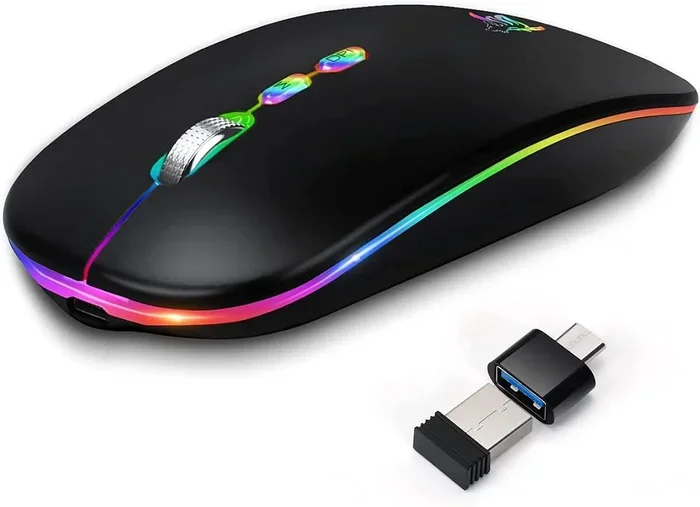
Setting up a keyboard and mouse is one of the simplest alternatives to a PS4 controller. Just plug a USB keyboard and mouse directly into the available USB ports on the front or back of your console. Your PS4 should recognize them immediately.
Once connected, you can use the keyboard to type in search bars, enter login credentials, and navigate text-heavy menus much faster than using the on-screen keyboard. The mouse gives you precise cursor control, which makes browsing the PlayStation Network a smoother experience.
Not all games support keyboard and mouse input, but many multiplayer titles and strategy games do. Popular titles like Fortnite and Final Fantasy XIV accept keyboard and mouse controls on PS4, giving you a competitive edge without needing a wireless controller.
Wireless Keyboards and Mice
You can also use wireless keyboards and mice that connect via a USB receiver. Simply plug the receiver into your PS4, and the device should work just like a wired one. Just make sure the receiver is compatible with the PS4’s USB ports.
Common Mistakes
- Using a keyboard that requires special drivers not supported by PS4.
- Plugging the USB receiver into a port that does not provide enough power.
- Assuming all games support keyboard and mouse input without checking first.
Using PS4 Remote Play on Another Device
PS4 Remote Play is a powerful feature that lets you stream your PS4 screen to another device. Once connected, you can control your console from that device, effectively removing the need for a physical controller entirely. This method works with PCs, tablets, and other mobile devices.
How PS4 Remote Play Works
Remote Play streams your PS4’s display over your home network to your chosen device. The PS4 handles all the game processing, while your secondary device acts as a window into that experience. You control everything from the remote device using its touchscreen, keyboard, or a connected wireless controller.
To set this up, enable Remote Play in your PS4 settings, download the Remote Play app on your preferred device, and sign in with your PlayStation Network credentials. Once paired, you can access your entire console library from anywhere in your home.
Using Remote Play with a Phone or Tablet
When you use Remote Play on your phone, you effectively turn your mobile device into a portable PS4 screen with touch controls. This is especially handy if your DualShock controller is charging or broken. You can tap the screen to navigate menus and use the on-screen buttons to interact with games.
If you want to display your phone screen on a larger monitor, you might also want to check out can I connect my phone to TV with HDMI cable for a bigger viewing experience while using Remote Play.
Expert Insight
Remote Play works best on a strong 5 GHz Wi-Fi connection. If you experience lag or latency, try moving your router closer to your PS4 or using a wired Ethernet connection for your console.
Motion Controls and PlayStation Camera
Sony introduced motion controls with the PlayStation Move controllers, and they can serve as an alternative input method for your PS4. While not as precise as a traditional gamepad, motion controls work well for certain types of games and basic navigation.
Setting Up PlayStation Move Controllers
To use motion controls, you need a PlayStation Camera and at least one Move controller. The camera tracks the glowing sphere on top of the controller, translating your movements into on-screen actions. Here is how to get started:
- Connect your PlayStation Camera to a USB port on your PS4.
- Go to Settings > Devices > PlayStation Move Controllers.
- Follow the on-screen instructions to pair your Move controller.
- Calibrate the tracking by following the prompts on screen.
Once set up, you can use the Move controller to point, select, and navigate through the PS4 interface. Some games are designed specifically for motion controls and offer a unique gaming without controller experience that you cannot get with a standard DualShock.
Voice Commands for Basic Navigation
Your PS4 also supports basic voice commands through the controller’s built-in microphone. Even without a working controller, you can use the PlayStation Camera’s microphone array to issue simple commands like “Play,” “Pause,” and “Go Home.” While this method is limited, it can be a helpful backup for basic PS4 navigation.
Quick Tips
- Speak clearly and at a moderate volume for the best voice recognition results.
- Reduce background noise for more accurate voice command detection.
- Voice commands work best for menu navigation rather than in-game actions.
Other Creative Methods to Control Your PS4
Beyond the main methods above, there are a few more creative ways to interact with your PS4 when you do not have a PS4 controller handy. These options may not replace a full gamepad, but they can help you get by in a pinch.
Using a Smartphone as a Second Screen
Some apps and homebrew solutions let you use your phone as a second screen for your PS4. These tools typically mirror your PS4 interface on your phone and allow you to tap through menus, type text, and launch games. While not officially supported by Sony, they can be useful in certain situations.
Just remember that third-party solutions may not work perfectly with every game or system update. Always download apps from trusted sources to protect your PlayStation Network account.
Connecting Your Phone Directly to Your TV
If you are looking to extend your PS4 experience to a bigger screen while controlling it from your phone, you might consider connecting your phone to your TV. For iPhone users, you can learn more about this setup by checking out can I connect my iPhone to my TV with HDMI for step-by-step guidance on mirroring or extending your display.
Using a Universal Remote
Some universal remote controls can be programmed to work with the PS4 for basic functions like power on, power off, and media playback. While you cannot use a universal remote for full game control, it is a handy backup for navigating the home screen and managing your console without a wireless controller.
Common Mistakes to Avoid
- Assuming all alternative methods work for every game. Most touch-based controls only work for menu navigation.
- Forgetting to update the PS4 system software, which can cause compatibility issues with new apps.
- Using unreliable third-party apps that could compromise your console security.
- Ignoring the Bluetooth settings on your phone, which can interfere with Remote Play connections.
Comparison of PS4 Control Methods
Not all alternative control methods are created equal. Here is a quick comparison to help you choose the best option for your needs:
| Method | Best For | Game Support | Setup Difficulty |
|---|---|---|---|
| PlayStation App | Menu navigation and typing | None (media only) | Very Easy |
| Third-Party Apps | Touch-based gaming | Limited | Easy |
| Keyboard and Mouse | Typing and supported games | Select titles | Very Easy |
| PS4 Remote Play | Streaming and portable play | Full library | Moderate |
| Motion Controls | Motion-based games | Limited | Moderate |
| Voice Commands | Basic navigation | Menu only | Very Easy |
As you can see, each method has its strengths. If you just need to type a search query or manage downloads, the PlayStation App is your best bet. For actual gameplay, PS4 Remote Play or a keyboard and mouse setup will give you the most control.
Expert Insight
Sony continues to expand the ways you can interact with your PlayStation ecosystem. The company has shown interest in mobile-first gaming experiences, which means future PS4 and PS5 updates may include even more robust alternatives to the traditional PS4 controller. Keeping your console updated ensures you always have access to the latest features.
Final Thoughts
Controlling your PS4 without a PS4 controller is not just possible, it is surprisingly easy. Whether you choose to use your smartphone, a keyboard and mouse, PS4 Remote Play, motion controls, or voice commands, you have multiple paths to keep gaming. Each method serves a different purpose, and having more than one option means you are prepared for any situation.
The beauty of these alternatives is that they do not require expensive extra hardware. Your phone is likely already in your pocket, and most keyboards and mice sit unused in a drawer. With just a few simple steps, you can turn everyday devices into powerful PS4 input tools.
So the next time your DualShock runs out of battery or your wireless controller stops working, do not panic. Pick one of the methods above, get set up in minutes, and get back to what matters most: playing your favorite games on your PlayStation 4.
Experiment with each method and find what works best for your setup. You might discover that controlling your PS4 without a traditional gamepad is not only convenient but actually enjoyable. Happy gaming!
Frequently Asked Questions
Can I use my phone as a PS4 controller?
Yes, you can use the official PlayStation App or various third-party apps to turn your smartphone into a functional PS4 controller. These apps connect over your Wi-Fi network and let you navigate menus, type text, and in some cases, play games directly from your phone screen.
Do I need a special keyboard to use with my PS4?
No, you do not need a special keyboard. Any standard USB keyboard should work with your PS4 right out of the box. Just plug it into one of the console’s USB ports and your PS4 will recognize it automatically for typing and navigation.
Is PS4 Remote Play free to use?
Yes, PS4 Remote Play is a free feature built into your PlayStation 4. You just need to enable it in your settings and download the Remote Play app on your preferred device. All you need is a stable Wi-Fi connection.
Can I play all PS4 games using a keyboard and mouse?
No, not all PS4 games support keyboard and mouse input. Only select titles, especially multiplayer and strategy games, offer native keyboard and mouse support. You should check each game’s settings or description to confirm compatibility before relying on this method.
Do I need a PlayStation Camera for motion controls?
Yes, the PlayStation Camera is required to use PlayStation Move controllers for motion-based input. The camera tracks the glowing light on the Move controller and translates your movements into on-screen actions for supported games and navigation.
Can I control my PS4 using voice commands only?
You can use basic voice commands for menu navigation and simple actions like play, pause, and go home. However, voice commands alone are not sufficient for full gameplay or complex navigation. They work best as a supplementary backup method rather than a primary control option.
=== CONCLUSION ===
How Can I Control My Ps4 Without A Controller has several practical and accessible answers. From using your smartphone with the PlayStation App, to connecting a keyboard and mouse, to leveraging PS4 Remote Play on another device, you are never truly stuck without an input method. Each approach offers a different level of control and convenience, so pick the one that fits your situation best. With these methods in your toolkit, you can enjoy console gaming on your PS4 no matter what happens to your PS4 controller.