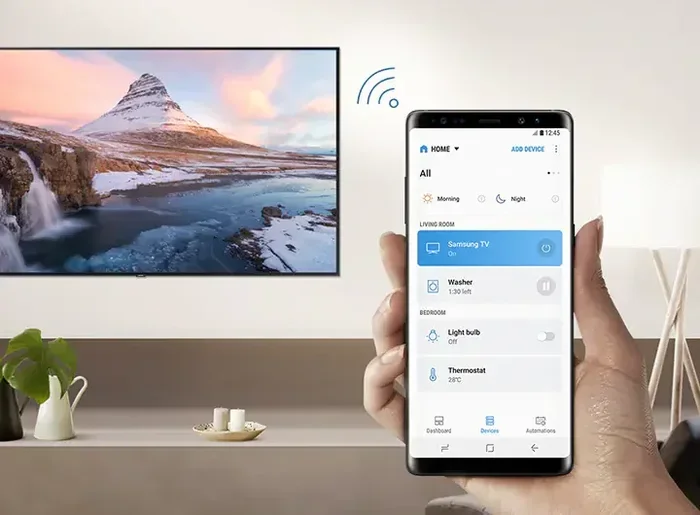
How Can I Connect My Phone To My Tv Without A Remote
You can connect your phone to your TV without a remote using several simple methods. Whether you use an HDMI cable, wireless mirroring, or a casting device, this guide walks you through every option. You will learn how to mirror your screen, choose the right cable, and troubleshoot common issues.
Have you ever wanted to watch something on your TV but could not find the remote? It happens to all of us. The good news is that connecting your phone to your TV without a remote is easier than you think. You do not need any fancy equipment or technical skills. In this guide, we will walk you through every method step by step. You will be streaming in no time.
There are several ways to get your phone content on a bigger screen. You can use a cable, go wireless, or use a small streaming device. Each method has its own benefits. Some give you a stronger connection, while others offer more freedom of movement. We will cover all of them so you can pick what works best for you. Let us dive right in.
Key Takeaways
- HDMI Connection: Use an HDMI adapter to plug your phone directly into the TV for a reliable wired link.
- Wireless Mirroring: Screen mirror your phone to a smart TV without needing any cables or a remote.
- Casting Devices: Chromecast, Roku, and similar devices let you stream from your phone to your TV easily.
- Bluetooth and Wi-Fi: Some TVs allow Bluetooth or Wi-Fi connections that work independently of the remote.
- Troubleshooting Tips: Simple fixes can resolve most connection issues you may face along the way.
📑 Table of Contents
- Why Connect Your Phone to Your TV Without a Remote?
- Method 1: Use an HDMI Cable and Adapter
- Method 2: Wireless Screen Mirroring
- Method 3: Use a Streaming or Casting Device
- Method 4: Use Bluetooth or Wi-Fi Direct
- Troubleshooting Common Issues
- Expert Tips for the Best Experience
- Key Takeaways
- Conclusion
Why Connect Your Phone to Your TV Without a Remote?
There are many reasons you might want to do this. Maybe your remote broke. Maybe you lost it somewhere between the couch cushions. Or perhaps you just prefer using your phone as the control center. Whatever the reason, knowing how to make this connection gives you more flexibility. You can watch movies, share photos, or even play games on a much bigger screen.
Another big reason is convenience. Your phone is always with you. It knows your apps, your passwords, and your preferences. Tapping into that on a TV screen makes the whole experience smoother. You do not need to hunt for remotes or navigate clunky TV menus. Everything stays in the palm of your hand.
Method 1: Use an HDMI Cable and Adapter
What You Will Need
This is the most reliable way to connect your phone to your TV without a remote. You will need two things. First, an HDMI adapter that fits your phone. Second, a standard HDMI cable. The adapter plugs into your phone, and the HDMI cable connects the adapter to your TV. It is a simple setup that works with most devices.
If you have an iPhone, you will need a Lightning to HDMI adapter. Android users typically use a USB-C to HDMI adapter. Make sure you buy the right one for your phone model. Using the wrong adapter will not work and could damage your port.
Step-by-Step Setup
- Plug the HDMI adapter into your phone.
- Connect the HDMI cable to the adapter.
- Plug the other end of the HDMI cable into your TV.
- Switch your TV to the correct HDMI input.
- Your phone screen should now appear on your TV.
That is it. No remote needed. Your phone becomes the source. You can control everything directly from your screen. Connecting your phone to your TV with an HDMI cable is one of the most stable methods available. You will get crisp video and clear sound every time.
Quick Tips for HDMI Connections
- Use a high-quality HDMI cable for the best picture.
- Make sure your adapter supports video output.
- If the screen is black, try unplugging and replugging the cable.
- Some adapters also charge your phone while connected.
Method 2: Wireless Screen Mirroring
How Wireless Mirroring Works
Wireless mirroring sends your phone screen to your TV over Wi-Fi. You do not need any cables at all. Most smart TVs made in the last few years support this feature. It is built right into the TV settings. You just need to make sure both your phone and TV are on the same Wi-Fi network.
This method is great because it keeps things simple and tidy. No cables to trip over. No adapters to buy. You just tap a button and your content appears on the big screen. Mirroring your phone to a smart TV without Wi-Fi is also possible in some cases, but a stable Wi-Fi connection gives you the best experience.
How to Mirror on iPhone
Apple makes this very easy. Open the Control Center on your iPhone. Tap the Screen Mirroring button. Select your TV from the list. Enter the code if your TV asks for one. Your screen is now on the TV. You can scroll, tap, and open apps just like normal.
How to Mirror on Android
Android phones use a feature called Cast Screen or Smart View. Pull down your notification panel. Tap the Cast icon. Choose your TV from the list. Your phone screen will appear on the TV right away. Different Android brands may label this feature slightly differently, but the process is very similar across devices.
Method 3: Use a Streaming or Casting Device
Popular Casting Devices
If your TV does not support wireless mirroring natively, you can use a casting device. These small gadgets plug into your TV’s HDMI port and connect to your phone over Wi-Fi. They act as a bridge between your phone and your TV. Some popular options include Google Chromecast, Amazon Fire TV Stick, and Roku Streaming Stick.
These devices are affordable and easy to set up. Most cost between $30 and $70. They give your TV smart features even if it is an older model. You control everything from your phone, so the TV remote becomes optional.
Setting Up Chromecast
Plug the Chromecast into your TV’s HDMI port. Connect it to your Wi-Fi network using the Google Home app on your phone. Open any app on your phone that supports casting. Tap the Cast icon. Choose your Chromecast device. Your content streams directly to the TV. This is one of the smoothest ways to connect your phone to your TV without a remote.
Setting Up Roku or Fire TV Stick
The process is similar for Roku and Fire TV Stick. Plug the device into HDMI, connect to Wi-Fi, and use the companion app on your phone. The app lets you search for content, launch apps, and control playback. You never need to touch the TV remote again.
| Feature | HDMI Cable | Wireless Mirroring | Streaming Device |
|---|---|---|---|
| Setup Difficulty | Easy | Very Easy | Easy |
| Cable Needed | Yes | No | Yes (HDMI) |
| Connection Stability | Excellent | Good | Very Good |
| Cost | Low | Free | $30-$70 |
| Works on Older TVs | Yes | No (needs smart TV) | Yes |
As you can see, each method has its strengths. The HDMI cable gives you the most stable connection. Wireless mirroring is the most convenient. A streaming device adds smart features to any TV. Pick the one that fits your needs and budget.
Method 4: Use Bluetooth or Wi-Fi Direct
Some TVs support Bluetooth connections. This lets you pair your phone with the TV wirelessly. You can then stream audio or even mirror your screen. Check your TV settings for a Bluetooth option. If your TV has it, pairing is usually as simple as going to your phone’s Bluetooth settings and selecting the TV.
Wi-Fi Direct works similarly but does not need a router. Your phone and TV create a direct connection. This can be faster and more stable than regular Wi-Fi. Not all TVs support Wi-Fi Direct, so check your TV manual or settings first.
For those wondering about other device connections, connecting an iPhone to a TV with HDMI is another popular option when you want a reliable wired setup. Similarly, if you have an iPad, connecting an iPad to a TV with USB follows a similar logic and can work well for certain use cases.
Troubleshooting Common Issues
No Signal on TV
If your TV shows no signal, do not panic. First, check that the HDMI cable is fully plugged in on both ends. Try a different HDMI port on your TV. If you are using wireless mirroring, make sure both devices are on the same Wi-Fi network. Restarting both your phone and TV can also fix this problem quickly.
Poor Video Quality
Blurry or laggy video is usually caused by a weak Wi-Fi signal or a cheap adapter. Use a high-quality HDMI adapter for wired connections. For wireless mirroring, move closer to your router. Reduce the number of devices using your Wi-Fi network. This frees up bandwidth and improves the stream quality.
No Sound
If you have video but no sound, check your TV audio settings. Make sure the TV is set to the correct input. On Android phones, go to Settings and look for Cast Audio settings. On iPhone, check that your TV is selected as the audio output in Control Center. A simple restart of both devices often solves this too.
Connection Keeps Dropping
Wireless connections can sometimes drop. This is usually a Wi-Fi issue. Make sure your router is close to your TV. Update your TV firmware if available. For casting devices, try resetting the device and setting it up again. A stable connection makes all the difference.
Expert Tips for the Best Experience
Here are some pro tips that make a big difference. First, always keep your phone and TV software up to date. Updates fix bugs and improve compatibility. Second, use a wall charger for your phone during long streaming sessions. Casting or mirroring uses a lot of battery power. Third, close unnecessary apps on your phone before you start. This frees up memory and makes the connection smoother.
Fourth, invest in a good HDMI adapter if you go the wired route. Cheap adapters can cause flickering or low resolution. Fifth, name your Wi-Fi network clearly so you can easily find it on both devices. These small steps save a lot of frustration over time.
Remember that not every method works perfectly on every TV. Your TV model and phone model both matter. Try different approaches if one does not work. There is always a solution that fits your setup.
Key Takeaways
- HDMI adapters give you the most reliable wired connection and work with almost any TV.
- Wireless mirroring is the easiest method and requires no cables or extra devices.
- Streaming devices like Chromecast and Roku add smart features to older TVs and work great with phones.
- Bluetooth and Wi-Fi Direct offer wireless options for TVs that support them.
- Troubleshooting is simple and usually involves checking cables, Wi-Fi, or restarting devices.
- Keeping software updated on both your phone and TV prevents most connection problems.
Conclusion
Connecting your phone to your TV without a remote is something anyone can do. You have many options to choose from. Whether you prefer a simple HDMI cable, wireless mirroring, or a streaming device, there is a method that fits your needs. Each approach has its own advantages, and the best part is that you do not need to be tech-savvy to make it work.
Start with the method that sounds easiest to you. Try wireless mirroring if you have a smart TV. Go with an HDMI adapter if you want a rock-solid connection. Pick up a Chromecast or Fire Stick if you want to add smart features to an older TV. Whatever you choose, you will enjoy the bigger screen experience right away.
Now that you know all the options, you can watch your favorite shows, share memories, and play games on the big screen anytime you want. No remote control needed. Just your phone and your TV. Happy streaming.
Frequently Asked Questions
Can I connect my phone to my TV without Wi-Fi?
Yes, you can. Using an HDMI cable and adapter is the best way to connect your phone to your TV without Wi-Fi. This wired method gives you a stable connection and does not rely on any wireless network. It works even if your TV has no internet access at all.
Do I need a special adapter for my phone?
It depends on your phone model. iPhones need a Lightning to HDMI adapter. Most Android phones use a USB-C to HDMI adapter. Check your phone’s charging port and buy the matching adapter. These adapters are widely available and affordable.
Can I control my TV using my phone after connecting?
Yes, in most cases. Once connected, your phone becomes the control hub. You can open apps, scroll through content, and adjust volume directly from your phone. Some smart TVs also let you use your phone as a remote through their official apps.
Is wireless mirroring as good as a wired connection?
Wireless mirroring is very convenient but can have slight lag or lower quality compared to a wired HDMI connection. For movies and casual viewing, wireless works great. For gaming or fast-action content, a wired HDMI connection gives you the best experience.
What if my TV does not support screen mirroring?
You can use a streaming device like Chromecast or Roku. These devices plug into your TV’s HDMI port and add mirroring support. They are easy to set up and work with almost any TV that has an HDMI input.
Can I connect multiple phones to the same TV?
Yes, you can. Most TVs and streaming devices support multiple connected devices. You can switch between phones by selecting the different source or casting device on the TV. This is useful for family movie nights or sharing photos with friends.