Does Asus Z790 Have Wi Fi Here Is Everything You Need
The Asus Z790 chipset supports Wi-Fi on many models, but not all boards include it by default. Higher-end Z790 motherboards like the ROG Maximus and TUF Gaming series come with built-in wireless connectivity, while budget boards may require a separate Wi-Fi adapter or card. This guide covers everything you need to know about wireless features on the Z790 platform.
If you are building or upgrading a PC with an Asus Z790 motherboard, one question likely popped into your head. Does Asus Z790 have Wi-Fi? The short answer is yes, but with a big caveat. Not every Z790 board comes with wireless built in. Some models include it right out of the box, while others leave you needing an add-on. This guide breaks down everything you need to know about wireless connectivity on the Z790 platform.
Whether you are a gamer, a remote worker, or someone who just wants a clean desk setup without cables, understanding your wireless options matters. A lot depends on the specific motherboard model you choose. In this article, we will walk you through which Z790 boards have Wi-Fi, how to add it if your board does not, and what to look for when shopping. Let us get started.
Key Takeaways
- Not all Z790 boards have Wi-Fi: Only select models include wireless built in.
- Premium Z790 boards lead with Wi-Fi 6E: Top-tier models offer the fastest wireless standards.
- You can add Wi-Fi to any Z790 board: A USB dongle or PCIe card works for boards without native support.
- Check the specs before buying: Always verify wireless capabilities on the specific model you want.
- Wi-Fi 6E offers better performance: It provides faster speeds and less interference than Wi-Fi 6.
- External adapters are easy to install: No technical skills needed to get wireless on a desktop.
- Consider your internet speed: Match your wireless standard to your broadband plan for best results.
📑 Table of Contents
- What Is the Asus Z790 Chipset?
- Does Asus Z790 Have Wi-Fi on All Models?
- How to Add Wi-Fi to a Z790 Board Without Built-In Wireless
- Wi-Fi Standards Supported by Z790 Boards
- Comparison: Z790 Boards With and Without Wi-Fi
- Tips for Getting the Best Wi-Fi Performance on Z790
- Common Mistakes People Make With Z790 Wi-Fi
- Final Thoughts
What Is the Asus Z790 Chipset?
The Asus Z790 is a desktop motherboard chipset designed for Intel’s 13th and 14th generation processors. It sits at the top of Intel’s consumer lineup, offering overclocking support, multiple PCIe 5.0 lanes, and plenty of connectivity options. The Z790 platform is popular among enthusiasts and gamers who want top-tier performance from their systems.
But here is the thing about chipsets. They define what a motherboard can support. They do not guarantee that every feature will be present on every board. This is exactly why you see such a wide range of Z790 motherboard models from Asus and other manufacturers. Some boards are packed with features, while others strip down to the essentials to keep costs low.
Why Chipset Features Vary Across Boards
Think of the Z790 chipset like a car engine. It gives you the power to go fast. But whether you get leather seats, a sunroof, or a premium sound system depends on the specific car model. Same idea with motherboards. The chipset supports Wi-Fi, Bluetooth, USB 3.2, and PCIe 5.0. But each manufacturer decides which of these features to include on their particular board.
This is why you will find some Asus Z790 boards with Wi-Fi and others without it at all. The chipset itself is capable. The board design determines what you actually get.
Does Asus Z790 Have Wi-Fi on All Models?
No, it does not. This is the most important thing to understand. The Asus Z790 lineup includes dozens of different models, and Wi-Fi availability varies significantly from one to the next. Let us break this down into the three main tiers.
Premium Z790 Boards With Built-In Wi-Fi
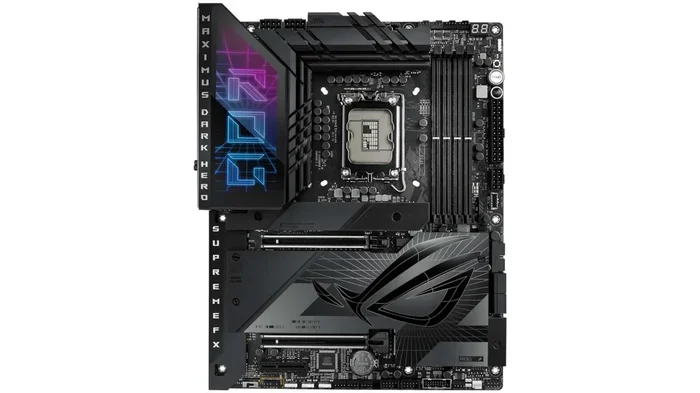
The flagship Asus Z790 boards almost always include built-in wireless networking. Models like the ROG Maximus Z790 Hero, the ROG Strix Z790-E Gaming, and the TUF Gaming Z790-Plus (Wi-Fi) all come with Wi-Fi 6E right on the board. These are the boards you want if you are looking for the best wireless performance without adding any extra hardware.
Here is what you typically get on these premium boards:
- Wi-Fi 6E support for speeds up to 2.4 Gbps on the 6 GHz band
- Bluetooth 5.3 for fast, low-energy wireless connections
- High-performance antennas built into the board design
- Dedicated wireless modules from Intel or Realtek
If you buy one of these boards, you can connect to your wireless router right away. No extra purchases needed. This is the ideal setup for most users who want a simple, cable-free experience.
Mid-Range Z790 Boards With Wi-Fi Options
Some mid-range Z790 boards include Wi-Fi, but not all of them. Models like the TUF Gaming Z790-P (Wi-Fi) do come with wireless. But the non-Wi-Fi version of the same board, like the TUF Gaming Z790-P, does not. This is a common naming pattern across the Asus lineup.
Always look for the “Wi-Fi” label in the model name. If it is not there, double-check the product specifications on the Asus website before buying. You do not want to be surprised after the purchase.
Budget Z790 Boards Without Wi-Fi
Budget Z790 boards, such as the Asus Prime Z790-A or the Z790-P, typically do not include Wi-Fi. These boards focus on essential connectivity like Ethernet ports and USB ports. They leave out the wireless module to keep the price competitive.
If you are on a tight budget and do not want to spend extra on a board with Wi-Fi, this is a perfectly fine option. You can always add wireless later using a simple adapter. We will cover how to do that below.
How to Add Wi-Fi to a Z790 Board Without Built-In Wireless
If your Asus Z790 motherboard does not have Wi-Fi, do not worry. You have several easy options to get wireless connectivity. None of them require advanced technical skills or expensive equipment.
Option 1: USB Wi-Fi Adapter
A USB Wi-Fi adapter is the simplest solution. You plug it into any USB port on your motherboard, install the drivers, and you are connected. These adapters are small, affordable, and work with virtually any desktop or laptop.
Look for adapters that support Wi-Fi 6 or Wi-Fi 6E for the best performance. Brands like TP-Link, ASUS, and Netgear offer reliable options at reasonable prices. Just make sure the adapter supports your wireless standard and your operating system.
One thing to keep in mind. A USB adapter uses a USB port. If you are already using most of your ports for other devices, this could be a minor inconvenience. But for most people, it is not a real issue.
If you want to learn more about adding wireless to a PC, check out our guide on Can I Add Wi-Fi to My PC for step-by-step instructions.
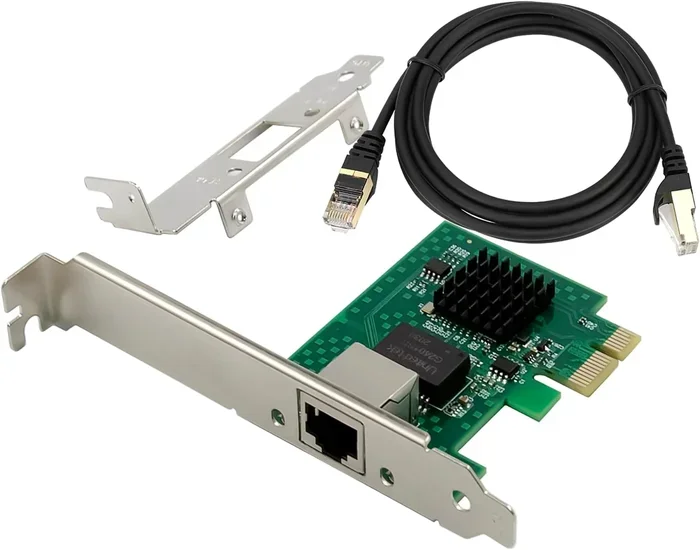
Option 2: PCIe Wi-Fi Card
A PCIe Wi-Fi card is a more permanent and powerful solution. You install it directly into an open PCIe slot on your motherboard. This gives you better signal strength and wireless performance compared to a USB adapter.
Most PCIe Wi-Fi cards come with a Bluetooth module built in as well. So you get both wireless networking and Bluetooth in a single installation. The Intel AX211 and Intel BE200 are popular choices for Z790 builds.
Installing a PCIe card is straightforward. You just need an available expansion slot and a screwdriver. If you have never done it before, do not worry. It is one of the easiest upgrades you can make to a desktop PC.
Before swapping out any wireless hardware, you might want to read our article on Before Replacing Your Laptop S Wi-Fi Card for helpful tips on what to check first.
Option 3: USB Tethering or Mobile Hotspot
This is more of a temporary workaround. You can share your phone’s mobile data connection with your PC using USB tethering or a mobile hotspot. It is not ideal for long-term use, but it works in a pinch.
This option is especially useful if you are setting up a temporary workspace or if your home internet service is down for maintenance. It is not a replacement for a proper Wi-Fi connection, but it gets the job done.
Wi-Fi Standards Supported by Z790 Boards
When shopping for a Z790 board with Wi-Fi, you will encounter different wireless standards. Understanding what these mean helps you make a smart buying decision.
Wi-Fi 6 (802.11ax)
Wi-Fi 6 is the current mainstream standard. It offers excellent speeds, better efficiency, and improved performance in crowded environments. Most Z790 boards with Wi-Fi support this standard. If your internet plan is under 1 Gbps, Wi-Fi 6 will serve you well.
Wi-Fi 6E
Wi-Fi 6E is the newer, faster version. It adds support for the 6 GHz band, which is less crowded and offers more bandwidth. Premium Z790 boards like the ROG Maximus Z790 Hero come with Wi-Fi 6E. If you want the best wireless speeds and your router supports it, this is the way to go.
Wi-Fi 7 (802.11be)
Wi-Fi 7 is the newest standard, but it is still emerging. Some of the latest Z790 boards are starting to support it. Wi-Fi 7 offers even faster speeds and lower latency. However, you will need a compatible router to take advantage of it. Right now, most users will be fine with Wi-Fi 6 or Wi-Fi 6E.
Comparison: Z790 Boards With and Without Wi-Fi
Choosing between a board with built-in Wi-Fi and one without comes down to your needs and budget. Here is a simple comparison to help you decide.
| Feature | Z790 Board With Wi-Fi | Z790 Board Without Wi-Fi |
|---|---|---|
| Price | Higher | Lower |
| Wireless Connectivity | Built in | Requires add-on |
| Setup Complexity | Plug and play | Needs adapter or card |
| Cable Clutter | Minimal | Depends on adapter |
| Upgrade Flexibility | Fixed module | Can swap adapter anytime |
| Best For | Clean setups, gamers | Budget builds, future upgrades |
Both options have their merits. If you value a clean, cable-free desk and do not want to think about wireless hardware ever again, go with a board that has built-in Wi-Fi. If you are watching your budget or like the flexibility to upgrade your wireless hardware later, a board without Wi-Fi plus a separate adapter is a great choice.
You might also be interested in learning about whether any Wi-Fi adapter works on any PC. Our article covers compatibility details that can save you time and money.
Tips for Getting the Best Wi-Fi Performance on Z790
Once you have your wireless connection set up, a few simple tips can help you get the most out of it. These apply whether you are using built-in Wi-Fi or an add-on adapter.
Place Your Router Strategically
Your router location matters more than most people realize. Keep it in a central location, away from walls and metal objects. The closer your router is to your PC, the stronger and faster your wireless signal will be.
Use the Right Band
Most modern routers broadcast on both 2.4 GHz and 5 GHz bands. The 5 GHz band is faster but has shorter range. The 2.4 GHz band is slower but reaches farther. For your Z790 setup, connect to the 5 GHz band whenever possible for the best wireless performance.
Update Your Drivers
Keep your wireless drivers up to date. Asus regularly releases updates that improve signal strength, stability, and speed. You can check for updates through the Asus website or their Armoury Crate software.
Reduce Interference
Other electronic devices can interfere with your Wi-Fi signal. Microwaves, cordless phones, and even baby monitors can cause issues. If you notice slow speeds or dropouts, try moving these devices away from your router and PC.
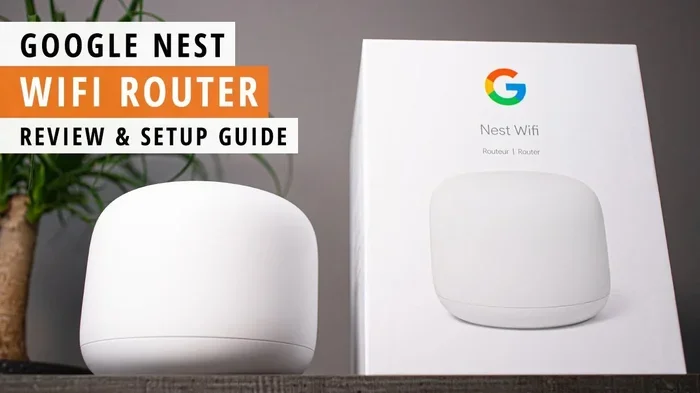
Consider a Mesh Network
If your home is large or has thick walls, a single router might not cover everywhere. A mesh network system can extend your wireless coverage to every room. This is especially helpful if your PC is in a different room from your router.
Common Mistakes People Make With Z790 Wi-Fi
Avoiding these common mistakes can save you frustration and help you get the most from your wireless setup.
- Assuming all Z790 boards have Wi-Fi: Always check the specific model before purchasing. The word “Wi-Fi” in the model name is your best clue.
- Buying the cheapest adapter: A cheap USB adapter can bottleneck your internet speed. Invest in a quality adapter that supports Wi-Fi 6 or better.
- Ignoring driver updates: Outdated drivers cause slow speeds and connection drops. Check for updates regularly.
- Placing the router in a closet: Walls and enclosed spaces weaken your signal. Keep your router out in the open.
- Not checking router compatibility: Make sure your router supports the same wireless standard as your board. A Wi-Fi 6E board paired with an older Wi-Fi 5 router will limit your speeds.
For more on avoiding setup pitfalls, read our article on Can I Connect My PC to Wi-Fi Without Ethernet for practical tips on wireless setup.
Final Thoughts
So, does Asus Z790 have Wi-Fi? The answer depends on the specific board you choose. Premium and mid-range models from Asus include built-in wireless connectivity, usually Wi-Fi 6E, right out of the box. Budget models may leave you without wireless, but adding it is easy and affordable.
The key is to check the specifications before you buy. Look for the “Wi-Fi” label in the model name, read the product description carefully, and verify the wireless standard it supports. A few minutes of research can save you a lot of hassle down the road.
Whether you go with a board that has built-in Wi-Fi or add an adapter later, the Z790 platform gives you plenty of options. It is one of the best chipsets for building a modern, high-performance PC. With the right wireless setup, you can enjoy fast, reliable internet without a single cable cluttering your desk.
Take your time, do your research, and pick the setup that fits your needs and budget. You will be surfing, gaming, and streaming wirelessly in no time.
Frequently Asked Questions
Do All Asus Z790 Motherboards Have Wi-Fi?
No, not all Asus Z790 motherboards include Wi-Fi. Only specific models, typically the premium and mid-range boards, come with built-in wireless. Budget Z790 boards usually do not have Wi-Fi. Always check the model name and specifications before purchasing to confirm wireless support.
What Wi-Fi Standard Do Most Z790 Boards Support?
Most Z790 boards with Wi-Fi support Wi-Fi 6 or Wi-Fi 6E. Wi-Fi 6E is found on premium models and offers faster speeds on the less crowded 6 GHz band. Check your specific board to confirm which standard it supports.
Can I Add Wi-Fi to a Z790 Board That Does Not Have It?
Yes, you can. You can add Wi-Fi using a USB Wi-Fi adapter or a PCIe Wi-Fi card. Both options are affordable and easy to install. A USB adapter is the simplest option, while a PCIe card offers better performance and signal strength.
Is Wi-Fi 6E Worth It on a Z790 Board?
Yes, Wi-Fi 6E is worth it if you want the fastest wireless speeds and your router supports it. The 6 GHz band is less congested, which means better performance in crowded environments. However, you will need a Wi-Fi 6E compatible router to take full advantage of it.
How Do I Know if My Z790 Board Has Wi-Fi?
Check the model name for the word “Wi-Fi” and review the product specifications on the Asus website. You can also look at the back I/O panel of the board. If you see a Wi-Fi antenna connector or a wireless module listed in the specs, your board has Wi-Fi.
Can I Use a USB Wi-Fi Adapter With Any Z790 Board?
Yes, USB Wi-Fi adapters work with any Z790 board regardless of whether it has built-in Wi-Fi. They plug into any available USB port and provide wireless connectivity. Just make sure the adapter supports your operating system and offers the wireless speed you need.