Does Wi Fi Need Network And Why You Should Care About It
Wi-Fi does need a network to function, but the type of network can vary depending on your setup. A wireless network allows devices to connect without cables, yet it still requires proper network configuration to deliver reliable internet access. Whether you are setting up a home network or troubleshooting wireless connectivity issues, understanding how Wi-Fi and networks work together is the first step toward a better online experience.
If you have ever set up a home network or tried to connect a new device, you have probably asked yourself a simple question: does Wi-Fi need a network? The answer might surprise you. Wi-Fi and networks are closely related, but they are not exactly the same thing. Understanding this difference can save you a lot of frustration when things do not work as expected.
In this guide, we will break down everything you need to know about Wi-Fi and network requirements. You will learn what makes a wireless network tick, how to get your internet connection running smoothly, and what to do when things go wrong. We will also explore situations where you might not need a full network setup at all. Whether you are a beginner or someone who just wants to understand your home network better, this article has you covered.
Key Takeaways
- Wi-Fi always needs a network: Even without internet, Wi-Fi requires a local network setup to function properly.
- Your router is the brain: The Wi-Fi router creates and manages the wireless network that connects all your devices.
- You can go offline: It is possible to set up a Wi-Fi network without an active internet connection for local use.
- Network configuration matters: Proper settings like SSID, password, and channel selection greatly impact your Wi-Fi performance.
- Alternatives exist: Mobile hotspots and Ethernet connections offer Wi-Fi alternatives when a traditional network is not available.
- Security is non-negotiable: Always protect your wireless network with strong passwords and proper encryption settings.
- Troubleshooting starts with basics: Most Wi-Fi problems can be solved by checking your network adapter, router placement, and signal strength.
📑 Table of Contents
What Is a Wi-Fi Network and How Does It Work
Before we dive into whether Wi-Fi needs a network, let us first understand what each term means on its own. Wi-Fi is a technology that uses wireless frequencies to send and receive data between devices. It is essentially a radio signal that your phone, laptop, or tablet can pick up. A network, on the other hand, is a group of connected devices that can communicate with each other.
When you combine Wi-Fi with a network, you get a wireless network. This is what most people have in their homes. Your Wi-Fi router acts as the central hub. It connects to your modem, which talks to your internet service provider. From there, the router broadcasts a wireless signal that your devices can pick up.
How Wireless Signals Travel
Your router sends out radio waves on specific wireless frequencies, usually 2.4 GHz or 5 GHz. These waves travel through the air and are picked up by the network adapter in your device. The adapter then translates those waves into data your device can understand. The Wi-Fi range depends on several factors, including your router’s power, walls, and interference from other devices.
Key Components of a Wireless Network
Every home network has a few essential parts. First, you need a modem that connects to your internet service provider. Second, you need a router that creates the wireless signal. Third, your devices need a working network adapter to pick up that signal. Some people use a combined modem-router unit, which simplifies things a lot.
Here are the key parts of a typical setup:
- Modem: Connects you to the internet through your provider
- Router: Creates the wireless signal and manages traffic
- Network adapter: Built into your device to receive Wi-Fi signals
- Ethernet cable: Optional wired connection for faster speeds
- Network password: Keeps your wireless connectivity secure
Does Wi-Fi Actually Need a Network to Function
This is the big question, and the answer is more nuanced than you might think. Does Wi-Fi need a network? Yes, Wi-Fi needs a local network to operate. But does that network need to be connected to the internet? Not necessarily. Let us break this down.
When you turn on your router, it creates a local network even if you do not have an active internet connection. Your devices can still connect to this wireless network. They can share files, print documents, and stream media from a local server. However, they cannot access the wider internet without a proper broadband connection.
The Role of Your Internet Service Provider
Your internet service provider (ISP) is what gives you access to the global internet. Without an ISP, your router can still create a local network. But that network will not have internet access. Think of it like a road that leads to your house but does not connect to any other roads. You can still use your house, but you cannot go anywhere.
This is an important distinction. Many people confuse having Wi-Fi with having internet. You can have a strong Wi-Fi signal and still have no internet if your ISP connection goes down. That is why checking your network settings is the first step when troubleshooting.
Standalone Wi-Fi Without Internet
There are plenty of reasons you might want a Wi-Fi network without internet access. Smart home devices often work on a local network only. Security cameras, smart bulbs, and some speakers do not need the internet to function. They just need to talk to each other through your wireless access point.
Similarly, if you want to set up a media server or share files between devices, a local network configuration without internet works perfectly. This is common in offices, workshops, and homes where people just want device-to-device communication without the overhead of an internet connection.
So to answer the question directly: Wi-Fi does need a network, but that network does not always need to be connected to the internet. The key is understanding what you want your setup to do.
How to Set Up Your Wi-Fi Network the Right Way
Setting up a wireless network does not have to be complicated. With the right steps, you can have a fast, secure home network up and running in under an hour. Let us walk through the process.
Choosing the Right Equipment
Your choice of router matters a lot. Not all routers are created equal. If you live in a small apartment, a basic router will probably work fine. But if you have a larger home with thick walls, you might need a mesh Wi-Fi system or a router with stronger antennas.
Here are some tips for choosing the right equipment:
- Look for a router that supports the latest wireless frequency standards (Wi-Fi 6 or Wi-Fi 6E)
- Consider a mesh system if you have a large home with dead zones
- Make sure your router has enough Ethernet ports for wired connections
- Check that your modem is compatible with your internet plan speed
- Consider a router with built-in security features like WPA3 encryption
Configuring Your Network Settings
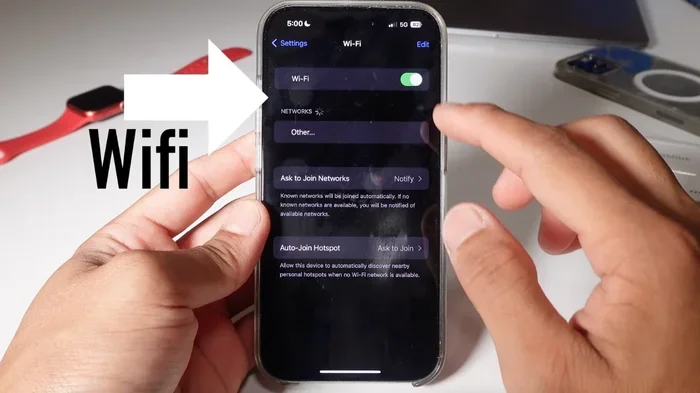
Once you have your equipment, the next step is configuration. This is where your network settings come into play. You will need to log into your router’s admin panel, usually by typing an IP address into your browser. From there, you can set your network name (SSID), password, and security type.
One thing many people overlook is setting a strong network password. A weak password leaves your home network vulnerable to intruders. Use a mix of letters, numbers, and special characters. If you want to share your password easily, you can also create a QR code for your Wi-Fi so guests can connect without typing anything.
Another important setting is choosing the right wireless channel. In crowded areas with many networks, switching to a less congested channel can significantly improve your Wi-Fi speed and Wi-Fi coverage.
Quick Tips for Better Setup
- Place your router in a central location for the best signal spread
- Keep your router away from microwaves and other electronics that cause interference
- Update your router’s firmware regularly for security and performance
- Use a unique network name that does not reveal personal information
- If you are struggling with a PC setup, you can add Wi-Fi to your PC with a simple USB adapter
Can You Set Up Wi-Fi Without a Password
Technically, yes. Some routers allow you to leave the network password blank, creating an open network. However, this is a bad idea for most people. An open network means anyone nearby can connect to your wireless connectivity and potentially access your devices. If you want to learn more about password-free setups, check out whether you can get Wi-Fi without a password and the risks involved.
Common Wi-Fi Network Problems and How to Fix Them
Even with a perfect setup, you will run into Wi-Fi troubleshooting situations from time to time. Slow speeds, dropped connections, and devices that will not connect are all common issues. The good news is that most problems have simple fixes.
Weak Signal Issues
If your Wi-Fi signal is weak in certain parts of your home, the problem is usually placement. Walls, floors, and large furniture can block wireless frequencies. Moving your router to a more central and elevated position can make a big difference.
You can also boost your signal with a Wi-Fi extender or a mesh network system. These devices repeat your wireless signal and push it further into your home. Another option is to use a wired backhaul, which connects mesh nodes with Ethernet cables for the strongest possible connection.
Slow Wi-Fi Speed Problems
Slow speeds are one of the most frustrating issues. Before you call your internet service provider, try these steps:
- Restart your router and modem
- Check if any devices are using heavy bandwidth (like streaming or downloads)
- Switch to the 5 GHz band if your router supports it
- Update your router’s firmware
- Run a speed test to see if the problem is with your ISP or your local network
Common Mistakes to Avoid
- Hiding your router in a closet: Walls and doors block wireless frequencies and weaken your signal
- Using outdated equipment: Older routers may not support modern wireless connectivity standards
- Ignoring firmware updates: Updates often fix bugs and improve network performance
- Overloading a single band: Too many devices on 2.4 GHz can slow everything down
- Skipping the network password: Open networks are convenient but risky for your network security
When to Call a Professional
Sometimes the problem is beyond a simple restart. If you have tried everything and your internet connection is still not working, it might be time to call your ISP or a network technician. Issues with the line, modem, or ISP infrastructure often require professional tools to diagnose.
When You Don’t Need a Traditional Wi-Fi Network
Not every situation requires a full home network with internet access. There are several scenarios where you can get wireless connectivity without a traditional setup. Understanding these options gives you flexibility and can save you money.
Mobile Hotspot Alternatives
Your phone can act as a portable wireless access point. By turning on your phone’s hotspot feature, you share your cellular data connection with other devices. This is a great option when you are traveling or when your home internet goes down.
You can get Wi-Fi from your phone using this method. Just keep in mind that hotspots use your mobile data allowance, so monitor your usage to avoid extra charges. Also, hotspot speeds depend on your cellular signal strength, so it is not always as fast as a home broadband connection.
Offline Wi-Fi Setups
As we discussed earlier, you can create a local wireless network without any internet connection. This is useful for:
– Sharing files between devices in your home
– Streaming media from a local server
– Setting up smart home devices that do not need cloud access
– Playing multiplayer games on a local network
For these use cases, you only need a router and your devices. No modem, no ISP, no internet service provider required. Your network configuration just needs to be set up so devices can find and talk to each other.
Wired Alternatives to Wi-Fi
Sometimes a wired connection is better than wireless. Ethernet offers faster speeds, lower latency, and more reliable performance. If you are setting up a gaming PC or a home office, running an Ethernet cable might be the best choice.
For devices that do not have an Ethernet port, you can use a USB-to-Ethernet adapter. And if running cables is not an option, you can connect your PC to Wi-Fi without Ethernet using a USB Wi-Fi adapter or a built-in wireless card.
Wi-Fi vs. Wired vs. Hotspot: Quick Comparison
| Feature | Traditional Wi-Fi | Ethernet | Mobile Hotspot |
|---|---|---|---|
| Speed | Good to Excellent | Excellent | Fair to Good |
| Reliability | Good | Very High | Depends on Signal |
| Mobility | High | Low | Very High |
| Setup Difficulty | Easy | Moderate | Very Easy |
| Cost | Low (router) | Low (cable) | Uses Data Plan |
| Best For | Home Use | Gaming/Office | Travel/Emergency |
Why Understanding Your Wi-Fi Network Matters
Knowing how your wireless network works gives you more control over your digital life. It helps you troubleshoot problems faster, set up new devices with confidence, and make smart decisions about your equipment. You do not need to be a tech expert to understand the basics.
When you understand the relationship between Wi-Fi and networks, you can diagnose issues before they become big problems. A dropped connection might mean your router needs a reboot, or it could signal a deeper issue with your network adapter or ISP. The more you know, the better equipped you are to handle whatever comes up.
Expert Insights
Network professionals recommend checking your network settings at least once a month. Look for firmware updates, review connected devices, and make sure your network security settings are current. A well-maintained home network not only performs better but also stays safe from intrusions.
Experts also suggest placing your router in an open area, away from metal objects and thick walls. The Wi-Fi signal radiates outward in all directions, so obstructions weaken it significantly. A little thought about placement can save you hours of Wi-Fi troubleshooting down the road.
Finally, remember that technology evolves quickly. What works today might not work tomorrow. New wireless frequencies, faster standards, and better security protocols come out regularly. Staying informed helps you keep your wireless connectivity fast, secure, and reliable for years to come.
Conclusion
So, does Wi-Fi need a network? The answer is a clear yes. Wi-Fi technology relies on a network to function, whether that network is connected to the internet or not. Your wireless network needs a router, proper network configuration, and a network adapter on your devices to work correctly.
But the beauty of modern technology is that you have options. You can set up a local network without internet, use your phone as a hotspot, or connect via Ethernet when wireless is not enough. Understanding these choices puts you in control of your internet connection and your home network.
Take some time to review your current setup. Check your network settings, update your router, and make sure your network security is strong. A little effort goes a long way toward a better, faster, and safer online experience. Your wireless connectivity will thank you for it.
Frequently Asked Questions
Can I have Wi-Fi without the internet?
Yes, you can. Your router can create a local wireless network even without an active internet connection. Devices on this network can still communicate with each other, share files, and stream local media. However, they will not be able to access websites or online services.
What is the difference between Wi-Fi and a network?
Wi-Fi is the wireless technology that allows devices to connect without cables. A network is the broader system that connects multiple devices together. Wi-Fi is one way to build a network, but networks can also be wired using Ethernet cables or other connections.
Do I need a modem if I have a router?
It depends on your setup. If you want internet access, you need a modem to connect to your internet service provider. However, if you only need a local network for file sharing or smart home devices, a router alone is enough. Some people use a combined modem-router unit to simplify things.
How can I improve my Wi-Fi signal strength?
Start by moving your router to a central, elevated location. Avoid placing it near walls, metal objects, or electronics that cause interference. You can also update your router’s firmware, switch to the 5 GHz band, or add a Wi-Fi extender or mesh system to boost coverage.
Is it safe to use a public Wi-Fi network?
Public Wi-Fi networks are convenient but can be risky. They often lack proper network security, which means your data could be exposed. If you must use public Wi-Fi, avoid accessing sensitive accounts and consider using a VPN to encrypt your connection.
Can I use my phone as a Wi-Fi network for my PC?
Yes, you can. Most smartphones have a hotspot or tethering feature that turns your phone into a wireless access point. This lets your PC connect to the internet through your phone’s cellular data. Just be mindful of your data usage, as streaming and large downloads can eat up your plan quickly.