Can You Reboot A Network Switch And Fix Connectivity Issues
Yes, you can reboot a network switch to fix most connectivity issues quickly and easily. Whether you have a managed switch or an unmanaged switch, a simple restart can clear network glitches, resolve packet loss, and restore stable network performance. This guide walks you through every step, from a soft reset to a hard reset, so you can get your network back online fast.
Dealing with a network that keeps dropping connections can be incredibly frustrating. If your devices keep losing their Ethernet connection or your internet speed suddenly tanks, the culprit might be your network switch. The good news is that Can You Reboot A Network Switch is a question with a simple and reassuring answer: yes, you absolutely can. A reboot often fixes connectivity problems that seem complicated but have a straightforward solution.
Network switches are the backbone of any wired network. They connect multiple devices and direct data traffic between them. Over time, these switches can encounter software hiccups, memory buildup, or configuration conflicts. Just like restarting your computer clears temporary glitches, restarting a network switch refreshes its operating state. This article will show you exactly how to do it, when it helps, and what to do if a simple reboot does not solve the problem.
Whether you are an IT admin managing a large office network or a home user trying to get your smart home devices back online, understanding how to reboot your switch is a valuable skill. You will learn the difference between a soft reset and a hard reset, discover common issues that a reboot fixes, and pick up best practices to keep your switch running smoothly for years to come.
Key Takeaways
- Rebooting fixes most issues: A simple restart clears memory leaks, resets connections, and resolves temporary network glitches that cause connectivity drops.
- Two reset methods exist: You can perform a soft reset through the web interface or CLI, or a hard reset by physically powering the switch off and on.
- Know your switch type: Managed switches offer more reboot options than unmanaged switches, which rely solely on power cycling.
- Rebooting is not a cure-all: If connectivity issues persist after a reboot, the problem may involve hardware failure, firmware bugs, or configuration errors.
- Preventive maintenance matters: Regular firmware updates, proper ventilation, and scheduled reboots keep your network switch healthy and your network stable.
- Follow safety steps: Always save your configuration before a reboot, and never unplug a switch during heavy data transfers to avoid port corruption.
📑 Table of Contents
Why Network Switches Need Rebooting
Network switches work hard around the clock. They handle data packets, manage VLANs, and keep track of MAC address tables. Over time, all that work can take a toll. Understanding why switches need a reboot helps you troubleshoot faster and prevent future problems.
Memory Leaks And Software Glitches
Like any computer device, a network switch runs on software. Firmware manages how the switch processes data and handles connections. Sometimes, the firmware develops memory leaks. This means the switch uses more and more memory over time without releasing it. Eventually, the switch runs low on available memory and starts dropping packets or slowing down.
A reboot clears the memory and gives the switch a fresh start. Think of it like closing apps on your phone that are using too much RAM. The switch resets its internal tables and starts processing data cleanly again. This is one of the most common reasons IT professionals recommend a network restart when devices experience slow speeds or intermittent disconnections.
Overheating And Hardware Stress
Switches generate heat, especially in poorly ventilated server rooms or crowded equipment closets. When a switch overheats, it may start dropping ports, slowing throughput, or completely freezing. A reboot does not fix the root cause of overheating, but it can restore temporary functionality while you address the cooling issue.
Common causes of overheating include blocked air vents, dust buildup, and placing switches near heat sources like radiators or direct sunlight. If your switch feels hot to the touch after a reboot, check its fan and airflow immediately.
Configuration Conflicts And Failed Updates
Sometimes a network configuration change goes wrong. A new VLAN setup, a firmware update that did not complete properly, or a port configuration error can all cause connectivity failures. Rebooting the switch forces it to reload its configuration from scratch. In many cases, this resolves conflicts that were causing the switch to malfunction.
However, if the configuration itself is broken, a reboot will not help. You will need to manually fix the settings before restarting the device. This is why saving your configuration before any reboot is so important.
How To Reboot A Network Switch
Rebooting a network switch is straightforward, but the exact steps depend on the type of switch you have. The two main categories are managed switches and unmanaged switches. Each has different reboot methods and capabilities.
Rebooting A Managed Switch
A managed switch gives you full control over network settings. You can monitor traffic, configure ports, set up VLANs, and more. Because of this control, managed switches offer multiple ways to reboot.
Method One: Web Interface Reboot
Most managed switches come with a web-based management interface. To reboot through the web interface, follow these steps:
- Connect your computer to the same network as the switch.
- Open a web browser and type the switch IP address into the address bar.
- Log in with your admin credentials.
- Navigate to the System or Maintenance section.
- Look for a Reboot or Restart option.
- Click the button and confirm the reboot.
This method is the safest because it allows the switch to shut down gracefully. All active connections get proper notification before the switch powers off.
Method Two: Command Line Interface Reboot
If you prefer the command line, you can reboot a managed switch using SSH or Telnet. Common commands include:
- reload – triggers a system restart on most Cisco and enterprise switches
- reboot – works on many Juniper and HP switches
- restart system – used on some Dell and Aruba switches
Always save your running configuration before using CLI commands. Type copy running-config startup-config on Cisco devices or the equivalent command for your switch brand. This ensures your settings survive the reboot.
Rebooting An Unmanaged Switch
Unmanaged switches are plug-and-play devices. They do not have a web interface or command line access. The only way to reboot an unmanaged switch is through a physical power cycle.
Here is how to do it safely:
- Identify the power source for the switch.
- Unplug the power cable from the switch or the power strip.
- Wait at least 30 seconds. This allows the switch capacitors to fully discharge.
- Plug the power cable back in.
- Wait for the LED indicators to stabilize, which usually takes one to two minutes.
Never unplug an unmanaged switch during heavy data transfers. Doing so can corrupt the MAC address table and cause ports to behave unpredictably after the restart.
Soft Reset Vs Hard Reset
When troubleshooting network issues, you will hear the terms soft reset and hard reset. These two approaches are very different, and knowing which one to use can save you time and prevent data loss.
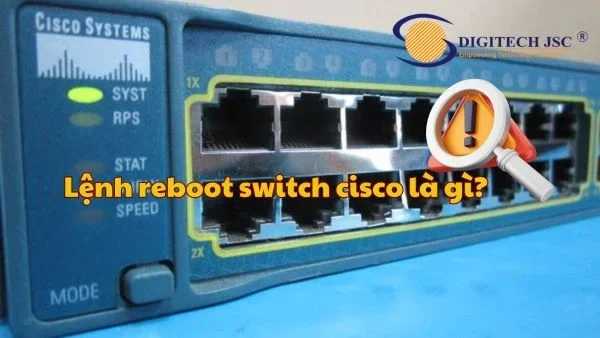
A soft reset restarts the switch software without cutting power. The switch reloads its operating system while keeping the hardware powered. This is the preferred method for managed switches because it allows a graceful shutdown of active connections.
A hard reset involves cutting the power completely. The switch loses all power, and all active connections drop immediately. This method works for both managed and unmanaged switches but should be used as a last resort.
| Feature | Soft Reset | Hard Reset |
|---|---|---|
| Method | Software restart via web or CLI | Physical power cycle |
| When To Use | Routine troubleshooting, configuration reload | Frozen switch, unresponsive web interface |
| Risk Level | Low | Medium |
| Data Loss | Minimal if config is saved | Temporary connection drops only |
| Works On | Managed switches only | All switch types |
| Time To Complete | 30 seconds to 2 minutes | 1 to 3 minutes |
In most cases, a soft reset is the better choice. It is faster, safer, and does not interrupt the hardware. Reserve a hard reset for situations where the switch is completely frozen and unresponsive to any software commands.
Common Connectivity Issues Fixed By Rebooting
Now that you know how to reboot, let us look at the specific connectivity problems that a restart can solve. Many network issues that seem serious turn out to be temporary software glitches that a simple reboot fixes.
Devices Losing Their Ethernet Connection
If computers, printers, or IP cameras keep disconnecting from the network, the switch port may be stuck in a bad state. A reboot forces the switch to renegotiate link speeds with all connected devices. This often resolves port negotiation failures that cause intermittent disconnections.
After rebooting, check if the LED indicators on the switch show stable link lights on the affected ports. If a port LED remains off, the issue may be a bad cable or a dead port, not a software problem.
Slow Network Performance And High Latency
Network latency is the delay between sending a request and receiving a response. High latency makes video calls choppy, file transfers slow, and online gaming laggy. A reboot can reduce latency by clearing the switch buffer and resetting traffic queues.
Before rebooting, run a ping test to measure your current latency. After the reboot, run the same test again. If latency dropped significantly, the reboot fixed the issue. If not, the problem likely lies elsewhere in your network.
Packet Loss And Dropped Traffic
Packet loss occurs when data fails to reach its destination. This happens when switch buffers overflow or when the switch firmware encounters errors processing traffic. A reboot clears the buffer and resets the packet processing pipeline.
Use tools like ping or traceroute to check for packet loss before and after a reboot. A significant reduction in packet loss after a reboot confirms that the switch was the source of the problem.
DHCP IP Address Conflicts
Sometimes devices on the network fail to obtain IP addresses from the DHCP server. A switch that has stale ARP table entries can contribute to this problem. Rebooting the switch clears the ARP table and forces it to rebuild the table with current device information.
When Rebooting Does Not Fix The Problem
A reboot solves many issues, but it is not a magic fix. If your connectivity problems persist after a restart, the root cause likely lies deeper. Here are common scenarios where rebooting does not help and what you should do next.
Firmware Bugs Requiring An Update
If your switch firmware has a known bug, rebooting will not fix it. The bug will return every time the switch restarts. Check the manufacturer website for firmware updates. Updating the firmware can resolve bugs that cause port failures, VLAN misconfigurations, and security vulnerabilities.
Before updating firmware, always verify compatibility with your switch model. A wrong firmware file can permanently damage the device. Download the update from the official vendor site only, never from third-party sources.
Hardware Failure
Switch hardware can fail. Power supplies burn out, fans stop working, and ports go dead. A reboot will not fix a physically damaged component. Signs of hardware failure include burning smells, unusual buzzing sounds, and ports that remain offline even after multiple reboots.
If you suspect hardware failure, replace the switch. Most managed switches have redundant power supply options for critical deployments. Consider investing in spare switches for your network to minimize downtime during hardware failures.
ISP Or Router Issues
Sometimes the problem is not your switch at all. If your router, modem, or internet service provider is experiencing an outage, rebooting the switch will not restore connectivity. Before spending time troubleshooting the switch, check your router and modem first.
Try power cycling your router and modem before touching the switch. If internet connectivity returns after a router reboot, the switch was not the problem. This simple step saves a lot of unnecessary troubleshooting time.
Network Configuration Errors
A reboot reloads the existing configuration. If the configuration itself is wrong, the switch will boot up with the same problems. Common configuration errors include incorrect VLAN assignments, disabled ports, and wrong spanning tree settings.
Review your network configuration carefully. Compare it against best practices and your network documentation. If you recently made changes, consider reverting them and then rebooting to see if the issue resolves.
Best Practices For Keeping Your Network Switch Healthy
Prevention is always better than troubleshooting. Following best practices keeps your switch running reliably and reduces the need for emergency reboots. Here are proven strategies for maintaining a healthy network switch.
Schedule Regular Reboots
Just like any network device, a switch benefits from periodic restarts. Schedule a monthly reboot during low-usage hours. This clears memory, refreshes connections, and prevents the gradual performance decline that comes from extended uptime.
Managed switches with scheduled reboot features make this easy. Set the reboot time in the web interface and let the switch handle the rest automatically. This is especially useful for switches in remote locations or server rooms where physical access is difficult.
Keep Firmware Updated
Firmware updates fix bugs, patch security vulnerabilities, and improve performance. Check for updates every quarter. Most managed switches have an automatic update notification feature that alerts you when a new firmware version is available.
Before applying any firmware update, read the release notes. Some updates require specific reboot procedures or configuration changes. Plan your update during a maintenance window to avoid unexpected network downtime.
Monitor Temperature And Ventilation
Keep your switch in a well-ventilated area. Avoid stacking equipment directly against the switch. Leave at least a few inches of clearance on all sides for airflow. If your switch has fans, clean them regularly to prevent dust buildup.
Many managed switches include temperature monitoring through their web interface. Set up alerts for high temperatures so you can address cooling issues before they cause problems.
Document Your Network Configuration
Keep a record of your switch configurations, port assignments, and VLAN settings. This documentation is invaluable when troubleshooting issues. If a reboot does not fix a problem, you can quickly reference your configuration to identify what changed recently.
- Label every port on your switch with the connected device name.
- Use cable management trays to keep cords organized and reduce airflow blockage.
- Keep a spare switch on hand for quick replacements during failures.
- Back up your switch configuration weekly or after any major change.
- Power your switch through a UPS (Uninterruptible Power Supply) to protect against power surges and outages.
Watch For Warning Signs
Your switch gives you warning signs before a major failure. Pay attention to these indicators:
- Frequent port disconnections – a sign of failing hardware or overheating
- Slow management interface – suggests the switch is struggling with memory or CPU load
- Unusual fan noise – indicates a failing fan that needs replacement
- Firmware error messages – a warning that the software needs attention
- Increased packet errors on specific ports – may point to a bad cable or failing port
Catching these signs early allows you to address problems before they cause a full network outage. A proactive approach to switch maintenance saves time, money, and frustration.
Expert Insights On Network Switch Longevity
Experienced IT professionals recommend treating network switches like any other critical infrastructure component. Regular maintenance, timely firmware updates, and environmental monitoring extend switch lifespan significantly. Most quality switches last five to seven years with proper care, but neglected switches can fail within two or three years.
One of the most impactful habits is performing a network restart as part of regular maintenance rather than waiting for problems to occur. This mindset shift from reactive to proactive troubleshooting dramatically improves network reliability and reduces emergency downtime.
Conclusion
So, can you reboot a network switch? Absolutely. A reboot is one of the simplest and most effective troubleshooting steps you can take. Whether you choose a soft reset through the web interface or a hard reset by power cycling the device, restarting your switch resolves a wide range of connectivity issues including packet loss, high latency, and dropped connections.
Remember to save your configuration before rebooting, choose the right reset method for your switch type, and always check for underlying issues if the problem persists. A reboot is a powerful first step, but it is not a substitute for proper maintenance, firmware updates, and environmental monitoring.
Take what you have learned here and apply it to your network today. A quick reboot might be all you need to restore stable connectivity and get your devices back online. Keep your switch healthy, monitor it regularly, and your network will reward you with reliable performance for years to come.
Frequently Asked Questions
How Long Does It Take To Reboot A Network Switch?
A soft reset typically takes 30 seconds to 2 minutes. A hard reset or power cycle takes 1 to 3 minutes, including the time for the switch to fully boot and stabilize. The exact time depends on the switch model, firmware size, and number of configured ports.
Will Rebooting My Network Switch Disconnect All Devices?
Yes, rebooting a network switch temporarily disconnects all devices connected to it. During a soft reset, the switch notifies active connections before restarting. During a hard reset, all connections drop immediately. Plan reboots during low-usage periods to minimize disruption.
Can I Reboot A Network Switch Remotely?
Yes, if you have a managed switch with remote management enabled. You can reboot it through the web interface or command line from any device on the same network. Unmanaged switches always require a physical power cycle and cannot be rebooted remotely.
How Often Should I Reboot My Network Switch?
Most IT professionals recommend rebooting a managed switch once a month as preventive maintenance. In high-traffic enterprise environments, a weekly reboot schedule may be beneficial. The goal is to clear memory buildup before it causes performance issues or connectivity drops.
What Is The Difference Between Rebooting And Resetting A Network Switch?
Rebooting restarts the switch software while keeping your configuration intact. Resetting typically means restoring the switch to factory default settings, which erases all custom configurations. Always back up your configuration before performing a factory reset.
Can A Network Switch Reboot Itself Automatically?
Yes, many managed switches support automatic scheduled reboots. You can configure a reboot schedule through the web interface or CLI. Some switches also reboot automatically after a firmware update or when they detect critical system errors.