Does Meater Work Over Wifi The Answer Will Surprise You
The Meater smart meat thermometer can work over WiFi, but it also relies heavily on Bluetooth for most everyday use. Understanding how Meater connects to your network helps you get the most out of this popular smart cooking gadget. Whether you are grilling outdoors or roasting indoors, knowing the difference between WiFi and Bluetooth modes makes all the difference.
Does Meater Work Over WiFi? The short answer is yes, but the full story is more interesting than you might expect. Many people buy the Meater smart meat thermometer assuming it works just like a regular WiFi device. The truth is that Meater uses a combination of Bluetooth and WiFi to deliver its smart cooking features. If you have ever wondered why your Meater struggles to connect or why the range feels limited, the answer lies in how this device handles wireless signals. Let us break it all down so you get a clear picture of what to expect.
The Meater thermometer is one of the most popular smart cooking gadgets on the market today. It promises to take the guesswork out of grilling and smoking by sending real-time temperature data straight to your phone. But the question of how it connects matters more than most people realize. Your WiFi setup at home or at the grill can make or break your experience with this device.
So does Meater work over WiFi? Yes, it does. But it also works over Bluetooth, and each connection type has its own strengths and limitations. In this article, we will walk through everything you need to know about Meater WiFi connectivity. You will learn how the device connects, what the differences are between Bluetooth and WiFi modes, and how to get the best performance from your setup.
Meater is a wireless meat thermometer designed for grilling, smoking, and oven cooking. It uses a smart probe that sits inside your meat and sends temperature readings to your phone or tablet. The Meater app on iOS and Android lets you track your cook in real time, set alerts, and get precise doneness recommendations.
The device connects to your phone using Bluetooth Low Energy (BLE) as its primary connection method. This works well for most backyard cooks. Bluetooth gives you a reliable connection within about 150 feet of your phone. That is plenty of range for most grilling scenarios.
But here is where things get interesting. The Meater also has WiFi capabilities. When you connect Meater to your home WiFi network, the device can communicate through your router instead of relying solely on Bluetooth. This opens up new possibilities for remote monitoring and longer range.
The Meater system comes in two main models. The standard Meater and the Meater+. Both models use Bluetooth as their base connection. The Meater+ adds WiFi connectivity and cloud-based monitoring. This means you can check on your cook from anywhere with an internet connection, not just when you are near the grill.
The standard Meater relies on Bluetooth for all communication. It does not have built-in WiFi hardware. The Meater+ includes WiFi support, which is the key difference between the two models. If you want full WiFi functionality, you need the Meater+ version.
The Meater app handles the connection management. When you open the app, it searches for your Meater probe. If you are using Bluetooth only, the app connects directly to the probe. If you have the Meater+ and have set up WiFi, the app can connect through your network for extended range and cloud features.
One important thing to know is that Meater requires a 2.4GHz WiFi network. It does not support 5GHz WiFi bands. This is a common source of confusion. Many modern routers broadcast both bands, and sometimes they use the same name for both. If your router is set up this way, your Meater might struggle to connect.
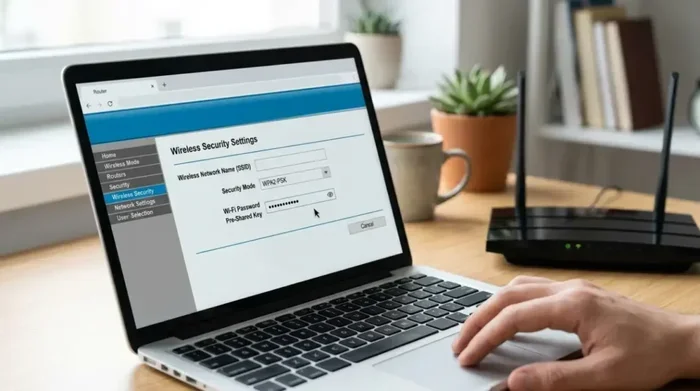
To get the best results, make sure your Meater is connecting to the 2.4GHz band of your router. You may need to check your router settings or temporarily disable the 5GHz band during setup. Once the Meater is connected to 2.4GHz WiFi, it should maintain a stable connection.
Now let us compare Bluetooth and WiFi for the Meater thermometer. This comparison helps you understand when to use each connection type and what trade-offs you are making.
Bluetooth is the default and most common way to use Meater. It is simple to set up and does not require a WiFi network. You just open the app, pair the probe, and start cooking. Bluetooth works well for backyard cooks who stay within range of the grill.
WiFi gives you a longer range and cloud connectivity. With WiFi enabled, you can check on your cook from inside the house or even when you are away from home. The Meater+ can connect to the Meater cloud, which means you can monitor temperatures from your phone no matter where you are.
However, WiFi also introduces more variables. Your WiFi signal strength, router placement, and network congestion all affect performance. A weak WiFi signal can cause dropped readings or laggy updates. Bluetooth is more direct and generally more reliable for short-range use.
Here is a quick comparison of the two connection types:
- Range: Bluetooth reaches about 150 feet. WiFi range depends on your network coverage.
- Setup: Bluetooth pairs instantly. WiFi requires network configuration.
- Remote Monitoring: Bluetooth requires proximity. WiFi allows remote access through the cloud.
- Reliability: Bluetooth is very stable at close range. WiFi can be affected by interference.
- Battery Life: Bluetooth uses less power. WiFi drains the battery faster.
Most users find that Bluetooth works perfectly for everyday grilling. WiFi becomes valuable when you want to monitor a long cook from inside or when you are away from the grill for extended periods.
Setting up Meater with WiFi is straightforward, but it does require a few specific steps. Follow this process to get your Meater connected to your WiFi network.
First, make sure your router is broadcasting a 2.4GHz network. This is the most important step. If you are not sure which band your router is using, check your router settings or consult your router manual.
Next, download the Meater app on your phone. Open the app and put your Meater probe in pairing mode. The app will guide you through the setup process. When it asks you to choose a WiFi network, select your 2.4GHz network and enter the password.
Wait for the Meater to connect. This may take a minute or two. Once connected, you should see a WiFi indicator in the app. Test the connection by checking the temperature readings. If they update smoothly, your setup is complete.
One tip that helps a lot: keep your Meater close to your router during the initial setup. Once the probe is paired, you can move it to your grill or oven. The WiFi connection should hold as long as the signal is strong enough.
WiFi interference is one of the biggest challenges with Meater. Your kitchen or grill area may have many sources of interference that weaken the WiFi signal. Understanding these sources helps you troubleshoot problems.
Microwave ovens are a major culprit. They operate on the same 2.4GHz frequency as most WiFi networks. When you run your microwave, it can disrupt your Meater WiFi connection. Other culprits include cordless phones, baby monitors, and even other WiFi networks in nearby homes.
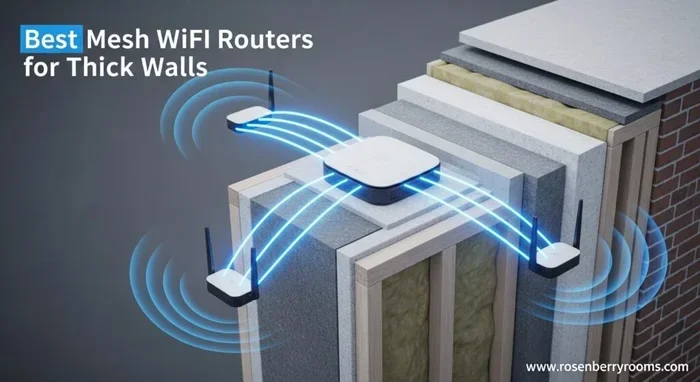
Physical barriers also matter. Walls, metal surfaces, and even large pieces of furniture can block WiFi signals. If your grill is far from your router, the signal may be too weak for a stable connection. This is where extending your WiFi network becomes useful. If you have trouble with range, you might consider extending your WiFi with an Ethernet cable to reach a mesh node or access point closer to your grill area.
Another factor to consider is that some AC units can cause WiFi interference. If you are grilling near an air conditioning unit, the electrical noise might disrupt your Meater connection. For more on this topic, check out our guide on whether an AC unit can affect WiFi signals.
To get the best performance from your Meater over WiFi, follow these practical tips. These steps will help you maintain a strong and stable connection during your cooks.
First, position your WiFi router as close to your cooking area as possible. This reduces the distance the signal has to travel and improves reliability. If moving the router is not practical, consider adding a WiFi extender or mesh node near your grill.
Second, always use the 2.4GHz band. Many dual-band routers let you choose between 2.4GHz and 5GHz. The 2.4GHz band has a longer range and better wall penetration, which is exactly what you need for outdoor cooking.
Third, reduce interference from other devices. Keep your Meater away from microwaves, Bluetooth speakers, and other wireless devices that operate on the same frequency. Turn off any devices you do not need during your cook.
Fourth, keep your Meater firmware and app up to date. Updates often include connection improvements and bug fixes. Open the app regularly and check for updates to ensure you have the latest performance enhancements.
Fifth, consider your cook duration. WiFi uses more battery than Bluetooth. If you are running a long smoke or overnight cook, you may want to use Bluetooth mode to conserve battery. Save WiFi mode for shorter cooks or when you need remote monitoring.
If you are having trouble getting Meater to connect over WiFi, you are not alone. Here are the most common problems and how to fix them.
Problem 1: Meater will not connect to WiFi. This usually happens when the router is using 5GHz or when the password is incorrect. Double-check that your network is 2.4GHz and re-enter the password carefully.
Problem 2: Connection drops during cooking. This is often caused by WiFi interference or distance from the router. Move closer to the router or reduce the number of wireless devices in the area.
Problem 3: Slow temperature updates. A weak WiFi signal causes lag in temperature readings. Try moving the router closer or using a WiFi extender to boost the signal.
Problem 4: Meater+ cloud connection fails. This can happen if your internet connection is unstable. Check your internet speed and make sure your router is online. Restarting the router often fixes this issue.
If you have tried all these steps and still have problems, you might explore whether your current router setup is the bottleneck. Sometimes a simple router reboot or repositioning solves everything. You can also look into adding a mesh WiFi system to your existing router for better coverage throughout your home and yard.
Using Meater over WiFi opens up some great possibilities for smart cooking. You can check your roast from the living room. You can get alerts on your phone when the temperature hits your target. You can even monitor a cook while you are at work, as long as you have the Meater+ with cloud connectivity.
The real beauty of WiFi-enabled Meater cooking is the peace of mind it gives you. You do not have to stand by the grill constantly. You can go inside, spend time with family, or handle other tasks while still keeping an eye on your food. This is especially valuable for low-and-slow cooks that take many hours.
For those who love technology in the kitchen, Meater WiFi integration fits right in with other smart kitchen gadgets. It is part of a growing trend of connected cooking devices that make grilling and smoking more precise and more enjoyable.
To wrap things up, Meater does work over WiFi, but the experience depends on your setup and which model you own. The standard Meater uses Bluetooth only, while the Meater+ adds WiFi and cloud connectivity for remote monitoring. Both connection types have their place, and understanding when to use each one makes a big difference.
If you want the longest range and the ability to check on your cook from anywhere, the Meater+ with WiFi is the way to go. Just remember to use a 2.4GHz network, minimize interference, and keep your firmware updated. With the right setup, Meater WiFi connectivity delivers a smooth and reliable cooking experience.
The answer to does Meater work over WiFi might surprise you because the device is more flexible than most people realize. It adapts to your setup and gives you options. Whether you prefer the simplicity of Bluetooth or the extended reach of WiFi, Meater has you covered.
Now that you know how Meater handles WiFi, you can set up your device with confidence. Apply the tips in this article, troubleshoot any issues that come up, and enjoy smarter, more precise cooking every time you fire up the grill.
Can the Standard Meater Connect to WiFi?
No, the standard Meater only uses Bluetooth for connectivity. It does not have WiFi hardware built in. You need the Meater+ model to access WiFi features and cloud connectivity. If you want remote monitoring beyond Bluetooth range, upgrading to Meater+ is the solution.
What WiFi Frequency Does Meater Use?
Meater only works with 2.4GHz WiFi networks. It does not support 5GHz bands. This is important because many modern routers broadcast both frequencies. During setup, make sure your phone is connected to the 2.4GHz network so the Meater can pair correctly.
How Far Can Meater Work Over WiFi?
The WiFi range for Meater depends on your network coverage. If your WiFi signal reaches your grill area, Meater can communicate through your router. This is much farther than Bluetooth’s 150-foot limit. With a strong WiFi signal and cloud connectivity on Meater+, you can monitor your cook from anywhere with internet access.
Does WiFi Drain Meater Battery Faster?
Yes, WiFi uses more power than Bluetooth. If you are running a long cook and want maximum battery life, consider using Bluetooth mode. Save WiFi mode for shorter cooks or when you specifically need remote monitoring features. The Meater battery typically lasts several hours on a single charge depending on the connection type.
Can I Use Meater Without Any WiFi or Bluetooth?
No, Meater requires either WiFi or Bluetooth to communicate with your phone. The device cannot store readings locally or display them on its own. You need at least one of these wireless connections to use the Meater thermometer. Without connectivity, the probe will not send data to the app.
Will a Mesh WiFi System Improve Meater Performance?
Yes, a mesh WiFi system can significantly improve Meater performance, especially if you have a large yard or a grill area far from your router. Mesh networks extend your WiFi coverage and provide a stronger, more reliable signal. If you are struggling with dropped connections, adding a mesh WiFi system to your existing router is a great solution for consistent Meater connectivity.
Key Takeaways
- Meater uses both WiFi and Bluetooth: The Meater thermometer connects to your phone using Bluetooth by default, but WiFi extends its range significantly.
- WiFi mode unlocks longer range: With WiFi enabled, you can monitor your cook from farther away than Bluetooth allows.
- Setup requires a 2.4GHz network: Meater only works with 2.4GHz WiFi networks, not 5GHz bands.
- WiFi interference is a real concern: Kitchen appliances and distance can weaken your Meater WiFi signal.
- Meater+ offers cloud connectivity: The upgraded Meater+ model supports WiFi for remote monitoring through the cloud.
- A strong WiFi setup improves performance: Using a mesh network or WiFi extender can solve most connectivity problems.
Frequently Asked Questions
What is Does Meater Work Over Wifi?
Does Meater Work Over Wifi is an important topic with many practical applications.