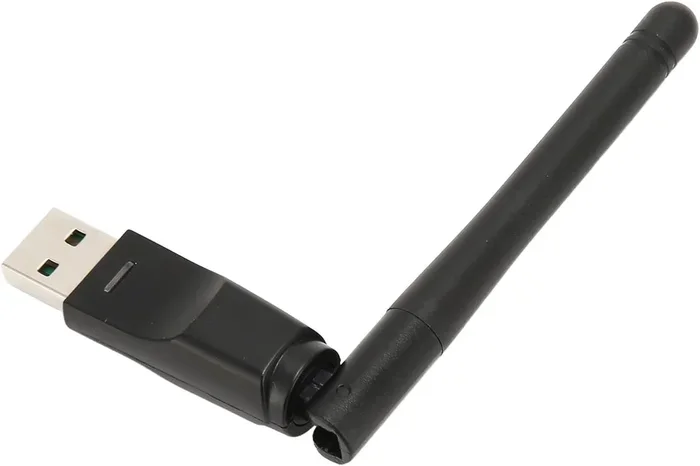
Can I Use A Wifi Adapter Instead Of A Built In WiFi Card
Yes, you can absolutely use a wifi adapter instead of a built in wifi card. A wireless adapter gives your computer the power to connect to the internet without needing internal hardware. Whether you have a desktop or a laptop, an external option offers flexibility and easy upgrades. This guide will show you exactly how to swap your internal wifi card for a USB wifi adapter. You will learn about the benefits, the setup process, and how to choose the right network adapter for your needs.
Have you ever wondered if you can use a wifi adapter instead of a built in wifi card? The short answer is yes. You can definitely swap out your internal hardware for an external option. Many people face this exact question when their laptop wifi card breaks or when their desktop needs a better wireless connection. Using a wifi adapter is a simple and effective solution. It saves you from opening your computer case or paying for expensive repairs. In this guide, we will walk you through everything you need to know. You will learn how a wireless adapter works and why it might be the perfect choice for your setup.
A network adapter helps your device talk to your wireless router. Without it, you cannot get online. Some computers come with a built in wifi card already installed. But these cards can get old or stop working over time. An external wifi adapter plugs right into a USB port. It gives you a fresh start with better wireless performance. This article covers the differences, the benefits, and the setup steps. We want to make your internet connection as fast and reliable as possible. We will also show you how to avoid common pitfalls.
Key Takeaways
- Easy Upgrade: A wifi adapter is a simple way to add wireless capability without opening your computer case.
- USB vs Internal: External USB wifi adapters are plug-and-play, while internal wifi cards require installation.
- Better Signal: Many external wireless adapters provide stronger signal strength than built-in options.
- Flexibility: You can move a USB dongle from one computer to another easily.
- Driver Matters: Always check driver software compatibility before buying a new network adapter.
- Cost Effective: Replacing a wifi card with an adapter saves money and time.
📑 Table of Contents
What Is A Wifi Adapter And How Does It Work?
A wifi adapter is a small device that connects your computer to a wireless network. Think of it as a bridge between your PC and your wireless router. It sends and receives data through the air. There are two main types of these devices. You have internal cards and external adapters. Both do the same job, but they connect differently. Understanding this helps you choose the right one for your needs.
When you type a web address, your network adapter turns that request into radio waves. These waves travel through the air to your wireless router. The router then sends the website data back to your adapter. This whole process happens in milliseconds. Modern wireless standards make this transfer very fast. You get smooth browsing and fast downloads. The adapter also handles signal strength and bandwidth management. This ensures your internet connection stays stable.
Internal vs External Options
An internal wifi card slides into a motherboard slot. It is hidden inside your computer case. You cannot see it from the outside. It works well, but it is hard to upgrade. On the other hand, an external wifi adapter sits outside your machine. It usually plugs into a USB port. This makes it very easy to move between devices. If you have a desktop computer, an external option is super convenient. You do not need to open the side panel anymore. You just plug it in and go.
Both types support modern wireless standards. You will find options for Wi-Fi 5 and Wi-Fi 6. These standards determine your network speed and signal strength. A good adapter can give you fast bandwidth for streaming and gaming. Always check the specs before you buy. You want to make sure the hardware compatibility matches your system. Look for adapters that support the latest wireless networking protocols. This ensures you get the fastest possible speeds. Check the antenna size too. Bigger antennas usually catch more wireless performance.
Why Replace A Built In WiFi Card?
There are many reasons to replace your internal wifi card. Maybe your old card stopped working. Perhaps your computer is too old to support new wireless networking speeds. Whatever the reason, an external adapter can fix the problem. Here are the most common reasons people make this switch.
Common Reasons for Swapping
First, your laptop wifi card might be broken. Repairing an internal card costs a lot of money. A USB wifi adapter costs much less. You just plug it in and go. Second, you might need faster wireless performance. Old cards cannot handle modern internet speeds. A new external wifi dongle can unlock gigabit speeds. Third, you might use a desktop computer without any wifi. You need a way to connect to the web without running a long ethernet connection across your room. A small adapter solves this problem perfectly. Fourth, you might move to a new house. The new router is far away. An adapter with a strong antenna can reach the signal better.
Quick Tips Before You Buy
- Check your USB port type. You need USB 3.0 for the best speeds.
- Look for dual band support. This gives you two frequency bands to choose from.
- Read reviews for driver software support. Good drivers mean fewer headaches.
- Consider the size of the adapter. Some are very small and easy to carry.
- Check the antenna design. Bigger antennas usually mean better signal strength.
- Look for Wi-Fi 6 support. This is the newest wireless standard available.
Can You Actually Use A USB Wifi Adapter Instead?
Yes, you absolutely can use a wifi adapter instead of a built in wifi card. A USB wifi adapter is the most popular choice. It is also called an external wifi dongle. You just insert it into a free USB port. Your computer should recognize it right away. It acts just like an internal wifi card, but it is outside the machine. This is a huge benefit for people who are not comfortable opening their PCs.
Types of Adapters You Can Choose
Not all wireless adapters are the same. You need to pick the right one for your needs. Here are the main types you will find on the market today.
Basic USB Adapters: These are small and cheap. They offer basic internet connection speeds. They are great for browsing the web and checking email. They work well for light wireless networking tasks. If you only need to send emails, this is all you need. They fit right into a small USB port. They are very portable.
High Performance Adapters: These adapters have big antennas. They pull in strong signal strength from far away. They support the latest Wi-Fi standards. If you play online games or stream 4K videos, you need this type. It gives you top wireless performance and plenty of bandwidth. You will never experience lag again. They usually need their own USB 3.0 port to work at full speed.
You can also find a PCIe wifi card if you prefer internal upgrades. However, a USB wifi adapter is much easier for most users. It requires no tools and no technical knowledge.
Common Mistakes to Avoid
Many people make mistakes when buying a network adapter. One big mistake is buying a cheap adapter for a fast internet plan. If your internet speed is 500 Mbps, a cheap adapter will slow you down. Another mistake is ignoring driver software. You must install the right drivers for your wifi adapter to work properly. Without them, your wireless connection will drop often. Finally, do not buy an adapter that does not fit your hardware compatibility needs. Check if it works with Windows or Mac. Always double-check the box before you buy.
Comparing Built-In Cards vs External Adapters
How do you decide between an internal wifi card and a USB wifi adapter? Both have pros and cons. Let us break down the differences. This will help you choose the best option for your desktop computer or laptop. We want you to make a smart choice that fits your budget.
| Feature | Built In WiFi Card | External Wifi Adapter |
|---|---|---|
| Installation | Requires opening the PC case | Plug and play via USB |
| Portability | Fixed inside the computer | Easy to move between devices |
| Signal Strength | Depends on internal antenna placement | Often has bigger external antennas |
| Cost | Can be expensive to replace | Usually very affordable |
| Aesthetics | Hidden inside the machine | Sticks out of the USB port |
As you can see, an external adapter wins on ease of use. You do not need tools or technical skills. You just plug it in. However, an internal card stays hidden. It does not take up a USB port. If you have a laptop, an internal card is better for keeping your device slim. But if you need a quick fix, grab a wifi adapter. It is the smartest choice for most users. The flexibility of a USB wifi adapter is hard to beat.
How To Set Up A Wifi Adapter
Setting up a wifi adapter is very easy. You do not need to be a tech expert. Follow these simple steps to get your internet connection working. Whether you have a desktop computer or a laptop, the process is similar. You will be online in no time.
Step-by-Step Guide
- Plug the adapter into a USB port. Wait for your computer to recognize it.
- Download the latest driver software from the manufacturer’s website. Do not rely on Windows to find the driver automatically.
- Install the driver and restart your computer if needed.
- Click on the network icon in your taskbar.
- Find your wireless router in the list of networks.
- Click connect and enter your password.
Once connected, check your network speed. You should see a strong signal strength in your taskbar. If the signal is weak, try moving the adapter. Placing it near a window can help a lot. Avoid putting it behind your monitor. Metal objects block wireless signals and hurt your wireless performance. A clear line of sight makes a big difference.
Troubleshooting Common Setup Issues
Sometimes things do not work right away. Do not panic. The first thing to check is the USB port. Try a different port if the adapter is not recognized. Also, make sure you installed the driver software correctly. Outdated drivers cause many wireless networking problems. Restart your computer after installing them. If you still have no internet connection, check your wireless router. Make sure it is turned on and working. A simple restart of the router often fixes the issue.
Expert Insights on Placement
Where you place your external wifi dongle matters a lot. If you have a desktop computer, do not bury it under the desk. The signal needs a clear path to your wireless router. Use a USB extension cable to move the adapter higher up. This simple trick can boost your bandwidth and reduce dropped connections. Good placement makes a huge difference in your daily wireless networking experience. You will notice faster downloads and smoother streaming right away. Keep the adapter away from microwaves and cordless phones too.
Common Mistakes To Avoid When Choosing Adapters
Buying the wrong wifi adapter can cause big problems. You might spend money on something that does not work. To save you time and frustration, here are the mistakes you should avoid. Learning from these errors keeps your internet connection strong and stable. You will save money and get better wireless performance.
Expert Tips for a Smooth Purchase
First, do not ignore the wireless standards. If your router supports Wi-Fi 6, buy an adapter that supports it too. Mixing old and new tech slows down your internet connection. Second, always check for driver software support. Some cheap adapters do not have drivers for the newest operating systems. This means they will not work. Third, think about your hardware compatibility. Make sure your desktop computer or laptop has enough USB ports. Finally, do not forget about signal strength. If your router is far away, buy an adapter with a high gain antenna. This ensures you get the best possible wireless performance every single day.
Replacing your internal wifi card with a wifi adapter is a smart move. It gives you flexibility and speed. You do not need to be afraid of opening your computer. A simple USB wifi adapter can change everything. Enjoy your fast and reliable internet connection today. Your wireless networking will never be the same again. You will wonder why you did not switch sooner.
Conclusion
So, can you use a wifi adapter instead of a built in wifi card? Absolutely. It is a great way to upgrade your wireless networking setup. Whether your old wifi card is broken or you just need faster network speed, an external option works perfectly. You get easy installation, strong signal strength, and great hardware compatibility. A USB wifi adapter is a small device that makes a big difference. Try it out and enjoy your seamless internet connection without the hassle of opening your computer case. Your new external wifi adapter will bring you the speed and reliability you deserve. Say goodbye to slow internet and hello to a better online experience.
Frequently Asked Questions
Is a wifi adapter as good as a built in wifi card?
Yes, a modern wifi adapter can be just as good or even better. External adapters often have stronger antennas than internal cards. This means you can get better signal strength and faster network speed. Just make sure you buy a high-quality network adapter that supports your wireless standards.
Do I need to install drivers for a wifi adapter?
Yes, you should always install the latest driver software. While Windows might find a basic driver automatically, the manufacturer’s driver gives the best wireless performance. It also fixes bugs and improves hardware compatibility. Visit the product website to download the correct files for your wifi adapter.
Can I use a wifi adapter on a desktop computer?
Absolutely. A desktop computer benefits greatly from a USB wifi adapter. It is much easier than opening the case to install a PCIe wifi card. You just plug the external wifi dongle into the USB port. This gives your desktop a reliable internet connection without any tools.
Will a wifi adapter slow down my computer?
No, a good wifi adapter will not slow down your machine. It uses very little processing power. In fact, an old internal wifi card might slow you down if it cannot handle fast internet speeds. A new wireless adapter improves your wireless networking by using modern bandwidth and dual band technology.
What is the difference between a wifi adapter and a wifi card?
The main difference is how they connect. A wifi card goes inside the computer on a motherboard slot. A wifi adapter plugs into a USB port on the outside. Both do the same job of connecting you to your wireless router. The adapter is just easier to install and move around.
Can I use a wifi adapter for gaming?
Yes, you can use a wifi adapter for gaming. However, you need a high-performance model. Look for adapters that support Wi-Fi 6 and have strong signal strength. They provide the bandwidth needed for low lag. For the best wireless performance, keep the adapter close to your wireless router and away from metal objects.