Can I Move My T Mobile Home Internet to Another Address
Yes, you can move T Mobile Home Internet to another address, but the process requires planning and a few key steps. You will need to check coverage at your new location, update your account, and possibly request a self-install kit. This guide walks you through every step to make your T Mobile Home Internet move as easy as possible.
Can I Move My T Mobile Home Internet to a new place? If you are asking this question, you are not alone. Thousands of T-Mobile customers relocate every year and wonder whether their T Mobile Home Internet service will follow them. The good news is that T-Mobile designed its home internet service to be flexible and portable. You can absolutely move it to another address, but there are a few things you need to know before you do.
This guide covers everything you need about relocating your T-Mobile home internet service. We will walk you through the step-by-step process, discuss costs, explain coverage requirements, and share practical tips to avoid common pitfalls. Whether you are moving across town or to a completely new city, this article has you covered.
Moving your internet service does not have to be stressful. With the right preparation and a clear plan, you can keep your T-Mobile 5G Home Internet running smoothly at your new place. Let us dive in and break down exactly how this works.
Key Takeaways
- You can relocate T-Mobile Home Internet: The service is designed to be portable, making it possible to move to a new address with relative ease.
- Coverage matters most: Before moving, verify that T-Mobile 5G Home Internet is available at your new address using the coverage map.
- The process is straightforward: You can transfer your service by updating your account, requesting a new self-install kit, and setting up your router at the new location.
- Costs may apply: Depending on your plan and circumstances, you might face fees for equipment return, new installation, or plan changes.
- Contact T-Mobile support early: Reaching out to T-Mobile customer service before your move date helps avoid service gaps and confusion.
- Timing is important: Schedule your move at least a week in advance to ensure everything is set up before you need internet access.
📑 Table of Contents
- Understanding T-Mobile Home Internet and How It Works
- Can You Move T-Mobile Home Internet to a New Address?
- Step-by-Step Process to Move Your T-Mobile Internet
- What Happens to Your Plan and Pricing When You Move?
- T-Mobile Coverage at Your New Address
- Common Mistakes to Avoid When Moving Your T-Mobile Internet
- Expert Tips for a Smooth T-Mobile Internet Move
- Conclusion
Understanding T-Mobile Home Internet and How It Works
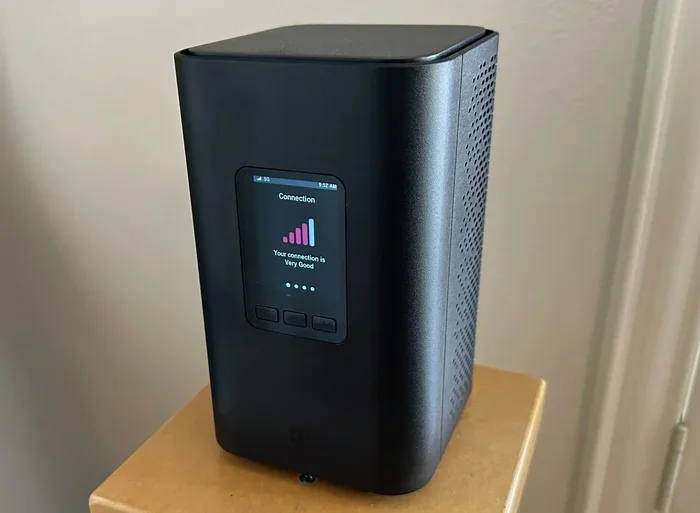
Before we talk about moving, it helps to understand what T-Mobile Home Internet actually is and how it differs from traditional cable or fiber services. T-Mobile Home Internet is a fixed wireless service. This means it uses cellular towers and 5G networks to deliver internet to your home. There are no cables running underground or through walls. Instead, you get a small router that connects to the nearest T-Mobile tower.
This design is exactly what makes the service so portable. Because the connection is wireless, you are not tied to a specific physical line or infrastructure. You can take your router and set it up almost anywhere within T-Mobile’s coverage area.
What Makes T-Mobile Home Internet Portable
The portability of T-Mobile home internet comes down to a few key factors. First, there is no physical installation required in most cases. You simply plug in your router, and it connects to the network. Second, T-Mobile does not require a long-term contract for most home internet plans. This gives you the freedom to move without worrying about early termination fees. Third, the equipment is yours to keep and reuse at any address.
However, portability does not mean you can move anywhere and expect the same performance. The quality of your connection depends heavily on the signal strength and tower proximity at your new location. This is why checking coverage before you move is so important.
Can You Move T-Mobile Home Internet to a New Address?
The short answer is yes. Can I Move My T Mobile Home Internet to another address? Absolutely. T-Mobile supports address changes for its home internet service. You can transfer your existing plan and service to a new residential address. The process is designed to be simple, but there are a few conditions you should be aware of.
Requirements for Moving Your Service
To successfully relocate your T-Mobile home internet, you need to meet a few basic requirements. First, your new address must be within T-Mobile’s coverage area. The service relies on 5G cellular signals, so if coverage is weak or unavailable at your new location, you may not be able to continue using the same service. Second, the new address must be a residential address. T-Mobile home internet is designed for home use, not commercial properties. Third, you need an active T-Mobile account in good standing.
It is also worth noting that if you are on a promotional plan or a discounted rate, moving your service may affect your pricing. Some promotions are tied to specific regions or are time-limited. Always check with T-Mobile before confirming your move to understand how it impacts your bill.
What Happens If Coverage Is Different at the New Address?
This is one of the most important things to consider when you move T-Mobile home internet. If your new address has strong 5G coverage, you should experience similar speeds and performance. But if the signal is weaker, your internet speeds could drop. In some cases, T-Mobile may not be able to provide home internet service at all at your new address.
To check this, use the T-Mobile coverage map on their website. Enter your new address and look for the 5G Home Internet coverage indicator. If the map shows coverage, you are likely in good shape. If not, you may need to explore alternative options or contact T-Mobile support for more details.
Step-by-Step Process to Move Your T-Mobile Internet
Now that you know moving is possible, let us walk through the actual process. Following these steps will help you avoid service interruptions and ensure a smooth transition to your new home.
Step 1: Check Coverage at Your New Address
Before you do anything else, visit the T-Mobile website and use their coverage checker tool. Enter your new address and confirm that T-Mobile 5G Home Internet is available. This step alone can save you a lot of headaches later. If coverage looks good, you can proceed with confidence. If it does not, you may need to consider alternatives or contact T-Mobile to discuss options.
Step 2: Contact T-Mobile to Update Your Address
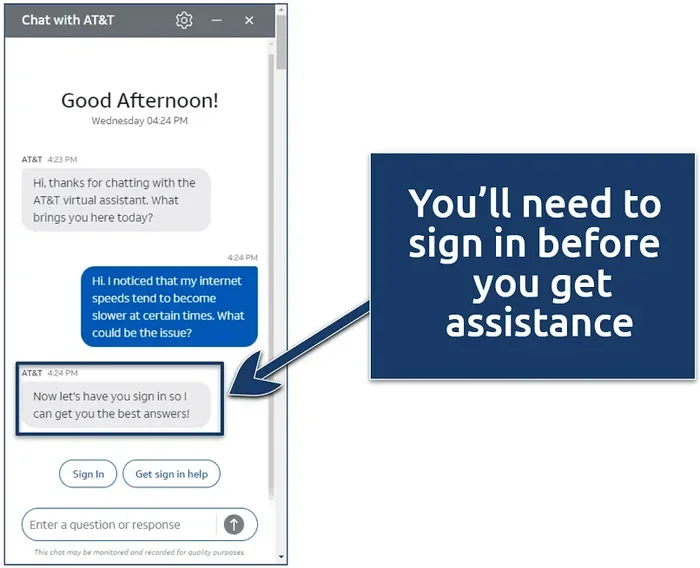
Once you confirm coverage, reach out to T-Mobile customer service. You can do this by calling their support line, using the T-Mobile app, or chatting online. Let them know you are moving and need to update your service address. They will verify your account and walk you through the transfer process.
It is best to do this at least one to two weeks before your move date. This gives T-Mobile enough time to process your request and prepare any necessary equipment or instructions.
Step 3: Return or Repurpose Your Current Equipment
T-Mobile provides a router for home internet service. When you move, you have a few options for handling this equipment. You can keep the same router and simply set it up at your new address. If the router is not compatible with the new location’s setup, T-Mobile may send you a replacement. In some cases, you may need to return the old equipment and receive a new self-install kit.
If you are keeping the same router, make sure to reset it and follow the setup instructions for the new location. If you are getting new equipment, T-Mobile will typically mail it to your new address before your move date.
Step 4: Set Up Your Internet at the New Address
Once you arrive at your new home, it is time to set up your T-Mobile home internet. Plug the router into a power outlet and place it near a window for the best signal. T-Mobile recommends placing the router in a central location on the main floor of your home for optimal coverage.
The setup process is usually simple. Follow the on-screen instructions on the router or the T-Mobile app. You may need to enter your account credentials or scan a QR code. Within a few minutes, your internet should be up and running.
Step 5: Test Your Connection and Speed
After setup, run a speed test to make sure everything is working properly. You can use websites like Speedtest.net or the T-Mobile app itself. Compare your results to the speeds promised by your plan. If the speeds are significantly lower than expected, try moving the router to a different location or contacting T-Mobile support for assistance.
What Happens to Your Plan and Pricing When You Move?
One of the biggest concerns people have when they move T-Mobile home internet is whether their plan and pricing will change. The answer depends on a few factors, including your current plan, any promotions you are on, and the pricing structure at your new address.
Will Your Monthly Bill Stay the Same?
In most cases, your base monthly rate for T-Mobile Home Internet will remain the same after a move. However, taxes, fees, and surcharges may vary depending on your new location. Some regions have higher utility taxes or regulatory fees, which can slightly increase your bill.
If you are on a promotional rate, there is a chance the promotion may not apply at your new address. T-Mobile occasionally offers location-specific deals, and moving outside that area could affect your pricing. Always ask a T-Mobile representative about any potential changes before finalizing your move.
Equipment Fees and Deposits
Depending on your situation, you may encounter equipment-related costs when moving. If T-Mobile sends you a new router or self-install kit, there is usually no charge. However, if you damage equipment during the move or lose it, you may need to pay a replacement fee. If you are returning old equipment, make sure to pack it safely and follow T-Mobile’s return instructions to avoid any charges.
T-Mobile Coverage at Your New Address
Coverage is the single most important factor when you move T-Mobile home internet. Even if the transfer process goes smoothly, poor coverage at your new address can lead to slow speeds, dropped connections, and frustration.
How to Check T-Mobile Coverage Before You Move
T-Mobile provides a coverage map on its website. Simply enter your new address, and the tool will show you the available networks and signal strength. Look specifically for the 5G Home Internet indicator. If it shows “Available” or “Strong Coverage,” you are in good shape.
You can also ask neighbors at your new address if they use T-Mobile home internet and what their experience is been. Real-world feedback is often more reliable than online maps. Additionally, you can call T-Mobile customer service and ask them to run a coverage check for your specific address.
What to Do If Coverage Is Weak at Your New Address
If you discover that coverage is weak at your new address, do not panic just yet. There are a few things you can try. First, experiment with router placement. Moving the router closer to a window or to a higher floor can sometimes improve signal strength. Second, contact T-Mobile support and ask about signal boosters or external antennas. Third, if coverage is simply not available, you may need to consider a different internet provider at your new location.
Common Mistakes to Avoid When Moving Your T-Mobile Internet
Moving your internet service can be tricky, and many people make avoidable mistakes along the way. Here are some common pitfalls to watch out for when you move T-Mobile home internet.
Waiting Until the Last Minute
One of the biggest mistakes is waiting too long to start the transfer process. If you wait until the day before or the day of your move, you may end up without internet for days. Start the process at least one to two weeks in advance. This gives you time to resolve any issues that come up.
Not Verifying Coverage at the New Address
Some people assume that because T-Mobile works at their old address, it will work the same way at their new one. This is not always true. Every address has different signal conditions. Always verify coverage before you commit to the move.
Forgetting to Update Your Account
If you do not update your address with T-Mobile, your service may not work at the new location. Some people assume the router will just “figure it out,” but that is not how it works. The account needs to reflect the new address for the service to function properly.
Ignoring Equipment Return Policies
If T-Mobile requires you to return old equipment, make sure you do so promptly. Failing to return equipment can result in additional charges. Keep all original packaging and follow the return instructions carefully.
Skipping the Speed Test After Setup
Many people set up their router, see that the connection is active, and assume everything is fine. But a connected router does not always mean good performance. Always run a speed test and compare the results to your plan’s advertised speeds.
Expert Tips for a Smooth T-Mobile Internet Move
To wrap up, here are some expert-backed tips to make your T-Mobile home internet move as seamless as possible.
Start early. Contact T-Mobile as soon as you know you are moving. The earlier you start, the smoother the process will be.
Keep your account information handy. Have your account number, PIN, and login credentials ready before you call T-Mobile. This saves time and prevents frustration.
Document your current setup. Take photos of your current router placement and setup. This can help you replicate the best configuration at your new home.
Ask about any move-specific promotions. Sometimes T-Mobile offers deals or credits for customers who are relocating. It never hurts to ask.
Be patient during setup. The first few days at a new address can involve some trial and error with router placement and signal optimization. Give yourself time to find the best setup.
Keep your old router and accessories. Even if T-Mobile sends you new equipment, keep the old router and cables. They can be useful as backups or if you need to troubleshoot issues.
Conclusion
So, can I Move My T Mobile Home Internet to another address? Yes, absolutely. T-Mobile makes it possible to transfer your home internet service to a new residential address with a straightforward process. The key is preparation. Check coverage at your new address, contact T-Mobile early, update your account, and follow the setup steps carefully.
Moving your T-Mobile 5G Home Internet does not have to be complicated. With the right approach and a little planning, you can enjoy uninterrupted internet service at your new home. Remember to verify coverage, understand any pricing changes, and avoid the common mistakes outlined in this guide.
Whether you are moving down the street or across the country, your T-Mobile home internet can go with you. Take the time to prepare, and you will be online and settled in at your new place in no time.
Frequently Asked Questions
How long does it take to move T-Mobile Home Internet to a new address?
The process typically takes about one to two weeks if you start early. Contacting T-Mobile at least two weeks before your move date gives them enough time to update your account and send any necessary equipment. Same-day setups are sometimes possible if coverage is confirmed and equipment is ready.
Will I lose my T-Mobile Home Internet plan when I move?
No, you should not lose your plan. Your existing plan and pricing will generally carry over to your new address. However, promotional rates or location-specific discounts may change. It is always a good idea to confirm your plan details with a T-Mobile representative before the move.
Can I move T-Mobile Home Internet if I am renting and not owning my home?
Yes, you can. T-Mobile Home Internet is designed for residential use regardless of whether you own or rent. As long as the rental property is within T-Mobile’s coverage area, you can set up and move your service there.
Do I need to return my T-Mobile router when I move?
It depends on your situation. If T-Mobile sends you a new router for your new address, they may ask you to return the old one. If you are keeping the same router, you simply unplug it and set it up at the new location. Always check with T-Mobile to confirm their equipment policies for your specific case.
What should I do if T-Mobile does not cover my new address?
If T-Mobile does not cover your new address, you may need to explore alternative internet providers in that area. You can also contact T-Mobile to see if there are any plans to expand coverage to your location. In the meantime, consider temporary options like mobile hotspots or other wireless providers.
Is there a fee to move T-Mobile Home Internet to a new address?
In most cases, there is no fee to move your T-Mobile Home Internet service. However, you may incur costs if you need to replace lost or damaged equipment, or if your plan pricing changes at the new address. Always confirm any potential costs with T-Mobile before finalizing your move.