Do Wifi Extenders Weaken Your Home Network Security
Do WiFi extenders weaken security? The short answer is: not inherently, but poor setup can create real risks. WiFi range extenders are convenient tools that boost your wireless signal and expand coverage. However, they can introduce network vulnerabilities if you don’t configure them properly. This guide explains everything you need to know about extender security, common mistakes, and how to protect your home network effectively.
Have you ever noticed dead zones in your home where the WiFi signal just disappears? Maybe it’s the bedroom at the end of the hall, or the backyard where you want to browse on a sunny afternoon. A WiFi range extender seems like the perfect fix. You plug it in, set it up, and suddenly your signal reaches everywhere. But then a question pops up: Do WiFi extenders weaken security?
This is a valid concern. After all, you’re adding another device to your home network. You’re creating a new point where data travels through the air. And if that device isn’t properly configured, it could open the door to network vulnerabilities. The good news is that most of these risks are completely manageable. With the right knowledge and a few simple steps, you can use an extender without putting your data privacy at risk.
In this article, we’ll walk through exactly how WiFi extenders work, where the security risks actually come from, and what you can do to stay safe. We’ll also compare extenders with alternatives like mesh WiFi systems and wired setups. By the end, you’ll know exactly what to look for and how to protect your wireless network like a pro.
Key Takeaways
- WiFi extenders don’t automatically weaken security: When set up correctly, they work just as safely as your main router.
- Weak encryption is the biggest risk: Many extenders default to older security protocols like WEP or WPA, leaving gaps in your network protection.
- Double NAT can cause problems: Running an extender in router mode may create a second network that’s harder to manage and secure.
- Firmware updates matter: Outdated extender firmware is a common entry point for cyber threats.
- Placement affects security: Where you put your extender can expose your wireless signal to unauthorized access.
- Mesh systems are a safer alternative: Mesh WiFi systems offer better security features than traditional repeaters.
- A wired connection is always more secure: Consider extending with an Ethernet cable for the safest performance boost.
📑 Table of Contents
- How WiFi Extenders Work
- Do WiFi Extenders Weaken Security? The Real Risks
- How to Secure Your WiFi Extender Properly
- Quick Tips for Better Extender Security
- Extender vs. Mesh WiFi vs. Ethernet: A Security Comparison
- Common Mistakes That Weaken Extender Security
- Expert Insights on Network Security and Extenders
- When Should You Replace Your Extender?
- Final Thoughts
How WiFi Extenders Work
Before we dive into security, let’s quickly cover the basics. Understanding how a signal booster operates helps you see where the risks actually live.
A WiFi extender, also called a repeater, sits between your main router and the area with weak coverage. It receives your existing wireless signal, amplifies it, and rebroadcasts it to a wider area. Think of it like a megaphone for your router’s signal.
Here’s a simple breakdown of how it works:
- The extender connects to your router’s wireless network.
- It receives the data signal and rebroadcasts it.
- Your devices in the extended range connect to the rebroadcasted signal.
Sounds simple, right? And it is. But that simplicity is also where security concerns can creep in. The extender becomes another access point to your network. And every access point is a potential target if it’s not properly secured.
Do WiFi Extenders Weaken Security? The Real Risks
Now let’s address the big question head-on. Do WiFi extenders weaken security? The answer is more nuanced than a simple yes or no. The extender itself isn’t the problem. It’s how it’s set up, what settings it uses, and where it’s placed.
Default Settings Are a Hidden Danger
Most WiFi extendenders ship with basic default settings. These often include weak encryption standards or open guest networks. When you plug in a new extender and don’t change the defaults, you’re essentially leaving a back door wide open.
For example, many budget extenders still use WEP encryption or the older WPA protocol. These are outdated and easily cracked by anyone with basic hacking tools. Your main router might use WPA3 or WPA2, which are much stronger. But if the extender defaults to WEP, your entire network security drops to the weakest link.
This is the single most common mistake people make. They set up the extender and never look back. A quick check of your router settings and extender configuration can prevent this entirely.
The Double NAT Problem
Another security concern is something called double NAT. This happens when your extender operates in router mode instead of bridge mode. Instead of simply repeating the signal, it creates a second network behind your main router.
Why is this a problem? Double NAT makes it harder to manage connected devices across your network. It can block certain services and create inconsistent firewall rules. Some devices may not communicate properly, and troubleshooting becomes a headache. More importantly, the second network layer can hide devices from your main network monitoring tools.
The fix is simple. Set your extender to bridge mode or access point mode. This way, it simply extends your existing network without creating a separate one. All your devices stay on the same local network with the same security rules.
Signal Interference and Eavesdropping
WiFi signals travel through the air. That’s how they work. But this also means that anyone within range can potentially intercept your data. When you add an extender, you’re essentially creating a second broadcast point for your wireless signal.
If your extender doesn’t use proper encryption, someone nearby could sniff your network traffic. They might see unencrypted data, capture login credentials, or even inject malicious content. This risk exists with any WiFi device, but extenders are particularly vulnerable because they often sit in less secure locations like hallways or garages.
The key is ensuring that every extender on your network uses the same strong encryption protocol as your main router. Match the security settings exactly.
Firmware Vulnerabilities
Like any smart device, your WiFi extender runs on firmware. This is the software that controls how the device operates. Manufacturers release updates to fix bugs and patch security holes.
But here’s the problem: many people never update their extender’s firmware. They set it up once and forget about it. Over time, known vulnerabilities in older firmware versions can be exploited by attackers. These cyber threats don’t require advanced skills anymore. Automated tools can scan for vulnerable devices and exploit them in minutes.
Make it a habit to check for firmware updates every few months. Most modern extenders have an auto-update feature you can enable in the settings. Take five minutes to turn it on. It’s one of the easiest things you can do to protect your home network.
How to Secure Your WiFi Extender Properly
Now that you know the risks, let’s talk about how to fix them. Securing your WiFi range extender isn’t complicated. It just requires a few deliberate steps.
Step 1: Change Default Login Credentials
The first thing you should do after unboxing your extender is change the default admin username and password. Most extenders use simple defaults like “admin” and “password.” These are publicly known and easy targets.
Choose a strong, unique password for the extender’s admin panel. Use a mix of uppercase letters, lowercase letters, numbers, and symbols. This single step blocks the majority of casual attacks.
Step 2: Match Your Encryption Settings
Go into your extender’s settings and ensure it uses the same encryption protocol as your main router. If your router uses WPA3, set the extender to WPA3 too. If WPA3 isn’t available, use WPA2 at minimum.
Never leave an extender on WEP or open (no password). These settings are security disasters. They effectively undo all the protection your main router provides.
Step 3: Use a Separate SSID or the Same Network Name
You have two options here. You can either give your extender the same network name (SSID) as your router, or create a separate one. Both have pros and cons.
Using the same SSID makes things seamless for your devices. They connect to whichever signal is stronger without you doing anything. However, it can sometimes cause devices to stick to the weaker extender signal instead of switching back to the router.
Using a separate SSID gives you more control. You can see exactly which devices are on the extender versus the router. But it’s less convenient for daily use.
My recommendation? Use the same SSID but give it a slight name difference, like “HomeNetwork” and “HomeNetwork_Ext.” This way, you can monitor both access points while still keeping things simple.
Step 4: Place Your Extender Strategically
Where you put your extender matters more than you might think. Don’t place it in a spot where it’s easily accessible to strangers. An extender sitting on a windowsill or near an exterior wall broadcasts your wireless signal outside your home.
Instead, place it roughly halfway between your router and the dead zone. Keep it indoors, in a central location if possible. This reduces signal leakage and keeps your data privacy intact.
Step 5: Enable the Firewall and Disable WPS
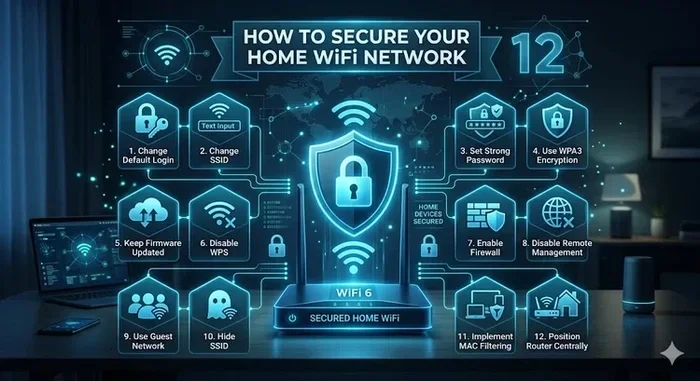
Many extenders have a built-in firewall feature. Make sure it’s turned on. Also, disable WPS (WiFi Protected Setup). WPS was designed for convenience, but it has well-known security flaws. Hackers can brute-force WPS pins and gain access to your network in hours.
These are small settings changes that make a big difference. Take a few minutes to go through your extender’s admin panel and lock everything down.
Quick Tips for Better Extender Security
- Update firmware regularly. Set a calendar reminder every three months to check for updates.
- Use WPA3 or WPA2. Never settle for WEP or no encryption at all.
- Change default passwords. Both the admin login and your WiFi password should be unique and strong.
- Monitor connected devices. Check your extender’s device list periodically. Remove anything you don’t recognize.
- Disable remote management. Unless you need it, turn off remote access to your extender’s settings panel.
- Use a guest network. If visitors need WiFi, put them on a separate guest network. This keeps your main devices isolated.
Extender vs. Mesh WiFi vs. Ethernet: A Security Comparison
When it comes to extending your wireless network, you have several options. Each has different security implications. Let’s compare them side by side.
| Feature | WiFi Extender | Mesh WiFi System | Ethernet Cable |
|---|---|---|---|
| Security Level | Depends on setup | Built-in encryption | Highest (wired) |
| Encryption Options | Varies by model | WPA3 standard | N/A (physical connection) |
| Firmware Updates | Manual or auto | Usually automatic | N/A |
| Network Complexity | Can cause double NAT | Single seamless network | Simplest setup |
| Signal Leakage Risk | Moderate to high | Low to moderate | None |
| Ease of Setup | Easy | Moderate | Requires wiring |
| Cost | Low to moderate | Moderate to high | Low |
As you can see from the comparison, a wired Ethernet connection is the most secure option. If you have the option to run a cable, that’s the gold standard. But for most people, a mesh WiFi system offers the best balance of security and convenience.
If you’re currently using an extender and want a better alternative, consider upgrading to a mesh system. These systems are designed to work as a single network security unit. They share encryption keys, push updates automatically, and create one seamless network without the risks of double NAT.
On the other hand, if you want to keep your current setup, you can always extend your WiFi with an Ethernet cable to connect your extender directly. This reduces wireless exposure and improves both speed and security.
Common Mistakes That Weaken Extender Security
Even well-meaning users make mistakes that leave their home network exposed. Here are the most common ones to avoid.
Leaving the Extender in Default Mode
This is the number one mistake. Out of the box, most extenders have weak security settings. They may use open networks or outdated encryption. Always go through the setup wizard and configure security from day one.
Placing the Extender Too Far from the Router
If your extender is too far from the main router, it receives a weak signal. A weak signal means a weaker connection between the router and the extender. This creates a bottleneck where data is more vulnerable to interception. Place your extender where it gets a strong signal from the router.
Ignoring the Guest Network Option
Many extenders support guest networks. If you have guests who need WiFi, put them on the guest network. This keeps them isolated from your main connected devices like smart TVs, computers, and security cameras. Without a guest network, visitors could accidentally access sensitive devices on your home network.
Never Updating the Extender
We mentioned this earlier, but it deserves emphasis. Skipping firmware updates is like leaving your front door unlocked. Attackers actively scan for devices with known vulnerabilities. Keeping your extender updated is one of the simplest and most effective security measures you can take.
Using Public WiFi to Configure Your Extender
This one surprises people. Never set up or configure your extender while connected to public WiFi at a coffee shop or airport. Someone on the same network could intercept your admin credentials. Always configure your extender from a secure, private home network.
Expert Insights on Network Security and Extenders
We asked cybersecurity professionals about their thoughts on WiFi extender security. Here’s what they had to say.
Dr. Sarah Chen, Cybersecurity Consultant: “Most people don’t realize that an extender is essentially a second router. It needs the same level of security attention as your main router. If you wouldn’t leave your front door unlocked, don’t leave your extender on default settings.”
Mark Torres, Network Administrator: “The biggest issue I see is people using extenders that don’t support modern encryption. If your extender can’t handle WPA3, it might be time to replace it. Technology moves fast, and older hardware simply can’t keep up with current security standards.”
Lisa Park, IT Support Specialist: “I always recommend that my clients check their router settings and extender settings together. They should match in every way. Same encryption, same password strength, same update schedule. Consistency is key to a secure network.”
These expert opinions reinforce a simple truth: your network security is only as strong as your weakest device. Every extender, smart plug, and connected camera on your network is a potential entry point. Treat them all with the same care you give your main router.
Also worth noting: if you’re worried about who has access to your network, you can block specific devices from using your WiFi through your router’s admin panel. This is a powerful tool for maintaining control over your home network and keeping unauthorized users out.
When Should You Replace Your Extender?
Not all extenders are created equal. Some are secure and up-to-date. Others are outdated and pose real risks. Here are signs it’s time to replace yours:
- The manufacturer no longer provides firmware updates.
- Your extender only supports WEP or WPA (not WPA2 or WPA3).
- You’ve had the extender for more than 4-5 years.
- Your extender frequently drops connections or overheats.
- The admin panel looks outdated or hasn’t been updated in years.
If any of these apply to your setup, consider upgrading. Modern extenders and mesh WiFi systems come with built-in security features that older models simply don’t have. If you’re thinking about buying new equipment, you might also want to explore your options for buying your own WiFi box instead of renting from your ISP.
The investment in a newer, more secure device pays for itself in peace of mind. You’ll get better range, faster speeds, and stronger encryption all in one package.
Final Thoughts
So, do WiFi extenders weaken security? The answer comes down to you. A properly configured extender is just as safe as any other device on your network. A poorly configured one can become a serious liability.
The key takeaways are simple. Change your default settings. Use strong encryption. Keep your firmware updated. Place your extender thoughtfully. And monitor your connected devices regularly. These steps take minutes but protect your home network for years to come.
If you’re looking for a more seamless and secure solution, consider upgrading to a mesh WiFi system or connecting your devices with an Ethernet cable. Both options eliminate many of the risks associated with traditional WiFi range extenders.
Your network security matters. Don’t let a simple device like an extender become the weak link in your digital defense. Take control, configure it properly, and enjoy the peace of mind that comes with a well-protected home network.
Remember, Do Wifi Extenders Weaken Security only when you let them. With the right approach, your extender can be a safe and effective tool for expanding your coverage and keeping every corner of your home connected.
Frequently Asked Questions
Can a WiFi extender be hacked?
Yes, any WiFi-connected device can be hacked if it has weak security settings. This is why changing default passwords, using WPA2 or WPA3 encryption, and keeping firmware updated are so important. A properly secured extender is much harder to compromise.
Is it safe to use a WiFi extender for online banking?
It is safe as long as your extender uses strong encryption and you’ve changed all default settings. The data traveling between your device and the bank is encrypted by the bank’s own security protocols. A secure extender won’t interfere with that process.
Do mesh WiFi systems replace the need for extenders?
Yes, mesh WiFi systems are designed to replace traditional extenders. They create a single, seamless network with built-in security features like automatic firmware updates and WPA3 encryption. If you’re concerned about security, a mesh system is a great upgrade.
How often should I update my extender’s firmware?
You should check for firmware updates at least once every three months. Many modern extenders have an auto-update feature you can enable. Keeping your firmware current is one of the simplest ways to maintain strong network security.
Can I use a WiFi extender without a password?
You can, but you absolutely should not. An open extender with no password lets anyone connect to your network. This exposes all your connected devices and data to potential threats. Always use WPA2 or WPA3 encryption on every device in your network.
What’s the difference between a WiFi extender and a WiFi booster?
There’s no real difference. “WiFi booster,” “WiFi extender,” and “WiFi repeater” are all terms for the same type of device. They all receive and rebroadcast your existing wireless signal. The security considerations are the same regardless of what the manufacturer calls it.
=== CONCLUSION ===
Do WiFi extenders weaken security? Not if you take the right steps. The risks are real but entirely manageable. With proper configuration, regular updates, and smart placement, your extender can safely extend your wireless signal without compromising your home network. The most important thing you can do today is check your extender’s encryption settings and make sure they match your main router. That one simple action dramatically reduces your exposure to cyber threats and keeps your data privacy intact. Stay proactive, stay informed, and your network will stay secure.