Can You Control Who Connects To Your Wi Fi At Home
Yes, you can absolutely control who connects to your Wi-Fi at home using simple router settings, strong passwords, guest networks, and MAC address filtering. This guide walks you through every method step by step so you can keep your network safe and fast. You will learn how to spot unauthorized users, secure your router, and protect your personal data from strangers.
Your home Wi-Fi network is like the front door to your digital life. Every device that connects to it can see your shared files, browse your internet activity, and sometimes even access smart home gadgets. So the question can you control who connects to your Wi-Fi is one of the most important things every home user should know the answer to.
The short answer is yes. You have more control over your wireless network than most people realize. From setting up strong passwords to using advanced router features, you can decide exactly which devices get access. In this guide, we will walk you through every method step by step. You will learn how to lock down your network, spot unwanted users, and keep your personal data safe.
Whether you live in an apartment, a house, or a rental property, these tips will help you take charge of your network security. No technical degree is needed. Just a few minutes of your time and a willingness to explore your router settings. Let us get started.
Key Takeaways
- Change your Wi-Fi password regularly: A strong, unique password is your first line of defense against unwanted connections.
- Set up a guest network: This keeps visitors online without giving them access to your main devices and files.
- Use MAC address filtering: You can create a whitelist of approved devices so only your gadgets connect to the network.
- Update your router firmware: Outdated firmware has security holes that hackers can exploit to gain network access.
- Monitor connected devices: Most routers let you view a list of all devices currently using your Wi-Fi connection.
- Disable WPS and remote management: These features can be easy entry points for unauthorized users on your network.
📑 Table of Contents
- How Wi-Fi Connections Work at Home
- How to Control Who Connects to Your Wi-Fi
- Router Settings You Should Know
- Signs Someone Is Unauthorized on Your Network
- Best Practices for Home Network Security
- Quick Tips to Keep Your Network Safe
- Common Mistakes That Leave Your Network Vulnerable
- Expert Insights on Home Network Protection
- Conclusion
How Wi-Fi Connections Work at Home
Before you can control who connects, it helps to understand how wireless connections actually work. Your router broadcasts a signal that devices can pick up. When a device wants to join, it sends a request. If the credentials match, the router grants access. That is the basic process.
But here is the thing. Most home routers come with default settings that are not very secure. The default password is often printed on a sticker on the back of the router. The network name might be something generic like “NETGEAR_5G” or “LinksysSetup.” These defaults make it incredibly easy for neighbors or strangers nearby to connect without your permission.
Understanding this process gives you the power to change it. Every device that connects to your network has a unique identifier called a MAC address. Your router keeps track of these addresses. By learning how this works, you can start making smarter decisions about who gets through the digital front door.
How to Control Who Connects to Your Wi-Fi
Change Your Wi-Fi Password
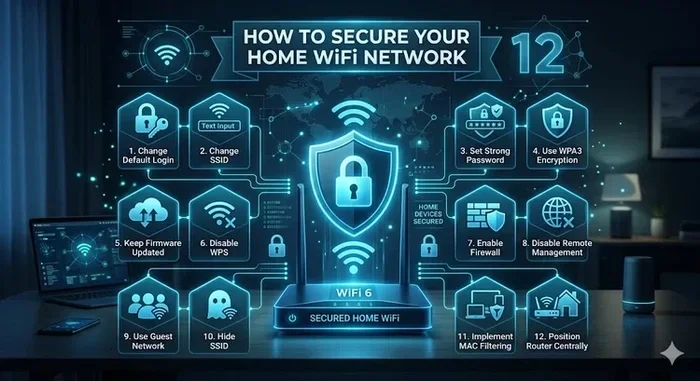
The simplest and most effective way to control network access is to change your Wi-Fi password. A strong password acts like a lock on your door. Without the key, no one can get in.
Here is how to do it. First, open a web browser on a device connected to your network. Type in your router’s IP address. This is usually something like 192.168.1.1 or 192.168.0.1. You can find it on the back of your router or in the manual. Log in with your admin credentials. Navigate to the wireless settings section. Look for the security key or passphrase field. Enter a new strong password. Save your changes.
Your new password should be at least 12 characters long. Use a mix of uppercase letters, lowercase letters, numbers, and symbols. Avoid common words like “password123” or your street name. The goal is to make it impossible for anyone to guess. Once you change the password, every device will need to reconnect using the new credentials.
Set Up a Guest Network
A guest network is a separate Wi-Fi network that you create just for visitors. It keeps your main network private while still letting people get online. This is one of the best ways to control who connects to your Wi-Fi without making guests feel unwelcome.
Most modern routers have a guest network feature built in. To set it up, log into your router admin panel. Look for the guest network option under wireless settings. Enable it and give it a name. Set a different password from your main network. Save the settings.
Here is why this matters. When a guest connects to your guest network, they cannot see your shared printers, files, or smart home devices. They only get internet access. This small step adds a huge layer of protection. Even if a guest’s phone has a virus, it cannot spread to your main devices.
Enable MAC Address Filtering
MAC address filtering is a more advanced method to control device whitelist access. Every device has a unique MAC address, kind of like a fingerprint. You can tell your router to only allow specific MAC addresses to connect.
To use this feature, go to your router settings and find the MAC filtering option. You will need to find the MAC addresses of all your devices first. On most phones and computers, you can find this in the network or about settings. Add each MAC address to the allowed list. Save and restart your router.
Keep in mind that MAC filtering is not foolproof. A tech-savvy person can spoof a MAC address. But it still adds a strong layer of protection. Think of it as a second lock on your door. It works best when combined with other security measures like a strong password and WPA3 encryption.
Router Settings You Should Know
Accessing Your Router Admin Panel
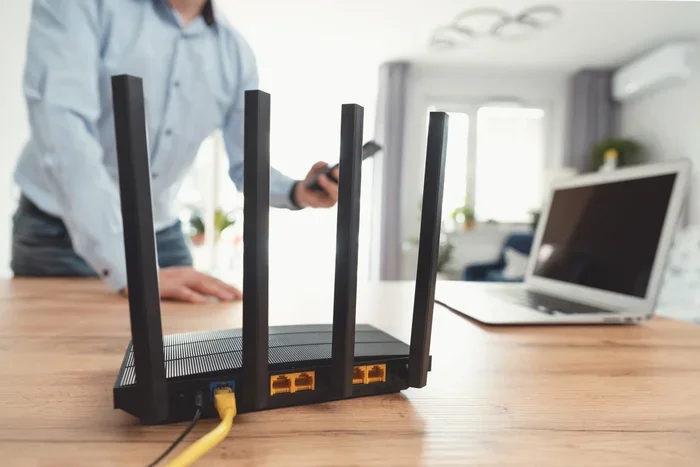
Your router admin panel is the control center for everything related to your wireless network. Every router brand has a slightly different interface, but the basics are the same. You need to log in to make changes.
To access it, connect a device to your router. Open a browser and type the router IP address into the address bar. Common addresses are 192.168.1.1, 192.168.0.1, or 10.0.0.1. You will see a login page. Enter the admin username and password. If you never changed these, they are probably “admin” and “admin” or “admin” and “password.”
Once you are in, take some time to explore. Look for sections labeled wireless, security, advanced, or LAN. Each section controls different aspects of your home network. The more familiar you are with your router settings, the easier it becomes to manage who connects to your network.
Updating Your Router Firmware
Router firmware is the software that runs your device. Just like your phone needs updates, your router does too. Outdated firmware can have security holes that hackers use to break into your network.
To check for updates, log into your router admin panel. Look for a section called firmware update or system update. If an update is available, download and install it. Some newer routers update automatically. If yours does not, make a habit of checking once a month.
Updating firmware is one of the simplest things you can do to improve network security. It fixes known vulnerabilities, improves performance, and sometimes adds new features. Do not skip this step. It takes only a few minutes and can save you from a serious security breach.
Signs Someone Is Unauthorized on Your Network
Slow Internet Speed
One of the first signs that someone else is using your Wi-Fi is slow internet speed. If your connection was fast yesterday and is crawling today, an unauthorized device might be eating up your bandwidth. This is especially common if the intruder is streaming videos or downloading large files.
To check this, run a speed test at speedtest.net. Compare the results to what your internet plan promises. If the speeds are consistently much lower than expected, something is wrong. Disconnect all your devices and run the test again. If the speed is still slow, someone else is likely connected to your network.
Unknown Devices in Your Network
Most routers let you see a list of all connected devices. This list is usually found in the admin panel under connected devices or DHCP client list. Take a look at it regularly. You should recognize every device on the list.
If you see a device you do not recognize, it could be a neighbor or a stranger using your network. Write down the device name and MAC address. You can then block that device or change your password to kick everyone off and start fresh. This simple habit of checking your connected devices list can save you a lot of headaches.
Best Practices for Home Network Security
Use Strong Encryption
Encryption scrambles the data sent over your wireless network so that only authorized devices can read it. The type of encryption your router uses matters a lot for network security.
WPA3 is the latest and most secure encryption standard. If your router supports it, use it. WPA2 is the next best option and is still widely used. Avoid WEP at all costs. It is outdated and can be cracked in minutes. If your router only offers WEP, it is time to upgrade to a newer model that supports modern encryption.
To check your encryption type, log into your router admin panel. Go to the wireless security settings. You should see the encryption option there. Select WPA3 or WPA2 and save your settings. This single change dramatically improves your Wi-Fi encryption and makes it much harder for strangers to access your network.
Change Default Router Credentials
Many people never change the default login for their router admin panel. This is a huge security risk. Anyone who knows the router brand can look up the default credentials online and gain access to your settings.
Change the admin username and password as soon as possible. Use a strong, unique password that you do not use anywhere else. Write it down and keep it in a safe place. This small change makes it much harder for anyone to tamper with your router settings or gain control of your network.
Quick Tips to Keep Your Network Safe
- Disable WPS: Wi-Fi Protected Setup is convenient but has known security flaws. Turn it off in your router settings.
- Disable remote management: This prevents anyone outside your home from accessing your router admin panel.
- Turn off your router when away: If you are going on vacation, unplugging the router adds an extra layer of protection.
- Use a strong SSID name: Do not use your real name or address in your network name. Pick something generic.
- Check for firmware updates monthly: Set a reminder on your phone to stay on top of updates.
- Use a network monitoring app: Apps like Fing or Wi-Fi Analyzer help you see who is on your network in real time.
Common Mistakes That Leave Your Network Vulnerable
Even people who think they are being careful can make mistakes that leave their wireless network exposed. Here are some common errors to avoid.
First, using a weak password. “12345678” or “password” might be easy to remember, but they are just as easy to guess. Second, sharing your password with too many people. Every person you share it with is another potential point of weakness. Third, never changing the default router admin login. This is one of the most common security oversights.
Another mistake is ignoring the connected devices list. If you never check it, you will never know if someone has joined without permission. Finally, skipping firmware updates leaves known security holes open. Avoid these mistakes and your network will be much safer.
Expert Insights on Home Network Protection
Cybersecurity experts agree that the most important step you can take is using a strong, unique password combined with WPA3 or WPA2 encryption. They also recommend enabling your router’s firewall and keeping the firmware up to date at all times.
Experts also suggest creating a separate network for your smart home devices. Things like smart speakers, cameras, and thermostats often have weaker security than phones and computers. If a smart device gets compromised, it should not have access to your personal computer or files. A separate network or VLAN keeps everything isolated and safe.
Regularly reviewing your network access logs is another expert recommendation. Most modern routers keep logs of connection attempts, both successful and failed. Reviewing these logs can help you spot suspicious activity early. It takes just a few minutes each month but can make a big difference in keeping your network secure.
Conclusion
Controlling who connects to your Wi-Fi at home is not just possible, it is essential. With the right settings and habits, you can keep your network safe, fast, and private. Start by changing your password, setting up a guest network, and enabling MAC address filtering. Update your router firmware regularly and check your connected devices list often.
These steps might seem small, but they add up to serious protection. You do not need to be a tech expert to secure your home network. Just be consistent and stay informed. The digital world is convenient, but it also comes with risks. Taking control of your Wi-Fi is one of the smartest things you can do for your household. Start today and enjoy peace of mind knowing your network is in your hands.
Frequently Asked Questions
Can someone hack my Wi-Fi if they are far away?
Yes, it is possible. Wi-Fi signals can travel beyond your home, especially with high-powered routers. A determined person with the right tools could attempt to access your network from a distance. This is why using strong encryption like WPA3 and a complex password is so important.
How do I find out what devices are connected to my Wi-Fi?
Log into your router admin panel and look for a section called connected devices, DHCP client list, or device map. Some routers also have companion apps that show this information in real time. Apps like Fing make it easy to see every device on your network.
Will changing my Wi-Fi password kick off all devices?
Yes, changing your password disconnects all devices, including your own. You will need to reconnect every device using the new password. Make sure you have the new password written down before you make the change so you do not get locked out.
Is MAC address filtering really effective?
It adds a useful layer of protection but is not foolproof. Skilled attackers can spoof MAC addresses to bypass filtering. Use it as one part of a broader security strategy that includes strong passwords, encryption, and regular monitoring.
How often should I update my router firmware?
Check for updates at least once a month. Many modern routers have automatic update features you can enable. Keeping your firmware current closes security vulnerabilities and improves overall performance.
Can my neighbor legally use my Wi-Fi?
No, using someone else’s Wi-Fi without permission is illegal in most places. It is considered unauthorized access to a computer network. Protecting your network with a strong password and proper settings helps prevent this from happening.