Do Any Laptops Have Hdmi Input and Can You Connect
Do any laptops have HDMI input? The short answer is yes, but only a handful of models come with it built in. Most laptops only offer HDMI output, which lets you send video out to a display but not receive it. However, you can still connect external devices like gaming consoles, cameras, and streaming boxes to your laptop using an HDMI capture card, an HDMI switch, or a USB-C to HDMI adapter. This guide covers every option so you can find the right solution for your setup.
Have you ever wanted to connect a gaming console, a camera, or another device to your laptop using an HDMI cable and found out your laptop does not have an HDMI input? You are not alone. This is one of the most common questions people ask when they want to use their laptop as a display. The truth is, most laptops only come with HDMI output ports. That means they can send video out to a monitor or TV, but they cannot receive a video signal from another device.
But here is the good news. Even if your laptop does not have a built-in HDMI input, there are several ways to make it work. You can use an HDMI capture card, an HDMI switch, or a USB-C to HDMI adapter to connect external devices and view their output on your laptop screen. In this guide, we will walk you through every option, explain which laptop models support HDMI input, and help you choose the best solution for your needs.
Whether you are a gamer who wants to use your laptop as a second screen for a gaming console, a content creator who needs to feed a camera signal into your editing workflow, or just someone who wants to mirror a streaming device onto a bigger screen, this article has you covered. Let us dive in.
Key Takeaways
- Very few laptops have HDMI input built in: Most laptops only support HDMI output, so you need extra hardware to receive video signals.
- HDMI capture cards are the most popular solution: They let you connect any HDMI source to your laptop and display the feed on screen.
- HDMI switches and splitters offer a simple plug-and-play option: These devices let you toggle between multiple HDMI sources without extra software.
- USB-C to HDMI adapters work for some setups: They are a convenient alternative, but compatibility depends on your laptop model and port type.
- Check your laptop model before buying any adapter: Not all laptops support video input, even with the right hardware.
- HDMI 2.0 and HDMI 2.1 standards matter for performance: Higher standards support better resolution and refresh rates for gaming and streaming.
📑 Table of Contents
What Is HDMI Input and Why Does It Matter?
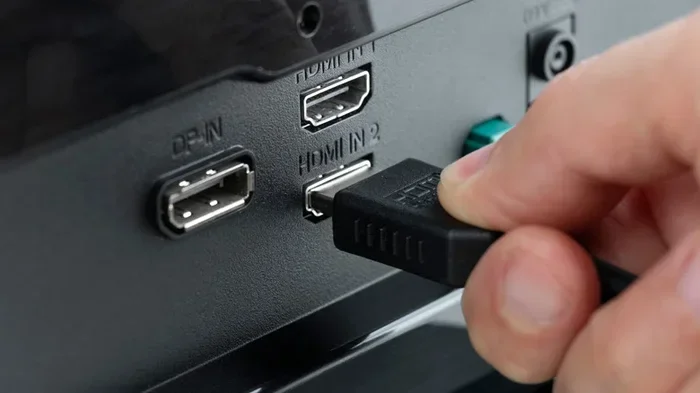
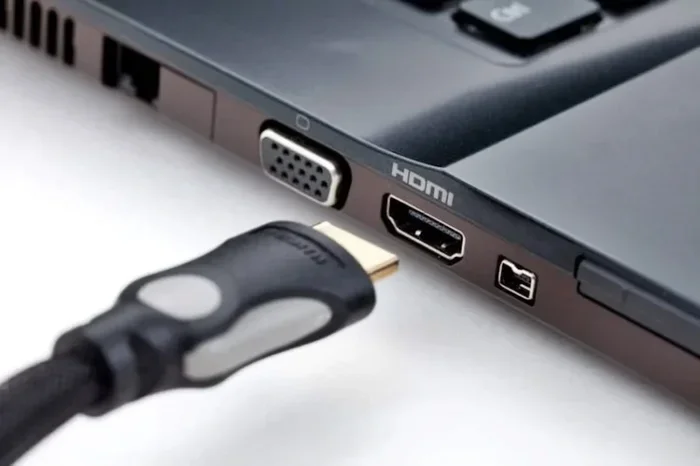
HDMI stands for High-Definition Multimedia Interface. It is a standard cable and port system that carries both video and audio signals through a single cable. When we talk about HDMI output, we mean a port that sends video and audio from a device to a display. When we talk about HDMI input, we mean a port that receives a video and audio signal from an external source.
Most laptop HDMI ports are designed for output only. They send your laptop’s screen to an external monitor or TV. An HDMI input port does the opposite. It receives a signal from another device and displays it on your screen. This distinction matters a lot if you want to use your laptop as a display for other devices.
The difference between HDMI output vs input is simple. Output sends data out. Input receives data in. Your laptop’s HDMI port is almost always an output port. This is because laptops are designed to be portable computers, not display receivers. However, there are a few exceptions, and we will cover those shortly.
Understanding this difference is the first step to finding the right solution for your setup. Once you know what your laptop can and cannot do natively, you can explore the hardware options that bridge the gap.
Do Any Laptops Come With HDMI Input?
The short answer is yes, but they are rare. Most mainstream laptops from brands like Dell, HP, Lenovo, and Apple do not include an HDMI input port. The vast majority of laptops on the market only support HDMI output. However, a small number of specialized or high-end models do offer HDMI input capabilities.
These HDMI-enabled laptops are typically found in specific categories. Some gaming laptops include an HDMI input so users can connect a console directly to the laptop screen. Certain mobile workstations and display-focused laptops also offer this feature. But you cannot assume your laptop has it. You need to check your specific model.
Which Laptop Brands Offer HDMI Input?
A few brands have historically offered laptops with HDMI input support. Here are some examples:
- ASUS ROG series: Some ASUS Republic of Gamers laptops include an HDMI input port labeled as such, allowing you to connect a console or other HDMI source directly.
- Lenovo Legion: Certain Legion models have offered video input laptop features through specific HDMI ports, though this varies by generation.
- MSI: A few MSI gaming laptops have included dual-purpose HDMI ports that can function as both input and output.
- Acer Predator: Some Predator models have featured HDMI input options for connecting external gaming devices.
Even with these brands, not every model supports HDMI input. You must check the specifications for your exact laptop model. Look for terms like “HDMI input,” “HDMI 1.4 input,” or “display input” in the product manual or on the manufacturer’s website.
If your laptop does not list HDMI input in its specs, it almost certainly only has HDMI output. In that case, do not worry. There are still several ways to connect external devices, which we will cover next.
How to Connect External Devices to Your Laptop via HDMI
If your laptop does not have a built-in HDMI input, you are not stuck. There are several reliable methods to connect external devices and view their output on your laptop screen. Each method has its own advantages and trade-offs. Let us look at the most popular options.
Using an HDMI Capture Card
An HDMI capture card is the most popular and versatile way to get HDMI input on a laptop that only has HDMI output. A capture card acts as a middleman. It receives the HDMI signal from your external device and converts it into a format your laptop can understand through USB.
Here is how it works. You connect your device, like a gaming console or a camera, to the capture card using an HDMI cable. Then you connect the capture card to your laptop using a USB port. Your laptop recognizes the capture card as a video source, and you can view the feed on your screen.
Popular capture card brands include Elgato, AVerMedia, and Magewell. These devices range from budget-friendly options under $50 to professional-grade cards costing $200 or more. For most users, a mid-range capture card offers the best balance of quality and price.
Quick Tip: Look for a capture card that supports HDMI 2.0 or HDMI 2.1 if you want to use it for gaming or high-resolution video. These standards support higher refresh rates and better image quality.
Using an HDMI Switch or Splitter
An HDMI switch or HDMI splitter is another option for connecting multiple devices to your laptop. However, these devices work differently from capture cards and have some limitations.
An HDMI switch lets you connect multiple HDMI sources and toggle between them. It sends the selected signal out through a single HDMI cable. The catch is that your laptop still needs an HDMI input port to receive that signal directly. If your laptop only has HDMI output, a switch alone will not work.
An HDMI splitter takes one input and sends it to multiple outputs. This is useful if you want to display the same signal on your laptop and another screen at the same time. But again, it requires an HDMI input on your laptop.
For laptops without HDMI input, you can pair a switch or splitter with a capture card. This gives you the flexibility of multiple sources with the ability to view them on your laptop.
| Method | Requires Laptop HDMI Input? | Price Range | Best For |
|---|---|---|---|
| HDMI Capture Card | No | $30 – $200+ | Gaming, streaming, camera input |
| HDMI Switch | Yes | $10 – $50 | Multiple device toggling |
| HDMI Splitter | Yes | $10 – $40 | Displaying same signal on multiple screens |
| USB-C to HDMI Adapter | No (uses USB-C) | $15 – $80 | Simple connections with USB-C laptops |
Using a USB-C to HDMI Adapter
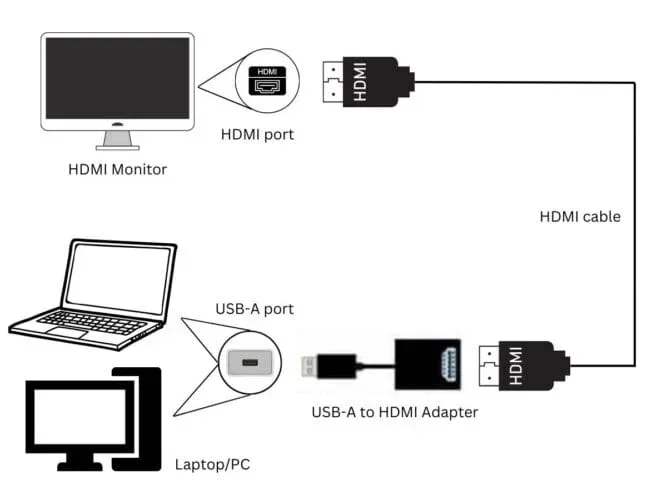
If your laptop has a USB-C port that supports video input, you can use a USB-C to HDMI adapter to connect an external HDMI source. Not all USB-C ports support video input, though. Some USB-C ports only support data transfer or charging. You need to check if your laptop’s USB-C port supports Alternate Mode or DisplayPort Alt Mode.
To find out, check your laptop’s specifications or look for a lightning bolt icon next to the USB-C port. This icon usually indicates that the port supports video input and output. If your laptop has this feature, a USB-C to HDMI adapter is a simple and affordable way to get HDMI input without a capture card.
Expert Insight: According to laptop hardware experts, USB-C video input support is becoming more common in newer laptops. However, it is still not as universal as traditional HDMI output ports. Always verify your laptop’s capabilities before purchasing an adapter.
HDMI Input vs HDMI Output: What Is the Difference?
Understanding the difference between HDMI input vs HDMI output is crucial for setting up your devices correctly. It is a simple concept, but it causes a lot of confusion.
HDMI output sends audio and video from your laptop to an external display. When you plug an HDMI cable from your laptop to a monitor or TV, you are using the HDMI output port. This is what 99% of laptop HDMI ports are designed to do.
HDMI input receives audio and video from an external device and displays it on your laptop screen. This is what you need when you want to connect a gaming console, a camera, or a streaming device to your laptop and see its output on your screen.
Here is a simple way to remember it. Output means your laptop is the source. It sends the signal out. Input means your laptop is the display. It receives the signal in. Most laptops are designed to be the source, not the display.
The HDMI port on your laptop is almost always an output port. The few laptops that do include an HDMI input port are clearly labeled as such in their specifications. If your laptop manual does not mention HDMI input, assume your port is output only.
Common Uses for HDMI Input on Laptops
Even though most laptops do not have built-in HDMI input, there are many reasons people want it. Here are the most common use cases:
- Gaming on a bigger screen: Connect a PlayStation, Xbox, or Nintendo Switch to your laptop and play games on the laptop display using an HDMI capture card.
- Video editing and production: Feed a camera or video recorder directly into your laptop for real-time monitoring and editing.
- Screen mirroring: Mirror a streaming device like a Roku or Apple TV onto your laptop for presentations or personal use.
- Security camera monitoring: Connect a security camera with an HDMI output to your laptop for live surveillance feeds.
- Digital signage: Use your laptop as a display for digital signage setups in offices, stores, or events.
Each of these use cases requires a method to get HDMI input on your laptop. The right solution depends on your specific needs, budget, and laptop model.
Quick Tips for Getting HDMI Input on Any Laptop
Here are some practical tips to help you set up HDMI input on your laptop, regardless of whether it has a built-in input port:
- Check your laptop manual first: Before buying any adapter or cable, look up your laptop model online to confirm whether it supports HDMI input.
- Invest in a quality capture card: A good HDMI capture card makes a big difference in video quality and latency. Budget options work fine for basic use, but gamers and content creators should invest in a higher-quality card.
- Update your laptop drivers: After connecting a capture card or adapter, make sure your laptop display settings and drivers are up to date for the best performance.
- Use the right HDMI cable: Not all HDMI cables are the same. Use a cable that supports the resolution and refresh rate you need. For 4K at 60Hz, you need an HDMI 2.0 or higher cable.
- Close unnecessary programs: When using a capture card, close background programs to free up processing power and reduce lag.
Common Mistakes to Avoid
Here are some mistakes people commonly make when trying to set up HDMI input on a laptop:
- Assuming all HDMI ports are the same: Just because your laptop has an HDMI port does not mean it supports input. Always verify the port type in your specifications.
- Buying the wrong capture card: Some capture cards only support certain resolutions or refresh rates. Make sure the card you buy matches your needs.
- Ignoring latency issues: Cheap capture cards can introduce significant lag. If you are gaming, this can make the experience frustrating. Look for cards with low-latency performance.
- Using a damaged or low-quality HDMI cable: A bad HDMI cable can cause signal loss, flickering, or no signal at all. Always use a certified, high-quality cable.
- Not checking USB-C compatibility: Not every USB-C port supports video input. Plugging an adapter into an incompatible port will not work.
Final Thoughts on HDMI Input and Laptops
So, do any laptops have HDMI input? Yes, a few do, but they are the exception rather than the rule. The vast majority of laptops on the market only support HDMI output. This does not mean you are out of luck, though. With the right hardware, you can still connect external devices and view their output on your laptop screen.
An HDMI capture card is the most reliable and versatile solution for most users. It works with virtually any laptop, regardless of whether it has a built-in HDMI input port. HDMI switches, splitters, and USB-C to HDMI adapters offer additional options depending on your specific needs and laptop capabilities.
Before you buy any hardware, take a few minutes to check your laptop’s specifications. Know whether your laptop HDMI port supports input or output only. Then choose the method that best fits your use case and budget.
Connecting external devices to your laptop through HDMI input opens up a world of possibilities. You can game on a bigger screen, edit video more efficiently, or simply use your laptop as a versatile display. With the right setup and a little knowledge, you can make it all work.
The key takeaway is this: HDMI input on a laptop is rare but achievable through external hardware. Do not let the lack of a built-in HDMI input port stop you from connecting the devices you love. There is always a way to make it work.
Frequently Asked Questions
Can I use my laptop as a monitor for a gaming console?
Yes, you can. Most laptops do not have a built-in HDMI input port, so you will need an HDMI capture card to connect your console. Simply plug the console into the capture card with an HDMI cable, then connect the capture card to your laptop via USB. Your laptop will display the console’s output on its screen.
What is the difference between HDMI 2.0 and HDMI 2.1?
HDMI 2.0 supports resolutions up to 4K at 60Hz, while HDMI 2.1 supports up to 4K at 120Hz and even 8K at 60Hz. For most laptop setups and general use, HDMI 2.0 is more than sufficient. However, if you are a gamer who wants high refresh rates, HDMI 2.1 capture cards and cables offer a noticeable improvement in smoothness and detail.
Do USB-C to HDMI adapters work for video input on all laptops?
No, not all USB-C ports support video input. You need to check if your laptop’s USB-C port supports Alternate Mode or DisplayPort Alt Mode. Look for a lightning bolt icon next to the port or check your laptop’s specifications. If your port only supports data transfer and charging, a USB-C to HDMI adapter will not work for video input.
Is there any lag when using an HDMI capture card?
Some lag is normal with any HDMI capture card, but the amount varies significantly. Budget capture cards may introduce noticeable lag, especially at higher resolutions. Professional-grade cards are designed for low latency and are ideal for gaming and live streaming. If lag is a concern, look for a capture card that specifically advertises low-latency performance.
Can I connect multiple HDMI devices to my laptop at once?
Yes, you can connect multiple devices, but you will need an HDMI switch or multiple capture cards. An HDMI switch lets you toggle between different HDMI sources, while multiple capture cards allow you to view all sources simultaneously. Keep in mind that each additional device uses a USB port on your laptop, so make sure you have enough available ports or use a USB hub.
Are there any laptops with HDMI input that cost less than $1000?
Most laptops with built-in HDMI input tend to be gaming or professional models that cost more than $1000. However, some mid-range gaming laptops from brands like ASUS and Lenovo have offered this feature in certain configurations. Always check the specific model’s specifications before purchasing. If budget is a concern, an HDMI capture card is a much more affordable alternative that works with any laptop.