Can HDMI Out Be Used As An Input On Your Smart Devices
Can HDMI out be used as an input? The short answer is no — HDMI out ports are designed to send signals, not receive them. However, with the right tools like an HDMI capture card, HDMI switch, or adapter, you can work around this limitation and achieve input-like functionality on your smart TV, laptop, or gaming console.
You plug in an HDMI cable and expect it to just work. But then you stare at the back of your device and wonder — can you flip things around? What if the HDMI out port on your smart TV or laptop could actually receive a signal? It is a question that confuses a lot of people, and honestly, the answer is not as simple as yes or no.
The truth is that HDMI out and HDMI in serve completely different purposes. One sends audio and video out to a screen, while the other receives a signal from a source. But modern tech gives us clever ways to bend the rules. In this guide, we will break down everything you need to know about using an HDMI out port as an input. We will cover workarounds, devices, and common mistakes so you do not waste money on the wrong solution.
Key Takeaways
- HDMI out cannot directly function as an input: The port’s hardware design only sends signals outward.
- An HDMI capture card is the best workaround: It converts HDMI output into a usable input signal for your device.
- HDMI switches and splitters offer creative solutions: They help redirect signals between multiple devices.
- USB-C and DisplayPort can bridge the gap: These alternative ports sometimes support bidirectional signal transfer.
- Always check your device specs before buying adapters: Not every HDMI port supports pass-through or signal reversal.
- Common mistakes include using cheap adapters: Low-quality gear can cause signal loss, lag, or no signal at all.
- HDMI ARC and HDMI-CEC add smart features: These technologies make HDMI connections more versatile across devices.
📑 Table of Contents
- Understanding HDMI Out vs. HDMI In
- Can HDMI Out Be Used As An Input Directly?
- Workarounds To Use HDMI Out As An Input
- Common Mistakes People Make With HDMI Ports
- Expert Tips for Getting the Best HDMI Setup
- How HDMI Technology Has Evolved
- When Should You Consider a Different Connection Type?
- Final Thoughts
Understanding HDMI Out vs. HDMI In
What Does HDMI Out Actually Do?
An HDMI output port sends audio and video signals from your device to another display. Think about your laptop, gaming console, or streaming box. These devices create content and push it out through the HDMI port to a monitor or TV. The signal flows in one direction only — outward.
When you connect your laptop to a TV using an HDMI cable, the laptop acts as the source. It sends the picture and sound to the TV screen. The TV simply receives and displays it. This is the basic audio video signal flow that HDMI was designed for.
What Does HDMI In Do?
An HDMI input port does the opposite. It accepts a signal from an external source. Your smart TV has multiple HDMI inputs because you plug in devices like a gaming console, Blu-ray player, or streaming stick. The TV receives the signal and shows it on screen.
The key difference comes down to hardware design. The chips and circuits inside an HDMI out port are built for transmission. The chips inside an HDMI in port are built for reception. You cannot simply reverse the flow without additional help.
Can HDMI Out Be Used As An Input Directly?
The direct answer is no. You cannot plug an HDMI out into another HDMI out and expect it to work. Both ports are designed to transmit, not receive. When you try this, you will likely get no signal at all. The hardware simply does not support bidirectional communication on standard HDMI connections.
Some people assume that because both ends of an HDMI cable look identical, the ports must be interchangeable. This is a common misconception. The cable is the same, but the ports on each device serve different roles. Think of it like a water pipe — it can only flow in the direction the system allows.
Why Signal Reversal Does Not Work
HDMI uses a specific signal protocol to send data from source to display. The source device tells the display what kind of content is coming. Without that handshake, the display does not know how to process the signal. When you connect two HDMI out ports together, neither device initiates the handshake properly. The result is a blank screen or an error message.
Even advanced features like HDMI-CEC and HDMI ARC rely on one device being the source and the other being the display. These technologies enhance the connection but do not change the fundamental one-way flow of the signal.
Workarounds To Use HDMI Out As An Input
Even though you cannot use HDMI out as an input directly, several devices and methods let you achieve similar results. These workarounds are practical, affordable, and widely used by tech enthusiasts and professionals alike.
Using an HDMI Capture Card
An HDMI capture card is the most popular and reliable way to turn an HDMI out signal into an input. How does it work? The capture card receives the outgoing signal from your device and converts it into a format your computer or laptop can read as an input.
Gamers use capture cards all the time. They plug their console’s HDMI output into the capture card, then connect the capture card to their PC via USB. The PC sees the console’s signal as an input source. This lets them stream, record, or display the content on their computer screen.
Popular capture cards include models from Elgato, AVerMedia, and Roxio. They range in price from about $50 to $200 depending on features like 4K support and lag-free performance.
HDMI Switch and Splitter Solutions
An HDMI switch lets you connect multiple sources to a single display. While it does not technically make an HDMI out port into an input, it helps redirect signals between devices. You can use a switch to manage which device sends its signal to your screen.
An HDMI splitter does the opposite. It takes one input signal and sends it to multiple displays. Some splitters also feature HDMI pass-through, which means the signal continues to flow to another device while being duplicated. This can be useful in setups where you need flexibility.
When shopping for a switch or splitter, look for ones that support 4K resolution and HDR. These features ensure you get the best picture quality without signal degradation.
USB-C and DisplayPort Alternatives
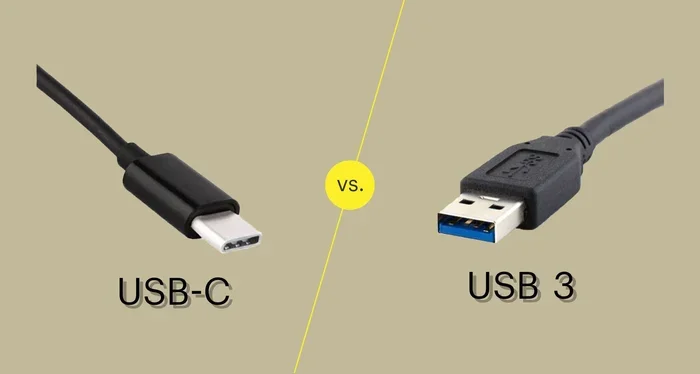
Not all modern devices rely solely on HDMI ports. Many laptops and tablets use USB-C or DisplayPort connections. These ports sometimes support bidirectional signal transfer, which means they can both send and receive signals.
A USB-C to HDMI adapter can be particularly useful. Some USB-C ports support DisplayPort Alt Mode, which allows them to act as both an output and an input depending on the device and adapter. This gives you more flexibility than a standard HDMI out port ever could.
If your device has a USB-C HDMI port, check its specifications carefully. Look for terms like “display input” or “HDMI receiver” to confirm it supports receiving signals, not just sending them.
HDMI Modulators and Converters
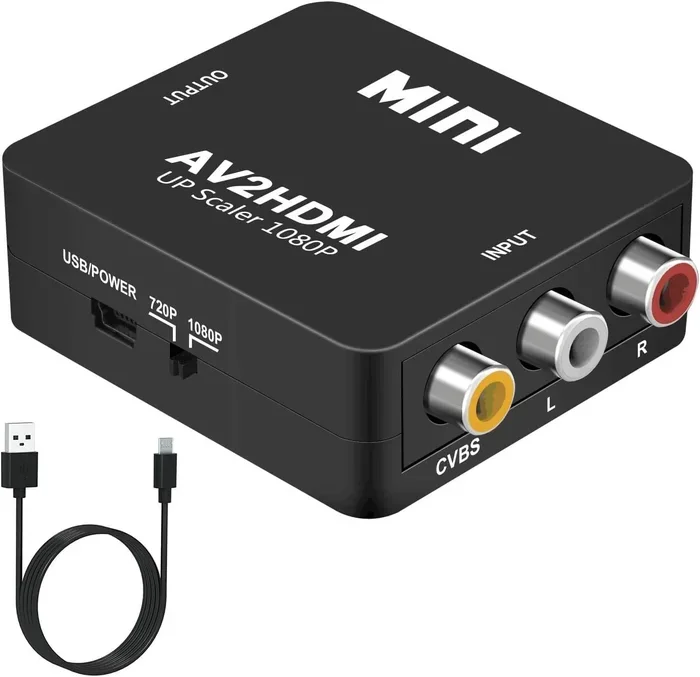
An HDMI modulator converts an HDMI signal into a format that can be received by older devices, such as those with composite or RF inputs. While this is not exactly using HDMI out as an input, it helps you bridge older and newer equipment in the same setup.
These devices are common in home security systems and older entertainment setups. They allow you to feed modern HDMI sources into legacy displays without losing signal quality.
Common Mistakes People Make With HDMI Ports
Buying the Wrong Adapter
The most common mistake is buying a cheap HDMI adapter that does not support the function you need. Not all adapters are created equal. Some only convert the physical connector shape without changing the signal direction. Before you buy, check whether the adapter is a simple cable, a signal converter, or a capture device.
Look for adapters that explicitly state they support input or pass-through functionality. Reading reviews and checking product specifications saves you money and frustration.
Ignoring Device Specifications
Every device handles HDMI ports differently. Your smart TV might support HDMI ARC for audio return, while your laptop only has a standard HDMI out. If you do not read the manual or check the manufacturer’s website, you might assume a feature exists that it does not.
Always verify your device’s capabilities before setting up a connection. Look for terms like “HDMI input supported,” “display input,” or “signal reception” in the product specs.
Using Low-Quality HDMI Cables
A poor-quality HDMI cable can cause signal loss, flickering, or no signal at all. This is especially true for long cable runs or high-resolution setups like 4K and 8K. Invest in certified cables that meet the HDMI 2.0 or HDMI 2.1 standards for reliable performance.
Brands like Belkin, Cable Matters, and Monoprice offer certified options at reasonable prices. Avoid generic cables from unknown sellers, especially if you need stable audio video signal transmission.
Overlooking Firmware Updates
Many smart devices receive firmware updates that improve HDMI compatibility. If your HDMI connection is acting up, check for updates before assuming something is broken. A simple software update can sometimes fix signal issues, add new HDMI features, or improve HDMI-CEC functionality.
Expert Tips for Getting the Best HDMI Setup
Label Your Ports
It sounds simple, but labeling your HDMI ports with tape or a label maker saves a lot of confusion. Mark which ports are inputs and which are outputs. This is especially helpful on devices like receivers or switches with many ports.
Use High-Speed HDMI Cables
For 4K content and high refresh rates, always use High Speed HDMI cables or Premium High Speed HDMI cables. These cables handle the bandwidth needed for modern video sources without compression or signal loss.
Keep Your Cables Short
Signal quality degrades over long distances. Keep your HDMI cables as short as possible for the best picture and sound. If you need a longer run, consider using an HDMI extender or active cable that boosts the signal.
Test Each Connection
After setting up your HDMI connections, test each one individually. Plug in each source, check the display, and verify audio and video quality. This catches problems early and saves you from troubleshooting later.
How HDMI Technology Has Evolved
The HDMI standard has come a long way since its introduction in 2003. Each new version brought better bandwidth, higher resolutions, and smarter features. Understanding these changes helps you make better decisions about your setup.
HDMI 1.4 introduced HDMI ARC, which lets audio travel back from your TV to a soundbar or receiver. HDMI 2.0 added support for 4K at 60Hz, making it ideal for gaming consoles and streaming devices. HDMI 2.1 takes it further with 8K support, variable refresh rate, and eARC for even better audio quality.
These advancements also affect how HDMI out and HDMI in ports work. Newer devices often have smarter ports that can handle more complex signal routing. But the fundamental rule remains — HDMI out sends signals out, and HDMI in receives them in.
When Should You Consider a Different Connection Type?
Sometimes the best solution is not to force an HDMI out port to work as an input. Instead, consider using a different port altogether. Many modern devices offer multiple connection options that might better suit your needs.
USB-C ports on laptops and tablets often support video input with the right adapter. DisplayPort on desktop computers can sometimes handle bidirectional signals. VGA and composite ports on older devices may accept input signals directly.
The key is knowing what your device supports. Check the user manual, visit the manufacturer’s website, or look up the model number online. You might find that your device already has a port that works as an input without any extra accessories.
Final Thoughts
So, can HDMI out be used as an input? Not directly, but with the right tools and workarounds, you can get surprisingly close. An HDMI capture card is the most reliable method for turning an output signal into an input source. HDMI switches, splitters, and USB-C adapters offer additional flexibility depending on your setup.
The most important thing is to understand what your device can and cannot do. Read the specifications, buy quality equipment, and avoid common mistakes like using cheap adapters or mismatched cables. With a little knowledge and the right gear, you can make any HDMI connection work for you.
Whether you are a gamer, a streamer, or someone trying to set up a home entertainment system, this guide gives you the tools and knowledge to succeed. HDMI technology is powerful, versatile, and constantly improving. Use it wisely, and your devices will reward you with crystal-clear audio and stunning video for years to come.
Frequently Asked Questions
Can I plug an HDMI cable from one TV’s HDMI out into another TV’s HDMI out?
No, this will not work. Both ports are designed to send signals out, not receive them. You will get no display on either screen. You need at least one device with an HDMI input for the connection to function.
What is the difference between HDMI out and HDMI in on a smart TV?
An HDMI out on a smart TV sends audio and video to another display, while an HDMI in receives a signal from an external device like a gaming console or streaming box. Most smart TVs have multiple HDMI inputs but very few or no HDMI outputs.
Do HDMI capture cards damage the HDMI out port?
No, HDMI capture cards do not damage your ports. They simply receive the signal your device is already sending and convert it into a digital format your computer can read. They are safe and widely used by content creators and gamers every day.
Can a USB-C to HDMI adapter make HDMI out work as an input?
It depends on your device. Some USB-C ports support bidirectional video signals, especially those with DisplayPort Alt Mode. However, most standard USB-C to HDMI adapters only convert the signal for output. Check your device specifications to confirm input support.
Why does my HDMI splitter not work with HDMI out ports?
A splitter needs an input signal to duplicate. If you connect two HDMI out ports to a splitter, there is no source signal to split. The splitter requires a device with an HDMI input or an active HDMI source to function properly.
Is HDMI ARC the same as HDMI input?
No, HDMI ARC (Audio Return Channel) is a special feature that allows audio to travel back from a TV to a soundbar or receiver through a single HDMI cable. It still uses an HDMI input port on the TV but serves a different purpose than a standard video input.
=== CONCLUSION ===
Understanding the difference between HDMI out and HDMI in saves you time, money, and frustration. While you cannot directly use an HDMI output as an input, the workarounds available today make it easier than ever to create flexible setups. HDMI capture cards, switches, splitters, and USB-C adapters all offer practical solutions depending on your needs.
Remember to always check your device specifications before buying any accessory. Invest in quality cables and adapters, and avoid the temptation to use the cheapest option you find. A little research goes a long way in building a reliable and high-performance HDMI setup.
Now that you know the answer to the question “can HDMI out be used as an input,” you are better equipped to make smart decisions about your home entertainment or workspace setup. Apply these tips, avoid common pitfalls, and enjoy a seamless audio video experience across all your devices.