Can You Connect A Hard Drive With A Usb Cable Today
Yes, you can absolutely connect a hard drive with a USB cable, and it is one of the simplest ways to expand your storage or back up important files. Whether you have an external hard drive or an internal drive in an enclosure, a USB connection makes the process quick and painless. This guide walks you through everything you need to know, from choosing the right cable to fixing common connection problems.
Have you ever plugged in a new hard drive and wondered if it would actually work? The good news is that connecting a hard drive with a USB cable is one of the easiest things you can do with your computer. USB connections have become the standard for external storage devices, and for good reason. They are fast, simple, and work with almost every computer made in the last fifteen years.
Whether you want to back up important files, expand your storage space, or transfer data between computers, a USB-connected hard drive gets the job done. In this guide, we will walk you through everything step by step. You will learn about the different types of USB connections, how to set up your drive, and what to do when things do not go as planned.
So grab your hard drive and USB cable, and let us get started. By the end of this article, you will feel confident connecting any hard drive using a USB connection.
Key Takeaways
- USB connections are the most popular way to connect hard drives to computers and laptops.
- USB 3.0 and USB-C offer fast data transfer speeds that make large file backups effortless.
- Plug-and-play functionality means most USB hard drives work instantly without extra software.
- Common problems like unrecognized drives can usually be fixed with simple troubleshooting steps.
- Cross-platform compatibility lets you use USB hard drives on Windows, Mac, and Linux systems.
- Choosing the right cable and port ensures reliable performance and avoids data loss.
- Formatting your drive correctly before use prevents compatibility issues down the road.
📑 Table of Contents
- What Is a USB Hard Drive Connection?
- Types of USB Connectors for Hard Drives
- How to Connect an External Hard Drive via USB
- Benefits of Using USB to Connect a Hard Drive
- Common Problems When Connecting a Hard Drive via USB
- USB Hard Drive vs Other Connection Types
- Tips for Getting the Best Performance from Your USB Hard Drive
- Expert Insights on USB Hard Drive Connections
- Final Thoughts on Connecting a Hard Drive with USB
What Is a USB Hard Drive Connection?
A USB hard drive connection is simply the method used to link an external or portable storage device to your computer using a USB cable. USB stands for Universal Serial Bus, and it has become the most widely used connection type for storage devices, peripherals, and accessories.
When you connect a hard drive via USB, your computer recognizes it as a removable storage device. This means you can read files, write new files, and manage your data just like you would with an internal drive. The whole process usually takes less than a minute.
Why USB Became the Standard for Hard Drives
USB connections replaced older standards like parallel ports and SCSI interfaces for a reason. They are universal, meaning almost every computer and laptop has USB ports. You do not need special adapters or technical knowledge to get started.
Here is why USB dominates the storage world:
- Universal compatibility with Windows, Mac, and Linux systems.
- Plug-and-play support so you do not need to install drivers.
- Fast transfer speeds with USB 3.0 and USB-C standards.
- Affordable cables and adapters available everywhere.
- Hot-swappable, meaning you can connect and disconnect without restarting your computer.
Many people also use a USB hub to connect multiple devices at once. This is especially helpful when your computer has limited ports. A hub lets you connect your hard drive, a computer mouse, a keyboard, and other peripherals all at the same time. If you want to learn more about the pros and cons of using a mouse alongside your USB storage setup, check out our guide on the advantages and disadvantages of a computer mouse.
Types of USB Connectors for Hard Drives
Not all USB cables are the same. Understanding the different connector types helps you choose the right one for your hard drive. Using the wrong cable can lead to slow speeds or a connection that simply does not work.
USB Type-A
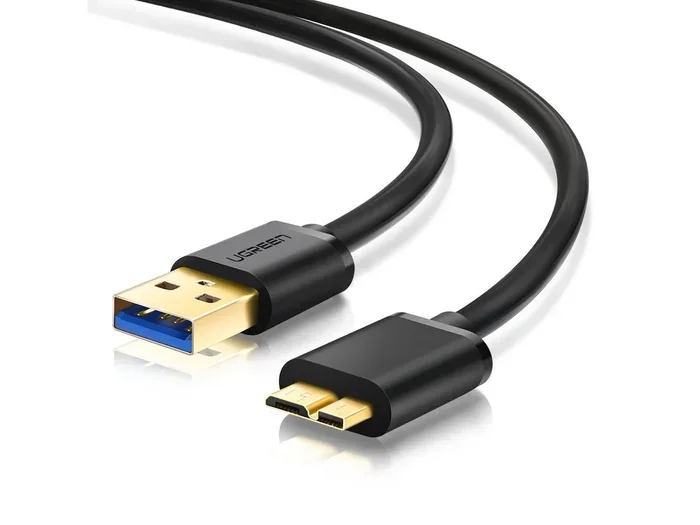
USB Type-A is the classic rectangular connector you have probably seen hundreds of times. It is the standard port found on most desktop computers and older laptops. Many external hard drives still use USB-A connectors, especially those designed for USB 2.0 and USB 3.0 connections.
USB-A offers reliable speeds, though USB 2.0 is noticeably slower than newer versions. For basic file transfers and backups, USB-A works perfectly fine. However, if you are moving large files regularly, you may want to consider a faster option.
USB Type-C
USB Type-C is the modern connector that is replacing older standards. It is smaller, reversible, and supports much faster data transfer speeds. USB-C hard drives are becoming increasingly popular because they work with newer laptops, tablets, and smartphones.
USB-C also supports USB 3.1 and USB 4 standards, which deliver blazing-fast transfer rates. If you buy a new external hard drive today, there is a good chance it will come with a USB-C cable.
USB Micro and Mini Connectors
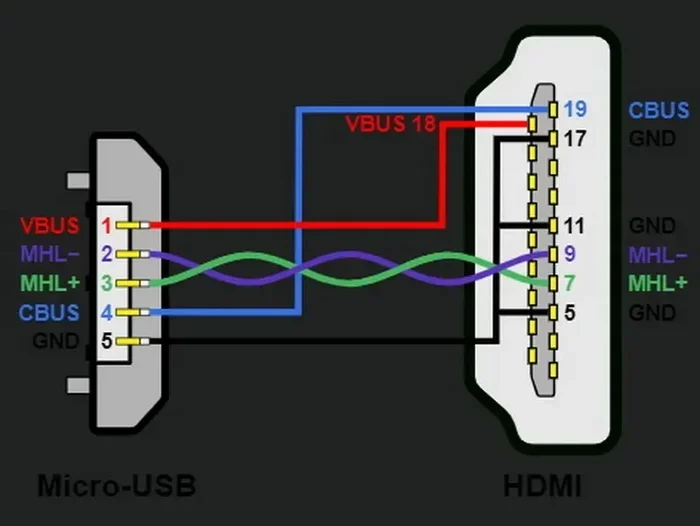
Some older portable hard drives use micro-USB or mini-USB connectors. These are less common now but still appear on budget drives and older models. If your drive uses one of these, make sure you have the correct cable on hand.
How to Connect an External Hard Drive via USB
Setting up a USB hard drive is straightforward. Follow these steps and you will be up and running in minutes.
Step 1: Check Your USB Port
Before you plug anything in, look at the ports on your computer. Identify whether you have USB-A, USB-C, or both. If your drive has a USB-C connector but your computer only has USB-A ports, you will need a USB-C to USB-A adapter.
Step 2: Plug in the Cable
Connect one end of the USB cable to your hard drive and the other end to your computer. You should feel a slight click when the connector seats properly. Most modern operating systems will recognize the drive within seconds.
Step 3: Wait for Recognition
Your computer should display a notification that a new device has been detected. On Windows, you will see the drive appear in File Explorer. On Mac, it will show up on your desktop or in Finder.
If the drive does not appear, do not worry. This is a common issue, and we will cover troubleshooting in a later section.
Step 4: Format if Necessary
New hard drives sometimes need to be formatted before use. Formatting prepares the drive for your operating system. Be careful here, as formatting erases all existing data on the drive. If the drive is brand new and empty, go ahead and format it using your system’s disk management tools.
Benefits of Using USB to Connect a Hard Drive
There are many reasons why millions of people use USB to connect their hard drives every day. Let us look at the biggest advantages.
Speed and Performance
USB 3.0 transfer speeds can reach up to 5 Gbps, which is dramatically faster than USB 2.0. This means you can transfer a 10 GB folder in just a couple of minutes. USB-C and USB 3.1 push speeds even higher, sometimes exceeding 10 Gbps or more.
For comparison, older connection types like eSATA or FireWire simply cannot keep up with modern USB standards. If speed matters to you, USB is the way to go.
Portability and Convenience
USB hard drives are compact and lightweight. You can easily carry one in your backpack or laptop bag. This makes them ideal for portable storage and on-the-go file access.
You can also use your USB hard drive to transfer files between multiple computers. Simply plug it into any compatible machine, and your files are right there.
Affordability
USB external hard drives are very affordable compared to other storage solutions. You can get a 1 TB or even 2 TB drive for a reasonable price. The cables and adapters needed are also inexpensive and widely available.
Backup and Data Protection
Using a USB hard drive for automatic backups is one of the smartest things you can do. Losing important files due to a computer crash or virus can be devastating. A USB-connected backup drive gives you peace of mind.
Many people also use their USB hard drive to store copies of important documents, photos, and videos. Having a secondary copy of your data protects you from unexpected loss.
Common Problems When Connecting a Hard Drive via USB
Even though USB connections are simple, things sometimes go wrong. Here are the most common issues and how to fix them.
Drive Not Recognized by Computer
This is the number one issue people face. If your computer does not detect the hard drive, try these steps:
- Try a different USB port on your computer.
- Use a different USB cable to rule out a faulty cable.
- Check Disk Management on Windows or Disk Utility on Mac.
- Restart your computer with the drive already connected.
- Update your USB drivers through your system settings.
Slow Transfer Speeds
If your files are copying slowly, the problem is often the USB port version. Make sure you are plugging into a USB 3.0 or USB-C port if your drive supports it. Also, check that your cable supports fast data transfer. Cheap or damaged cables can severely limit speeds.
Drive Keeps Disconnecting
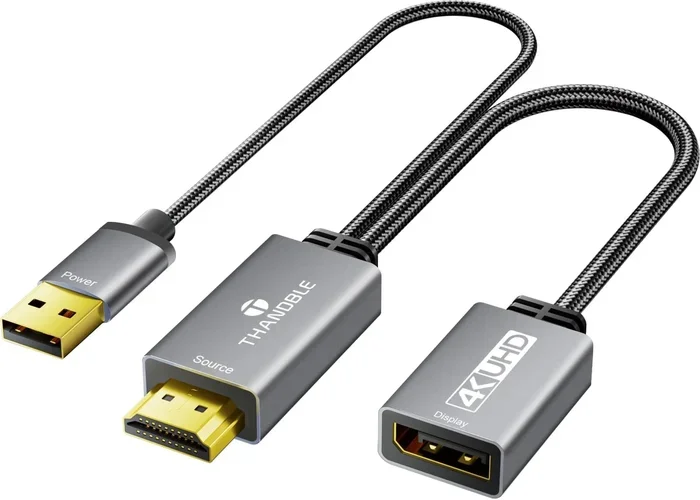
A drive that randomly disconnects is usually a power issue. Some hard drives need more power than a single USB port can provide. In this case, use a powered USB hub or a cable with a dual-connector setup for extra power.
File System Compatibility Issues
Sometimes a drive formatted for Windows will not work properly on a Mac, and vice versa. To avoid this, format your drive using exFAT, which works on both Windows and Mac systems. If you frequently work with spreadsheets and documents, keeping your files in a universally compatible format helps a lot. For instance, if you run into issues with a line in a spreadsheet not deleting properly, you might want to look into our guide on why a line won’t delete in Microsoft Excel for troubleshooting tips.
USB Hard Drive vs Other Connection Types
USB is not the only way to connect a hard drive. Let us compare USB to other common connection types so you can see why it remains the top choice.
| Feature | USB 3.0 | USB-C | eSATA | Thunderbolt |
|---|---|---|---|---|
| Max Speed | 5 Gbps | 10 Gbps+ | 6 Gbps | 40 Gbps |
| Port Availability | Very common | Growing | Rare | Limited |
| Cost | Low | Low to Medium | Medium | High |
| Power Delivery | No | Yes | No | Yes |
| Ease of Use | Excellent | Excellent | Good | Good |
As you can see, USB offers the best balance of speed, availability, and cost. Thunderbolt is faster but much more expensive. eSATA is fast but rarely found on modern computers. For most users, USB is the clear winner for connecting a hard drive.
When you connect a hard drive with a USB cable, you are choosing a connection type that works almost everywhere. Whether you are at home, in the office, or using a public computer, USB ports are everywhere you go.
Tips for Getting the Best Performance from Your USB Hard Drive
Want to make sure your USB hard drive lasts a long time and performs at its best? Follow these practical tips.
Always Use the Included Cable
The cable that comes with your hard drive is chosen for a reason. It matches the drive’s speed and power requirements. Using a random cable you found in a drawer might work, but it could also limit your speeds or cause connection issues.
Safely Eject Before Disconnecting
Always use the “Safely Remove Hardware” option on Windows or the eject button on Mac before unplugging your drive. This ensures all data transfers are complete and prevents file corruption.
Keep Your Drive Cool
Hard drives generate heat during use. Keep yours in a well-ventilated area and avoid covering it with fabric or papers. Overheating can reduce performance and shorten the lifespan of your drive.
Update Firmware When Available
Some external hard drives have updatable firmware that improves performance and fixes bugs. Check the manufacturer’s website periodically for updates.
Use a Drive Enclosure for Internal Drives
If you have an old internal hard drive lying around, you can turn it into an external USB drive using a hard drive enclosure. These are inexpensive and let you repurpose older drives. Just slide the drive in, connect the USB cable, and you are good to go.
Expert Insights on USB Hard Drive Connections
Industry experts agree that USB connections will continue to dominate the storage world for years to come. The introduction of USB4 promises even faster speeds and better power delivery, which will make USB hard drives even more capable.
One thing professionals emphasize is the importance of choosing quality cables and drives. Cheap, uncertified cables can cause data transfer errors and even damage your drive over time. Investing in reputable brands and certified accessories pays off in the long run.
Another expert tip is to keep your backup strategy simple. A USB hard drive connected to your computer is one of the most reliable and straightforward backup methods available. Set up automatic backups and forget about it. Your future self will thank you if you ever need to recover lost files.
Final Thoughts on Connecting a Hard Drive with USB
So, can you connect a hard drive with a USB cable? Absolutely. It is one of the simplest, fastest, and most reliable ways to expand your storage, back up your files, and transfer data between devices. Whether you are using USB 3.0, USB-C, or an older USB 2.0 port, the process is basically the same: plug it in, wait for recognition, and start using your drive.
The key is to use the right cable, choose the correct port, and follow basic safety practices like safely ejecting your drive. With these simple steps, you will enjoy a seamless experience every time you connect your hard drive via USB.
Now that you have all the information you need, go ahead and connect that hard drive. Your files will thank you for it.
Frequently Asked Questions
Can I connect any hard drive with a USB cable?
Yes, most hard drives can be connected via USB, either as an external drive or by placing an internal drive in a USB enclosure. You just need the right cable and a compatible USB port on your computer.
Do I need to install drivers to use a USB hard drive?
In most cases, no. Modern operating systems like Windows 10, Windows 11, macOS, and Linux support USB hard drives out of the box with plug-and-play functionality. You should not need to download any drivers.
What is the best USB version for connecting a hard drive?
USB 3.0 or USB-C offers the best balance of speed and compatibility for most users. These standards provide fast data transfer rates and are widely supported across different devices and operating systems.
Can I use a USB hub to connect my hard drive?
Yes, you can use a USB hub, but make sure it is a powered hub if your hard drive requires extra power. Unpowered hubs may not provide enough current for larger external drives.
Why does my computer not recognize my USB hard drive?
This can happen if the cable is faulty, the USB port is not working, or the drive needs to be formatted. Try a different cable and port first, then check your system’s disk management tools for the drive.
Is it safe to leave a USB hard drive connected all the time?
It is generally safe, but it is best to safely eject the drive before shutting down your computer. Leaving a drive connected continuously can also increase the risk of accidental damage or data corruption if the drive gets bumped or unplugged unexpectedly.