Do All Wireless Keyboards Need A USB Dongle Or Receiver
Not all wireless keyboards need a USB dongle or receiver. Many modern wireless keyboards use Bluetooth technology to connect directly to your device without any extra hardware. However, some wireless keyboards still rely on a USB receiver for stable, low-latency connections. Understanding the difference helps you choose the right keyboard for your setup, whether you are working at a desk, gaming, or traveling.
Wireless keyboards have become the go-to choice for most people. Whether you are working from home, gaming, or just browsing the web, a wireless keyboard frees you from cables. But here is the question that keeps coming up: do all wireless keyboards need a USB dongle or receiver?
The short answer is no. Not every wireless keyboard requires a USB connection. Many keyboards today use Bluetooth to connect to your devices. Others use a small USB receiver that plugs into your computer. And some keyboards let you switch between both methods. Understanding how these connections work helps you pick the right keyboard for your needs.
In this guide, we will break down everything you need to know about wireless keyboard connectivity. We will look at how Bluetooth keyboards work, how USB receiver keyboards perform, and which type is best for you. By the end, you will have a clear answer and the confidence to make the right choice.
Key Takeaways
- Bluetooth keyboards do not need a USB dongle: They connect wirelessly using built-in Bluetooth on your laptop, tablet, or phone.
- 2.4GHz USB receiver keyboards offer better performance: They provide lower latency and more stable connections for gaming and typing.
- Some wireless keyboards support both options: You can switch between Bluetooth and USB receiver depending on your needs.
- USB dongles are small and portable: They rarely cause issues with portability, and many come with a slot to store them on the keyboard itself.
- Your device matters: Not all devices have Bluetooth, so a USB receiver may be your only option for older computers or certain setups.
- Hybrid keyboards give you the best of both worlds: You get flexibility to connect via Bluetooth or USB, making them ideal for multi-device users.
📑 Table of Contents
- How Wireless Keyboards Connect to Your Devices
- Do All Wireless Keyboards Need a USB Dongle or Receiver?
- Bluetooth Keyboards vs USB Receiver Keyboards
- Pros and Cons of Each Wireless Keyboard Type
- How to Choose the Right Wireless Keyboard for You
- Common Wireless Keyboard Problems and How to Fix Them
- Final Thoughts
How Wireless Keyboards Connect to Your Devices
Wireless keyboards use different technologies to communicate with your computer or device. Each method has its own strengths and weaknesses. Let us look at the main ways wireless keyboards connect.
Bluetooth Connectivity
Bluetooth is a wireless technology that lets devices talk to each other over short distances. Most modern laptops, tablets, and smartphones have Bluetooth built in. A Bluetooth keyboard pairs directly with your device without needing any extra hardware.
Here is how Bluetooth keyboard connections work:
- You turn on the keyboard and put it in pairing mode.
- You go to your device’s Bluetooth settings.
- You select the keyboard from the list of available devices.
- The two devices connect and you can start typing.
Bluetooth keyboards are great because they do not need any dongle or receiver. This makes them very portable and easy to use with multiple devices. You can pair a single Bluetooth keyboard with your laptop, tablet, and phone. Just switch between them as needed.
However, Bluetooth has some limitations. It can have slightly more latency than a USB receiver connection. For most everyday typing, this does not matter. But for fast-paced gaming or heavy data entry, the difference might be noticeable.
2.4GHz USB Receiver Connectivity
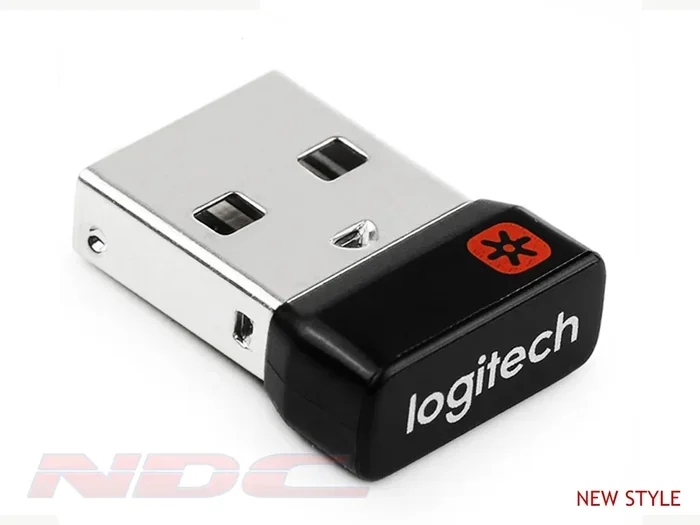
The second most common connection type is the 2.4GHz USB receiver. This is the small USB dongle that comes with many wireless keyboards. You plug it into a USB port, and it creates a direct, dedicated connection with the keyboard.
Here is what makes USB receiver keyboards popular:
- Low latency: The connection is almost instant. There is virtually no delay between pressing a key and seeing the result on screen.
- Stable connection: Because the receiver talks directly to the keyboard, there is less interference from other wireless devices.
- Longer range: USB receiver keyboards typically work from farther away than Bluetooth keyboards. Some offer a range of up to 30 feet or more.
USB receiver keyboards are the preferred choice for gamers and professionals who need fast, reliable input. The dongle is tiny and easy to carry. Many keyboards even have a built-in slot on the bottom to store the receiver when you are on the go.
Hybrid Keyboards: Bluetooth and USB Receiver
Some wireless keyboards offer both Bluetooth and USB receiver connectivity. These hybrid keyboards give you the flexibility to choose the best connection for each situation. You can use Bluetooth when traveling and switch to the USB receiver when you need the fastest response at your desk.
Hybrid keyboards often support multiple device pairing too. You can connect to three or more devices and switch between them with the press of a button. This makes them excellent for people who use a desktop, a laptop, and a tablet throughout the day.
Do All Wireless Keyboards Need a USB Dongle or Receiver?
This is the big question, and the answer is simpler than you might think. No, not all wireless keyboards need a USB dongle. But many do, and understanding why helps you make a smart choice.
Keyboards that use Bluetooth do not need a USB dongle at all. They rely on the Bluetooth capability already built into your device. This is the same technology you use for wireless headphones, speakers, and other peripherals. If your device has Bluetooth, a Bluetooth keyboard will work with it right out of the box.
Keyboards that use a 2.4GHz USB receiver do need that small dongle. Without it, the keyboard cannot connect to your computer. The receiver acts as a bridge between the keyboard and your device. It is a tiny piece of hardware, but it is essential for these keyboards to function.
Then there are hybrid keyboards that support both methods. These give you the option to use a USB dongle or go Bluetooth, depending on what works best for you. This flexibility is especially useful if you move between different setups often.
It is also worth noting that some very old wireless keyboards used infrared (IR) connections. These are rare today and required a clear line of sight between the keyboard and the device. If you come across one, it is best to avoid it. Modern Bluetooth and 2.4GHz options are far superior.
One thing to keep in mind is that your device needs to support the connection type. For example, if you have an older desktop computer without Bluetooth, a Bluetooth keyboard will not work unless you add a Bluetooth adapter. Similarly, if your laptop does not have USB ports, a USB receiver keyboard might be a problem. Always check your device’s capabilities before buying.
For a deeper look at how wireless peripherals connect, you can explore how different wireless devices maintain their connections across various technologies. And if you are curious about the broader world of wireless accessories, understanding how devices like wireless rings and other Bluetooth devices connect can give you a better picture of the wireless ecosystem.
Bluetooth Keyboards vs USB Receiver Keyboards
Now that you know the two main connection types, let us compare them side by side. This will help you decide which one fits your needs best.
Connection Stability
USB receiver keyboards generally offer more stable connections. The 2.4GHz signal is dedicated to the keyboard, so it does not compete with other Bluetooth devices in your environment. Bluetooth keyboards share the wireless space with your Wi-Fi, headphones, and other peripherals. In most homes and offices, this does not cause problems. But in crowded wireless environments, a USB receiver keyboard may perform better.
Latency and Response Time
Latency is the tiny delay between pressing a key and seeing the result. For casual typing, Bluetooth latency is usually unnoticeable. But for gaming, fast typing, or professional work, USB receiver keyboards have a clear edge. They typically have a response time of 1 millisecond or less, while Bluetooth keyboards range from 5 to 30 milliseconds depending on the model.
Compatibility
Bluetooth keyboards work with any device that has Bluetooth support. This includes most modern laptops, tablets, smartphones, and even some smart TVs. USB receiver keyboards work with any device that has a USB port. This is a very wide range, but it does not work with devices that only have USB-C or newer ports without an adapter.
Here is a quick comparison of the two main wireless keyboard types:
| Feature | Bluetooth Keyboard | USB Receiver Keyboard |
|---|---|---|
| Needs extra hardware | No | Yes (USB dongle) |
| Latency | 5-30ms | 1ms or less |
| Range | 30-60 feet | 30-100 feet |
| Multi-device support | Usually 3+ devices | |
| Portability | Excellent | Good (dongle stored on keyboard) |
| Battery life | Good (Bluetooth is efficient) | Good to excellent |
| Best for | Travel, multi-device use | Gaming, office work |
Battery Life
Both types of wireless keyboards run on batteries. Bluetooth keyboards tend to use slightly more power because Bluetooth is always scanning for connections. USB receiver keyboards are often more battery-efficient because the connection is direct and consistent. However, the difference is usually small. Most wireless keyboards last several weeks or even months on a single set of batteries.
Many modern keyboards use rechargeable batteries with USB-C charging. This eliminates the need to buy and replace disposable batteries. It is a nice feature to look for if you want to reduce waste and save money over time.
Pros and Cons of Each Wireless Keyboard Type
Pros of Bluetooth Keyboards
- No extra hardware needed. Just pair and go.
- Work with a wide range of devices including tablets and phones.
- Very portable and lightweight.
- Easy to switch between multiple devices.
- No USB port required on your device.
Cons of Bluetooth Keyboards
- Slightly higher latency than USB receiver keyboards.
- Can experience interference in crowded wireless environments.
- May not work with older devices that lack Bluetooth.
- Paired devices can sometimes disconnect unexpectedly.
Pros of USB Receiver Keyboards
- Very low latency for fast, responsive typing.
- Stable, dedicated connection with less interference.
- Work with almost any computer that has a USB port.
- Great for gaming and competitive use.
Cons of USB Receiver Keyboards
- Requires a USB port on your device.
- Usually limited to one device per receiver.
- The dongle can be easy to lose if not stored properly.
- Less convenient for use with tablets or phones.
If you want to learn more about the trade-offs of wireless peripherals in general, this guide on the advantages and disadvantages of wireless computer mice covers similar points that apply to keyboards too.
How to Choose the Right Wireless Keyboard for You
Choosing the right wireless keyboard depends on what you will use it for and what devices you have. Here are some factors to consider before you buy.
Think About Your Primary Use
Are you a gamer, a office worker, a student, or a casual user? Gamers will benefit most from a USB receiver keyboard with fast response times. Office workers who type all day might prefer a comfortable Bluetooth keyboard with multi-device support. Students who use both a laptop and a tablet will love the flexibility of a hybrid keyboard.
Check Your Device Compatibility
Before buying, make sure your devices support the connection type you want. If your laptop has Bluetooth, a Bluetooth keyboard will work great. If you have an older desktop with only USB-A ports, a USB receiver keyboard is the safer bet. For tablets and phones, Bluetooth is almost always the way to go.
Consider Portability
If you travel often, a lightweight Bluetooth keyboard is your best bet. You do not have to worry about carrying a dongle or finding a USB port. Some compact Bluetooth keyboards are small enough to fit in a pocket or bag. They are perfect for working from coffee shops or on the go.
Look for Multi-Device Support
If you use more than one computer or device regularly, look for a keyboard that supports multiple pairings. Many Bluetooth keyboards let you switch between three or more devices with a button press. This saves you from reconnecting every time you switch devices.
Battery and Power
Check how the keyboard is powered. Rechargeable batteries with USB-C charging are the most convenient. They save you from buying disposable batteries and reduce waste. If the keyboard uses AAA or AA batteries, make sure they are easy to find and replace.
Build Quality and Comfort
A keyboard is something you use every day, so comfort matters. Look for keyboards with good key travel, a comfortable layout, and a sturdy build. If you type a lot, consider a keyboard with a wrist rest or an ergonomic design. Your hands and wrists will thank you after long hours of work.
For those who use their keyboard with productivity software, you might also appreciate how keyboard shortcuts speed up your workflow. If you use Microsoft Excel frequently, learning common shortcuts can save you a lot of time. You can find helpful tips on fixing common Excel issues like troubleshooting lines that wont delete in Excel to keep your spreadsheets running smoothly.
Common Wireless Keyboard Problems and How to Fix Them
Wireless keyboards are generally reliable, but they can have occasional issues. Here are the most common problems and simple fixes.
Keyboard Not Connecting
If your keyboard will not connect, try these steps:
- Make sure the keyboard is charged or has fresh batteries.
- Turn off the keyboard and turn it back on.
- If using Bluetooth, remove the keyboard from your device’s paired list and pair it again.
- If using a USB receiver, try plugging the receiver into a different USB port.
- Restart your computer and try again.
Intermittent Connection Drops
If your keyboard keeps disconnecting, it could be due to interference. Other wireless devices, USB 3.0 ports, and even microwave ovens can cause Bluetooth and 2.4GHz interference. Try moving closer to your device or removing other wireless peripherals temporarily to see if the connection improves.
Lag or Delay When Typing
Lag is usually caused by a weak connection or low battery. Replace the batteries or recharge the keyboard. If you are using Bluetooth, try switching to a USB receiver for a more stable, faster connection.
USB Receiver Not Recognized
If your computer does not recognize the USB receiver, try plugging it directly into the computer instead of a USB hub. You may also need to install the driver software that came with the keyboard. Most modern operating systems will install drivers automatically, but some keyboards need manual setup.
Final Thoughts
So, do all wireless keyboards need a USB dongle or receiver? The answer is no. Many wireless keyboards today connect via Bluetooth and need no extra hardware at all. Others rely on a small USB receiver for a fast, stable connection. And the best of both worlds are hybrid keyboards that support both Bluetooth and USB.
Your choice depends on your needs, your devices, and how you plan to use the keyboard. If you want portability and multi-device flexibility, go with a Bluetooth keyboard. If you need speed and reliability for gaming or heavy work, a USB receiver keyboard is the way to go. And if you want the best of both worlds, a hybrid keyboard gives you all the options.
The wireless keyboard market has come a long way. You now have more choices than ever before, and finding the perfect keyboard for your setup is easier than it has ever been. Take your time, consider your options, and you will find the right wireless keyboard without any trouble.
Frequently Asked Questions
Can I use a wireless keyboard without any USB connection at all?
Yes, you can. Bluetooth wireless keyboards connect directly to your device using built-in Bluetooth. You do not need a USB dongle, a receiver, or any extra hardware. As long as your device supports Bluetooth, a Bluetooth keyboard will work right out of the box.
Is a USB receiver better than Bluetooth for typing?
For most typing tasks, both work great. A USB receiver keyboard offers lower latency and a more stable connection, which can matter for fast typing or gaming. Bluetooth is perfectly fine for everyday use, casual typing, and working with multiple devices. The difference is small for most people.
Can I connect a USB receiver keyboard to a tablet or phone?
It depends on the device. Some tablets and phones support USB OTG (On-The-Go), which allows them to recognize a USB receiver. However, many tablets and phones do not support this. In most cases, a Bluetooth keyboard is the better choice for mobile devices.
How far can I use a wireless keyboard from my computer?
Bluetooth keyboards typically work from 30 to 60 feet away. USB receiver keyboards can work from 30 to 100 feet or more, depending on the model. Walls and other obstacles can reduce the effective range. For best results, stay within a reasonable distance from your device.
Do wireless keyboards need batteries if they use Bluetooth?
Yes, all wireless keyboards need power, whether they use Bluetooth or a USB receiver. Most wireless keyboards use AA or AAA batteries, while some use built-in rechargeable batteries that charge via USB-C. Bluetooth keyboards may use slightly more battery power because Bluetooth is always active.
What should I do if my wireless keyboard keeps disconnecting?
First, check the battery level and recharge or replace the batteries. Then try moving closer to your device. If you are using Bluetooth, remove the keyboard from the paired devices list and pair it again. For USB receiver keyboards, try a different USB port. If the problem continues, check for interference from other wireless devices or update the keyboard drivers.