Can You Connect Two Usb Cables Together And What Happens
Yes, you can connect two USB cables together, but the results depend on your method and cable types. Simply plugging two cables into each other does not work and can cause damage. Using the right adapter or powered USB hub ensures safe data transfer and charging without signal loss or power issues.
Have you ever been in a situation where your USB cable just was not long enough? Maybe your desk setup is tight, or your device sits far from the charger. The natural thought is to grab another cable and link them together. But can you connect two USB cables together? And what actually happens when you try?
The short answer is yes, you can connect two USB cables together, but not by simply plugging them into each other. Doing that will not work and could even harm your devices. There are safe and effective ways to extend a USB connection, and this guide covers them all. Whether you need longer reach for charging, data transfer, or both, understanding how USB connections work saves you time, money, and frustration.
In this article, we break down everything you need to know. From the different USB cable types to the risks of improper connections, you will get clear, practical answers. We also share expert tips and common mistakes to avoid. By the end, you will know exactly how to extend your USB setup the right way.
Key Takeaways
- Direct Connection Fails: Plugging two USB cables end-to-end does not create a working connection.
- Adapters and Hubs Work: Using a proper USB adapter or powered hub is the safest way to extend reach.
- Signal and Power Loss Are Real Risks: Daisy-chaining cables can reduce speed and charging power.
- USB Type Matters: Matching USB-A, USB-C, and other types is essential for compatibility.
- Safety First: Avoid splicing or modifying cables to prevent short circuits and fire hazards.
- Quality Counts: Cheap cables and poor connectors lead to data corruption and connection drops.
📑 Table of Contents
- Understanding USB Cable Types and Connectors
- What Happens When You Connect Two USB Cables Together
- Safe Methods to Extend USB Cable Length
- Potential Risks and Problems of Connecting Two USB Cables
- Common Mistakes People Make When Extending USB Connections
- Quick Tips for Safe USB Cable Extension
- Expert Insights on USB Cable Connectivity
- Comparison Table: USB Extension Methods
- When You Should Avoid Connecting Two USB Cables
- Conclusion
Understanding USB Cable Types and Connectors
Before you try linking cables, you need to know what you are working with. USB cables come in different shapes, sizes, and standards. Each type serves a specific purpose, and not all cables are created equal.
USB-A: The Classic Rectangle
USB-A is the most recognizable connector. It is the flat, rectangular plug found on computers, wall chargers, and older devices. USB-A cables typically carry power and data. They come in USB 2.0, USB 3.0, and USB 3.1 versions, each offering different speed levels. USB 3.0 cables transfer data at up to 5 Gbps, while USB 2.0 maxes out at 480 Mbps.
USB-C: The Modern Standard
USB-C has become the go-to connector for modern laptops, phones, and tablets. It is small, reversible, and supports faster data transfer and higher power delivery. USB-C can handle up to 100 watts of power and data speeds up to 40 Gbps with USB4. Its versatility makes it the most popular choice for new devices.
USB-B and Mini/Micro Variants
USB-B connectors are square-shaped and often used for printers and external hard drives. Mini and Micro USB variants were common in older phones and cameras. While these types are fading out, many devices still use them. Knowing your connector type helps you choose the right adapter or extension method.
Power Delivery vs. Data Transfer
Not all USB cables are the same when it comes to what they carry. Some cables only transfer power, while others handle both power and data. This distinction matters a lot when connecting two cables. A power-only cable cannot be used for data transfer, no matter how you link it. Always check your cable specifications before attempting any connection.
What Happens When You Connect Two USB Cables Together
So, what really happens when you try to connect two USB cables? The answer depends entirely on how you attempt the connection. Let us walk through the different scenarios and outcomes.
Pluging Two Cables End-to-End: Why It Does Not Work
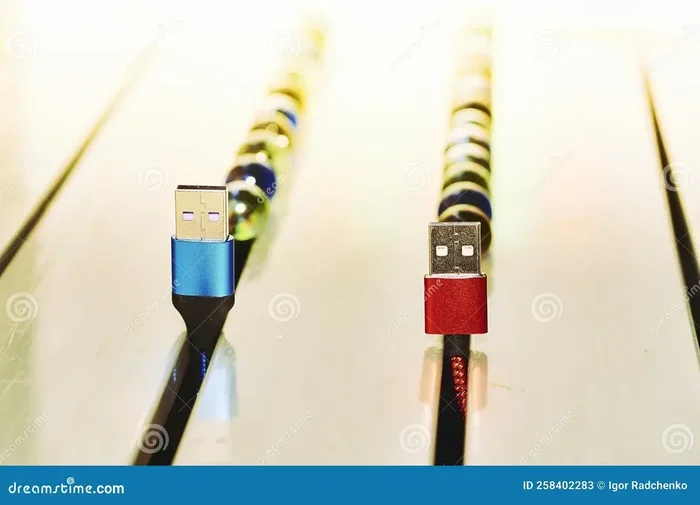
If you take two USB cables and try to plug the male end of one into the male end of the other, nothing will happen. USB connectors are designed with male and female ends. The male plug fits into the female port. Two male ends simply cannot connect. There is no circuit completion, no data transfer, and no power flow. It is like trying to plug two power cords into each other on a wall outlet.
Some people think that pushing two male connectors together might create a pass-through. It does not. The internal wires are not aligned for signal or power transfer. At best, nothing happens. At worst, you could damage the connector pins or the USB port on your device.
Using a Female-to-Female Adapter
A USB female-to-female adapter is the correct way to join two cables. This small adapter has a female port on each end. You plug one cable into one side and the other cable into the opposite side. The adapter bridges the connection and allows power and data to flow through.
Female-to-female adapters work well for extending cable length. They are available in USB-A and USB-C versions. However, they do add a small amount of resistance to the connection. This can slightly reduce data transfer speeds and charging efficiency, especially over long distances.
Daisy-Chaining Through a USB Hub
Another method is using a USB hub to connect multiple cables. A hub takes one USB connection and splits it into several ports. You can chain cables through the hub to reach devices that are farther away. Powered hubs are the best option because they provide their own energy source, which helps maintain strong signal quality.
Daisy-chaining works for simple setups. But keep in mind that each connection point adds a small amount of signal degradation. The more cables and adapters you use, the greater the potential for speed drops or connection instability.
What About Signal Loss and Power Drop?
Every extra cable and connector in a USB chain introduces resistance. This resistance causes two main problems: signal loss and power drop. Signal loss means your data transfer speeds slow down. Power drop means your device charges more slowly or may not charge at all if the power drop is severe.
For short extensions, these effects are usually negligible. But if you are running a long chain of cables, the impact grows. A 10-foot cable works fine on its own. A 30-foot chain of three 10-foot cables may struggle to deliver full power or maintain fast data speeds. This is why quality matters and why shorter, higher-quality cables are always better.
Safe Methods to Extend USB Cable Length
If you need more reach, there are several safe and reliable methods. Each approach has its pros and cons, and the right choice depends on your specific needs.
Method 1: USB Extension Cable
The simplest solution is a dedicated USB extension cable. These cables have a male plug on one end and a female port on the other. You plug the male end into your computer or charger, and then connect your device cable to the female end. Extension cables come in various lengths, from 1 foot to 25 feet or more.
Extension cables are easy to use and affordable. They maintain better signal quality than chaining multiple cables together. Look for cables with good shielding and gold-plated connectors for the best performance.
Method 2: Active USB Repeater
For longer distances, an active USB repeater is the best choice. A repeater boosts the USB signal as it passes through. It amplifies both power and data signals, reducing the loss that comes with long cable runs. Repeaters are especially useful for setups where your device is more than 15 feet away from your computer.
Active repeaters require their own power source. They plug into a wall outlet or USB port and then provide a clean, strengthened USB connection. This is the professional-grade solution for offices, studios, and workstations that need reliable long-distance connections.
Method 3: USB Over Ethernet Extender
If you need to run a USB connection over very long distances, consider a USB over Ethernet extender. These devices convert the USB signal into an Ethernet signal, send it over a standard network cable, and convert it back to USB at the other end. You can extend a USB connection up to 150 feet or more using this method.
This approach is more complex and expensive than simple extension cables. But for situations where distance is the main challenge, it is the most effective solution. The Ethernet cable used in this setup is similar to the kind discussed in our article on the advantages and disadvantages of network cables, which covers signal reliability and distance trade-offs in depth.
Method 4: Powered USB Hub as an Extension
A powered USB hub can serve double duty as both a connection expander and a signal booster. Plug the hub into your computer using one cable, then use the hub’s ports to connect your devices with additional cables. Since the hub has its own power supply, it can deliver full power to connected devices even over longer cable runs.
Powered hubs are ideal for desktop setups where multiple devices need to stay connected. They also reduce the strain on your computer’s USB ports, which can overheat if too many devices draw power from them simultaneously.
Potential Risks and Problems of Connecting Two USB Cables
While extending a USB connection is often necessary, it comes with real risks. Understanding these dangers helps you make safer choices.
Short Circuit Risks
Improperly connecting USB cables can create short circuits. A short circuit happens when power and ground wires touch in an unintended way. This can fry the USB port on your computer or device. In rare cases, it can even damage the power supply or cause overheating.
Never attempt to splice two USB cables together by cutting and soldering them unless you have professional experience. The internal wiring of USB cables follows a specific pin configuration. Getting this wrong can lead to permanent damage.
Data Corruption
Weak or unstable USB connections can corrupt your data. If you are transferring files and the connection drops mid-transfer, the files may become incomplete or unusable. This is especially risky for large files, system backups, or software installations.
To avoid data corruption, always use high-quality cables and avoid unnecessary connection points. Each adapter or splice adds a potential point of failure. The fewer connections in your chain, the safer your data remains.
Charging Speed Reduction
Connecting multiple cables or using long extension cables often reduces charging speed. The added resistance in the extra cable length means less power reaches your device. You may notice that your phone or tablet charges much more slowly than usual.
Some devices compensate by drawing more current, which can overheat cheap cables. This is why using thick, well-built cables with proper gauge wiring is so important for charging applications.
Compatibility Issues Between Cable Types
Not all USB cables are compatible with each other. Mixing USB-A with USB-C without the right adapter will not work. Even when adapters are used, mismatched cable standards can limit performance. For example, plugging a USB 2.0 cable into a USB 3.0 port caps your speed at USB 2.0 levels.
Always match your cable standards and connector types. Check the specifications of every cable and adapter in your chain to ensure compatibility. When in doubt, refer to the USB cable compatibility guide from the device manufacturer.
Common Mistakes People Make When Extending USB Connections
Many people make avoidable mistakes when trying to extend their USB cables. Learning from these errors saves time, money, and frustration.
Using Too Many Adapters
Stacking multiple adapters in a chain weakens the signal with each connection point. Two or three adapters might work okay for short distances, but anything beyond that is asking for trouble. Keep your connection chain as short as possible.
Buying Cheap, Unbranded Cables
Cheap USB cables often use thin wiring and poor-quality connectors. They may look fine on the outside but fail on the inside. These cables can overheat, deliver inconsistent power, and corrupt data during transfers. Investing in reputable brands and certified cables is always worth it.
Ignoring Cable Length Limits
USB standards define maximum cable lengths for a reason. USB 2.0 cables should not exceed 16 feet. USB 3.0 cables should stay under 9 feet. Going beyond these limits without a repeater or active extender leads to signal degradation and connection problems.
Forgetting About Power Requirements
Some USB devices need more power than others. External hard drives, monitors, and charging tablets draw significant power. Connecting these through long cable chains or unpowered hubs often results in insufficient power delivery. Always check the power requirements of your devices before setting up an extended USB connection.
Quick Tips for Safe USB Cable Extension
- Use a single extension cable instead of chaining multiple cables together whenever possible.
- Choose cables with good shielding to reduce electromagnetic interference and signal loss.
- Match your USB standards (USB 2.0, 3.0, USB-C) across all cables and adapters in your setup.
- Use a powered USB hub for devices that require high power delivery.
- Check connector types before buying any adapter or extension cable.
- Keep total cable length reasonable to maintain strong signal quality and charging speed.
- Inspect cables regularly for fraying, bent pins, or loose connections that could cause problems.
Expert Insights on USB Cable Connectivity
Industry professionals consistently advise against modifying or splicing USB cables. According to USB implementers and hardware engineers, the USB specification was not designed for cable-to-cable splicing. Each connection point introduces resistance, potential signal interference, and a failure point.
Experts recommend using purpose-built extension solutions like active repeaters, USB over Ethernet kits, and high-quality extension cables. These products are tested to meet USB standards and deliver reliable performance over extended distances. For critical applications like professional audio interfaces or external storage arrays, the signal integrity provided by these dedicated tools is non-negotiable.
Another expert tip is to always check the USB cable specifications before purchasing. Look for cables that are USB-IF certified. This certification ensures the cable meets official standards for safety, speed, and power delivery. Uncertified cables may claim to support certain speeds or wattages but often fall short in real-world performance.
Comparison Table: USB Extension Methods
| Method | Max Length | Signal Quality | Cost | Best For |
|---|---|---|---|---|
| USB Extension Cable | Up to 25 ft | Good | Low | Short extensions |
| USB Female-to-Female Adapter | Up to 10 ft | Fair | Very Low | Quick temporary fixes |
| Active USB Repeater | Up to 100 ft | Excellent | Medium | Medium-distance setups |
| USB Over Ethernet Extender | Up to 150 ft | Very Good | High | Long-distance connections |
| Powered USB Hub | Up to 15 ft per cable | Good | Medium | Multi-device setups |
When You Should Avoid Connecting Two USB Cables
Not every situation calls for extending a USB connection. There are times when it is simply not worth the risk. Here are clear scenarios where you should avoid connecting two USB cables together.
When transferring critical data: If you are moving important files, system backups, or sensitive documents, do not risk an unstable extended connection. Use a single high-quality cable and keep the transfer direct and reliable.
When using high-power devices: Devices like external SSDs, displays, or cooling pads that draw significant power should not be connected through extension chains. The power drop can cause devices to malfunction, disconnect, or fail to operate at full capacity.
When the cables are damaged: Never extend a cable that is already frayed, bent, or damaged. The weak point in the cable could worsen, leading to a complete failure or safety hazard. Replace damaged cables entirely instead of trying to extend them.
Conclusion
Connecting two USB cables together is possible, but only when done the right way. Simply plugging two male ends together will not work and can cause damage. The safe methods include using female-to-female adapters, USB extension cables, active repeaters, and powered USB hubs. Each method has its strengths and ideal use cases.
Remember that every extra connection point introduces some signal loss and power reduction. Keep your extension chains short, use high-quality cables, and match your USB standards for the best results. Avoid common mistakes like using too many adapters or relying on cheap, uncertified cables.
Your USB setup should be reliable, safe, and efficient. By following the tips and methods in this guide, you can extend your connections with confidence. Whether you are charging your phone across the room or connecting an external drive to your desktop, the right approach makes all the difference. Take the time to set up your USB extensions properly, and your devices will thank you for it.
Frequently Asked Questions
Can you plug two USB cables into each other directly?
No, plugging two male USB connectors directly into each other does not create a working connection. USB cables have male plugs and female ports. Two male ends cannot connect. You need an adapter or extension cable to bridge the gap safely.
Does connecting two USB cables reduce charging speed?
Yes, adding extra cables and connectors can reduce charging speed. Each connection point adds resistance, which means less power reaches your device. Using a single high-quality extension cable minimizes this effect.
What is the safest way to extend a USB cable?
The safest method is using a dedicated USB extension cable or an active USB repeater. Extension cables maintain good signal quality, while active repeaters boost the signal for longer distances. Both options are designed for safe, reliable use.
Can you splice two USB cables together by cutting and joining them?
Technically yes, but it is not recommended. Splicing USB cables requires precise wiring knowledge and proper tools. Mistakes can lead to short circuits, data corruption, and permanent device damage. Purpose-built extension solutions are always the better choice.
Does USB cable length affect data transfer speed?
Yes, longer cables can reduce data transfer speeds due to signal degradation. USB standards specify maximum cable lengths for optimal performance. Staying within these limits or using active repeaters helps maintain fast speeds.
What should I look for when buying a USB extension cable?
Look for USB-IF certification, good shielding, gold-plated connectors, and the correct USB standard (USB 2.0, 3.0, or USB-C). Check the cable gauge for power delivery needs, and choose a length that fits your setup without being unnecessarily long.
=== CONCLUSION ===
Can you connect two USB cables together? Yes, but the method matters enormously. Direct male-to-male connections do not work and can be dangerous. Using proper adapters, extension cables, active repeaters, or powered hubs gives you safe, reliable results. The key is to understand your cable types, match your standards, and keep your connection chain as simple as possible.
Take the time to choose the right extension method for your needs. Your devices, your data, and your peace of mind are worth it. Apply the tips from this guide, avoid the common mistakes, and enjoy a seamless USB setup that works exactly the way it should.