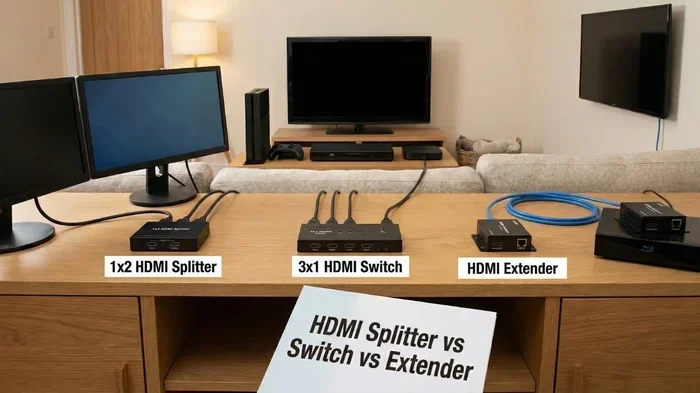
Can I Use My HDMI Switch As A Splitter For My Devices
Many people ask: can I use my HDMI switch as a splitter? The short answer is no, they serve different purposes. An HDMI switch selects one input and sends it to one output, while a splitter takes one input and sends it to multiple displays. Using the wrong device can lead to signal loss, no audio, or damaged equipment. This guide breaks down everything you need to know.
This is a comprehensive guide about Can I Use My Hdmi Switch As A Splitter.
Key Takeaways
- HDMI switches and splitters are not the same: a switch routes one source to one display, while a splitter sends one source to multiple displays.
- You cannot reliably use an HDMI switch as a splitter: it lacks the signal distribution hardware needed for multiple outputs.
- Signal degradation is a real risk: trying to force a switch to split a signal can result in poor image quality or no signal at all.
- Buying the right device saves time and money: a dedicated HDMI splitter is affordable and designed specifically for this task.
- Check your resolution and port needs before purchasing: not all splitters or switches support 4K or HDR.
- Quick tips can help troubleshoot issues: firmware updates, cable quality, and EDID handshake matter more than most people realize.
[FEATURED_IMAGE_PLACEHOLDER]
Can I Use My HDMI Switch As A Splitter For My Devices
If you have an HDMI switch sitting around and you need to connect one source to multiple TVs or monitors, you might wonder if you can just use it as a splitter. It is a very common question, and the answer is not as simple as yes or no. HDMI switches and HDMI splitters look similar, but they do very different jobs. Understanding the difference can save you a lot of frustration and wasted time.
In this guide, we will break down exactly how each device works, why you cannot simply swap them, and what you should buy instead. We will also cover common mistakes, quick tips, and expert insights to help you get your home setup running smoothly. Whether you are setting up a gaming station, a home theater, or a simple office display, this article has you covered.
Let us start with the basics. Many people confuse these two devices because they both deal with HDMI cables and port selection. But their functions are fundamentally different. Keep reading to find out why that matters for your setup.
What Is an HDMI Switch?
An HDMI switch is a device that lets you connect multiple source devices to a single display. Think of it like a traffic director for your HDMI signals. You have a TV with limited input ports, and you want to connect a gaming console, a streaming box, and a Blu-ray player. Instead of unplugging cables every time, you use a switch.
You press a button or use a remote to select which input you want to see on your TV. The switch takes the signal from the chosen source and sends it to the display. That is all it does. It does not duplicate the signal. It does not send the same content to two screens at the same time.
How an HDMI Switch Works
Inside an HDMI switch, there is a chip that handles port selection. When you choose input one, the chip routes that signal to the output port. When you switch to input two, it disconnects input one and connects input two instead. This process is called signal routing, and it is very different from signal splitting.
Most HDMI switches support high resolutions like 4K and even 8K. They also handle audio formats like Dolby Atmos and DTS. But none of that matters if your goal is to show the same content on multiple screens. A switch simply was not built for that purpose.
Some people try to use a switch as a workaround for splitting. They think that if they connect two output cables, they will get two screens showing the same thing. This is where things go wrong, and we will explain why in the next section.
What Is an HDMI Splitter?
An HDMI splitter does the opposite of a switch. It takes one HDMI input and sends that same signal to multiple outputs. If you have a cable box and want to watch the same channel on two different TVs in your house, a splitter makes that possible.
The key word here is signal distribution. A splitter duplicates the audio and video signal and sends identical copies to every connected display. The quality of the output depends on the quality of the splitter and the cables you use.
Active vs Passive HDMI Splitters
There are two main types of splitters you should know about:
- Passive splitters: These are simple and inexpensive. They just split the signal without boosting it. They work well for short cable runs and basic setups. But they can cause signal degradation if you run long cables or connect too many displays.
- Active splitters: These have built-in amplifiers that boost the signal. They are more expensive but deliver better results over longer distances. They also tend to handle higher resolutions and more audio formats better.
When shopping for a splitter, look for one that supports your desired resolution and has enough output ports for your needs. A 1×2 splitter sends signal to two displays, while a 1×4 splitter sends to four.
It is also worth noting that some AV receivers and home theater systems have built-in splitting capabilities. If you already own one of these, you may not need a separate splitter at all.
Can You Use an HDMI Switch as a Splitter?
This is the big question, and the honest answer is no, not really. An HDMI switch is designed to route one signal to one output. It does not have the hardware to duplicate that signal and send it to multiple displays. If you try to use it as a splitter, you will likely run into problems.
Think of it this way. A switch is like a hallway with doors. You open one door at a time to enter a room. A splitter is like a water pipe that branches into two streams. You cannot turn a hallway into a water pipe just by attaching more doors.
Why It Does Not Work
There are a few technical reasons why an HDMI switch cannot function as a splitter:
- No signal duplication: A switch only selects one input at a time. It does not create copies of the signal for multiple outputs.
- EDID handshake issues: Every display communicates its capabilities to the source device through a process called EDID handshake. A switch does not manage this for multiple displays, so your source device may not know what resolutions the second screen supports.
- Bandwidth limitations: HDMI switches are not designed to push the same signal to multiple outputs simultaneously. The bandwidth just is not there.
Some people on forums claim they have rigged a switch to work like a splitter using adapters or split cables. While this might work in very rare cases, it is not reliable. You risk losing signal, experiencing audio lag, or even damaging your ports. It is simply not worth the effort.
Also, if you are dealing with display settings on a computer, trying to use a switch as a splitter can cause confusing behavior. Your computer might detect the second display as an unknown device, or it might extend the desktop instead of mirroring it. This is where people often get stuck and end up frustrated. For troubleshooting display output issues on computers, you might find helpful tips in articles about common display problems, such as troubleshooting display and output glitches in software.
When a Switch Might Seem to Work
In very rare cases, some users report that their switch seems to work as a splitter. This usually happens when the switch has multiple output ports that are always active. But even then, the signal quality is often poor. You might get a flickering screen, no sound, or a resolution that drops significantly. These are signs that the switch is struggling to do a job it was never designed for.
If you are using a switch with a gaming console or a media player, the results will be even worse. These devices require stable, high-bandwidth signals. A switch cannot deliver that to multiple screens at once.
For a related look at common connectivity issues and how different peripherals can affect your setup, you might want to read about the pros and cons of various computer peripherals to understand how device compatibility plays a role.
Risks of Using an HDMI Switch as a Splitter
Trying to use a switch as a splitter is not just ineffective. It can also damage your equipment or void your warranty. Let us look at the real risks involved.
Signal Degradation
When you force an HDMI switch to distribute a signal, the quality drops. You might notice pixelation, color banding, or a blurry image. Over time, this can also wear out your cables and ports faster than normal. Signal degradation is one of the most common problems people face when they misuse HDMI equipment.
No Audio or Intermittent Sound
Another common issue is audio problems. The switch might not be able to pass through multi-channel audio to multiple displays. You might get sound on one screen but not the other, or you might get no sound at all. This is especially frustrating when you are watching movies or playing games that rely on immersive audio.
Warranty and Support Issues
Most manufacturers do not support using their switches as splitters. If something breaks, they will not honor your warranty. This means you could end up paying for a new device out of pocket. It is a risk that is simply not worth taking when a proper splitter costs so little.
Quick Tips
- Always check your device specifications before purchasing.
- Look for products labeled explicitly as “splitters” if you need multiple outputs.
- Buy from reputable brands to avoid counterfeit or low-quality products.
- Keep your cables short and high-quality to minimize signal loss.
- Update your display device firmware regularly for best compatibility.
How to Choose the Right HDMI Splitter
Now that you know a switch will not work as a splitter, let us talk about how to choose the right splitter for your needs. There are a few key factors to consider before you buy.
Number of Outputs
Decide how many displays you need to connect. For most home setups, a 1×2 splitter works perfectly. If you need more screens, look for a 1×4 or even a 1×8 splitter. Just keep in mind that every additional output can slightly reduce the signal quality.
Resolution Support
Make sure the splitter supports the resolution you need. If you have a 4K TV, buy a splitter that explicitly supports 4K at 60Hz. Some cheaper splitters only support 1080p or 4K at 30Hz, which can cause lag and poor image quality.
HDR and Audio Support
If you watch movies or play games with HDR content, you need a splitter that supports HDR10, Dolby Vision, or both. The same goes for audio. Look for splitters that pass through Dolby Atmos and DTS:X if those formats matter to you.
Active vs Passive
We mentioned this earlier, but it bears repeating. For most users, an active splitter is the better choice. It provides a cleaner signal and works over longer cable runs. A passive splitter is fine for quick, short-distance setups where budget is the main concern.
| Feature | Passive Splitter | Active Splitter |
|---|---|---|
| Price | Low ($10-$25) | Moderate ($25-$60) |
| Signal Boost | No | Yes |
| Max Cable Length | Up to 10 feet | Up to 50 feet |
| 4K Support | Limited | Full |
| Best For | Simple, short setups | Home theater, gaming |
Setting Up Your HDMI Splitter Properly
Once you have the right splitter, setting it up is straightforward. Follow these steps to get the best results.
- Connect the source device: Plug your HDMI cable from your source device (like a cable box or gaming console) into the input port on the splitter.
- Connect your displays: Run HDMI cables from each output port on the splitter to your TVs or monitors.
- Power on the splitter: If you have an active splitter, plug it into a power outlet. Passive splitters do not need external power.
- Check display settings: On each display, make sure the input is set to the correct HDMI port. You may also need to adjust resolution and mirroring settings on your source device.
- Test audio and video: Play content on your source device and check both screens for picture quality and sound. Adjust as needed.
One common mistake people make is using low-quality HDMI cables. Cheap cables can cause signal drops, especially over longer distances. Invest in good cables, and your setup will perform much better.
Common Mistakes to Avoid
- Using too many splitters in a chain: Daisy-chaining splitters can cause signal loss and latency. Use one splitter per source whenever possible.
- Ignoring EDID compatibility: Not all splitters handle EDID the same way. If you get no signal, try a splitter with better EDID management.
- Overlooking power requirements: Active splitters need power. Forgetting to plug them in is a surprisingly common mistake.
- Buying the wrong resolution support: Always double-check that your splitter supports the resolution and features your devices require.
Expert Insights
According to AV industry professionals, the biggest mistake consumers make is confusing switches with splitters. Many people buy a switch when they actually need a splitter, or vice versa. The fix is simple: read the product description carefully and understand what you need before you shop. If you are still unsure, contact the manufacturer or check online reviews for real-world performance data.
When Should You Use a Switch vs a Splitter?
To make things even clearer, let us look at specific scenarios where each device makes sense.
Use an HDMI Switch When:
- You have more devices than your TV has input ports.
- You want to easily switch between different source devices.
- You only need one display to show content at a time.
- You want clean, high-quality signal routing without duplication.
Use an HDMI Splitter When:
- You want to show the same content on multiple screens.
- You need to send a signal to a TV and a projector at the same time.
- You are setting up a digital signage display or a conference room.
- You want to mirror your screen for a group viewing experience.
For people managing multiple cables and devices, proper cable management is just as important as choosing the right device. Keep your cables organized with velcro ties or cable clips to reduce clutter and prevent connection issues.
Conclusion
So, can you use your HDMI switch as a splitter? The answer is no, and now you know why. These two devices serve completely different purposes, and trying to use one in place of the other will only lead to frustration and potential equipment damage.
An HDMI switch routes one input to one output. An HDMI splitter duplicates one input to multiple outputs. They are not interchangeable, and understanding this difference is the first step to a great setup.
Buy the right device for your needs, follow the setup steps outlined above, and avoid the common mistakes we discussed. Your audio and video experience will be much better for it. Whether you are building a home theater, setting up a gaming room, or configuring an office display, the right HDMI equipment makes all the difference.
Take the time to research your options, check compatibility, and invest in quality products. Your future self will thank you when everything works perfectly the first time.
Frequently Asked Questions
Can I connect two TVs to one HDMI switch?
No, an HDMI switch is designed to send one input signal to one output. It does not duplicate the signal to multiple displays. If you want to show the same content on two TVs, you need an HDMI splitter instead.
Will using a switch as a splitter damage my devices?
It is unlikely to cause permanent damage, but it can lead to signal loss, poor image quality, and audio issues. Repeatedly forcing signals through incompatible setups can also wear out your ports over time. It is best to use the right device for the job.
Do HDMI splitters reduce image quality?
Passive splitters can cause some signal degradation, especially over long cable runs. Active splitters minimize this loss by amplifying the signal. Choosing a high-quality splitter and good cables will help maintain excellent image quality on all connected displays.
Can an HDMI splitter support 4K resolution?
Yes, many HDMI splitters support 4K resolution. However, not all of them do. Always check the product specifications before buying to make sure the splitter supports the resolution and refresh rate you need, such as 4K at 60Hz.
What is an EDID handshake and why does it matter?
EDID stands for Extended Display Identification Data. It is the communication between your source device and your display that tells the source what resolutions and formats the display supports. A good splitter manages EDID properly so all connected displays work correctly without signal conflicts.
How much does a good HDMI splitter cost?
A decent HDMI splitter typically costs between $15 and $50, depending on the number of outputs and features. Active splitters with signal boosting and 4K support tend to be on the higher end. Passive splitters are more affordable but may not work well for all setups.
Frequently Asked Questions
What is Can I Use My Hdmi Switch As A Splitter?
Can I Use My Hdmi Switch As A Splitter is an important topic with many practical applications.