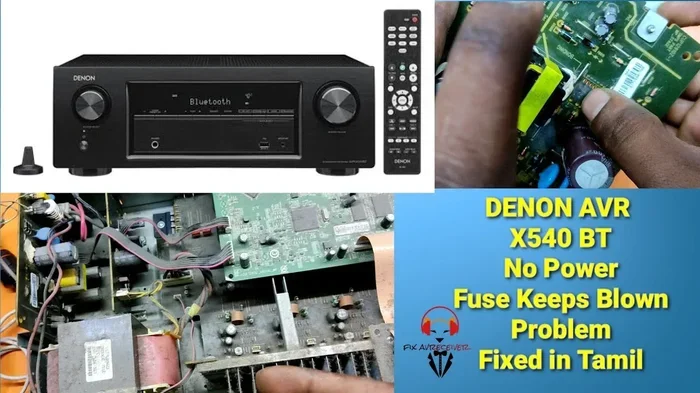
Denon Receivers Troubleshooting Guide For Common Issues
Our Denon Receivers Troubleshooting guide covers the most common problems owners face, from no sound and power failures to HDMI issues and overheating. You will learn simple fixes, expert tips, and step-by-step solutions that save time and money. Whether your receiver won’t turn on, produces distorted audio, or refuses to connect to your TV, this guide has you covered with practical, easy-to-follow advice.
If you own a Denon receiver, you know how frustrating it can be when something goes wrong. Your movie night falls apart. Your music listening experience suffers. And the silence from your speakers feels louder than any error message ever could. Denon receivers troubleshooting doesn’t have to be complicated, though. Most common issues have simple, fixable causes that you can handle at home without calling a technician.
This guide walks you through every major problem Denon receiver owners face. We cover power failures, no sound issues, HDMI connectivity troubles, overheating, and network problems. Each section gives you clear steps to diagnose and fix the issue fast. You will learn what to check first, what mistakes to avoid, and when a professional repair makes more sense.
The goal here is simple. Give you the confidence and knowledge to troubleshoot your Denon receiver like a pro. No guesswork. No expensive service calls for problems you can solve yourself. Let us get your sound system back to working perfectly.
Key Takeaways
- Power issues are the most common Denon receiver problem and are often fixed by checking the outlet, remote batteries, or standby settings.
- No sound or distorted audio usually stems from incorrect input settings, speaker connections, or audio mode mismatches.
- HDMI problems can be resolved by trying different ports, cables, or performing an HDMI handshake reset.
- Overheating is preventable with proper ventilation, regular dust cleaning, and avoiding stacked equipment.
- Firmware updates and factory resets can fix many mysterious Denon receiver issues quickly.
- Network and streaming problems often improve with a stable WiFi connection or a wired Ethernet setup.
- Knowing when to call a professional saves you from causing further damage with DIY repairs beyond your skill level.
📑 Table of Contents
Common Denon Receiver Problems and How to Identify Them
Before diving into specific fixes, it helps to understand the most frequent Denon receiver problems people run into. Many issues share similar symptoms, which can make diagnosis tricky. Knowing what to look for saves you time and frustration.
Denon receivers are built with advanced protection circuits and smart features. But like any complex electronic device, things can go wrong. The good news is that most problems fall into a few clear categories. Once you identify the category, the fix usually becomes obvious.
Understanding Your Denon Receiver Error Codes
Modern Denon receivers display error codes on the front panel or remote control screen. These codes tell you exactly what is wrong. For example, a “PROTECT” message means the speaker protection circuit has activated. This usually happens when there is a short circuit or damaged speaker wire. A “DC” error indicates a direct current issue in the amplifier section.
Other common codes include “OVERHEAT” for thermal shutdown and “STANDBY” for power management issues. If your display shows a code, write it down before moving to the relevant section below. This makes your troubleshooting much faster and more accurate.
Quick Tips for Diagnosing Receiver Issues
- Check the power indicator light first. If it is off, the problem is likely electrical. If it is on but there is no sound, the issue is audio-related.
- Listen for buzzing or humming noises. These often point to grounding problems or interference from nearby electronics.
- Note when the problem started. Did it happen after a power surge, a firmware update, or after moving the receiver?
- Try a different source device. Connect a phone or tablet to rule out issues with your TV or streaming box.
- Check all cable connections. Loose cables cause more problems than most people realize.
These quick checks help you narrow down the cause before you start deeper troubleshooting. They take less than five minutes and can save you hours of frustration.
Denon Receiver Not Turning On
A Denon receiver that will not power on is one of the most stressful problems. You press the button, nothing happens. You point the remote, still nothing. Before you panic, take a breath. This issue has a surprisingly high success rate for simple fixes.
Power Supply and Wall Outlet Checks
Start with the basics. Check that the power cord is firmly plugged into both the wall outlet and the back of the receiver. Try plugging another device into the same outlet to confirm it has power. A tripped circuit breaker or a dead outlet is more common than you might think.
If the outlet works, look at the power cord itself. Frayed or damaged cords can prevent power from reaching the unit. Replace the cord if you see any visible damage. Also check the power switch on the back of the receiver. Some models have an I/O switch that must be set to “I” for the unit to turn on.
Remote Control and Standby Mode Issues
Sometimes the receiver is actually on but in deep standby mode. Try pressing the power button directly on the unit instead of using the remote. If the unit turns on from the front panel but not the remote, your remote batteries are likely dead or the remote sensor is blocked.
Replace the batteries with fresh ones and point the remote directly at the receiver’s sensor. Remove any objects that might be blocking the infrared signal path. You can also try resetting the remote by removing the batteries, pressing every button twice, and then reinserting fresh batteries.
Common Mistakes That Prevent Your Receiver From Powering Up
- Ignoring the I/O switch on the back panel, which cuts power to the unit entirely.
- Using a damaged power strip that has tripped or lost connection.
- Assuming the remote is the problem when the actual issue is a blown internal fuse.
- Not waiting long enough after a power surge, as the receiver may need several minutes to reset its internal circuits.
Expert Insights on Power Issues
According to Denon service technicians, the most overlooked cause of a receiver not turning on is a blown internal fuse. This happens after power surges or voltage spikes. Replacing the fuse is straightforward if you feel comfortable opening the unit. However, if you are not comfortable with internal electronics, this is a job for a professional. Always unplug the receiver before attempting any internal inspection.
Another expert tip is to let the receiver unplug from the wall for at least 30 minutes. This allows the internal capacitors to fully discharge and reset. When you plug it back in, the unit often powers on normally. This simple trick resolves more “no power” issues than most people realize.
No Sound or Distorted Audio from Your Denon Receiver
You have power, the lights are on, but there is no sound coming from your speakers. Or worse, the sound is distorted, crackling, or muffled. This is one of the most common Denon receiver problems and it has just as many potential causes.
Speaker and Connection Troubleshooting
Start by checking your speaker wires. Loose connections at the binding posts are a leading cause of no sound. Make sure each wire is firmly attached and the bare copper is not touching other terminals. A single loose wire can silence an entire channel.
Next, check that your speakers are properly connected to the correct terminals. The positive and negative wires must match the corresponding marks on the receiver. Reversed polarity can cause sound cancellation, resulting in very quiet or distorted audio.
Also verify that the correct speakers are selected in the receiver settings. If you have a 5.1 surround system but the receiver is set to stereo mode, you will not get sound from your surround speakers. Navigate through the speaker configuration menu and confirm each channel is properly assigned.
Audio Settings That Cause Sound Problems
The audio mode your receiver is set to can create big problems. If your receiver is set to Dolby Atmos or DTS but your source does not support that format, you may get no sound or very poor audio quality. Try switching to a simpler mode like Stereo or PCM to test if the sound returns.
The Denon receiver audio delay setting can also cause issues. If this is set incorrectly, you might hear sound but it feels out of sync with the video. Reset the audio delay to auto or match it to your room setup. Similarly, check the equalizer settings. An incorrectly configured EQ can produce harsh, distorted, or thin sound.
Quick Tips for Better Audio Output
- Try a different input source. Connect a phone with a simple audio file to test if the receiver produces sound at all.
- Turn off all audio processing temporarily. Use the “Pure Direct” mode if your model has it. This bypasses all processing and gives you a clean signal path.
- Check the volume level. This sounds obvious, but accidentally muting or setting the volume to zero happens more often than you would think.
- Inspect your HDMI or optical cables. A damaged digital cable can cause no sound even when everything else looks fine.
Common Mistakes That Cause Sound Problems
- Using too long speaker wire. Wires over 50 feet can cause signal loss and poor sound quality.
- Running speaker wires parallel to power cords. This creates electromagnetic interference that causes buzzing and humming.
- Ignoring the speaker impedance rating. Connecting speakers with too low impedance can trigger the Denon receiver speaker protection circuit and shut down the output.
HDMI and Connectivity Issues
HDMI problems are incredibly common with Denon receivers. You might see no picture on your TV, experience audio video sync issues, or get a “no signal” error. These problems can stem from cable quality, port selection, or handshake failures between devices.
HDMI ARC and eARC Problems
HDMI ARC (Audio Return Channel) and eARC (enhanced Audio Return Channel) allow your TV to send audio to your Denon receiver. When this feature stops working, you lose the ability to use your receiver as the central audio hub. The most common cause is an incorrect HDMI port selection.
Make sure your TV is connected to the HDMI port labeled ARC or eARC on the back of your Denon receiver. Not all HDMI ports support ARC. Check your receiver manual to identify which ports are ARC-compatible. Also make sure ARC is enabled in both your TV settings and your receiver settings.
A Denon receiver HDMI ARC problems fix that works surprisingly often is simply unplugging both ends of the HDMI cable, waiting 30 seconds, and plugging them back in. This forces a new HDMI handshake between the devices and often resolves the issue immediately.
Comparing Connection Methods
| Connection Type | Best For | Max Resolution | Audio Quality | Ease of Setup |
|---|---|---|---|---|
| HDMI | All-in-one audio video | 4K Ultra HD | Excellent | Easy |
| Optical Digital | Audio only connections | N/A | Very Good | Very Easy |
| Bluetooth | Wireless streaming | N/A | Good | Easy |
| Analog RCA | Legacy devices | N/A | Good | Very Easy |
| USB | Firmware updates, music files | N/A | Excellent | Easy |
Quick Tips for HDMI Troubleshooting
- Try a different HDMI cable. Older or damaged cables are the number one cause of HDMI issues. Use a high-speed HDMI cable rated for 4K if possible.
- Use the HDMI port on the receiver, not the TV. Connecting your source device directly to the TV and then using ARC to send audio back to the receiver creates unnecessary complexity.
- Update your TV firmware. Outdated TV software can cause compatibility issues with Denon receivers.
- Disable CEC (Consumer Electronics Control) in your TV settings if it is interfering with the HDMI handshake.
Overheating and Power Management Problems
If your Denon receiver shuts down unexpectedly during use or feels excessively hot to the touch, overheating is likely the culprit. Denon receiver overheating is a serious issue that can damage your equipment if not addressed properly.
Why Your Denon Receiver Gets Hot
Receivers generate heat because they amplify audio signals and process video. This is normal. However, excessive heat means something is preventing proper heat dissipation. The most common reasons include blocked ventilation, dust buildup, and placing the receiver in an enclosed cabinet.
Denon receivers need several inches of clearance on all sides for proper airflow. If your receiver is sandwiched between other components or pushed against a wall, hot air gets trapped and the internal temperature rises quickly. This triggers the thermal protection circuit, which shuts the receiver down as a safety measure.
Common Mistakes That Cause Overheating
- Stacking equipment on top of the receiver. This blocks the top vents and traps heat inside the unit.
- Placing the receiver in a closed cabinet. Even with some airflow, enclosed spaces cause heat to build up rapidly.
- Running the receiver at maximum volume for extended periods. This generates significantly more heat than normal listening levels.
- Ignoring dust accumulation. Dust acts as insulation on heat sinks and blocks airflow through ventilation grilles.
To prevent overheating, ensure at least 4 inches of space around the receiver. Use a cooling fan if your setup is particularly tight. Clean the vents with a soft brush or compressed air every few months. If your receiver has a Denon receiver auto power off feature, make sure it is enabled. This turns the unit off after a period of inactivity and reduces heat exposure.
Expert Insights on Thermal Protection
Denon engineers design their receivers with robust thermal protection for a reason. If your receiver shuts down due to heat, do not immediately turn it back on. Let it cool down for at least 15 to 20 minutes. Repeated thermal shutdowns without proper cooling can damage the amplifier transistors over time. Address the root cause of the heat before resuming use.
Network and Streaming Problems
Many modern Denon receivers support WiFi, Bluetooth, and built-in streaming services like Spotify, Tidal, and Amazon Music. When these features stop working, it can be frustrating. Denon receiver network connection issues are common but usually easy to fix.
Fixing WiFi and Ethernet Connection Issues
If your receiver cannot connect to your WiFi network, start by checking your home network. Make sure your router is working and other devices can connect without issues. Then restart your Denon receiver and try connecting again. A simple reboot often resolves temporary network glitches.
If WiFi continues to fail, try switching to a wired Ethernet connection. A direct cable from your router to the receiver provides a much more stable connection than WiFi. This is especially important for streaming high-quality audio where dropouts and buffering can ruin the experience.
Expert Tips for Stable Streaming
- Move your router closer to the receiver if you must use WiFi. Walls and distance weaken the signal significantly.
- Change your WiFi channel to reduce interference from neighboring networks.
- Update your receiver firmware. Denon regularly releases firmware updates that fix connectivity bugs and improve performance.
- Clear the DNS cache on your network by restarting your router every few weeks.
A Denon receiver firmware update can resolve many streaming and network issues. Go to the Denon website, find your specific model, and download the latest firmware. Follow the update instructions carefully. Never turn off the receiver during a firmware update, as this can permanently damage the unit.
Quick Tips for Network Troubleshooting
- Forget the WiFi network on your receiver and reconnect from scratch with the correct password.
- Check your DNS settings. Using Google DNS (8.8.8.8) or Cloudflare DNS (1.1.1.1) can improve connection stability.
- Restart both your router and receiver before trying any advanced troubleshooting steps.
- Check for IP address conflicts. If another device on your network has the same IP address, connectivity will fail.
When to Factory Reset Your Denon Receiver
When nothing else works, a factory reset can bring your Denon receiver back to its original settings. This is a powerful tool for resolving persistent issues that seem to have no clear cause. However, it should be your last resort because it erases all your custom settings, network configurations, and saved preferences.
To perform a factory reset, consult your receiver manual for the specific button combination or menu path. Most Denon models allow you to access the reset function through the Setup menu. Some models require you to hold the factory reset button on the back panel for several seconds.
After a factory reset, you will need to reconfigure your network settings, input sources, speaker configuration, and audio preferences. This takes time, but it often resolves issues that nothing else can fix. A Denon receiver factory reset is especially effective for resolving mysterious error codes, unresponsive controls, and persistent audio or video glitches.
Conclusion
Denon receivers troubleshooting does not have to be intimidating. Most problems you will encounter have straightforward solutions that you can handle at home. Whether your receiver will not turn on, produces no sound, has HDMI issues, overheats, or struggles with network connections, the steps in this guide give you a clear path to resolution.
Start with the simplest checks and work your way up to more advanced solutions. Check your power connections, inspect your cables, verify your settings, and keep your firmware updated. These basic habits prevent most problems before they start. When you do encounter an issue, stay calm, follow the troubleshooting steps, and you will likely find the fix without needing professional help.
Remember that your Denon receiver is a significant investment in your home entertainment experience. Taking care of it with regular maintenance and prompt troubleshooting keeps it performing at its best for years to come. Apply what you have learned here, and you will handle any issue that comes your way with confidence.
Frequently Asked Questions
Why is my Denon receiver not turning on at all?
Start by checking the power cord, wall outlet, and the I/O switch on the back panel. Replace the remote batteries and try the power button on the unit itself. If none of these work, the internal fuse or power supply may need professional inspection.
How do I fix no sound from my Denon receiver?
Check all speaker wire connections, verify the correct input source is selected, and make sure the volume is not muted. Try switching to a simpler audio mode like Stereo or PCM. If the problem persists, check your HDMI or optical cable for damage.
Why does my Denon receiver keep overheating and shutting down?
Overheating is usually caused by blocked ventilation, dust buildup, or placing the receiver in an enclosed space. Ensure proper airflow around the unit, clean the vents regularly, and avoid stacking equipment on top of the receiver.
How do I reset my Denon receiver to factory settings?
Navigate to the Setup menu on your receiver and look for the factory reset option. Alternatively, consult your model-specific manual for the button combination or hold the reset button on the back panel. Remember to back up any important settings before resetting.
Why is there no HDMI signal on my Denon receiver?
Try unplugging the HDMI cable from both ends, waiting 30 seconds, and reconnecting. Make sure you are using an ARC-compatible port and that the HDMI cable is rated for 4K if needed. Update your TV firmware and try a different HDMI cable as well.
How do I update the firmware on my Denon receiver?
Visit the Denon support website, find your specific model, and download the latest firmware file. Follow the update instructions in your receiver manual carefully. Never power off the receiver during a firmware update to avoid damaging the unit.