Does Netgear Need A Modem To Connect To Your Internet
Does Netgear need a modem? The short answer is yes — a Netgear router alone cannot connect to the internet without a modem. You need a modem to translate the signal from your internet service provider into a usable connection. However, many Netgear devices are modem-router combos that handle both jobs in one unit.
Have you ever unboxed a shiny new Netgear router, plugged it in, and expected instant internet? If so, you are not alone. Many people assume that a router and a modem are the same thing. They are not. Understanding the difference matters, especially when you are setting up a home network.
This article answers the question does Netgear need a modem in plain, simple language. Whether you are a tech beginner or someone who just wants to save money on equipment fees, you will find everything you need here. Let us walk through it together.
Key Takeaways
- A modem is essential: Your Netgear router needs a modem to access the internet from your ISP.
- Modem-router combos exist: Netgear offers gateway devices that combine both functions in one box.
- Check with your ISP: Some internet providers lease modems, which may or may not be compatible with Netgear gear.
- Setup is simple: Connecting a Netgear router to a modem takes just a few minutes with an ethernet cable.
- Standalone vs. combo: Choosing between a separate modem and router or an all-in-one device depends on your needs and budget.
- You can buy your own modem: Saving money is possible by purchasing a compatible modem instead of renting from your ISP.
📑 Table of Contents
- What Does a Modem Do, and Why Does Netgear Need One?
- Does Netgear Make Modems?
- Can You Use a Netgear Router Without a Modem?
- Setting Up Your Netgear Router With a Modem
- Modem vs. Router: Understanding the Difference
- Can You Replace Your ISP Modem With a Netgear Modem?
- Common Mistakes People Make With Netgear Modems and Routers
- Final Thoughts
What Does a Modem Do, and Why Does Netgear Need One?
A modem is the bridge between your home and the outside world. Your internet service provider, or ISP, sends a signal through a phone line, cable, or fiber line. That signal is not something your computer or phone can understand directly. The modem translates that raw signal into data your devices can use.
Now, what does a Netgear router do? A router takes that translated data and shares it with multiple devices. It creates a local network. It assigns IP addresses. It sends Wi-Fi signals through the air. But here is the key point: a Netgear router cannot do any of this without a modem. The router depends on the modem to receive the internet signal first.
Think of it like this. The modem opens the door to the internet. The router spreads the welcome mat inside your home. Without the door, there is no entry. Without the modem, your Netgear router has nothing to share.
How Modems and Routers Work Together
When you set up a home network, the modem connects to your ISP’s infrastructure. This could be a coaxial cable from a cable company, a phone line for DSL, or a fiber optic line. The modem receives the signal and converts it. Then, you connect your Netgear router to the modem using an ethernet cable. The router then distributes that internet connection to all your devices.
This setup is called a modem-router combo when both functions live in one device. But many people prefer separate units. Why? Because separate devices often give you better performance, more control, and easier troubleshooting.
Does Netgear Make Modems?
Yes, Netgear does make modems. The company offers a range of modem-router combos also called gateways. These devices handle both jobs. They receive the internet signal and distribute it to your devices. Netgear gateway models include the Nighthawk series, which is popular among home users.
But here is something important to know. Not all Netgear devices are modems. Some Netgear products are routers only. They have no modem built in. You must check the model name and specifications before you buy. Look for words like “gateway” or “modem router combo” on the box.
Popular Netgear Modem-Router Combos
Netgear has several well-known gateway devices. Here are a few you might encounter:
- Netgear Nighthawk AC1900: A solid combo unit for cable internet connections.
- Netgear C7000: A DOCSIS 3.0 modem-router combo that works with most cable ISPs.
- Netgear Nighthawk C7000S: An updated version with faster speeds and better range.
These devices are great if you want to keep things simple. One box, one power cord, one setup process. But they also come with trade-offs. If one part breaks, you lose both modem and router functions. You also cannot upgrade one part independently.
Can You Use a Netgear Router Without a Modem?
The short answer is no — not for internet access. A Netgear router without a modem can still create a local network. You can connect devices to each other. You can share files between computers on the same network. But you will not have access to the wider internet.
Think about it this way. A router creates a neighborhood inside your home. But the modem is the road that connects your neighborhood to the rest of the world. No road, no outside access.
There is one exception worth mentioning. If you are using cellular data or a mobile hotspot, you might not need a traditional modem. Some people connect their Netgear router to a 4G or 5G hotspot device. In that case, the hotspot acts as the modem. But for standard home internet, you still need a modem.
When a Separate Modem Makes Sense
Many people choose to buy their own modem instead of renting one from their ISP. This can save money over time. Most ISPs charge a monthly rental fee, often around $10 to $15. Over a year or two, a purchased modem pays for itself.
But you need to make sure the modem is compatible with your ISP. Not every modem works with every provider. Check your ISP’s approved device list before buying. This saves you from returning an incompatible unit and waiting for a refund.
Setting Up Your Netgear Router With a Modem
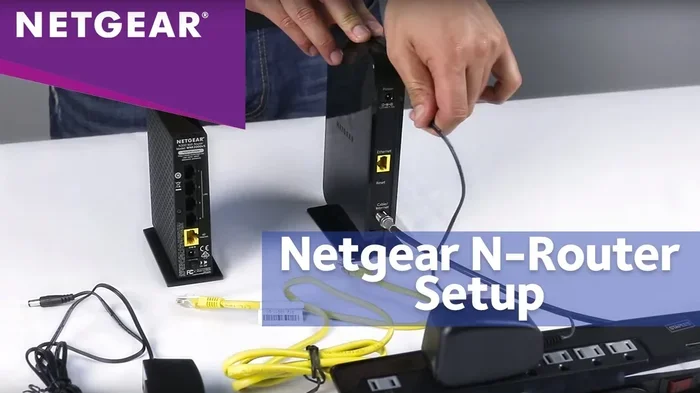
The setup process is straightforward. You do not need to be a tech expert. Follow these steps and you will be online in minutes.
- Place your modem near your internet wall outlet. This is where your ISP’s signal enters your home. Connect the modem to the wall outlet using the right cable — coaxial, phone, or fiber.
- Power on the modem. Wait for the lights to stabilize. This usually takes one to two minutes. The online or internet light should turn solid.
- Connect the Netgear router to the modem. Use an ethernet cable. Plug one end into the modem’s output port and the other into the router’s WAN or internet port.
- Power on the router. Wait for it to boot up. The power light and Wi-Fi light should come on.
- Connect a device to the router. You can use another ethernet cable or connect via Wi-Fi. The default network name and password are usually on a sticker on the bottom of the router.
- Open a browser and configure settings. Go to the router’s admin page. Follow the on-screen instructions to set up your Wi-Fi name and password.
That is it. Your Netgear router is now connected to the internet through the modem. If you run into issues, try restarting both devices. This solves most problems right away.
Quick Tips for a Smooth Setup
- Keep the modem and router close together to avoid signal loss.
- Use a high-quality ethernet cable for the best connection.
- Write down your Wi-Fi password and store it somewhere safe.
- Change the default admin password on your router for better security.
- If your ISP provides a modem-router combo, you can put your Netgear router in bridge mode to avoid conflicts.
Modem vs. Router: Understanding the Difference
It is easy to confuse these two devices. They look similar. They both have lights and cables. But they do very different jobs. Let us break it down.
| Feature | Modem | Router |
|---|---|---|
| Primary Function | Connects to ISP and brings internet into your home | Distributes internet to multiple devices |
| Connection Type | Wired connection to ISP infrastructure | Wired and wireless connections to devices |
| IP Address | Gets a public IP address from your ISP | Assigns private IP addresses to your devices |
| Can Work Alone | Yes, for internet access (one device) | No, needs a modem for internet access |
| Wi-Fi Capability | Usually no | Yes, most modern routers have Wi-Fi |
Now you can see why does Netgear need a modem is such a common question. The answer is clear. The router handles the local network. The modem handles the wide area network. Both are essential for full internet access.
Some people wonder if they can skip the modem entirely and plug their Netgear router directly into a wall outlet. That will not work. The router needs a translated signal from a modem. Without it, you are just creating a local network with no outside connection.
Can You Replace Your ISP Modem With a Netgear Modem?
Yes, in most cases you can. Many ISPs allow you to use your own modem. This is called bringing your own device, or BYOD. It can save you significant money over the life of your internet subscription.
Before you make the switch, call your ISP or check their website. Ask two questions. First, is your ISP compatible with third-party modems? Second, what models are approved? Some ISPs lock their networks to specific modem brands. This is more common with certain cable providers.
Once you have an approved Netgear modem, the setup is simple. You disconnect the ISP-provided modem, connect the new one, and follow the activation steps. Your ISP may need to activate the new modem on their end. This usually takes just a few minutes over the phone or online.
If you already have a separate Netgear router, you can connect it to your new Netgear modem. This gives you the best of both worlds. A high-quality modem from Netgear and a powerful router that suits your needs.
Things to Watch Out For
- Compatibility issues: Not every Netgear modem works with every ISP. Check the DOCSIS version for cable internet or the DSL standard for phone-based internet.
- Firmware updates: Keep your modem firmware up to date for the best performance and security.
- Signal strength: A bad modem can slow down your entire network. Invest in a quality unit.
- Channel bonding: More channels mean faster speeds. Look for a modem with at least 16 downstream channels for solid performance.
Also, keep in mind that if you decide to return to an ISP-provided modem later, you can do so easily. Just swap the units back and let your ISP reactivate their equipment. There is no permanent commitment when you bring your own device.
Common Mistakes People Make With Netgear Modems and Routers
Even with the best equipment, people make setup mistakes. Here are a few to avoid.
Plugging the router into the wrong port. The cable from the modem must go into the router’s WAN port. This port is usually colored differently from the other ports. Plugging into a LAN port will not give you internet access.
Skipping the restart step. After connecting a new modem or router, always power cycle both devices. Turn them off, wait 30 seconds, and turn them back on in order. Modem first, then router. This ensures they handshake properly.
Ignoring placement. Your router works best when it is in a central location. Avoid hiding it in a closet or behind a TV. Walls and metal objects block Wi-Fi signals. Good placement makes a huge difference in speed and coverage.
Forgetting to change default settings. The default admin password on your Netgear router is easy to guess. Change it during setup. Also, update your Wi-Fi password regularly. These small steps protect your network from unwanted guests.
Assuming one device does everything. Some people buy a modem-router combo and expect perfect performance in every situation. While these devices work well for most homes, large houses or heavy users may benefit from separate, dedicated units. A standalone modem paired with a high-end router often delivers better results.
Final Thoughts
So, does Netgear need a modem? Absolutely. Without a modem, your Netgear router is just a local network creator. It cannot reach the internet on its own. The modem brings the signal in, and the router spreads it around.
You have options. You can use a modem-router combo from Netgear for simplicity. You can buy a separate Netgear modem and pair it with your own router for flexibility. Or you can rent a modem from your ISP and use a Netgear router on top of it. Each approach has its merits.
The best choice depends on your budget, your internet speed needs, and how much control you want over your network. Take time to research your ISP’s requirements. Check compatibility. And do not be afraid to reach out to Netgear support if you get stuck. They are helpful and knowledgeable.
Setting up your internet connection does not have to be stressful. With the right modem and a Netgear router, you will be browsing, streaming, and working from home in no time. Just remember the basics: modem first, router second, and always power cycle when in doubt.
Now that you understand how modems and routers work together, you can make informed decisions about your home network. Whether you are buying new equipment or troubleshooting a slow connection, this knowledge puts you ahead. Happy surfing.
Frequently Asked Questions
Do I need a modem if I already have a Netgear router?
Yes, you do. A Netgear router cannot connect to the internet without a modem. The modem receives the signal from your ISP, and the router shares it with your devices. Without a modem, your router can only create a local network with no internet access.
Can I use a Netgear modem-router combo instead of separate devices?
Absolutely. Netgear gateway devices combine both a modem and a router in one unit. They are convenient and save space. However, they may not offer the same level of performance or customization as separate high-end devices. They work great for most average households.
How do I know if my Netgear device is a modem or a router?
Check the model name on the device or box. Gateway models like the Netgear C7000 are modem-router combos. Router-only models like the Netgear R6700 do not have a built-in modem. The product description and specifications will clearly state which type of device it is.
Will my ISP let me use my own Netgear modem?
Most ISPs allow third-party modems, but you should check first. Call your ISP or visit their website to see their approved device list. Using an approved Netgear modem can save you rental fees in the long run. Just make sure the modem is compatible with your internet type, whether cable, DSL, or fiber.
What cable do I need to connect a Netgear router to a modem?
You need a standard ethernet cable, also called a Cat5e or Cat6 cable. Plug one end into the modem’s output port and the other into the Netgear router’s WAN or internet port. This creates the connection between the two devices and allows internet traffic to flow through.
Can I connect my Netgear router directly to a wall outlet for internet?
No, you cannot. Wall outlets carry raw signals from your ISP that your router cannot interpret. You need a modem to convert that signal into usable internet data. The modem connects to the wall outlet, and the router connects to the modem. This chain is essential for internet access.