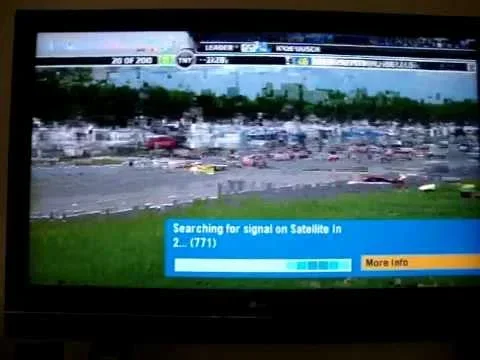
Directv Hd Dvr Receiver Problems With Pixelation Stop Go
DirecTV HD DVR receiver pixelation and stop go problems are frustrating but usually fixable at home. This guide walks you through the most common causes, from weak signal strength to faulty HDMI cables, and gives you clear steps to restore smooth playback. You will learn quick fixes, preventive tips, and when to call for professional help.
Nothing kills the mood of a great movie night faster than your screen breaking into a pixelated mess or your video freezing mid-scene. If you have been dealing with DirecTV HD DVR receiver problems with pixelation and stop go during playing, you are not alone. Thousands of DirecTV subscribers face these exact issues every month, and the good news is that most of them have straightforward fixes.
Your DirecTV HD DVR receiver is the heart of your home entertainment setup. When it starts acting up, the whole viewing experience suffers. Pixelation happens when the video signal breaks up into tiny squares on your screen. Stop go playback means your video stutters, freezes, and then jumps forward unpredictably. Both problems make watching your favorite shows or movies incredibly annoying.
This article dives deep into why these issues happen and gives you practical, step-by-step solutions you can try right now. Whether you are dealing with a single pixelated channel or constant stop go freezing across every recording, we have you covered. Let us get your DirecTV HD DVR receiver running smoothly again.
Key Takeaways
- Signal issues are the #1 cause: Weak satellite signal or poor coaxial connections lead directly to pixelation and stop go playback on your DirecTV HD DVR receiver.
- HDMI cable quality matters: A damaged or low-quality HDMI cable can cause video freezing, audio sync problems, and pixelation during playback.
- Firmware updates fix many bugs: Keeping your receiver firmware current prevents known issues that cause recording artifacts and channel freezing.
- Overheating receivers fail: Poor ventilation around your DirecTV HD DVR receiver leads to performance drops, error codes, and signal loss.
- Try basic resets first: A simple receiver reboot or factory reset solves pixelation problems in many cases without calling support.
- Know when to call for help: Persistent pixelation after all troubleshooting steps may indicate a hardware failure or satellite dish alignment issue.
📑 Table of Contents
- Understanding DirecTV HD DVR Receiver Pixelation And Stop Go Problems
- Common DirecTV HD DVR Receiver Problems Explained
- How To Fix Pixelation On Your DirecTV HD DVR Receiver
- Preventing Stop Go Playback Issues On Your DirecTV HD DVR
- When To Call DirecTV Support For Receiver Problems
- Final Thoughts On DirecTV HD DVR Pixelation And Stop Go Issues
Understanding DirecTV HD DVR Receiver Pixelation And Stop Go Problems
Before you can fix a problem, you need to understand what is causing it. Pixelation and stop go playback on your DirecTV HD DVR receiver are symptoms, not the root cause. Think of them like a check engine light in your car. They tell you something is wrong, but you need to dig deeper to find the real issue.
Pixelation occurs when your receiver cannot decode the video signal properly. The data gets scrambled or incomplete, and your TV shows blocks of color instead of a clear picture. Stop go playback happens when the receiver struggles to maintain a steady data flow. It buffers, then catches up, then stutters again. This cycle of freeze and jump is what people call the stop go effect.
How Signal Strength Affects Your DirecTV HD DVR Receiver
Your DirecTV HD DVR receiver depends on a strong satellite signal to deliver clear video. If your satellite signal is weak or interrupted, the receiver cannot pull in all the data it needs. This leads directly to pixelation and video freezing during playback.
Signal strength issues can come from many sources. Bad weather is a common culprit. Heavy rain, snow, or thick clouds can block the satellite signal temporarily. A tree that grew taller since your last installation can now be blocking the dish. Even a slight shift in your satellite dish position from wind or a nearby construction project can reduce signal quality.
You can check your signal strength by going to the menu on your receiver. Look for the signal meter or diagnostics section. If your signal strength is below 70 percent, that is likely contributing to your pixelation problems. Low signal strength is one of the most common reasons for stop go playback on any DirecTV HD DVR receiver.
The Role Of HDMI Connections In Pixelation Issues
Your HDMI cable is the bridge between your DirecTV HD DVR receiver and your television. If this connection is faulty, damaged, or low quality, you will see picture quality problems. Pixelation, video freezing, and audio sync issues all stem from bad HDMI connections more often than people realize.
When you connect your receiver to your TV, the HDMI handshake is the process where both devices agree on the video resolution and format. If this handshake fails or keeps dropping, your screen will pixelate or freeze. This is especially common when you connect HDMI and USB at the same time through a hub or splitter, which can cause signal interference and handshake failures.
Not all HDMI cables are created equal. An older HDMI 1.3 cable may struggle with the high bandwidth needed for HD and 4K content from your DirecTV HD DVR receiver. Using a certified high-speed HDMI cable ensures your receiver can send a clean, uninterrupted signal to your TV. If you have been using the same HDMI cable for years, it might be time to replace it.
Common DirecTV HD DVR Receiver Problems Explained
Let us break down the most frequent issues that cause pixelation and stop go playback. Understanding these problems helps you diagnose yours faster.
Problem One: Coaxial Connection Issues
The coaxial cable runs from your satellite dish to your DirecTV HD DVR receiver. If this cable is damaged, loose, or corroded, your receiver gets an incomplete signal. This is one of the top causes of pixelation and channel freezing.
Check the coaxial connections at both ends. The connector on the dish side and the one on the receiver side should be tight and secure. Look for any visible damage like bent pins, cracked insulation, or rust. Even a small gap in the connection can let moisture in, which degrades the signal over time.
Problem Two: Receiver Overheating
Your DirecTV HD DVR receiver generates heat during operation. If it does not have enough ventilation, it can overheat. An overheating receiver will start to show video artifacts, experience signal loss, and eventually fail to record or play back content properly.
People often place their receivers in enclosed cabinets or stack other electronics on top of them. This blocks airflow and traps heat. Your receiver needs at least a few inches of space on all sides to stay cool. If the back of the unit feels hot to the touch, overheating is likely contributing to your problems.
Problem Three: Outdated Firmware
DirecTV regularly releases firmware updates for its receivers. These updates fix known bugs, improve performance, and add new features. If your receiver has not been updated in a while, it may be running software that has known issues causing pixelation or stop go playback.
Checking for updates is simple. Go to the settings menu on your receiver and look for the system update or firmware option. Let the receiver download and install any available updates, then restart it. This alone fixes pixelation problems for many users.
Problem Four: Recording Artifacts And Playback Glitches
Sometimes the problem is not with live TV but with recorded content. Recording artifacts are glitches that appear in your saved recordings. They can look like pixelation blocks, audio dropouts, or momentary freezes during playback.
Recording artifacts often happen when the receiver was low on storage space during the recording. A nearly full hard drive cannot process data as efficiently, leading to these playback issues. Clearing out old recordings and freeing up space on your DVR can eliminate this problem entirely.
How To Fix Pixelation On Your DirecTV HD DVR Receiver
Now that you understand the common causes, here are the practical steps to fix pixelation on your DirecTV HD DVR receiver. Try these in order, starting with the simplest fixes.
Step One: Check And Tighten All Connections
Start by checking every cable connection. Unplug and replug the coaxial cable from the dish to the receiver. Do the same with the HDMI cable connecting the receiver to your TV. Make sure each connection is firm and secure. Loose connections are the easiest fix and the most commonly overlooked.
While you are at it, inspect the cables themselves. Look for any visible damage like kinks, cuts, or frayed ends. If a cable looks worn, replace it. A new coaxial cable costs just a few dollars and can solve persistent pixelation problems.
Step Two: Reboot Your DirecTV HD DVR Receiver
A reboot clears the receiver’s temporary memory and resets its connection to the satellite network. Unplug the power cord from the back of the receiver. Wait at least 30 seconds. Plug it back in and let it fully restart before trying to watch anything.
This simple step resolves pixelation and stop go issues more often than people expect. The reboot flushes out any temporary data glitches and forces the receiver to establish a fresh connection with the satellite. It is the first thing you should try any time you notice playback problems.
Step Three: Run A Signal Strength Test
Go to the menu on your receiver and find the signal strength or diagnostics page. This shows you how strong the satellite signal is at that moment. If the signal is weak, try repositioning your satellite dish slightly. Even a small adjustment can make a big difference.
If you are not comfortable adjusting the dish yourself, you can call DirecTV support. They can walk you through the process or send a technician to realign your dish. A properly aligned dish is essential for strong signal quality and smooth playback.
Step Four: Update Your Receiver Firmware
As mentioned earlier, outdated firmware can cause pixelation and video freezing. Go to your receiver settings and check for system updates. Install any available updates and restart the receiver. This ensures your receiver is running the latest software with all known bug fixes applied.
Some users have reported that after a firmware update, their pixelation problems disappeared completely. It is worth checking even if you think your receiver is up to date, because DirecTV pushes updates periodically.
Step Five: Replace Your HDMI Cable
If tightening connections and rebooting did not help, your HDMI cable might be the problem. Replace it with a certified high-speed HDMI cable. Make sure the cable supports the resolution your TV and receiver are using. A cheap, non-certified cable might not handle the bandwidth properly, leading to pixelation and stop go playback.
When shopping for a new HDMI cable, look for ones rated for high bandwidth. If you are using a 4K TV, you need an HDMI 2.0 or higher cable. Using the wrong cable standard is a surprisingly common cause of video quality issues.
Quick Tips For Better Picture Quality On Your DirecTV HD DVR
- Keep your receiver in an open, well-ventilated area to prevent overheating.
- Use a surge protector to shield your receiver from power fluctuations.
- Clean the coaxial connections with a dry cloth to remove dust and debris.
- Avoid running HDMI cables near power cords to reduce electromagnetic interference.
- Restart your receiver at least once a month to clear temporary data.
- Keep at least 20 percent of your DVR storage free to ensure smooth recording and playback.
Preventing Stop Go Playback Issues On Your DirecTV HD DVR
Prevention is always better than cure. Once you have fixed your pixelation and stop go problems, you want to keep them from coming back. Here are the best practices for maintaining smooth playback on your DirecTV HD DVR receiver.
Keep Your Firmware And Software Up To Date
Set a reminder to check for receiver updates once a month. DirecTV pushes firmware updates regularly, and keeping your receiver current prevents many known issues. Automatic updates are usually enabled by default, but it is worth verifying in your settings.
Protect Your Cables And Connections
Your cables are the lifeline of your setup. Avoid pinching, bending, or placing heavy objects on them. If your cables run through walls or along floors, use protective covers to prevent damage. Well-maintained cables mean consistent signal quality and fewer pixelation issues.
Monitor Your Signal Strength Regularly
Make it a habit to check your signal strength every few months. A gradual decline in signal can indicate a developing problem with your dish or cables. Catching it early prevents it from turning into full-blown pixelation or stop go playback.
Manage Your DVR Storage Wisely
A cluttered hard drive slows down your receiver. Regularly delete recordings you have already watched. Archive important shows to an external storage device if possible. Keeping your storage at least 20 percent free ensures your receiver can process data efficiently during both recording and playback.
Common Mistakes That Cause Pixelation And Stop Go Problems
Many users unknowingly make mistakes that worsen their DirecTV HD DVR receiver issues. Here are the most common ones to avoid.
- Ignoring error codes: If your receiver displays error codes, do not ignore them. They often point directly to the cause of pixelation or stop go playback.
- Using cheap or uncertified cables: Saving a few dollars on a non-certified HDMI cable can cost you hours of frustrating viewing.
- Overloading power strips: Plugging too many devices into one outlet can cause power fluctuations that affect your receiver’s performance.
- Blocking the receiver vents: Placing your receiver in a closed cabinet traps heat and leads to overheating problems.
- Never restarting the receiver: Like any computer, your receiver benefits from regular reboots to clear its memory and refresh connections.
When To Call DirecTV Support For Receiver Problems
Most pixelation and stop go issues can be fixed at home with the steps outlined above. However, there are times when professional help is necessary. Knowing when to call DirecTV support saves you time and frustration.
If you have tried all the troubleshooting steps and your DirecTV HD DVR receiver still shows pixelation or stop go playback, there may be a hardware issue. The receiver’s internal components could be failing. In this case, no amount of cable swapping or rebooting will fix the problem.
You should also call support if you notice persistent signal loss even after repositioning your dish and checking all connections. A technician may need to inspect your satellite dish, check the wiring in your home, or assess whether the dish needs realignment due to environmental changes.
DirecTV support can also help if your receiver displays unusual error codes that do not go away after a reboot. Some error codes indicate specific hardware failures that require a replacement unit. DirecTV may send you a new receiver at no cost if your unit is still under warranty.
Before calling, have your receiver model number and any error codes ready. This helps the support team diagnose the issue faster and get you back to smooth viewing sooner.
Expert Insights On DirecTV HD DVR Receiver Maintenance
Experienced DirecTV technicians often emphasize one key point: prevention is the best medicine for pixelation and stop go problems. Regular maintenance of your cables, connections, and receiver placement goes a long way in keeping your system running smoothly.
Technicians also recommend avoiding cheap power strips and surge protectors. A quality surge protector with adequate joule ratings protects your receiver from power spikes that can damage internal components over time. This simple investment can extend the life of your DirecTV HD DVR receiver significantly.
Another expert tip is to keep your receiver’s software updated and to avoid installing third-party apps or modifications. Unauthorized software can conflict with the receiver’s firmware and cause unpredictable issues, including pixelation and playback glitches. Stick to the official DirecTV interface for the most stable experience.
Final Thoughts On DirecTV HD DVR Pixelation And Stop Go Issues
Dealing with pixelation and stop go playback on your DirecTV HD DVR receiver is frustrating, but it is almost always fixable. The causes range from simple loose connections to more complex signal or hardware issues. By working through the troubleshooting steps in this guide, you can identify and resolve most problems on your own.
Start with the basics. Check your connections, reboot your receiver, and verify your signal strength. These steps solve the majority of pixelation and stop go issues. If the problem persists, move on to firmware updates, cable replacements, and signal adjustments. And when all else fails, DirecTV support is there to help.
Taking care of your DirecTV HD DVR receiver with regular maintenance and proper setup prevents most issues before they start. A clean signal, good cables, and a well-ventilated receiver give you the best chance of enjoying smooth, high-quality playback every time you sit down to watch something.
Remember that your viewing experience depends on many small components working together. The satellite dish, the coaxial cable, the receiver, the HDMI cable, and your TV all play a role. When one link in that chain is weak, the whole system suffers. Keep each link strong, and your DirecTV HD DVR receiver will reward you with clear, uninterrupted entertainment for years to come.
If you have been struggling with pixelation or stop go playback, do not give up. The solutions in this article address the most common causes and give you actionable steps to try today. Your next movie night or sports event deserves smooth, crystal-clear playback, and now you have the tools to make it happen.
Frequently Asked Questions
Why Does My DirecTV HD DVR Receiver Keep Pixelating?
The most common reason is a weak satellite signal or a loose coaxial connection. Other causes include a damaged HDMI cable, receiver overheating, or outdated firmware. Start by checking all your cable connections and signal strength. If those look fine, try rebooting your receiver or updating the firmware.
Can A Bad HDMI Cable Cause Stop Go Playback On DirecTV?
Yes, absolutely. A damaged or low-quality HDMI cable can interrupt the data flow between your receiver and TV, causing video freezing and stop go playback. Replacing the cable with a certified high-speed HDMI cable often solves this problem quickly.
How Do I Check The Signal Strength On My DirecTV HD DVR Receiver?
Go to the menu on your receiver and navigate to the settings or diagnostics section. Look for the signal strength or signal meter option. It will display your current signal level. A reading below 70 percent usually indicates a problem that could cause pixelation.
Does Weather Affect DirecTV HD DVR Receiver Performance?
Yes, bad weather can temporarily weaken the satellite signal and cause pixelation or stop go playback. Heavy rain, snow, and thick clouds can block the signal between the satellite and your dish. This is usually temporary and resolves once the weather clears.
What Should I Do If My DirecTV HD DVR Receiver Is Overheating?
Move the receiver to a more open area with better airflow. Remove any objects stacked on top of or around the unit. Make sure the vents on the back are not blocked. If the receiver continues to overheat, it may need professional inspection or replacement.
Will Resetting My DirecTV HD DVR Receiver Fix Pixelation Problems?
A reset can often fix pixelation and stop go issues by clearing temporary data and refreshing the receiver’s connections. Unplug the power cord, wait 30 seconds, and plug it back in. For more persistent issues, a factory reset through the settings menu may be needed, but this will erase your recorded content.
=== CONCLUSION ===
DirecTV HD DVR receiver problems with pixelation and stop go during playing are fixable with the right approach. Most issues stem from signal problems, bad connections, or outdated software. By following the troubleshooting steps in this guide, you can restore smooth, high-quality playback to your viewing experience.
Start with the simple fixes like checking connections and rebooting your receiver. Move to more advanced steps like firmware updates and cable replacements if needed. And remember that regular maintenance keeps your DirecTV HD DVR receiver running at its best. Your time and entertainment are too valuable to let pixelation and stop go problems get in the way.