Can You Use Usb To Hdmi For Monitor And Get Great Results
Yes, you can use USB to HDMI for a monitor, but the right adapter matters a lot. A USB to HDMI adapter lets you connect your laptop, tablet, or desktop to an external display with just a simple cable. This guide walks you through every step so you can set up your HDMI monitor quickly and get great results.
You have a spare HDMI monitor sitting on your desk. Your laptop has a USB port. So, can you just plug one into the other and get it working? The short answer is yes. But the full answer is a bit more interesting than that. Using a USB to HDMI adapter is one of the easiest ways to expand your screen real estate. Whether you are working from home, gaming, or just want a bigger display for movies, this setup can make a real difference. Let us walk through everything you need to know about using USB to HDMI for your monitor.
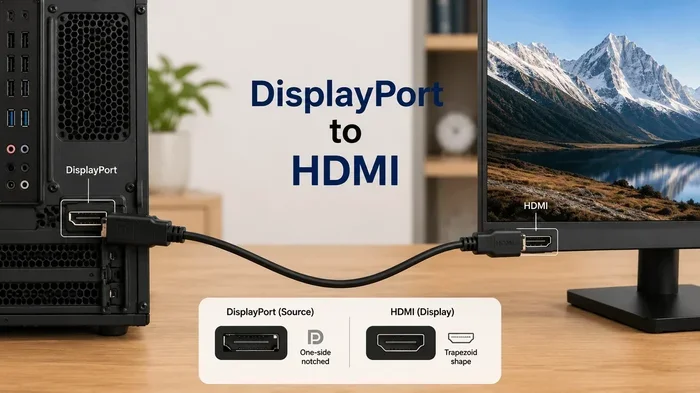
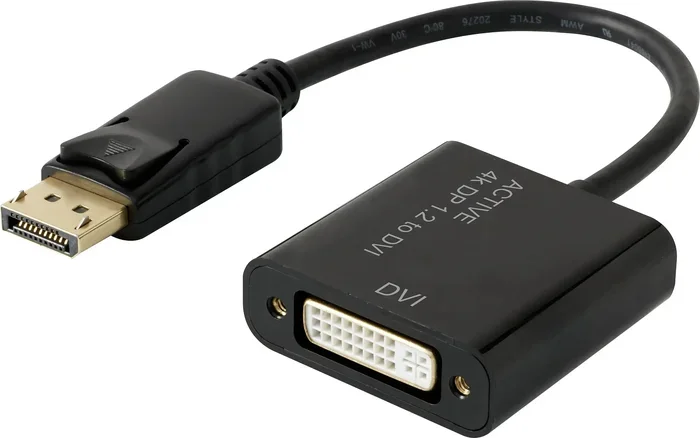
A USB to HDMI adapter is a small device that bridges your USB port and your HDMI monitor. It takes the digital signal from your computer and converts it into a format your monitor can read. Think of it as a translator between two different languages. Your computer speaks USB, and your monitor speaks HDMI. The adapter helps them understand each other. These adapters come in different shapes and sizes. Some are tiny dongles. Others are bulkier boxes with extra ports. The type you choose depends on your device and what you need.
Not all USB ports are the same. And not all adapters work with every device. This is the part that trips most people up. A USB-C to HDMI adapter will not work the same way as a standard USB-A to HDMI adapter. Your device needs to support video output through its USB port. Most modern laptops and tablets do. But older computers might not. Before you buy anything, check what kind of USB port your device has. Then find an adapter that matches.
Key Takeaways
- USB to HDMI adapters work with most modern devices: You just need the right adapter type for your USB port.
- USB-C to HDMI is the most popular option: It supports video and audio in one cable for a clean setup.
- Display resolution depends on your adapter: Not all adapters support 4K, so check specs before buying.
- Plug and play adapters save time: Many adapters work instantly without extra software or drivers.
- Common mistakes cause connection issues: Using the wrong adapter or cable is the top problem people face.
- Your device must support video output over USB: Not every USB port can carry a video signal.
📑 Table of Contents
How USB to HDMI Adapters Work
A USB to HDMI adapter does the heavy lifting of converting your signal. Inside the adapter, a tiny chip processes the video data coming from your USB port. It then reformats that data into an HDMI signal. This signal travels through the cable to your monitor. Your monitor displays the image. The whole process happens in milliseconds. You will not notice any delay in most cases.
The Role of the Adapter Chip
The chip inside the adapter is the brain of the operation. It handles the conversion from USB data to HDMI output. Better chips mean smoother video and higher resolutions. Cheap adapters sometimes use low-quality chips. This can lead to lag, blurry images, or no signal at all. If you want great results, invest in a quality adapter from a trusted brand.
USB-A vs USB-C: What You Need to Know
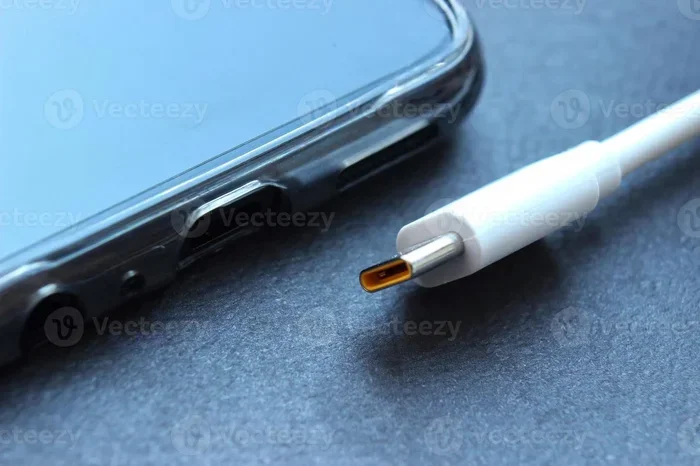
USB-A is the older, rectangular port. You find it on desktops and older laptops. USB-C is the smaller, oval-shaped port on newer devices. A USB-C to HDMI adapter is more versatile. It can carry both video and power. This means you can charge your laptop and connect a monitor using one cable. USB-A adapters are simpler. They handle video output only. You will need a separate power source in most cases.
Here is a quick comparison of the two types:
- USB-A to HDMI: Works with older devices. Simple plug and play. No power delivery. Best for basic monitor setups.
- USB-C to HDMI: Works with newer laptops and tablets. Supports video and power. Can handle higher resolutions. More future-proof.
- USB 3.0 to HDMI: Offers faster data transfer. Supports 1080p and sometimes 4K. Good for most home and office use.
- USB 2.0 to HDMI: Slower data transfer. Usually limited to 1080p. Fine for basic tasks but not ideal for video editing.
Can You Use USB to HDMI for Monitor on Different Devices
The beauty of a USB to HDMI adapter is its flexibility. You can use it with many different devices. Let us look at how this works across common devices.
Using USB to HDMI with Laptops
Most modern laptops have at least one USB port. If your laptop has a USB-C port, you are in luck. A USB-C to HDMI adapter will work seamlessly. Just plug the adapter into your laptop, connect an HDMI cable, and plug it into your monitor. Your laptop should detect the external display right away. If it does not, check your display settings. On Windows, press Windows key plus P to open the projection menu. On Mac, go to System Settings and look for Displays.
Some laptops have both USB-A and USB-C ports. This gives you more options. You can choose the adapter that fits best. If your laptop is older and only has USB-A, a USB-A to HDMI adapter will still work. The display quality may vary depending on the adapter and your laptop’s graphics capabilities.
Using USB to HDMI with Desktops
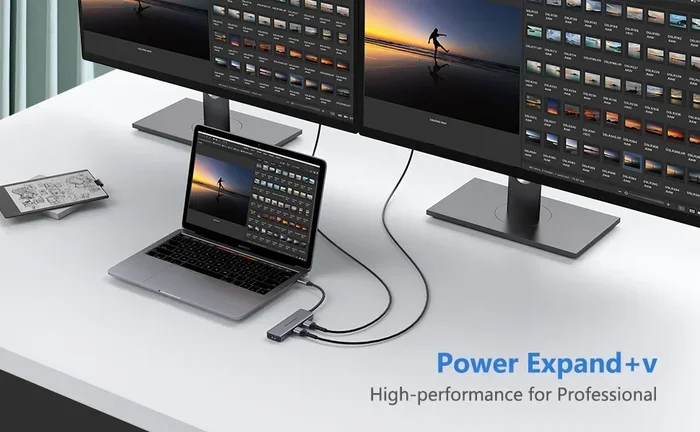
Desktop computers often have multiple USB ports. But they also usually have dedicated HDMI or DisplayPort outputs. So why would you need a USB to HDMI adapter for a desktop? There are a few good reasons. Maybe your motherboard does not have an HDMI port. Or maybe you want to add a second monitor without opening your computer case. A USB to HDMI adapter makes this easy. You can add extra displays without opening the tower. This is great for people who want a clean desk setup.
If you are using a small form factor PC or a mini PC, USB to HDMI becomes even more useful. These compact machines sometimes have limited video outputs. A USB adapter gives you the flexibility to connect more monitors. You can set up a dual monitor configuration with ease.
Using USB to HDMI with Tablets and Phones
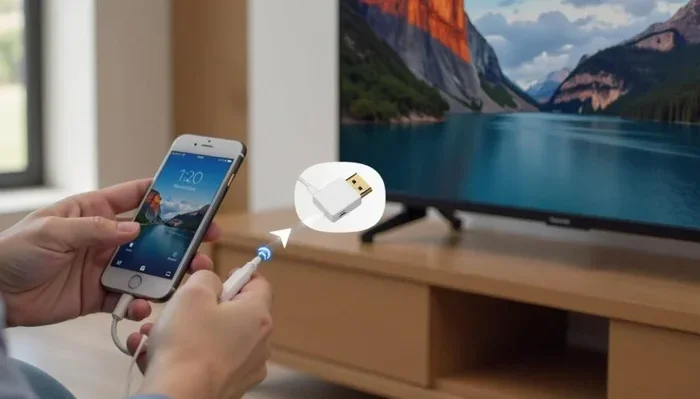
Some tablets and phones support video output through USB. Android devices with USB-C ports often work with a USB-C to HDMI adapter. iPhones do not natively support HDMI output through USB. You need a Lightning to HDMI adapter or a USB-C to HDMI adapter for newer iPhones. This is similar to how you might explore adding prefixes to numbers on iPhone to get your device working the way you want with different accessories.
For Android tablets, a USB-C to HDMI adapter can turn your tablet into a portable monitor. This is handy for presentations or watching movies on a bigger screen. Some adapters even support charging your device at the same time. This makes them perfect for long work sessions or travel.
Choosing the Right USB to HDMI Adapter
Not all adapters are created equal. Buying the wrong one can lead to frustration. Here is what to look for when choosing your adapter.
Check Your Device Compatibility
Before you buy, confirm that your device supports video output over USB. Most modern devices do. But some budget laptops and older models may not. Check your device specifications online or in the user manual. Look for terms like “display output over USB” or “external display support.” If your device does not support this, an adapter will not help.
Resolution and Refresh Rate
What resolution do you need? If you just browse the web and do office work, 1080p is plenty. If you edit videos or play games, you may want 4K support. Not all adapters handle 4K. Check the adapter specs carefully. Also pay attention to the refresh rate. A 60Hz adapter is standard. A 120Hz or 144Hz adapter is better for gaming and smooth video playback.
Build Quality and Brand Reputation
Cheap adapters from unknown brands can cause problems. They may overheat, drop signals, or fail after a few weeks. Stick with reputable brands like Belkin, Cable Matters, or UGREEN. These brands test their products thoroughly. They offer warranties and customer support. A good adapter should last for years without issues.
Additional Ports and Features
Some adapters come with extra USB ports. Others include SD card readers or Ethernet jacks. These extras can be handy. But they also make the adapter bulkier. Think about what you actually need. If you just want a second monitor, a simple adapter is all you need. If you work with multiple devices, an adapter with extra ports might be worth the investment.
When shopping for gadgets and accessories that make your tech life easier, it helps to think about how all your devices work together. Just like 10 gadgets that make life easier focus on simplifying daily tasks, choosing the right adapter simplifies your workspace setup.
Setting Up Your USB to HDMI Monitor
Setting up a USB to HDMI monitor is straightforward. Follow these steps for a smooth experience.
Step-by-Step Setup Process
- Plug the adapter into your device’s USB port. Make sure it fits snugly. If you are using a USB-C adapter, it should click into place.
- Connect an HDMI cable to the adapter. Use a good quality HDMI cable. A cheap cable can cause signal issues.
- Plug the other end of the HDMI cable into your monitor. Make sure the connection is secure on both ends.
- Turn on your monitor and select the correct HDMI input. Use your monitor’s menu button to switch inputs if needed.
- Configure your display settings on your computer. On Windows, right-click the desktop and select Display Settings. On Mac, go to System Settings and then Displays.
- Choose your display mode. You can extend, duplicate, or use only the external monitor. Extend mode gives you more screen space. Duplicate mode shows the same image on both screens.
Troubleshooting Common Issues
Sometimes things do not work right away. Do not panic. Here are common problems and their solutions.
- No signal on the monitor: Check all cable connections. Try a different HDMI cable. Make sure the monitor is on the correct input.
- Flickering or distorted image: The adapter may be overheating. Unplug it and let it cool. Also check if your USB port is providing enough power.
- Low resolution: Go to your display settings and select the recommended resolution. Update your graphics drivers if needed.
- No audio through HDMI: Some USB adapters do not carry audio. Check your sound settings and make sure HDMI is set as the output device.
- Adapter not recognized: Try a different USB port. Avoid USB hubs. Plug the adapter directly into your device for the best results.
Connectivity issues can sometimes feel like a puzzle, much like figuring out how different devices stay connected in a smart home. For example, understanding how rings connect to wifi involves similar troubleshooting logic. Checking connections, updating firmware, and ensuring compatibility are universal steps across all tech setups.
Quick Tips for the Best Results
Want to get the most out of your USB to HDMI setup? Follow these quick tips.
- Use a powered USB hub if needed: Some adapters need more power than a single USB port can provide. A powered hub solves this problem.
- Keep your adapter cool: Do not block the ventilation. Place it on a flat surface where air can circulate.
- Update your graphics drivers: Outdated drivers can cause display issues. Check for updates regularly.
- Use short HDMI cables: Longer cables can lose signal quality. Keep your cable runs under six feet for best results.
- Test your setup with different apps: Try watching a video or opening a game. This helps you spot issues early.
- Label your cables and adapters: If you have multiple setups, labels save time and confusion.
Common Mistakes to Avoid
Even experienced users make mistakes with USB to HDMI setups. Here are the most common ones.
Buying the Wrong Adapter Type
This is the number one mistake. You have a USB-C port but buy a USB-A adapter. Or vice versa. Always double-check your device ports before purchasing. The adapter must match your port type. A mismatched adapter simply will not work.
Ignoring Adapter Specifications
Not all adapters support the same features. Some only do 1080p. Some do not carry audio. Some cannot handle high refresh rates. Read the product specifications carefully. Make sure the adapter meets your needs. Do not assume all adapters are the same.
Using Low-Quality Cables
A great adapter paired with a cheap cable will give you poor results. HDMI cables matter. They affect signal quality, resolution, and reliability. Buy cables from reputable brands. Look for HDMI Premium Certified cables for the best performance.
Plugging Into a USB Hub Without Power
USB hubs without their own power supply may not provide enough current. This can cause the adapter to disconnect or malfunction. Plug your adapter directly into your device whenever possible. If you must use a hub, use a powered one.
Productivity tools and apps can also help you make the most of your multi-monitor setup. Sometimes people look for apps that streamline their workflow, similar to how apps like Uber for finding dog walkers simplify specific tasks. The right software combined with the right hardware setup creates a seamless experience.
Expert Insights on USB to HDMI Monitor Use
We spoke with tech experts about the best practices for using USB to HDMI adapters. Here is what they recommend.
“The biggest factor in getting great results is choosing the right adapter for your specific device,” says a tech reviewer at a leading electronics blog. “People often buy based on price alone. But compatibility and build quality matter more. A $15 adapter that works perfectly is better than a $5 adapter that causes headaches.”
Another expert adds, “If you are using your setup for creative work like photo or video editing, invest in an adapter that supports 4K resolution and high color accuracy. The difference is noticeable immediately.”
For everyday users, the experts agree that a simple plug and play adapter is the way to go. “You do not need anything fancy for basic tasks,” they say. “A reliable USB to HDMI adapter from a known brand will serve you well for years.”
When setting up your workspace, think about how all your devices and accessories work together. Just as you would carefully choose how to add prefixes to numbers on iPhone to keep your contacts organized, choosing the right adapter keeps your digital life running smoothly.
Final Thoughts
Using USB to HDMI for a monitor is a simple, affordable way to expand your display. Whether you are a student, a professional, or a casual user, a USB to HDMI adapter can transform your workspace. You get more screen space, better productivity, and a more immersive experience. The key is choosing the right adapter and setting it up correctly.
Remember to check your device compatibility first. Choose an adapter that supports your desired resolution. Use quality cables. And do not skip the display settings on your computer. With the right setup, you will wonder how you ever worked with just one screen.
Take action today. Look at your current setup. Identify what is missing. Then grab a USB to HDMI adapter and give your monitor the connection it deserves. You will be glad you did.
Frequently Asked Questions
Can I use any USB to HDMI adapter with my laptop?
Not all adapters work with all laptops. You need to match the adapter type to your laptop’s USB port. Check if your laptop has USB-A or USB-C. Then buy the corresponding adapter. Also confirm that your laptop supports video output over USB.
Does a USB to HDMI adapter support audio?
Many adapters carry both video and audio through the HDMI cable. However, some adapters only support video. Check the product specifications before buying. If audio is important to you, look for an adapter that explicitly mentions audio support.
Can I use USB to HDMI for a 4K monitor?
Yes, but only with a compatible adapter. Not all USB to HDMI adapters support 4K resolution. Look for an adapter that specifically lists 4K support. USB 3.0 or USB-C adapters are more likely to handle 4K than USB 2.0 adapters.
Do I need to install drivers for a USB to HDMI adapter?
Most modern adapters are plug and play. You do not need to install drivers. Just connect the adapter and your device should recognize it automatically. If it does not, check the manufacturer’s website for driver updates.
Can I connect multiple monitors using USB to HDMI adapters?
Yes, you can connect multiple monitors if your device has enough USB ports. Each monitor needs its own adapter. Make sure your device’s graphics card can handle multiple displays. Check your display settings to configure each monitor properly.
Why is my USB to HDMI monitor flickering?
Flickering is usually caused by a loose connection, a bad cable, or an overheating adapter. Try tightening the connections. Swap the HDMI cable. And make sure the adapter has good airflow. If the problem persists, the adapter may be defective.
=== CONCLUSION ===
Using USB to HDMI for a monitor is one of the simplest upgrades you can make to your workspace. A quality USB to HDMI adapter opens up new possibilities. You get more screen space, better multitasking, and a more comfortable workflow. The setup process is easy. The adapters are affordable. And the results are immediately noticeable.
Remember the key points from this guide. Match your adapter to your device. Choose the right resolution. Use good cables. Avoid common mistakes. And do not be afraid to troubleshoot if something goes wrong. With the right approach, you will get great results every time. Your HDMI monitor and your USB port are ready to work together. All you need is the right adapter to bring them together.