Can You Use A Monitor Without A Hdmi Port Explained
Yes, you can absolutely use a monitor without an HDMI port. There are several alternative connection types like VGA, DVI, DisplayPort, and USB-C that let you hook up a display to your computer or laptop. Whether your device has legacy ports or modern outputs, a monitor without HDMI can still deliver sharp visuals for work, gaming, and entertainment.
So you just got a new monitor, and you are ready to set it up. You plug in the cable, and then you realize it. Your computer does not have an HDMI port. Or maybe your monitor does not have one. Either way, you are left staring at two devices and wondering if they will even work together.
The good news is that you can absolutely use a monitor without HDMI. There are plenty of ways to connect a display to your computer, laptop, or even a gaming console without needing that one specific cable. Let us walk through every option, so you never have to worry about compatibility again.
Whether you are setting up a home office, a gaming rig, or a creative workstation, understanding your display connection options saves time, money, and frustration. This guide covers everything you need to know about using a monitor without an HDMI port in simple, practical terms.
Key Takeaways
- Multiple port options exist: VGA, DVI, DisplayPort, and USB-C can all replace HDMI for connecting a monitor to your device.
- Adapters are widely available: You can easily convert signals between ports using affordable adapter cables or docking stations.
- Modern monitors often include alternatives: Many newer displays come with DisplayPort or USB-C built in, so HDMI is not always needed.
- Signal quality varies by port type: Some alternatives support higher resolutions and refresh rates than older options like VGA.
- Check your device first: Always verify what ports your computer or laptop has before buying a monitor or adapter.
- Peripheral connections matter too: Understanding how your computer mouse and other devices connect helps you build a cleaner, more efficient workspace.
📑 Table of Contents
- Why HDMI Is Not The Only Option For Monitor Connections
- DisplayPort And USB-C: The Modern Alternatives
- How To Connect A Monitor Without HDMI: Step By Step
- Using Adapters And Converters Effectively
- Common Scenarios Where You Might Need A Non-HDMI Connection
- Comparing Monitor Connection Types At A Glance
- Quick Tips For A Smooth Setup
- Expert Insights On Monitor Connectivity
- Common Mistakes To Avoid When Connecting A Monitor Without HDMI
- Key Takeaways
- Conclusion
Why HDMI Is Not The Only Option For Monitor Connections
HDMI has become the most common cable type over the past decade. It carries both audio and video through a single cable, which makes it very convenient. But it is not the only way to send a signal from your device to a screen.
Monitors have used many different video input standards over the years. Some of these older standards are still around and fully functional. Others are newer and offer better performance than HDMI in certain situations. The key is knowing what your device supports and choosing the right cable or adapter.
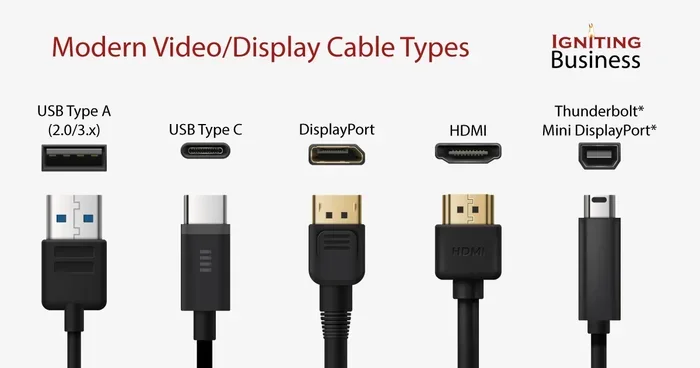
Here are the main alternative ports you might find on a computer or monitor:
- VGA (Video Graphics Array) – An older analog connection that was standard for many years.
- DVI (Digital Visual Interface) – A step up from VGA with both analog and digital support.
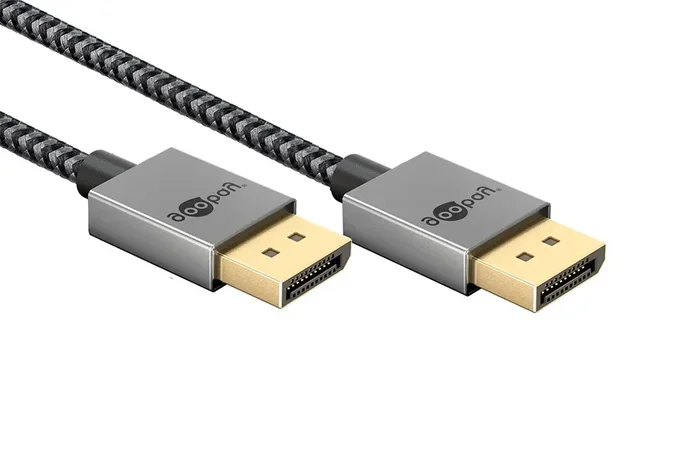
- DisplayPort – A modern digital connection that supports high resolutions and refresh rates.
- USB-C with DisplayPort Alt Mode – A versatile newer option found on many laptops and tablets.
- USB-A with adapter – Less common but possible with the right adapter.
Each of these options has its own strengths and limitations. Let us break them down one by one so you can pick the best fit for your setup.
How VGA Still Works In 2024
VGA is one of the oldest monitor connection types still in use today. It uses an analog signal transmitted through a blue-colored 15-pin connector. You will find VGA ports on many older computers, projectors, and even some budget monitors.
The biggest advantage of VGA is availability. Almost every computer made before 2015 has at least one VGA output. The downside is that VGA does not carry audio, and the analog signal can degrade over long cable runs. You might notice signal noise or fuzzy text if the cable is too long or of low quality.
For basic tasks like word processing or browsing, VGA works fine. If you need high-resolution output for photo editing or gaming, VGA will fall short. It typically maxes out around 2048 x 1536 resolution, which is enough for everyday use but not ideal for demanding work.
DVI: The Bridge Between Old And New
DVI came out in the late 1990s as a replacement for VGA. It offered a digital signal, which meant sharper text and fewer display issues. There are three types of DVI connectors:
- DVI-A – Analog only (basically a VGA upgrade).
- DVI-D – Digital only (no analog signal).
- DVI-I – Integrated, supporting both analog and digital signals.
DVI-D and DVI-I are the most useful for modern setups. They can handle resolutions up to 2560 x 1600 at 60Hz, which covers most standard monitor resolutions very well. DVI does not carry audio, so you will need a separate solution if your speakers rely on the video cable.
One thing to keep in mind: DVI cables are not as common in stores today as they used to be. You might need to order one online or use an adapter to convert DVI to HDMI or DisplayPort.
DisplayPort And USB-C: The Modern Alternatives
If you want the best performance without HDMI, DisplayPort and USB-C are your go-to options. Both of these connections support high resolutions, fast refresh rates, and in some cases, audio and power delivery through a single cable.
DisplayPort: Built For Performance
DisplayPort was designed specifically for display connectivity. It offers several advantages over HDMI in many scenarios:
- Higher bandwidth for supporting 4K and even 8K resolutions.
- Support for higher refresh rates, including 144Hz and 240Hz at 1080p.
- Daisy-chaining capability, which lets you connect multiple monitors to one port.
- FreeSync and G-Sync support for smoother gaming visuals.
Most gaming monitors and professional displays come with DisplayPort as a primary input. If your computer has a DisplayPort output, you are in great shape. The cable is slightly different in shape from HDMI, with a distinctive latch mechanism that keeps it securely connected.
USB-C And Alt Mode: One Cable Does It All
USB-C is rapidly becoming the standard port on modern laptops, tablets, and even desktops. When a USB-C port supports DisplayPort Alt Mode, it can carry a video signal directly to a monitor.
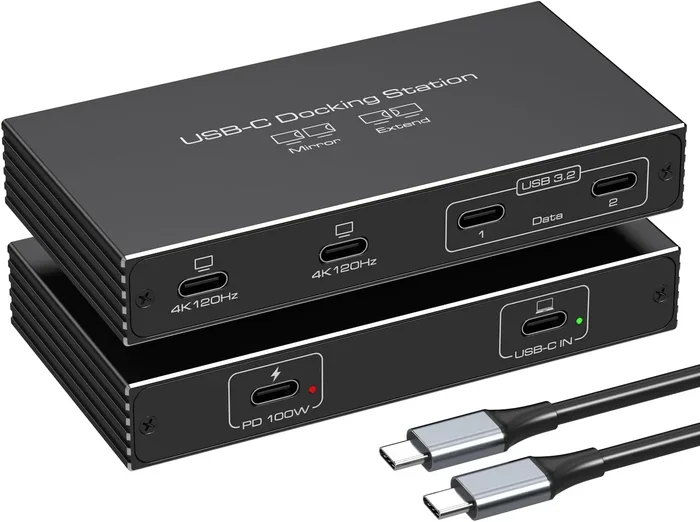
This is incredibly convenient because you only need one cable for both data and video. Many USB-C docking stations also include HDMI or DisplayPort outputs, giving you even more flexibility. Some USB-C monitors can even charge your laptop through the same cable using Power Delivery technology.
If you have a newer laptop with only USB-C ports, do not worry. You can still connect to almost any monitor using the right cable or adapter. The key is checking whether your USB-C port supports video output, which most modern laptops do.
How To Connect A Monitor Without HDMI: Step By Step
Now that you know your options, let us walk through the actual process of connecting a monitor without HDMI. The steps are straightforward, and you will likely have everything you need already.
Step 1: Check Your Device Ports
Look at the back of your computer, laptop, or device. Identify what video output ports are available. Common ones include VGA, DVI, DisplayPort, and USB-C. If you are not sure what you have, check your device manual or look up the model number online.
Step 2: Check Your Monitor Inputs
Next, look at the ports on the back or side of your monitor. Most monitors today offer multiple input options, including HDMI, DisplayPort, VGA, and USB-C. Match the output on your device to an available input on the monitor.
Step 3: Choose The Right Cable Or Adapter
If the ports match directly, great. Just plug in the cable and you are done. If they do not match, you will need an adapter or converter. Here are the most common scenarios:
- DisplayPort to HDMI: Very common and affordable adapters are widely available.
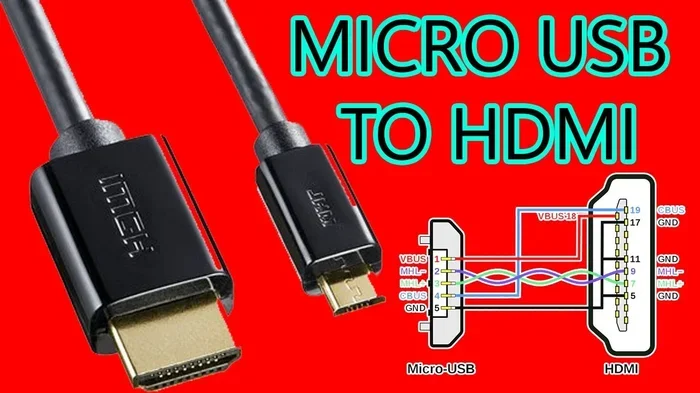
- USB-C to HDMI: Works with most modern laptops and tablets.
- VGA to HDMI: Requires an active converter because VGA is analog and HDMI is digital.
- DVI to HDMI: Usually a simple passive adapter since DVI-D is digital.
Step 4: Configure Your Display Settings
Once connected, your computer should detect the monitor automatically. If the screen is blank, check your display settings. On Windows, right-click the desktop and select Display Settings. On macOS, go to System Settings and then Displays. Make sure the monitor is set as an extended or mirrored display based on your preference.
Using Adapters And Converters Effectively
Adapters are the unsung heroes of monitor connectivity. They let you bridge the gap between different port types without buying a whole new cable or device. But not all adapters are created equal, and choosing the right one matters.
Passive adapters simply change the physical shape of the connector. They work when both sides use the same type of signal, like DVI-D to HDMI. Active adapters, on the other hand, convert the signal from one type to another, like VGA to HDMI. Active adapters usually cost more because they contain internal electronics.
Here are some quick tips for using adapters:
- Always buy adapters from reputable brands to avoid signal quality issues.
- Check the maximum resolution supported by the adapter before purchasing.
- For long cable runs, use high-quality cables with good shielding to prevent signal loss.
- If you experience flickering or no signal, try a different adapter or cable first before troubleshooting further.
Some people also use docking stations that provide multiple ports in one device. These are especially useful for laptop users who need to connect several peripherals, including a monitor, keyboard, and mouse. A good docking station can turn a single USB-C port into a full workstation with multiple display outputs.
When setting up your workspace, remember that how you connect your devices affects your overall experience. Just like choosing the right computer mouse for your setup, picking the right cable and adapter ensures everything works smoothly together. A clean, well-organized connection setup reduces clutter and makes troubleshooting easier when issues arise.
Common Scenarios Where You Might Need A Non-HDMI Connection
There are several real-world situations where you might find yourself without an HDMI option. Understanding these scenarios helps you prepare ahead of time.
Using An Older Computer With A New Monitor
Many people have older desktop computers with only VGA or DVI outputs. When they buy a modern monitor that only has HDMI and DisplayPort, they need an adapter. A simple DVI to HDMI adapter solves this problem in most cases. VGA to HDMI adapters also work but require an active converter.
Connecting A Laptop To A Projector Or External Display
Conference rooms, classrooms, and home theaters often use projectors with VGA inputs. If your laptop only has HDMI or USB-C, you need an adapter to make the connection. These are very common in professional and educational settings.
Using A Monitor With A Gaming Console
Some gamers prefer using a PC monitor instead of a TV for gaming. Many modern monitors do not include HDMI, especially ultrawide or professional-grade displays. In these cases, DisplayPort is the standard input, and you may need an HDMI to DisplayPort adapter for your console.
Office Work And Productivity Setups
In many office environments, computers are connected to monitors through DVI or VGA because IT departments standardized on those connections years ago. If you are in an office and need to connect a newer laptop, having a USB-C or DisplayPort adapter in your bag can save you a lot of hassle. And if you are working with spreadsheets and documents, you know how frustrating it can be when something goes wrong with your setup. For those dealing with stubborn lines in Excel that won’t go away, having a reliable monitor connection is just one piece of the puzzle for a smooth workflow.
Comparing Monitor Connection Types At A Glance
To help you quickly compare the different options, here is a simple overview of each connection type:
| Connection Type | Max Resolution | Carries Audio | Common On |
|---|---|---|---|
| VGA | 2048 x 1536 | No | Older computers, projectors |
| DVI-D | 2560 x 1600 @ 60Hz | No | Mid-range desktops, monitors |
| DisplayPort | 8K @ 60Hz (DP 2.1) | Yes | Gaming monitors, desktops |
| USB-C (Alt Mode) | 4K @ 120Hz | Yes (with PD) | Modern laptops, tablets |
| HDMI | 10K @ 120Hz (HDMI 2.1) | Yes | TVs, consoles, most devices |
As you can see, each connection type has its place. The best choice depends on your specific devices, what resolutions you need, and whether you require audio through the cable.
Quick Tips For A Smooth Setup
- Always test your connection before mounting a monitor on a wall or stand.
- Keep your cables organized with cable ties or a cable management tray to reduce desk clutter.
- Update your graphics drivers if the monitor is not detected or shows unusual behavior.
- Label your cables if you use multiple adapters so you can switch setups quickly.
- Buy adapters from trusted sellers to avoid counterfeit products that may damage your devices.
Expert Insights On Monitor Connectivity
Tech professionals often emphasize that the best connection is the one that works reliably with your specific hardware. While HDMI dominates the consumer market, professional and enthusiast setups frequently rely on DisplayPort for its superior bandwidth and feature set.
USB-C is rapidly catching up thanks to its versatility. A single USB-C cable can handle video, data, and power, which makes it ideal for minimalistic setups. As more devices drop legacy ports like VGA and DVI, USB-C and DisplayPort are becoming the new standard for display connectivity.
If you are buying a new monitor, look for one that offers multiple input options. This gives you flexibility and future-proofs your purchase. A monitor with HDMI, DisplayPort, and USB-C inputs can work with almost any device you own today or will own in the coming years.
Common Mistakes To Avoid When Connecting A Monitor Without HDMI
Even with the right adapter, people sometimes run into issues. Here are mistakes to watch out for:
- Using a passive adapter for an analog-to-digital conversion. VGA to HDMI requires an active converter. A passive adapter will not work.
- Buying the wrong adapter type. Make sure you know whether your port is DVI-I or DVI-D before purchasing an adapter.
- Ignoring audio needs. VGA and DVI do not carry audio. You will need a separate audio connection if your setup requires sound.
- Using low-quality cables. Cheap cables can cause signal degradation, flickering, or no signal at all.
- Not checking resolution support. Some adapters only support certain resolutions. Check the specifications before buying.
Key Takeaways
- Multiple port options exist: VGA, DVI, DisplayPort, and USB-C can all replace HDMI for connecting a monitor to your device.
- Adapters are widely available: You can easily convert signals between ports using affordable adapter cables or docking stations.
- Modern monitors often include alternatives: Many newer displays come with DisplayPort or USB-C built in, so HDMI is not always needed.
- Signal quality varies by port type: Some alternatives support higher resolutions and refresh rates than older options like VGA.
- Check your device first: Always verify what ports your computer or laptop has before buying a monitor or adapter.
- Peripheral connections matter too: Understanding how your devices connect helps you build a cleaner, more efficient workspace.
Conclusion
The short answer to whether you can use a monitor without HDMI is a resounding yes. You have multiple paths to get your display up and running, regardless of what ports your devices offer. From legacy options like VGA and DVI to modern standards like DisplayPort and USB-C, there is a solution for every situation.
Understanding your connection options empowers you to make smart purchasing decisions and troubleshoot issues quickly. The next time you face a monitor without an HDMI port, you will know exactly what to do. Grab the right cable, use an adapter if needed, and you will be up and running in minutes.
Take a few minutes today to check what ports your devices have. Stock up on the right adapters so you are always prepared. A little preparation goes a long way toward a smooth, hassle-free monitor setup that works exactly the way you need it to.
Frequently Asked Questions
Can I use a VGA to HDMI adapter for audio?
No, VGA does not carry audio signals. You will need a separate audio connection, such as a 3.5mm headphone jack or an external speaker setup, to get sound through your monitor.
Do I need a special cable for DisplayPort to HDMI?
You need a DisplayPort to HDMI adapter or cable with a built-in converter. Standard DisplayPort cables will not plug directly into an HDMI port without an adapter.
Can USB-C connect to any monitor?
Most modern monitors with USB-C inputs support video through USB-C. However, some monitors only use USB-C for data or charging. Always check the monitor specifications to confirm video support.
Is a DVI to HDMI adapter passive or active?
A DVI-D to HDMI adapter is usually passive because both carry digital signals. A DVI-A to HDMI adapter is active because it must convert an analog signal to digital.
What is the best connection type for 4K gaming?
DisplayPort 1.4 or later and HDMI 2.1 are the best options for 4K gaming. Both support high refresh rates and the bandwidth needed for smooth gameplay at 4K resolution.
Can I connect two monitors with different port types?
Yes, you can connect two monitors with different ports using the appropriate cables or adapters for each. Your computer’s graphics card just needs to support multiple outputs, which most modern cards do.