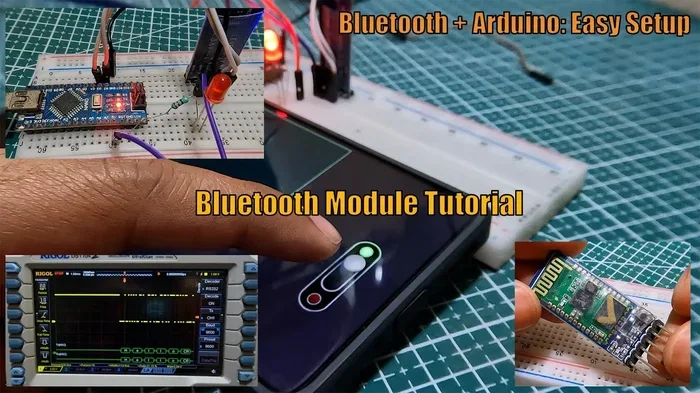
How Do I Activate My Bluetooth Module For Beginners
Activating your Bluetooth module is simpler than you think. This guide walks you through every step, from checking compatibility to pairing your devices. You will learn quick fixes, expert tips, and common mistakes to avoid.
Bluetooth technology has become a part of our daily lives. From wireless earbuds to car stereos, we rely on Bluetooth for so many things. But what happens when your Bluetooth module refuses to turn on? It can be frustrating, especially when you just want to connect your Bluetooth headset or speaker and get going.
This guide is for beginners who want to know exactly how to activate their Bluetooth module. We will walk you through every step in plain language. No tech jargon. No confusing manuals. Just simple, actionable instructions that actually work. Whether you are on a laptop, desktop, or tablet, this guide has you covered.
So grab your device, and let us get your Bluetooth module up and running. By the end of this article, you will know how to activate Bluetooth, pair devices, fix common problems, and keep your wireless connections strong. Let us dive in.
Key Takeaways
- Check Compatibility First: Make sure your device supports Bluetooth before attempting activation.
- Driver Updates Matter: Outdated drivers are the number one cause of Bluetooth activation failures.
- Pairing Mode Is Key: Putting your device in pairing mode is essential for successful connections.
- Troubleshooting Is Easy: Simple steps like restarting and resetting can solve most Bluetooth issues.
- Bluetooth Range Matters: Keep devices within 30 feet for the best signal strength.
- Security Tips Help: Always use trusted devices and keep your Bluetooth off when not in use.
📑 Table of Contents
- What Is a Bluetooth Module and Why Do You Need It
- How to Check If Your Device Has Bluetooth
- Step-by-Step Guide to Activate Your Bluetooth Module
- Common Problems When Activating Bluetooth and How to Fix Them
- Expert Tips for Better Bluetooth Performance
- How to Connect Bluetooth Devices to Your Car
- Quick Tips to Remember
- Final Thoughts
What Is a Bluetooth Module and Why Do You Need It
A Bluetooth module is a small hardware component that lets your device send and receive wireless signals. Think of it as the bridge between your device and other Bluetooth-enabled gear. Without it, you cannot connect wirelessly to speakers, headsets, keyboards, or even your car audio system.
Most modern laptops and smartphones come with a built-in Bluetooth module already installed. However, older computers and certain desktops may need an external Bluetooth adapter. These small USB dongles plug right into your computer and add Bluetooth capability instantly.
Knowing whether your device has a Bluetooth module is the first step. If you are unsure, do not worry. We will cover how to check that in just a moment. The important thing to understand right now is that the Bluetooth module is what makes wireless connectivity possible. It handles everything from signal discovery to data transfer between devices.
Types of Bluetooth Modules
Not all Bluetooth modules are the same. Here is a quick look at the most common types you might encounter.
- Built-in Bluetooth: Found in most laptops, smartphones, and tablets. No extra hardware needed.
- USB Bluetooth Adapter: A small plug-in device that adds Bluetooth to computers that lack it. Great for desktops and older laptops.
- Internal PCIe Bluetooth Card: Installed inside desktop PCs for permanent wireless connectivity.
- Compact Bluetooth Dongle: A tiny, portable option perfect for travel and on-the-go use.
Each type works the same way at its core. They all enable your device to discover, connect to, and communicate with other Bluetooth devices. The difference is mainly in how they are installed and how strong the signal is.
How to Check If Your Device Has Bluetooth
Before you try to activate Bluetooth, you need to confirm your device actually has it. This sounds obvious, but many people skip this step and end up confused. Let us make it easy.
On Windows, click the Start menu and type “Device Manager.” Open it and look for a section called “Bluetooth.” If you see entries there, your device has a Bluetooth module. On a Mac, click the Apple menu, choose “System Preferences,” and look for “Bluetooth.” If the option is there, you are good to go.
For smartphones, almost all modern phones support Bluetooth. You can check by going to your settings and looking for the Bluetooth option. If it is there, your phone has a built-in module ready to go.
If your device does not show Bluetooth, you may need an external adapter. A simple USB Bluetooth dongle costs very little and solves the problem fast. Just plug it in, and your computer gains Bluetooth capability almost instantly.
Quick Tip: Check Your Bluetooth Version
Bluetooth comes in different versions. Bluetooth 5.0 is the newest and fastest, but older versions like 4.2 still work great for most tasks. You can usually find your Bluetooth version in your device settings under the Bluetooth section. Newer versions offer better range, faster speeds, and lower power consumption. But even older versions handle everyday tasks like streaming music or making calls just fine.
Step-by-Step Guide to Activate Your Bluetooth Module
Now for the part you have been waiting for. Here is how to actually activate your Bluetooth module. We will cover Windows, Mac, and mobile devices so everyone is covered.
Activating Bluetooth on Windows
Follow these steps carefully if you are using a Windows computer.
- Click the Start menu and go to “Settings.”
- Select “Devices” and then click “Bluetooth & other devices.”
- Find the toggle switch for Bluetooth and turn it on.
- Your device will now start scanning for nearby Bluetooth devices.
- Select the device you want to pair with and click “Connect.”
If the Bluetooth toggle is grayed out or missing, your Bluetooth driver may need updating. Right-click the Start button, open “Device Manager,” expand the Bluetooth section, right-click your Bluetooth device, and select “Update driver.” This simple step fixes many activation problems.
Activating Bluetooth on Mac
Mac users have it even easier.
- Click the Apple menu and open “System Preferences.”
- Click “Bluetooth.”
- If Bluetooth is off, click “Turn Bluetooth On.”
- Your Mac will now scan for available devices.
- Click on the device you want to pair with and follow the on-screen prompts.
You can also access Bluetooth quickly from the menu bar at the top of your screen. Just click the Bluetooth icon and toggle it on. This is the fastest way to activate Bluetooth on a Mac.
Activating Bluetooth on Mobile Devices
On both Android and iPhone, the process is straightforward.
- Android: Swipe down from the top of your screen to open Quick Settings. Tap the Bluetooth icon to turn it on. Then tap “Pair new device” to find nearby Bluetooth devices.
- iPhone: Open “Settings” and tap “Bluetooth.” Toggle it on. Your iPhone will start searching for available devices automatically.
Once you see the device you want to connect to, tap on it and wait for the pairing to complete. You should hear a confirmation sound or see a message that says “Connected.”
Common Problems When Activating Bluetooth and How to Fix Them
Even with the best instructions, things can go wrong. Do not panic. Most Bluetooth problems have simple solutions. Here are the most common issues and how to fix them.
Bluetooth Toggle Is Missing or Grayed Out
This usually means your Bluetooth driver is outdated or corrupted. Go to Device Manager on Windows, find your Bluetooth adapter, right-click it, and choose “Update driver.” If that does not work, try uninstalling the driver and restarting your computer. Windows will reinstall the driver automatically on boot.
Device Not Showing Up in the Pairing List
Make sure the other device is in pairing mode. Most devices need to be manually set to pairing mode before they appear in the scan list. For example, if you want to use your Bluetooth headset as a mic, you need to hold down the pairing button on the headset until the LED light flashes. This signals that it is ready to be found.
Also, check the distance. Bluetooth works best within about 30 feet. Walls and other obstacles can weaken the signal. Move closer to the device you are trying to connect to and try again.
Bluetooth Keeps Disconnecting
If your connection drops frequently, the issue might be interference. Other wireless devices, microwaves, and even USB 3.0 ports can interfere with Bluetooth signals. Try moving away from these sources and see if the connection stabilizes.
Another common fix is to turn Bluetooth off and back on again. This resets the connection and often solves temporary glitches. If the problem persists, removing the device from your paired list and pairing it fresh usually works.
Bluetooth Works But No Sound
This is a frustrating but common problem. First, make sure the correct output device is selected. On Windows, go to Settings, then System, then Sound, and choose your Bluetooth device as the output. On a Mac, go to Sound preferences and select the Bluetooth device as the output.
If you are trying to use a Bluetooth speaker to amplify your voice for presentations or calls, make sure the speaker is set as the default audio input device as well. Sometimes the output is set correctly but the input is not, which causes one-way audio.
Expert Tips for Better Bluetooth Performance
Once your Bluetooth module is activated, you want it to work its best. Here are some expert tips that will improve your wireless experience.
Keep Your Drivers Updated
Outdated drivers cause more Bluetooth problems than anything else. Set a reminder to check for driver updates once a month. Windows Update usually handles this automatically, but it is worth checking manually. Updated drivers bring better compatibility, faster connections, and fewer disconnections.
Turn Off Bluetooth When Not in Use
This might sound obvious, but many people leave Bluetooth on all the time. Turning it off when you are not using it saves battery life and reduces interference with other wireless devices. It also adds a layer of security since open Bluetooth connections can be vulnerable to unauthorized access.
Keep Your Devices Close
Bluetooth signals weaken with distance and obstacles. For the best experience, keep your devices within 10 to 15 feet of each other. If you need more range, consider a Bluetooth range extender or a newer Bluetooth version that offers improved signal strength.
Reset Your Bluetooth Module When All Else Fails
A hard reset often fixes stubborn Bluetooth issues. On Windows, go to Settings, then Devices, then Bluetooth & other devices. Remove all paired devices and restart your computer. On Mac, go to Bluetooth settings, click “Remove” on all devices, and restart. This clears out any corrupted pairings and gives you a fresh start.
Use Bluetooth 5.0 When Possible
If you are buying a new Bluetooth adapter or device, look for Bluetooth 5.0 or later. These versions offer significantly better range, faster data transfer, and lower power consumption. They also handle multiple connections better, which is great if you use several Bluetooth devices at once.
For example, if you are a gamer who wants to use Bluetooth headphones for gaming, Bluetooth 5.0 will give you a more stable connection with less audio lag. The same applies if you want to turn regular speakers into Bluetooth speakers using a Bluetooth receiver. Newer Bluetooth versions deliver cleaner, more reliable audio.
How to Connect Bluetooth Devices to Your Car
One of the most popular uses for Bluetooth is in the car. You can upgrade your car stereo to Bluetooth and enjoy hands-free calling and music streaming without any wires. There are two main ways to do this.
First, if your car stereo already has Bluetooth built in, you just need to activate it. Go to your car stereo settings, find the Bluetooth option, and turn it on. Then pair your phone just like you would with any other device.
Second, if your car stereo does not have Bluetooth, you can add it. A Bluetooth FM transmitter plugs into your car’s cigarette lighter and broadcasts audio over an FM frequency. Alternatively, you can use a Bluetooth adapter that connects to your car’s AUX input. Both options are affordable and easy to set up.
For a more permanent solution, some car owners choose to put a Bluetooth radio in their car. This replaces the factory radio with a modern unit that has Bluetooth, USB, and other smart features. It is a great upgrade if you want a fully integrated wireless experience in your vehicle.
Using Bluetooth in your car is not just about convenience. It is also about safety. Hands-free calling keeps your eyes on the road and your hands on the wheel. Music streaming means you do not have to fiddle with CDs or auxiliary cables while driving.
Quick Tips to Remember
- Always check for Bluetooth compatibility before buying a new adapter or device.
- Restart your device if Bluetooth is not working. This fixes many temporary glitches.
- Keep your Bluetooth off when you are not using it to save battery and improve security.
- Update your drivers regularly to avoid connectivity issues.
- Put devices in pairing mode before trying to connect them.
- Keep devices close together for the strongest signal and best performance.
Final Thoughts
Activating your Bluetooth module does not have to be complicated. With the right steps and a little patience, you can get your wireless devices connected in just a few minutes. The key is to check compatibility first, follow the activation steps for your specific device, and troubleshoot any issues using the tips we shared above.
Remember, Bluetooth technology continues to improve with each new version. If you are still struggling with an older device, consider upgrading your Bluetooth adapter. A small investment can make a huge difference in your wireless experience. Whether you are streaming music, taking calls, or connecting peripherals, a properly activated Bluetooth module makes it all seamless.
Now that you know how to activate and manage your Bluetooth module, you are ready to connect any device with confidence. Happy pairing.
Frequently Asked Questions
Why won’t my Bluetooth module turn on?
The most common reason is an outdated or corrupted driver. Go to Device Manager on Windows or System Preferences on Mac and check your Bluetooth settings. Restarting your device can also resolve temporary software glitches that prevent Bluetooth from activating.
How do I put my Bluetooth device in pairing mode?
Most Bluetooth devices have a dedicated pairing button or a combination of buttons to hold down. Check your device manual for specific instructions. Usually, you hold the button for 3 to 5 seconds until a flashing LED light appears, which means the device is ready to be found.
Can I use a Bluetooth headset as a microphone?
Yes, most Bluetooth headsets can function as microphones for calls and voice input. You may need to set the headset as the default input device in your sound settings. If you are having trouble, check your device’s audio output and input settings to make sure the headset is selected for both.
How far can Bluetooth devices be from each other?
Standard Bluetooth has a range of about 30 feet. Bluetooth 5.0 and newer versions can reach up to 80 feet or more under ideal conditions. Walls, furniture, and other electronic devices can reduce the effective range. Keeping devices closer together ensures a stronger, more stable connection.
Do I need to install drivers for my Bluetooth adapter?
Most modern operating systems install Bluetooth drivers automatically. However, if your adapter is not recognized, you may need to download the driver from the manufacturer’s website. Updating drivers through Device Manager on Windows is another reliable way to ensure your Bluetooth adapter works properly.
Is it safe to leave Bluetooth turned on all the time?
It is generally safe, but turning Bluetooth off when not in use is recommended. It saves battery life on portable devices and reduces the risk of unauthorized connections. Keeping Bluetooth off when you are not actively using it is a good security practice, especially in crowded public areas.