Can You Plug A Usb C Cable Into A Thunderbolt Port
Yes, you can plug a USB C cable into a Thunderbolt port because Thunderbolt ports use the same USB-C connector shape. However, not every USB-C cable delivers Thunderbolt speeds. Understanding the difference helps you get the best performance from your devices and avoid slow transfers or missing features.
You have a Thunderbolt port on your laptop or desktop. You also have a USB-C cable in your bag. Can you plug one into the other? The short answer is yes. But the full story is more interesting than that.
Many people confuse USB-C with Thunderbolt. They look almost identical. The connector shape is the same. But what happens inside the cable and port makes a huge difference. If you want fast data transfers, high-resolution video output, or reliable power delivery, you need to understand how these two technologies work together.
This guide breaks down everything you need to know. We will cover compatibility, speed differences, cable types, and common mistakes. By the end, you will never plug the wrong cable into your Thunderbolt port again.
Key Takeaways
- USB-C and Thunderbolt are not the same thing: Thunderbolt uses the USB-C shape but offers much faster speeds and more features.
- Any USB-C cable fits in a Thunderbolt port: But it may not unlock Thunderbolt speeds or capabilities.
- Thunderbolt 3 and Thunderbolt 4 cables are backward compatible: They work with USB-C devices and older Thunderbolt versions.
- Check your cable rating: Look for the Thunderbolt symbol or label to confirm you are getting full performance.
- Using the wrong cable limits data transfer, video output, and power delivery: Always match your cable to your needs.
- Peripheral devices like mice and keyboards work fine with USB-C cables: But high-speed tasks need certified Thunderbolt cables.
📑 Table of Contents
What Is a USB-C Port?
A USB-C port is a type of connector developed by the USB Implementers Forum. It has become the standard connector for modern devices. You find USB-C ports on laptops, tablets, smartphones, and even computer mice and other peripherals.
The USB-C connector is small, oval-shaped, and reversible. That means you can plug it in either direction. No more flipping the cable three times to get it right. This design has made connecting devices much more convenient for everyday users.
Key Features of USB-C
- Reversible design: Plug it in either way without guessing.
- Data transfer speeds: USB 3.2 Gen 2 offers up to 10 Gbps. USB4 can reach 40 Gbps.
- Power delivery: USB-C supports up to 240 watts with USB Power Delivery.
- Video output: Supports DisplayPort and HDMI alt modes for external monitors.
- Universal compatibility: Works with a wide range of devices and accessories.
USB-C is not a protocol. It is a connector standard. This is a key distinction. The port and cable can support different protocols underneath. A USB-C port might support USB 3.0, USB 3.1, USB 3.2, USB4, or Thunderbolt. The protocol determines what the port can actually do.
What Is a Thunderbolt Port?
A Thunderbolt port uses the same USB-C connector shape. But it does much more. Thunderbolt is a proprietary technology developed by Intel in collaboration with Apple. It combines data transfer, video output, and power delivery into a single cable.
Thunderbolt has gone through several versions. Each version brought faster speeds and new features. Here is a quick look at the major versions:
Thunderbolt Versions at a Glance
| Version | Connector | Max Data Speed | Max Video Support |
|---|---|---|---|
| Thunderbolt 1 | Mini DisplayPort | 10 Gbps | Dual 4K |
| Thunderbolt 2 | Mini DisplayPort | 20 Gbps | Single 4K |
| Thunderbolt 3 | USB-C | 40 Gbps | Dual 4K or Single 8K |
| Thunderbolt 4 | USB-C | 40 Gbps | Dual 4K or Single 8K |
| Thunderbolt 5 | USB-C | 80 Gbps (PAM3) | Triple 4K or Single 16K |
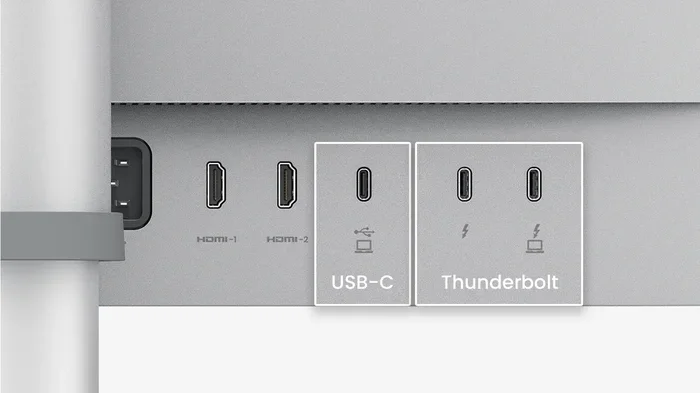
Notice that Thunderbolt 3, 4, and 5 all use the USB-C connector. This is why you can plug a USB-C cable into a Thunderbolt port. The physical connection works. But the performance depends on what the cable and device actually support.
Thunderbolt ports are found on Apple MacBooks, Intel-based laptops, and many high-end Windows machines. They are also common on docking stations and external enclosures. If you have a Thunderbolt port, you have access to incredibly fast connectivity.
Can You Plug USB C Into Thunderbolt?
This is the big question. And the answer is yes, with some important caveats. You can physically plug a USB-C cable into a Thunderbolt port. The connector fits perfectly. But whether you get full Thunderbolt performance depends on several factors.
The Connector vs. The Protocol
Think of it like a highway. The USB-C connector is the road. Thunderbolt is the fast lane. Any car (USB-C cable) can drive on the road. But only cars with the right specs can use the fast lane. A standard USB-C cable will work for basic tasks like charging your phone or connecting a simple peripheral device. But it will not give you Thunderbolt speeds.
Here is what happens when you plug different cables into a Thunderbolt port:
- A standard USB-C cable: Works for charging and basic data transfer at USB speeds.
- A USB-C cable with USB 3.2 support: Delivers up to 10 Gbps data transfer.
- A Thunderbolt 3 cable: Unlocks full 40 Gbps speeds and all Thunderbolt features.
- A Thunderbolt 4 cable: Also delivers 40 Gbps with additional security and compatibility features.
The cable you use determines what you get. A Thunderbolt port is smart enough to negotiate the best possible connection with whatever cable is plugged in. It will not damage your devices. But it will limit performance to match the cable’s capabilities.
When Does a USB-C Cable Work at Thunderbolt Speeds?
A standard USB-C cable does not support Thunderbolt speeds. Thunderbolt cables have special chips inside them. These chips enable the higher bandwidth and additional features. If you want to use Thunderbolt for fast file transfers or connecting an external GPU, you need a certified Thunderbolt cable.
Here is a simple way to check. Thunderbolt cables usually have a lightning bolt symbol next to the USB-C connector. If you do not see that symbol, it is probably a standard USB-C cable.
Quick Tip
Always look for the Thunderbolt logo on your cable. If you need Thunderbolt speeds, do not rely on the cable shape alone. The symbol tells you the cable supports Thunderbolt protocols.
USB-C vs Thunderbolt: Key Differences
People often use USB-C and Thunderbolt interchangeably. That is a common mistake. They are related but different. Understanding the differences helps you make better buying decisions.
Speed Comparison
USB-C is just a connector. Thunderbolt is a protocol that runs through that connector. Here is how they compare in real-world terms:
- USB 3.2 Gen 1: 5 Gbps speeds. Great for charging and peripherals.
- USB 3.2 Gen 2: 10 Gbps speeds. Good for external hard drives.
- USB4: 40 Gbps speeds. Close to Thunderbolt 3 and 4 performance.
- Thunderbolt 3: 40 Gbps speeds. Supports two 4K displays and fast charging.
- Thunderbolt 4: 40 Gbps speeds. Adds security features and universal docking requirements.
- Thunderbolt 5: 80 Gbps speeds. The latest and fastest option available.
As you can see, Thunderbolt offers much more than a basic USB-C connection. The protocol supports daisy-chaining multiple devices, connecting external GPUs, and driving multiple high-resolution displays from a single cable.
Feature Comparison
| Feature | USB-C | Thunderbolt 3/4 |
|---|---|---|
| Connector Shape | USB-C | USB-C |
| Max Data Speed | 10-40 Gbps (varies) | 40 Gbps (TB3/4), 80 Gbps (TB5) |
| Video Output | Single display typically | Dual 4K or single 8K |
| Power Delivery | Up to 240W | Up to 100W (standard PD) |
| Daisy Chaining | No | Yes (up to 6 devices) |
| External GPU Support | Limited | Full support |
| Security Features | Basic | Intel VT-d based DMA protection |
The table makes it clear. Thunderbolt offers a much richer feature set. USB-C is the foundation. Thunderbolt builds on top of it with powerful additions.
Common Mistakes People Make
Even tech-savvy people make mistakes when connecting USB-C cables to Thunderbolt ports. Here are the most common errors and how to avoid them.
Assuming All USB-C Cables Are Equal
This is the number one mistake. Many people buy a USB-C cable and assume it will work at Thunderbolt speeds. It will not. A basic USB-C cable is designed for charging and low-speed data transfer. It cannot handle the bandwidth that Thunderbolt requires.
Before buying a cable, check what you need it for. If you just want to charge your phone or connect a keyboard, a standard USB-C cable is fine. If you need fast transfers or video output, invest in a Thunderbolt-certified cable.
Ignoring Cable Length
Cable length matters more than most people think. Thunderbolt cables over two meters long may not deliver full speeds. A short Thunderbolt cable will give you the best performance. If you need a longer cable, look for active Thunderbolt cables that include built-in signal boosting.
Not Checking Device Compatibility
Not every device with a USB-C port supports Thunderbolt. Some devices only support USB protocols. Before you expect Thunderbolt speeds, check your device specifications. Look for the Thunderbolt logo on your laptop, dock, or external enclosure.
Expert Insight
When in doubt, check the manufacturer’s website for your device specifications. Look for mentions of Thunderbolt 3, Thunderbolt 4, or USB4 support. If it only mentions USB-C, it likely does not support Thunderbolt speeds.
Best Practices for Connecting USB-C Cables to Thunderbolt Ports
Getting the most out of your Thunderbolt port is easy when you follow a few simple practices. These tips will help you avoid frustration and get the best performance every time.
1. Buy Certified Cables
Always look for cables that are Thunderbolt certified. These cables have been tested to meet strict performance standards. They deliver the speeds and reliability you expect. Certified cables also carry the lightning bolt symbol, making them easy to identify.
2. Match Your Cable to Your Use Case
Think about what you need the cable to do. If you are just charging a device, any USB-C cable works. If you are connecting an external monitor, you need a cable that supports video output. For fast data transfers, use a Thunderbolt cable rated for 40 Gbps.
3. Keep Your Cables in Good Condition
Damaged cables can cause slow speeds, connection drops, or even damage to your devices. Inspect your cables regularly. Look for fraying, bending, or exposed wires. Replace any cable that shows signs of wear immediately.
4. Use Docking Stations Wisely
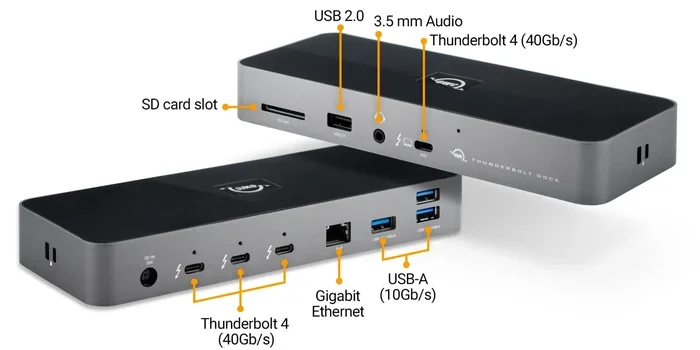
Docking stations are a great way to expand your Thunderbolt port options. They let you connect multiple monitors, peripherals, and storage devices through a single cable. Make sure your dock supports Thunderbolt if you want the full speed and feature set.
What Devices Support Thunderbolt?
Thunderbolt is not limited to one brand or type of device. Many manufacturers now include Thunderbolt ports in their products. Here are some common categories:
- Laptops: Apple MacBook Pro and MacBook Air, Dell XPS, HP Spectre, Lenovo ThinkPad, and Microsoft Surface devices.
- Desktops: Intel NUC, Mac Mini, and high-end gaming PCs with Thunderbolt add-in cards.
- Docking Stations: CalDigit TS4, OWC Thunderbolt Dock, and Dell WD22TB4.
- External Storage: Samsung T7 Shield, LaCie Rugged, and G-Technology drives with Thunderbolt connections.
- Monitors: Apple Pro Display XDR, LG UltraFine, and Dell UltraSharp monitors with Thunderbolt passthrough.
When shopping for Thunderbolt devices, always check the product specifications. Some products use USB-C connectors but only support USB protocols, not Thunderbolt. The distinction matters for performance.
Future of USB-C and Thunderbolt
The future looks bright for both USB-C and Thunderbolt. Intel continues to develop new Thunderbolt versions. USB-IF is also pushing the USB4 standard forward. These technologies are converging in exciting ways.
USB4 is built on the Thunderbolt 3 protocol. This means USB4 devices can achieve Thunderbolt-like speeds without the Thunderbolt branding. However, Thunderbolt 4 and Thunderbolt 5 still offer additional features that go beyond what USB4 provides.
As more devices adopt USB-C and Thunderbolt, the ecosystem becomes simpler. You need fewer cables and adapters. One cable can charge your laptop, connect your monitor, and transfer files at incredible speeds. This is the future of connectivity, and it is already here.
For now, the key is to understand what your cables and ports support. A little knowledge goes a long way. You will save money, avoid frustration, and get the best performance from every device you own.
Conclusion
So, can you plug a USB-C cable into a Thunderbolt port? Absolutely. The physical connection works every time. But the real question is whether you will get the performance you need. A standard USB-C cable handles basic tasks well. But for fast data transfers, high-resolution video, and daisy-chaining multiple devices, you need a Thunderbolt-certified cable.
The difference between USB-C and Thunderbolt comes down to the protocol, not the connector. Thunderbolt uses the USB-C shape but delivers far more power, speed, and versatility. Understanding this distinction helps you make smarter choices about cables, docks, and devices.
Next time you reach for a cable, take a moment to check what it supports. Look for the Thunderbolt logo. Match your cable to your needs. And you will get the best experience from your Thunderbolt port every single time.
Whether you are a student, a professional, or a creative, knowing your cables makes a real difference. It is a small detail that has a big impact on your daily workflow.
Frequently Asked Questions
Can I use any USB-C cable with a Thunderbolt port?
Yes, you can physically plug any USB-C cable into a Thunderbolt port. The connector shape is the same. However, a standard USB-C cable will not unlock Thunderbolt speeds or features. You need a Thunderbolt-certified cable for full performance.
How do I know if my cable is Thunderbolt certified?
Look for the Thunderbolt logo on the cable or its packaging. It looks like a lightning bolt next to the USB-C connector. Certified cables also list Thunderbolt 3, Thunderbolt 4, or Thunderbolt 5 on the product label.
Will a USB-C cable charge my laptop through a Thunderbolt port?
Yes, a USB-C cable can charge your laptop through a Thunderbolt port. Thunderbolt ports support USB Power Delivery. However, the charging speed depends on the cable’s power delivery rating and your laptop’s charging requirements.
Can I connect a Thunderbolt cable to a regular USB-C port?
A Thunderbolt cable can plug into a regular USB-C port. It will work for basic data transfer and charging at USB speeds. You will not get Thunderbolt performance unless the port itself supports the Thunderbolt protocol.
What is the difference between Thunderbolt 3 and Thunderbolt 4?
Both Thunderbolt 3 and Thunderbolt 4 offer 40 Gbps data speeds. Thunderbolt 4 adds stricter requirements for video output, security, and docking compatibility. Thunderbolt 4 also supports waking from sleep and connecting to multiple 4K displays more reliably.
Do I need a Thunderbolt cable for external storage drives?
It depends on your needs. For fast transfer speeds with large files, a Thunderbolt cable is highly recommended. Standard USB-C cables work fine for basic storage but will be significantly slower. If you work with video or large datasets, invest in a Thunderbolt cable.