Can I Use Usb As Headphone Jack Simple Guide To Try
Yes, you can use USB as a headphone jack, but it requires a special adapter or a DAC. This guide explains how digital USB audio works differently from a traditional analog jack. You will learn the simple steps to plug in your wired headphones using a USB port.
Have you ever plugged in your wired headphones and realized your phone or laptop does not have a 3.5mm jack anymore? You look at the USB port and wonder, can I use USB as headphone jack? It is a very common question today. Many modern devices dropped the traditional audio port. This leaves users looking for alternative ways to listen to music or take calls. The good news is that you absolutely can use USB as a headphone jack. This simple guide will show you exactly how it works and what you need to do.
In the past, the 3.5mm jack ruled the world of personal audio. You just plugged it in, and sound came out. Today, things work a bit differently. USB audio uses a digital signal. Your device processes the sound digitally and sends it through the USB port. Then, a small converter changes it back into an analog signal your headphones can understand. Understanding this difference is the first step to using USB for your audio needs.
So, can I use USB as headphone jack on my specific device? Yes, you can. Whether you have a laptop, a desktop computer, or even a modern smartphone, there is a way. You just need the right tool. Let us explore how this works and the best ways to set it up.
Key Takeaways
- USB audio is digital: It sends a digital signal instead of an analog one like a 3.5mm jack.
- You need an adapter or DAC: Most devices need an audio adapter to convert USB to a headphone jack.
- Plug and play works: Many USB audio devices work instantly without extra software.
- Sound quality improves: Using a USB DAC can enhance your listening experience.
- Laptops and phones support this: You can use USB audio on smartphones and laptops easily.
- Troubleshooting is simple: Most USB audio issues fix with driver updates or cable swaps.
📑 Table of Contents
- What Does It Mean to Use USB As Headphone Jack?
- How Does USB Audio Work Compared to a 3.5mm Jack?
- Simple Steps to Use USB As Headphone Jack
- Do You Need a Special Adapter or DAC?
- Common Problems and How to Fix Them
- Common Mistakes to Avoid When Using USB As Headphone Jack
- Is USB Audio Better Than Traditional Jacks?
- Conclusion
What Does It Mean to Use USB As Headphone Jack?
When you ask, can I use USB as headphone jack, you are asking about replacing the old audio port with a USB connection. A standard 3.5mm jack sends an analog signal. This is a continuous electrical wave that represents sound. A USB connection sends digital data. It is a series of ones and zeros. Your wired headphones need an analog signal to create sound. So, you need a bridge between the digital USB world and the analog headphone world.
This bridge is usually a small adapter or a DAC. DAC stands for Digital-to-Analog Converter. It takes the digital USB signal and turns it into an analog wave. Some audio adapters have a DAC built right in. Others rely on your device’s internal sound chip. Either way, the goal is the same. You want to plug your wired headphones into a USB port and hear clear audio.
Using USB as a headphone jack is very common for laptop users. Many thin laptops no longer include a 3.5mm audio input. They only have USB-C ports. This shift makes USB audio essential. You can also use it on desktop computers. Sometimes, the built-in sound card on a PC does not give you the best audio quality. A USB adapter can fix this. It bypasses the old sound card and uses a better one. This is especially true for people who care about sound quality.
How Digital Audio Differs from Analog Sound
To truly understand USB audio, you must know the difference between digital and analog. Analog audio is like a wave. It is a continuous flow of electricity. Your old wired headphones use this. The 3.5mm jack sends this wave directly to the speakers in your headphones. The sound is smooth and continuous.
Digital audio is different. It is a code. Your music files are stored as digital data. When you play a song, the device reads this code. It then sends this code through the USB port. The adapter or DAC reads this code and builds the analog wave from it. This wave then travels to your headphones. The result is sound. This process might sound complicated, but it happens in milliseconds. It is truly plug and play for most users. The digital-to-analog conversion ensures that your smartphone audio or laptop audio sounds clean and clear.
How Does USB Audio Work Compared to a 3.5mm Jack?
When you use a 3.5mm jack, the audio comes from your device’s motherboard. The motherboard has a small chip that turns digital data into analog sound. This is called an integrated audio codec. For most casual listening, this works fine. But for audiophiles, it is often not good enough. The sound can be noisy or lack detail. The internal sound card is shared with other computer parts. This can cause electrical interference.
USB audio changes the game. It moves the digital-to-analog conversion outside of your device. You use an external audio adapter or a standalone DAC. This external box has its own better sound chip. It creates a cleaner analog signal. This means less background noise and better sound quality. Your wired headphones suddenly sound much richer and clearer. The sound card inside the adapter is dedicated only to audio. This is a huge advantage.
Another big difference is power. A 3.5mm jack draws power from your device. A USB audio device can draw power from the USB port itself. This is great for powered headphones or headphone amplifiers. Some high-end headphones need extra power to sound their best. A USB connection can provide this. It acts like a small headphone amplifier built into your adapter. This allows your headphones to perform at their absolute best. You get more volume and more detail in the music.
Why People Switch to USB Audio Connections
People switch to USB audio for many reasons. The most common reason is a missing audio port. New phones and laptops often leave out the 3.5mm jack. They want to make devices thinner or sell you wireless Bluetooth headphones. But many people still love their wired headphones. USB audio lets them keep using their favorite gear. It is a very practical solution for everyday listening.
Another reason is better sound quality. If you listen to high-resolution audio files, a USB DAC can make a huge difference. You hear more detail in the music. The bass sounds tighter, and the highs are clearer. Gamers also love USB audio. It helps them hear subtle sounds in games, like footsteps behind them. This gives them a competitive edge. Anyone who cares about sound should look into USB audio options.
Finally, compatibility is a big factor. Many modern devices only have USB-C ports. You cannot plug a 3.5mm jack directly into them. An adapter solves this problem instantly. You can use your old aux input cables and wired headphones with a brand new device. It keeps your old accessories working. This saves you money and reduces electronic waste.
Simple Steps to Use USB As Headphone Jack
Wondering how to actually do it? Using USB as headphone jack is very easy. You do not need to be a tech expert. Follow these simple steps, and you will be listening in no time.
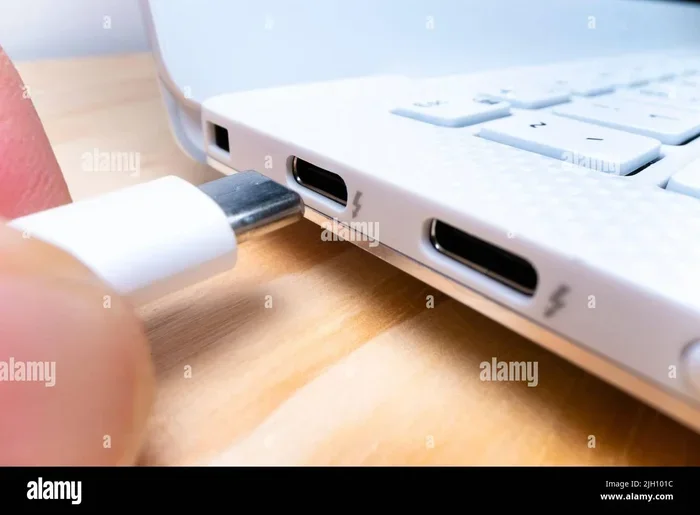
Step 1: Check Your USB Ports. First, look at your device. Do you have a standard USB-A port? Or do you have a newer USB-C port? This matters because you need the right adapter. If you have a USB-C port, you need a USB-C to 3.5mm adapter. If you have a USB-A port, you need a USB-A to 3.5mm adapter. Check your device manual if you are unsure. Most modern laptops use USB-C for their audio adapter needs.
Step 2: Get the Right Adapter. Buy a good quality audio adapter. You can find these online or at electronics stores. They are usually small and cheap. Make sure the adapter says it supports audio output. Some adapters are only for data or charging. You need one that handles sound. Look for adapters that mention DAC support for the best results. A good audio adapter will make your sound quality much better.
Step 3: Plug In Your Adapter. Insert the USB end of the adapter into your device. Wait a few seconds. Most modern operating systems recognize USB audio devices instantly. You should see a notification that a new audio device is plugged in. This is the plug and play magic. Your device automatically installs the basic audio driver needed to make sound.
Step 4: Connect Your Headphones. Plug your wired headphones into the 3.5mm side of the adapter. You should hear a faint click when it goes in fully. Now, play some music or a video. The sound should come through your headphones. If you do not hear anything, check the volume and move to the next section. You have successfully used USB as headphone jack!
Troubleshooting No Sound Issues
Sometimes, you plug everything in, but you hear nothing. Do not worry. This is very common. First, check your device volume. Make sure it is not muted. Second, go to your sound settings. On Windows, right-click the speaker icon and open sound settings. On a Mac, go to System Settings and then Sound. Look for your USB audio device. Make sure it is set as the default output device. Sometimes the system tries to play sound through the wrong port.
If the USB device does not appear, you might need to update your audio driver. Go to your device manager and check for updates. A missing or outdated driver is the most common reason for USB audio problems. Once the driver is updated, restart your computer. The adapter should work perfectly after that. This simple fix solves the problem for most users.
Do You Need a Special Adapter or DAC?
When you decide to use USB as headphone jack, you have choices. You can buy a simple adapter, or you can buy a dedicated DAC. What is the difference? A simple adapter is cheap and small. It has a basic chip that turns USB to analog. It works well for everyday listening. If you just watch YouTube videos or listen to podcasts, a simple adapter is fine.
A DAC is a step up. DAC stands for Digital-to-Analog Converter. It is a dedicated device for audio. It has a much better sound chip than a simple adapter. It provides cleaner, more detailed sound. If you are an audiophile or a serious music lover, a DAC is worth it. You will hear the difference right away. The sound quality is noticeably better with a dedicated converter.
Some people also use an audio interface. This is common for podcasters and music producers. An audio interface connects via USB and offers multiple inputs and outputs. It is overkill for just listening to music. But if you record voiceovers or make music, it is perfect. For most users, a simple USB-C or USB-A to 3.5mm adapter is all you need. It is the easiest way to get sound from your device.
Types of USB Audio Adapters
Not all adapters are the same. Here are the main types you will see. A USB-A to 3.5mm adapter fits standard desktop computers. It is usually blue or black and very compact. A USB-C to 3.5mm adapter fits newer laptops and smartphones. Apple and Android phones both use these. There are also USB hubs. These hubs have multiple ports, including USB, HDMI, and a 3.5mm jack. They are great for laptops with few ports.
You can also find adapters with built-in amplifiers. These are called powered adapters. They use the USB port for power. This power boosts the audio signal. It makes your headphones louder and clearer. This is great for high-impedance headphones. These are headphones that need more power to reach their full potential. A headphone amplifier built into the adapter helps drive those demanding headphones with ease.
Comparison of Adapter Types
| Type | Best For | Sound Quality | Price |
|---|---|---|---|
| Simple USB-A to 3.5mm | Desktop PCs | Standard | Low |
| USB-C to 3.5mm | Laptops and Phones | Standard | Low |
| USB Hub with Audio | Multi-port needs | Standard | Medium |
| USB DAC | Audiophiles | Excellent | High |
| Audio Interface | Music Production | Professional | Very High |
Common Problems and How to Fix Them
Even with a simple setup, you might run into issues. Using USB as headphone jack does not always go perfectly the first time. Here are common problems and easy fixes.
Problem 1: No Sound at All. This happens often. First, check the physical connection. Is the adapter fully plugged in? Is the headphone jack fully inserted? If yes, go to your sound settings. Make sure the USB device is the default output. On Windows, you can also update your audio driver. Go to Device Manager, find your sound card, and click update driver. A missing driver is the usual culprit.
Problem 2: Crackling or Static Noise. This is annoying but usually easy to fix. Crackling often comes from electrical interference. Try plugging the adapter into a different USB port. Avoid USB hubs if possible. Plug directly into the computer. Also, check your cable. A damaged USB cable can cause noise. Replace it with a new one and see if the sound clears up. Sometimes, moving the adapter away from other cables reduces the static.
Problem 3: Low Volume. Sometimes the volume is too low even at max. This can happen if the adapter lacks a built-in amplifier. Try increasing the volume in your software. You can also download a headphone amplifier app. Some adapters have a small volume wheel on the body. Make sure it is turned all the way up. If the volume is still low, your headphones might need a powered amplifier to work properly.
Problem 4: Adapter Not Recognized. If your device does not see the adapter, try a different USB port. Restart your computer. Sometimes, a simple reboot fixes the issue. If you are on a laptop, make sure it is charged. Low battery can sometimes disable USB ports to save power. You can also try a different USB cable to see if that is the problem.
Quick Tips for the Best USB Audio Experience
Here are some quick tips to make your USB audio setup perfect. Always use short, high-quality cables. Long cables can lose signal strength. Keep your adapter clean. Dust in the USB port can cause connection issues. Blow out the ports gently before plugging things in. Finally, update your operating system. New updates often include better audio drivers. This can solve many sound issues instantly. Keeping your device clean ensures the best plug and play experience every time.
Common Mistakes to Avoid When Using USB As Headphone Jack
Even when you follow the steps correctly, some common mistakes can ruin your experience. Avoiding these errors will save you time and frustration.
Mistake 1: Buying the Wrong Adapter Type. Many people buy a USB-C adapter when they need a USB-A adapter. Always check your device ports first. Buying the wrong adapter means it will not fit, and you will get no sound. Double-check the USB type before you purchase.
Mistake 2: Ignoring the Audio Driver. Some users plug in the adapter and expect instant sound. If the audio driver is outdated, the device will not recognize the adapter. Always update your drivers or let Windows update them automatically. This is a simple step that many people forget.
Mistake 3: Using a USB Hub Without Power. Passive USB hubs do not provide enough power for some audio adapters. This can cause crackling or no sound at all. Plug your adapter directly into the computer whenever possible. If you must use a hub, use a powered one.
Mistake 4: Forgetting to Select the Output Device. Your computer might still try to play sound through the wrong output. Always check your sound settings after plugging in a new adapter. Set the USB device as the default playback device. This one small step fixes the no-sound problem for most users.
Is USB Audio Better Than Traditional Jacks?
This is a great question. The answer depends on what you value. If you want convenience and modern compatibility, USB audio wins. Almost all new devices have USB ports. Very few new phones have a 3.5mm jack. So, using a USB adapter makes your old wired headphones work with new gear. It is a very practical solution for modern life.
If you care about pure sound quality, it depends on the gear. A cheap 3.5mm jack on an old motherboard sounds okay. But a cheap USB adapter might sound worse. However, a good USB DAC sounds much better than a cheap 3.5mm jack. The external DAC has a better sound chip. It isolates the audio from the electrical noise inside your computer. This gives you a cleaner, more enjoyable listening experience. The analog signal produced by the DAC is purer.
For gaming, USB audio is often better. Your sound card processes USB audio separately from your game audio. This reduces latency. Latency is a tiny delay between the action and the sound. With a 3.5mm jack, you might hear a slight delay. With USB, the sound is almost instant. This makes your games feel more responsive. It is a big advantage for competitive gamers. The audio interface of a USB adapter helps separate game audio from system noise.
Pros and Cons of Using USB for Headphones
Let us look at the good and the bad. Here are the main points to consider.
Pros:
- Better sound quality: External DACs provide cleaner audio.
- Works on modern devices: No 3.5mm jack needed.
- Plug and play: Most adapters work instantly.
- Less interference: USB audio avoids motherboard noise.
- Powered headphones work: USB can power high-end gear.
Cons:
- Extra gear needed: You must buy an adapter or DAC.
- Takes up a port: You lose a USB port for other things.
- Not universal: Some adapters only work with specific devices.
- Driver issues: Occasionally, you need to update software.
Overall, using USB as headphone jack is a fantastic solution. It brings your favorite wired headphones into the modern era. You get great sound and modern compatibility. It is a win-win for most people. The digital audio experience through a USB port is often superior to the old analog aux input. Embrace the change and enjoy your music.
Conclusion
So, can I use USB as headphone jack? The answer is a definite yes. You just need the right adapter or DAC to bridge the gap between digital USB and analog headphones. Whether you are using a laptop, a desktop, or a modern smartphone, USB audio works. It is easy to set up and offers great flexibility. You no longer need to buy new wireless Bluetooth headphones just because your device lost the 3.5mm port.
Follow the simple steps in this guide. Check your ports, get the right adapter, and plug it in. You will be back to enjoying your favorite music and games in no time. Do not let a missing audio port stop you. Embrace the USB audio world and keep using your trusty wired headphones. The sound quality will surprise you, and the setup is truly simple. Now you know exactly how to connect your audio devices using a USB port.
Frequently Asked Questions
Can I use USB as headphone jack on any device?
Most devices with a USB port can use USB as a headphone jack. This includes laptops, desktops, and many modern smartphones. You just need the correct adapter for your USB type, like USB-A or USB-C. The adapter converts the digital USB signal to the analog signal your headphones need.
Do I need a DAC to use USB as headphone jack?
You do not always need a separate DAC. Many simple USB-to-3.5mm adapters have a basic DAC built inside. However, if you want the best sound quality, a standalone DAC is a great idea. It uses a better converter chip to deliver cleaner and more detailed audio to your wired headphones.
Why is there no sound when I plug in my USB adapter?
No sound usually means your device is not using the USB adapter as the audio output. Check your sound settings and make sure the USB device is set as the default playback device. Also, ensure the adapter is fully plugged in and your headphones are connected to the correct 3.5mm port on the adapter.
Does using USB as headphone jack affect sound quality?
Yes, it can greatly improve sound quality. A good USB audio adapter or DAC bypasses your device’s cheap internal sound chip. This reduces background noise and static. The result is clearer, richer sound that makes your music and games sound much better.
Can I use a USB hub to connect my headphones?
You can, but it is not always recommended. USB hubs can sometimes cause power or data issues that lead to crackling or no sound. For the most reliable connection, plug your USB audio adapter directly into your computer or laptop. This ensures a stable power and data connection for your audio interface.
Is USB audio plug and play?
For most modern devices, USB audio is plug and play. You just insert the adapter, and the operating system recognizes it instantly. You might need to install a driver or update your audio software on older computers. But for the latest Windows, Mac, or Android devices, it works right out of the box.