Can Usb C Plug Into Usb A And Everything You Need To Know
The short answer is no, a USB C plug cannot directly fit into a USB A port because they have different shapes and sizes. However, you can use an adapter or a USB C to USB A cable to make the connection work. This guide covers everything you need to know about USB C and USB A compatibility, speed differences, power delivery, and the best ways to connect your devices.
Key Takeaways
- USB C and USB A are different shapes and cannot plug directly into each other without an adapter.
- A USB C to USB A cable or adapter is the easiest way to connect USB C devices to USB A ports.
- USB 3.0 and USB 3.1 USB A ports support fast data transfer speeds up to 5 Gbps or 10 Gbps.
- USB C offers more power delivery and faster speeds compared to standard USB A.
- Using the right cable matters for charging speed and data transfer performance.
- USB C is reversible, making it more convenient than the one-way USB A plug.
- Adapters are affordable and widely available for bridging the USB C and USB A gap.
📑 Table of Contents
- Can USB C Plug Into USB A And Everything You Need To Know
- Can You Plug USB C Into USB A Directly?
- How to Connect USB C Devices to USB A Ports
- USB C vs USB A: Key Differences
- Common Mistakes When Connecting USB C to USB A
- Quick Tips for USB C to USB A Connections
- Expert Insights on USB C and USB A Compatibility
- Frequently Asked Questions
- Conclusion
Can USB C Plug Into USB A And Everything You Need To Know
Have you ever held a USB C cable in one hand and a USB A port in the other, wondering if they would work together? It is a common question, especially as more devices switch to the smaller, oval-shaped USB C connector. The good news is that you can make them work with the right adapter or cable. In this guide, we will walk you through everything you need to know about USB C plug into USB A connections. You will learn what makes them different, how to connect them, and what to watch out for.
Whether you are trying to connect a new laptop to an older printer or charge your phone with a legacy charger, understanding USB compatibility saves time and money. We will cover the basics, the technical differences, and practical tips you can use right away. Let us dive in.
What Is a USB A Port?
A USB A port is the classic rectangular USB connector that has been around for decades. You have probably seen it on desktop computers, TVs, game consoles, and wall chargers. It is the standard port most people recognize instantly. The USB A connector is not reversible, which means you have to plug it in the right way up every time.
USB A ports come in different versions, including USB 2.0, USB 3.0, and USB 3.1. Each version offers different data transfer speeds and power output. USB 2.0 is the slowest and is still common on older devices. USB 3.0 and newer versions are much faster and often have a blue insert inside the port. Most computer peripherals like keyboards, mice, and external hard drives still use USB A connections.
What Is a USB C Port?
USB C is the newer, smaller, oval-shaped connector that has become the standard on modern laptops, phones, and tablets. One of the biggest advantages of USB C is that it is reversible. You can flip it either way and it will plug in correctly every time. This alone has made it a favorite among users who are tired of fumbling with USB A connectors.
USB C supports faster data transfer rates, higher power delivery, and even video output through a single cable. The latest USB standards like USB 3.2 and USB4 offer speeds up to 40 Gbps. Many USB accessories now feature USB C as the default connector, from charging bricks to external monitors. If you have a newer device, there is a good chance it uses USB C.
Can You Plug USB C Into USB A Directly?
The short answer is no. A USB C plug has a completely different shape and size compared to a USB A port. The USB C connector is smaller, oval, and rounded, while the USB A connector is large and rectangular. They simply do not match. You cannot force a USB C plug into a USB A port, and you should never try. Forcing the connection can damage both the cable and the port.
However, this does not mean your USB C device is useless around older USB A ports. You have several options to bridge the gap, which we will cover in the next section.
Why the Shapes Are Different
The USB C design was created to be smaller, more durable, and more versatile than USB A. USB A was designed in the 1990s and has not changed much since then. USB C supports USB power delivery of up to 240 watts, which is far beyond what USB A can handle. The different shapes also help prevent incorrect connections and support the higher data and power requirements of modern devices.
How to Connect USB C Devices to USB A Ports
Even though USB C and USB A are not directly compatible, connecting them is easy with the right tools. Here are the most common and reliable methods.
Use a USB C to USB A Cable
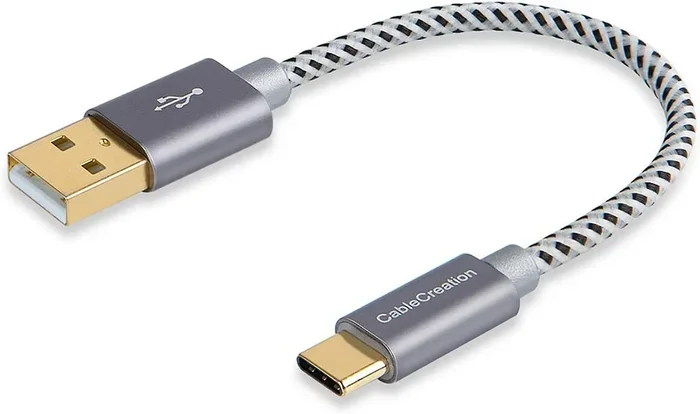
The simplest solution is a USB C to USB A cable. One end has the USB C connector, and the other end has the standard USB A plug. You plug the USB A end into your older port and connect your USB C device to the other end. These cables are widely available and very affordable. They work great for data transfer, charging, and connecting USB A peripherals to USB C laptops.
When shopping for a USB C to USB A cable, look for one that supports the speed standard you need. A USB 3.0 or USB 3.1 cable will give you much faster data transfer than a basic USB 2.0 cable. Many USB computer accessories now include USB C to USB A cables in the box.
Use a USB C to USB A Adapter
If you already have a USB C to USB A cable and need more flexibility, a small adapter is a great option. You plug the adapter into the USB A port, and it provides a USB C receptacle for your cable. Adapters are tiny and portable, making them perfect for travel. Some adapters also include additional USB A ports, turning one port into a USB hub with extra connectivity.
Adapters are especially useful when you are working at a desk with multiple USB A devices and only a few USB C ports on your laptop. A quality adapter ensures stable connections and reliable data transfer.
Use a USB Hub with USB A and USB C Ports
A USB hub is an excellent investment if you regularly connect multiple devices. Many modern hubs offer both USB C and USB A ports in one compact unit. You plug the hub into your computer, and it expands your connectivity options. This is ideal for users who have a mix of old and new devices. A good hub supports fast data transfer and can charge multiple devices at once.
When choosing a hub, check its power delivery rating. Some hubs pass through power while others do not. If you plan to charge your laptop through the hub, make sure it supports adequate USB power delivery.
USB C vs USB A: Key Differences
Understanding the differences between USB C and USB A helps you make better decisions about cables, adapters, and devices. Here is a quick comparison of the two connector types.
| Feature | USB A | USB C |
|---|---|---|
| Shape | Rectangular | Oval, rounded |
| Reversible | No | Yes |
| Size | Larger | Smaller |
| Max Data Speed | Up to 10 Gbps (USB 3.1) | Up to 40 Gbps (USB4) |
| Max Power Delivery | Up to 15W (standard) | Up to 240W (USB PD) |
| Common On | Desktops, printers, TVs | Laptops, phones, tablets |
| Durability | Good | Better, rated for more cycles |
The table above shows that USB C is the clear winner in almost every category. However, USB A still has a place in the world, especially for legacy devices and stationary setups. Many printers, scanners, and desktop peripherals still rely on USB A connections. If you are connecting a USB computer mouse or other input device, you may find that USB A is still the standard on older equipment. Understanding these differences helps you choose the right cable and adapter for your setup.
Speed Comparison
USB 2.0 USB A ports have a maximum speed of 480 Mbps, which is very slow by today’s standards. USB 3.0 USB A ports jump to 5 Gbps, and USB 3.1 reaches 10 Gbps. USB C with USB 3.2 or USB4 can hit speeds of 20 Gbps or 40 Gbps. If you are transferring large files or backing up data from an external drive, the faster USB C connection makes a noticeable difference.
Power Delivery Comparison
One of the biggest advantages of USB C is its power delivery capability. Standard USB A ports typically provide 5 watts of power, which is enough for charging small devices like an USB computer mouse or a Bluetooth adapter. USB C with USB Power Delivery can supply up to 240 watts, enough to charge laptops, monitors, and even some desktop computers. This is why many modern laptops have moved entirely to USB C charging.
Common Mistakes When Connecting USB C to USB A
Even though connecting USB C to USB A is straightforward, people still make mistakes that can cause problems. Here are the most common ones to avoid.
Forcing the Connection
Never try to force a USB C plug into a USB A port or vice versa. The shapes are different on purpose. Forcing a connection can bend or break the pins inside the port, causing permanent damage. If the plug does not fit easily, you are using the wrong cable or adapter.
Using Low-Quality Cables
Cheap cables may seem like a good deal, but they can cause slow data transfer, overheating, or even damage to your device. Always buy cables from reputable brands or trusted sellers. Look for cables that are certified for the speed standard you need. A high-quality USB C to USB A cable ensures reliable data transfer and safe charging.
Ignoring the USB Version
Not all USB C to USB A cables support the same speeds. A cable rated for USB 2.0 will limit your transfer speed to 480 Mbps, even if your port supports USB 3.0 or higher. Always check the cable specifications before purchasing. This is especially important if you are using the cable for external hard drives or other high-speed devices.
Assuming All USB C Cables Are the Same
USB C cables vary widely in capability. Some only support data transfer, while others support both data and video output. Some support high power delivery, and others do not. Make sure the cable you choose matches your needs. If you want to connect your laptop to a monitor, you need a cable that supports video output through USB C.
Quick Tips for USB C to USB A Connections
- Keep a USB C to USB A cable in your bag. You never know when you will need to connect a new device to an older port.
- Label your cables. It is easy to mix up USB C and USB A cables. A simple label saves confusion.
- Check your port version. Look for the USB symbol next to the port or check your device manual to know the speed capability.
- Use a powered USB hub. If you are connecting multiple devices, a powered hub ensures stable performance and prevents port overload.
- Buy certified cables. USB-IF certified cables meet strict quality and safety standards. They are worth the small extra cost.
Expert Insights on USB C and USB A Compatibility
Industry experts agree that USB C is the future of connectivity. The connector is faster, more versatile, and more durable than USB A. Most new devices ship with USB C as the default port. However, the transition is not instant. Many users still rely on USB A devices like printers, scanners, and legacy storage drives. This is why adapters and USB C to USB A cables remain essential tools.
Technology analysts recommend keeping a small collection of adapters and cables at your workspace. This ensures you are always ready to connect any device, regardless of the port type. As more devices adopt USB C, the need for these adapters will decrease, but for now, they are a must-have for anyone who works with multiple devices.
Frequently Asked Questions
Can I plug a USB C device directly into a USB A port?
No, you cannot plug a USB C device directly into a USB A port. The connectors have different shapes and sizes. You need a USB C to USB A cable or an adapter to make the connection work safely.
Will a USB C to USB A cable slow down my data transfer?
It depends on the cable and the port version. A USB 3.0 or USB 3.1 USB C to USB A cable will maintain fast speeds. A USB 2.0 cable will limit your transfer speed to 480 Mbps, which is much slower.
Can I charge my laptop with a USB C to USB A cable?
Most likely not. USB A ports typically provide very low power compared to what laptops need. USB C with USB Power Delivery is required for laptop charging in most cases.
Are USB C to USB A adapters safe to use?
Yes, adapters are safe as long as you buy them from reputable brands. Cheap, uncertified adapters can cause connectivity issues or even damage your devices. Always look for quality-certified products.
Is USB C better than USB A?
In almost every way, yes. USB C is faster, supports higher power delivery, is reversible, and is more durable. However, USB A is still widely used and works perfectly fine for many peripherals and older devices.
Do all USB C cables support video output?
No, not all USB C cables support video output. Only cables that support DisplayPort Alt Mode or Thunderbolt can carry video signals. Check the cable specifications if you need to connect a display.
Conclusion
So, can USB C plug into USB A? Not directly, but with the right cable or adapter, the connection is simple and reliable. Understanding the differences between these two connector types helps you make smarter choices about your accessories and setups. Whether you are connecting a new phone to an old computer or expanding your workspace with a USB hub, knowing your options saves time and frustration.
The world of USB connectivity is evolving fast, and USB C is leading the way. Keep a few adapters and cables on hand, and you will always be ready to connect any device to any port. With the tips and insights from this guide, you are now equipped to handle any USB C to USB A situation with confidence.