Can You Plug A Ps2 Into A Hdtv And Enjoy Retro Gaming
Yes, you can plug a PS2 into an HDTV and still enjoy classic PlayStation 2 games. With the right PS2 to HDMI adapter or composite to HDMI converter, your old console works perfectly on a modern display. This guide covers every PS2 connection method, from basic cables to advanced AV to HDMI converters, so you can set up your retro gaming setup with confidence.
Can you plug a PS2 into an HDTV? The short answer is yes. If you have an old PlayStation 2 sitting in a closet and a modern high-definition television, you can bring those classic games back to life. The process is simpler than most people think. You just need the right cables or a small adapter.
Many gamers love retro gaming because it brings back memories. The PS2 released in 2000 and became the best-selling console of all time. Millions of people still have game discs and controllers tucked away. But older consoles were built for bulky CRT televisions. Modern flat-screen HDTVs use different input signals. That is where the right setup comes in.
This guide walks you through every method to connect a PS2 to an HDTV. You will learn about cables, adapters, and troubleshooting tips. Whether you own the original fat PS2 or the slim version, this article has you covered. Let us get your retro gaming setup ready.
Key Takeaways
- PS2 connects to HDTVs: You can use composite, component, or HDMI adapters to get your PlayStation 2 working on a modern television.
- Adapters are essential: Most PS2 models need a composite to HDMI converter or AV to HDMI converter for full compatibility with HDTV inputs.
- Image quality improves: Using the right cables and converters gives you better gaming display quality compared to old CRT TVs.
- Setup is simple: Plugging in a PS2 to an HDTV takes just a few minutes if you have the correct equipment.
- Troubleshooting helps: Common issues like no signal or blurry picture are easy to fix with basic steps.
- Multiple models work: Both the original PS2 and the PS2 slim model support HDTV connections with the right accessories.
- Retro gaming is alive: Connecting a PS2 to an HDTV brings classic console gaming into the modern era with stunning results.
📑 Table of Contents
Can You Plug A PS2 Into An HDTV?
The short answer is absolutely yes. Can you plug a PS2 into an HDTV and play your favorite games? You bet. PlayStation 2 consoles output video signals that most modern HDTVs can read. But the connection method depends on your TV and your PS2 model.
The original PS2 launched with composite AV cables. These use a yellow, red, and white RCA connector. Older HDTVs often have composite inputs. But many newer TVs dropped composite altogether. That is where adapters come in handy. A composite to HDMI converter bridges the gap between old and new technology.
The PS2 slim model, released in 2004, also supports component cables. Component cables use green, blue, and red connectors for better image quality. Some PS2 slim models even include HDMI output in certain regions. This makes the connection even easier. You just plug in a standard HDMI cable and go.
Understanding your options matters. Not every method gives the same picture quality. Some setups work better for certain TV models. The next sections break down each option so you can choose the best one for your setup.
Why Connect a PS2 to an HDTV?
You might wonder why bother with an HDTV at all. CRT televisions worked fine back in the day. But there are real benefits to using a modern HDTV for classic console gaming.
First, HDTVs are everywhere. Most people already own one. You do not need to hunt down an old CRT. Second, HDTVs take up less space. A flat screen mounts easily on a wall or sits on a slim stand. Third, modern TVs offer better gaming display quality. Colors are brighter. Text is sharper. Even a 15-year-old game looks great on a good display.
Another reason is convenience. HDTVs often have multiple input options. You can switch between your PS2 and your streaming devices easily. No need for extra equipment like a VCR or cable box just to play games.
What You Need To Connect a PS2 to an HDTV
Before you start plugging things in, gather the right equipment. Having everything ready saves time and frustration. Here is what you need depending on your setup.
Option 1: Composite AV Cables
The PS2 comes with composite AV cables in the box. These are the yellow, red, and white RCA connectors. The yellow cable carries video. The red and white cables carry audio. Most HDTVs still have composite inputs labeled as AV or Video In.
Check the back of your TV. Look for a yellow RCA jack. If your TV has one, you are in luck. Just plug the cables in and switch to the AV input. This is the easiest method. But the picture quality is standard definition. It will not look as sharp as HDMI.
Option 2: Component Cables
Component cables offer better picture quality than composite. They split the video signal into three colors: green, blue, and red. This is called analog to digital conversion in a basic sense. The result is a clearer, more detailed image.
Not all PS2 models support component output. The original fat PS2 does. The PS2 slim model also supports it in most cases. You need to buy component cables separately if they did not come with your console. Look for official Sony component cables or reputable third-party options.
Option 3: Composite to HDMI Converter
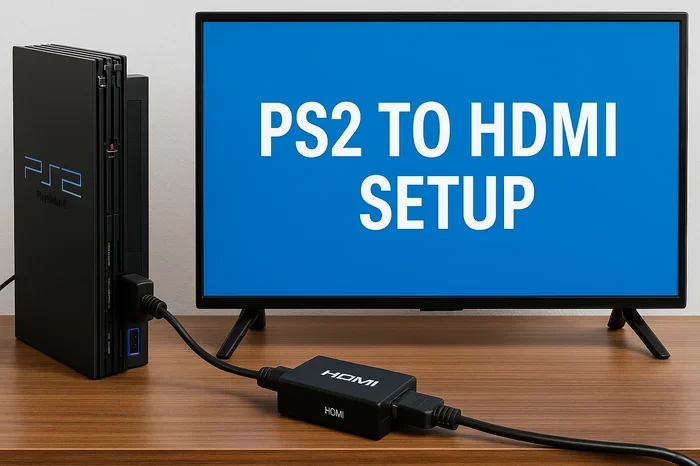
This is the most popular method today. A composite to HDMI converter takes the old RCA signal and converts it to HDMI. You then plug an HDMI cable from the converter into your TV. The picture quality improves significantly because modern TVs scale the signal.
These converters are affordable. You can find them online for under $20. Some models include a built-in upscaler. This means the TV stretches the standard definition signal to fit the full HD screen. The result is a much cleaner image than using composite cables alone.
Option 4: AV to HDMI Converter
An AV to HDMI converter works similarly to a composite to HDMI converter. But it can handle multiple input types. Some converters accept both composite and component signals. This gives you flexibility if you switch between cable types.
Look for a converter that supports pass-through audio. This ensures you get both video and sound through a single HDMI cable. It keeps your setup clean and simple. Fewer cables means fewer things to manage behind your TV.
Option 5: SCART Adapter
In some regions, SCART connectors are common. SCART is a French standard for audio-video connections. If you live in Europe or parts of Asia, you might have a SCART setup. A SCART to HDMI adapter works well here. It converts the SCART signal to HDMI for modern TVs.
Some PS2 models shipped with SCART cables in certain markets. Check your console packaging or manual. If you have a SCART connection, this adapter is your best bet for HDTV compatibility.
Step by Step Setup Guide
Now that you know your options, let us walk through the setup process. Follow these steps and your PS2 will be ready to play in minutes.
Step 1: Check Your HDTV Inputs
Look at the back or side of your television. What inputs does it have? Most modern TVs have HDMI ports. Some also have composite or component inputs. Write down what is available. This determines which method you will use.
If your TV only has HDMI, you need a converter. If it has composite or component inputs, you can use cables directly. Knowing your inputs first saves you from buying the wrong equipment.
Step 2: Gather Your Cables and Adapters
Based on your TV inputs, collect everything you need. Here is a quick checklist:
- PS2 console and power cable
- PS2 AV cables (composite or component)
- Composite to HDMI converter (if needed)
- HDMI cable
- SCART adapter (if your region uses SCART)
- Audio cables if using a separate converter
Having everything on hand before you start makes the process smooth. You will not need to pause midway to find a missing cable.
Step 3: Connect the PS2 to the Converter or TV
If you are using a converter, plug the PS2 AV cables into the converter input first. Then connect an HDMI cable from the converter output to your TV. If you are using direct composite or component cables, plug them straight into the TV input.
Make sure each connection is firm. Loose cables cause flickering or no signal. Push the plugs in until they click into place. For RCA connectors, twist them clockwise gently to secure them.
Step 4: Switch Your TV to the Correct Input
Turn on your TV and use the remote to switch inputs. Look for labels like HDMI 1, HDMI 2, AV, or Component. Select the input where you plugged in the PS2 or converter.
If you see a blue or black screen with no signal, double-check your connections. Try a different HDMI port on your TV. Sometimes the first port you try is not the right one.
Step 5: Adjust Display Settings on the PS2
Once you see the PS2 menu on your TV, go to Settings. Choose Display Settings. Here you can adjust the resolution and output format. For best results, set the output to the highest resolution your setup supports.
If you are using a converter, the PS2 will output standard definition. The converter handles the upscaling to HD. You do not need to change anything on the PS2 beyond the basic display settings.
Troubleshooting Common Connection Issues
Sometimes things do not work right away. Do not worry. Most connection problems have simple fixes. Here are the most common issues and how to solve them.
No Signal on the TV Screen
If your TV shows no signal, check the cable connections first. Make sure the yellow, red, and white plugs are in the right ports. If you are using a converter, ensure the HDMI cable is connected to both the converter and the TV.
Try switching to a different HDMI port on your TV. Also try a different HDMI cable. Sometimes the cable itself is the problem. A loose or damaged HDMI cable will not carry a signal properly.
Some people have reported that a line won’t delete in Microsoft Excel when dealing with display output settings on a connected computer. While this is not directly related to PS2 connections, it shows how display signal issues can pop up in unexpected ways. Always check your cables first before assuming the console is broken.
Blurry or Poor Picture Quality
A blurry picture usually means you are using composite cables on a large TV. Composite cables only support standard definition. On a 50-inch or larger HDTV, the image looks soft and fuzzy.
The fix is to upgrade your connection method. Use component cables for better quality. Or use a composite to HDMI converter with upscaling. This makes a huge difference in gaming display quality. The image becomes sharper and more colorful.
No Audio or Sound Issues
If you have video but no sound, check the red and white audio cables. Make sure they are plugged into the correct ports on both the PS2 and the TV. Some converters handle audio through HDMI automatically. Others need a separate audio connection.
On your TV, make sure the volume is not muted. Also check that the correct audio input is selected. Some TVs have separate audio settings for different inputs. This is an easy thing to overlook.
PS2 Does Not Recognize the TV
Some PS2 models need you to set the output format manually. Go to Settings on your PS2 and navigate to Display Settings. Change the video output to match your TV standard. NTSC is for North America and Japan. PAL is for Europe and other regions.
If you switch the output format and still have issues, try resetting the PS2 video settings. Hold the power button for a few seconds to fully turn off the console. Unplug it for 30 seconds. Plug it back in and turn it on. This often fixes detection problems.
Tips for the Best Retro Gaming Experience
Now that your PS2 is connected and working, here are some tips to make your retro gaming setup even better.
Use a Quality HDMI Converter
Not all converters are created equal. Cheap converters can introduce lag or poor color accuracy. Look for a converter that supports 720p or 1080p upscaling. This makes a noticeable difference in gaming display quality. Your old PS2 games will look much better on a high-quality converter.
Keep Your Cables Short and Organized
Long cables can cause signal loss. Keep your PS2 cables as short as possible without creating tension. Use cable ties or clips to keep everything neat behind your TV. A clean setup means fewer connection problems and better airflow around your devices.
Consider a Retro Gaming Controller
The original PS2 controllers work great with HDTVs. But if you want a more modern feel, consider a vintage gaming accessory like a USB controller adapter. This lets you use newer controllers with your PS2. It is a nice upgrade for long gaming sessions.
Some gamers also like using a computer mouse for certain PS2 games that support it. While a mouse is not for every game, it works well for strategy titles and some racing games. Just make sure your adapter supports the peripherals you want to use. You can learn more about the advantages and disadvantages of a computer mouse to decide if it fits your setup.
Store Your Games Properly
PS2 game discs last longer when stored correctly. Keep them in their original cases. Avoid leaving discs in direct sunlight or in hot cars. Dust your discs before playing. A clean disc reads better and loads faster on your console.
Explore the PS2 Game Library
The PS2 has one of the largest game libraries ever. From action-adventure titles to racing games and RPGs, there is something for everyone. Classic titles like Shadow of the Colossus, God of War, and Final Fantasy X still hold up today. Take time to explore what you have in your collection.
Common Mistakes to Avoid
Setting up a PS2 with an HDTV is straightforward. But some mistakes can cause headaches. Here is what to watch out for.
- Using the wrong cable type: Not all PS2 models support all cable types. Check your specific model before buying cables.
- Buying a low-quality converter: Cheap converters often produce lag, static, or poor color. Spend a little more on a reputable brand.
- Forgetting to switch TV inputs: This sounds obvious, but many people plug everything in and forget to change the input source on the TV.
- Ignoring audio settings: Make sure your TV audio output matches your setup. Some converters need separate audio connections.
- Over-tightening RCA connectors: RCA plugs should be snug but not forced. Over-tightening can damage the port on your TV or console.
- Skipping the PS2 display settings: Always check the PS2 display settings after connecting. The console may not output the correct signal automatically.
Avoiding these mistakes saves you time and protects your equipment. A little care goes a long way in making your retro gaming setup work perfectly.
Expert Insights on Legacy Console Connectivity
Connecting older consoles to modern displays is a growing trend. More gamers are discovering the joy of retro gaming on big HDTV screens. Experts in the vintage gaming community agree that the right adapter makes all the difference.
The PS2 slim model has an advantage here. Some regional versions of the slim PS2 include built-in HDMI output. This means no converter is needed. You just plug in an HDMI cable and play. If you are in the market for a PS2, the slim model with HDMI support is the easiest path to gaming on modern TV displays.
For the original fat PS2, a quality converter is essential. Look for models that support both composite and component inputs. This gives you flexibility as you experiment with different cable types. The goal is to get the best possible resolution upscaling without introducing lag or artifacts.
Remember that backward compatibility is not just about the console itself. It also about how well your TV and accessories work together. A good HDTV with multiple input options makes the whole process much smoother. Choose your TV inputs wisely and your retro setup will shine.
Some gamers also worry about input lag. Input lag is the delay between pressing a button and seeing the action on screen. Modern converters add very little lag. Most users do not notice it during regular gameplay. If you are a competitive player, test your setup before a big gaming session. Adjust as needed for the smoothest experience.
Finally, do not underestimate the value of classic console gaming in today’s world. Playing PS2 games on an HDTV brings a new level of enjoyment. The colors pop. The details emerge. You see games in a way you never could on an old CRT. It is worth the small effort to set everything up correctly.
Conclusion
Can you plug a PS2 into an HDTV and enjoy your favorite retro games? Absolutely yes. The process is easier than most people expect. Whether you use composite cables, component cables, or an AV to HDMI converter, your PlayStation 2 works beautifully on a modern television.
Take the time to choose the right connection method for your setup. Check your TV inputs. Gather the right cables and adapters. Follow the setup steps carefully. Troubleshoot any issues that come up. Within minutes, you will be playing classic PS2 games in better quality than ever before.
Retro gaming is more popular now than ever. Connecting your PS2 to an HDTV is the first step to bringing your favorite old games into the modern era. Do not let an old console sit unused. Plug it in, fire it up, and enjoy the timeless fun of PlayStation 2 gaming.
If you want to learn more about connecting peripherals and accessories to your setup, check out the advantages and disadvantages of a computer mouse for helpful insights on how different input devices can enhance your gaming experience. And if you ever run into cable or connection issues, remember that even basic troubleshooting like fixing a line that won’t delete in Microsoft Excel can teach you patience and problem-solving skills that apply to any tech setup.
Frequently Asked Questions
Can any PS2 model connect to an HDTV?
Yes, both the original fat PS2 and the PS2 slim model can connect to an HDTV. The original model typically needs a composite to HDMI converter or component cables. The slim model may support direct HDMI in some regional versions. Check your specific model for the best connection method.
Do I need a special adapter to connect PS2 to HDTV?
You need an adapter if your TV does not have composite or component inputs. Most modern HDTVs only have HDMI ports. A composite to HDMI converter or AV to HDMI converter bridges this gap. These adapters are affordable and widely available online.
Will my PS2 games look good on an HDTV?
Yes, PS2 games look much better on an HDTV than on an old CRT television. The image is sharper and colors are more vibrant. Using component cables or an HDMI converter with upscaling gives the best results. Even standard definition games benefit from a modern display.
Can I use component cables with PS2 and HDTV?
Yes, component cables are one of the best ways to connect a PS2 to an HDTV. They offer better picture quality than composite cables. Both the original PS2 and the slim model support component output in most cases. You may need to buy component cables separately if they were not included.
What if my HDTV does not have the right inputs?
If your HDTV only has HDMI inputs, use a composite to HDMI converter. If it has no composite or component inputs at all, a converter is your only option. These converters take the old RCA signal and convert it to a format your TV can read through HDMI.
Is it worth connecting a PS2 to a modern HDTV?
Absolutely. Connecting a PS2 to a modern HDTV brings classic console gaming to life with better colors and sharper images. It also saves space and lets you use your existing TV setup. The small cost of an adapter is well worth the experience of playing PS2 games on a big flat screen.