Can You Get iPhone to HDMI Cable Here Are the Best Options
You can absolutely get an iPhone to HDMI cable to mirror your screen on a bigger display. Whether you have a Lightning or USB-C iPhone, there is a perfect iPhone to HDMI cable or adapter for you. This guide covers the best options, setup steps, and tips for a seamless iPhone to TV connection.
Key Takeaways
- Two cable types exist: Lightning to HDMI for older iPhones and USB-C to HDMI for newer models.
- Apple’s Digital AV Adapter is the gold standard for reliable wired connections.
- Third-party options offer budget-friendly alternatives without sacrificing quality.
- Setup is simple and takes less than two minutes once you have the right cable.
- Common issues like no signal or audio problems are easy to fix with basic troubleshooting.
- An iPhone to HDMI cable is useful for presentations, gaming, streaming, and family movie nights.
📑 Table of Contents
Can You Get iPhone to HDMI Cable Here Are the Best Options
Have you ever wanted to show something on your iPhone but wished the screen was bigger? Maybe you want to watch a movie on your TV, share photos with family, or give a presentation at work. The good news is that you can absolutely get an iPhone to HDMI cable and do all of this and more.
Connecting your iPhone to a TV or monitor is easier than most people think. You just need the right HDMI adapter for iPhone and a little know-how. In this guide, we walk you through every option available, from Apple’s official adapters to affordable third-party picks. You will learn how to choose the right iPhone to HDMI cable, set it up in minutes, and troubleshoot any issues that come up along the way.
Whether you own the latest iPhone 15 with USB-C or an older model with Lightning, there is a wired HDMI connection that fits your needs. Let us dive in and explore the best options for your iPhone to TV connection setup.
Why You Need an iPhone to HDMI Cable
You might wonder why you need a cable at all when AirPlay and wireless casting exist. That is a fair question. But a wired HDMI connection offers benefits that wireless simply cannot match.
The Problem with Wireless Connections
Wireless streaming can be frustrating. You deal with lag, dropped connections, and lower image quality. If you are giving an important presentation or watching a fast-moving video, even a small delay can be a real problem. iPhone screen mirroring over Wi-Fi also eats up bandwidth and can slow down your network.
A wired connection solves all of these issues. You get a stable, lag-free signal every single time. The video and audio stay perfectly in sync. And the picture quality remains crisp and clear because you are not compressing data through the air.
When Wired Connections Shine
There are many situations where a mobile HDMI adapter really comes in handy:
- Presenting at work or school where reliability is non-negotiable.
- Watching movies or shows on a big screen without buffering.
- Sharing photos and videos at family gatherings or events.
- Gaming on a larger display for a more immersive experience.
- Setting up a temporary home theater when your streaming device is unavailable.
These are just a few examples of why having a reliable iPhone video output option matters. A simple cable can transform how you use your phone every day.
Lightning to HDMI vs USB-C to HDMI
Not all iPhone to HDMI cables are the same. The type you need depends on which iPhone model you own. Let us break down the two main options.
Understanding the Two Connection Types
Apple has used two different ports on iPhones over the years. Older models from the iPhone 5 through the iPhone 14 use a Lightning connector. The iPhone 15 and newer models use USB-C. This difference determines which HDMI adapter for iPhone you need.
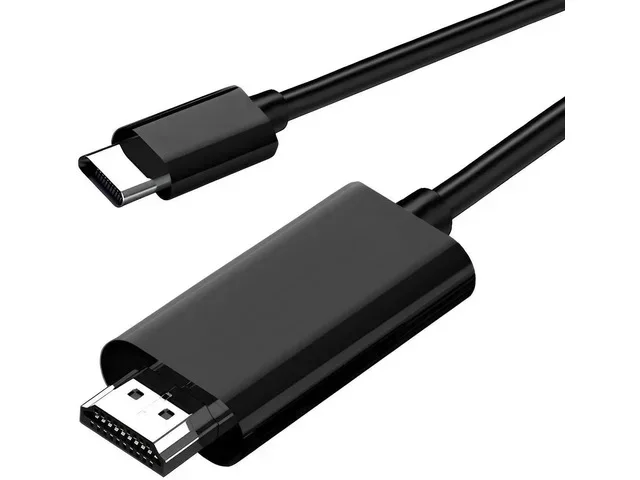
A Lightning to HDMI adapter connects to the bottom of your older iPhone and outputs video and audio through a standard HDMI cable. A USB-C to HDMI cable does the same thing but plugs directly into the side of newer iPhones. Both options support high-definition output up to 1080p or even 4K on some models.
Which iPhone Models Use Which Cable
Here is a quick breakdown to help you figure out which cable you need:
- Lightning to HDMI: iPhone 5, 5S, 6, 6S, 7, 8, X, 11, 12, 13, 14, and SE models.
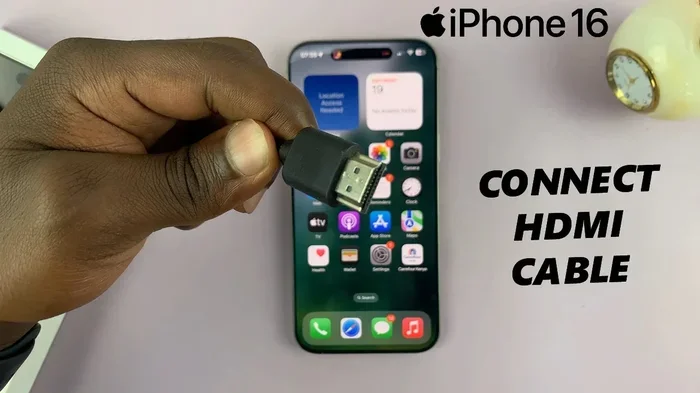
- USB-C to HDMI: iPhone 15, 15 Plus, 15 Pro, and 15 Pro Max.
If you are not sure which port your iPhone has, just look at the charging port on the bottom. Lightning is smaller and flat. USB-C is slightly larger and oval-shaped. Once you know your port, picking the right iPhone cable accessories becomes very straightforward.
Best iPhone to HDMI Cables and Adapters
Now that you know which type you need, let us look at the best options on the market. We have grouped them into Apple’s official pick and some solid third-party alternatives.
Apple Digital AV Adapter
Apple’s own digital AV adapter is widely considered the best iPhone to HDMI cable option. It is a Lightning to HDMI adapter that delivers a clean, reliable signal every time. Apple designed it specifically for iOS devices, so you know it works seamlessly with your phone.
Here is what makes the Apple adapter stand out:
- Plug-and-play setup with no extra software needed.
- Supports 1080p HD video output for clear, sharp visuals.
- Passes through charging so you can power your iPhone while streaming.
- Built by Apple with quality materials and solid construction.
- Works with all Lightning iPhones and most HDMI-equipped displays.
The main downside is the price. Apple adapters tend to cost more than generic options. But for reliability and peace of mind, many users feel it is worth every penny. If you want the safest and most stable iPhone to TV connection, this is the one to grab.
Third-Party Options Worth Considering
Not everyone wants to spend the premium price on Apple’s adapter. Fortunately, there are excellent third-party HDMI adapter for iPhone options that deliver great performance at a fraction of the cost.
Some popular brands include:
- Belkin: Known for quality accessories, Belkin offers both Lightning and USB-C to HDMI adapters with solid build quality.
- AmazonBasics: A budget-friendly choice that still delivers reliable iPhone HDMI streaming for everyday use.
- UGREEN: Offers versatile adapters with support for higher resolutions and multiple device compatibility.
- Cable Matters: A great option for those who want a simple, no-frills wired HDMI connection at a low price point.
When shopping for a third-party adapter, look for ones that support at least 1080p resolution. Read reviews carefully and make sure the adapter is MFi-certified for Lightning models. This certification ensures the accessory meets Apple’s quality standards and will work safely with your device.
For a more complete setup, you might also consider a USB-C to HDMI cable that combines the adapter and cable into one unit. These all-in-one cables are neater and easier to carry around, making them perfect for travel or on-the-go use.
How to Connect iPhone to HDMI
Setting up your iPhone to HDMI cable is surprisingly simple. You do not need to be tech-savvy. Follow these steps and you will be watching your favorite content on the big screen in no time.
Step-by-Step Setup Guide
Here is exactly how to get your iPhone display adapter working:
- Plug the adapter into your iPhone. Make sure it clicks in securely for a solid connection.
- Connect an HDMI cable to the adapter. Use a standard HDMI cable that you likely already have at home.
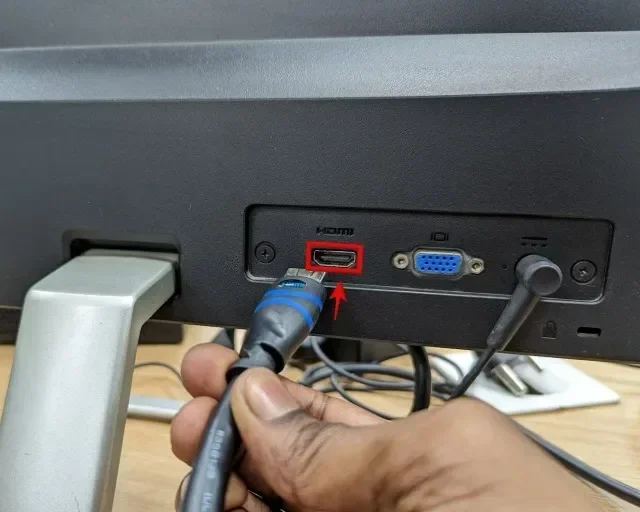
- Plug the other end of the HDMI cable into your TV or monitor. Use any available HDMI port.
- Switch your TV to the correct HDMI input. Use your remote to select the right source or input.
- Your iPhone screen should now appear on the TV. If it does not, try unplugging and replugging the adapter.
That is it. Five simple steps and you are done. Your iPhone to TV connection is now live. You can mirror your entire screen or use specific apps that support video output directly.
Quick Tips for Smooth Streaming
To get the best experience from your iPhone HDMI streaming setup, keep these tips in mind:
- Use a high-quality HDMI cable. Cheap cables can cause signal drops or poor picture quality.
- Keep your iPhone charged or plugged in. Screen mirroring uses battery power quickly.
- Turn on Do Not Disturb to avoid notifications interrupting your viewing.
- Adjust your TV’s display settings to match the output resolution for the clearest picture.
- Use a short HDMI cable when possible to reduce signal loss over distance.
These small adjustments make a big difference in your viewing experience. A little preparation goes a long way with any iPhone display adapter setup.
Common Problems and How to Fix Them
Even with the best iPhone to HDMI cable, you might run into occasional issues. Most problems are easy to solve with a few simple steps.
No Signal Issues
If your TV shows a blank screen or “no signal” message, do not panic. This is the most common issue and it is usually easy to fix. Start by checking that all cables are firmly connected. Unplug the adapter from your iPhone, wait a few seconds, and plug it back in. Then check that your TV is on the correct HDMI input.
If the problem persists, try a different HDMI cable or a different port on your TV. Sometimes the cable itself is the culprit. A faulty HDMI cable can prevent any signal from reaching your display. Also, make sure your adapter is clean and free of dust or debris in the Lightning or USB-C port.
Audio and Video Sync Problems
Occasionally, you might notice that the audio and video are out of sync. This can happen with wireless connections but is rare with a wired HDMI connection. If it does happen, try restarting your iPhone and the TV. You can also try a different HDMI port on your display.
Another common fix is to update your iPhone to the latest version of iOS. Apple regularly releases updates that improve iOS screen mirroring performance and fix known bugs. Go to Settings, then General, then Software Update to check for the latest version.
For users who also deal with phone number organization, checking out how to add prefixes to numbers on your iPhone can help keep your contacts tidy while you set up your display connections.
Who Can Benefit from an iPhone to HDMI Cable
A mobile HDMI adapter is not just for tech enthusiasts. All kinds of people find real value in connecting their iPhone to a bigger screen. Here are some groups who benefit the most.
Presenters and Professionals
If you give presentations at work, school, or community events, a wired HDMI connection is a game-changer. You never have to worry about Wi-Fi dropping or wireless casting failing mid-presentation. Just plug in your iPhone presentation cable and your slides, videos, and demos appear on the big screen instantly.
Professionals who travel frequently also love how easy it is to set up a temporary home office display with an adapter and any hotel TV. It turns any room into a functional workspace in seconds.
Families and Home Entertainment
Families use iPhone to HDMI cables for movie nights, sharing vacation photos, and even video calls on a bigger screen. Kids love watching their favorite shows on the TV instead of a small phone screen. And parents appreciate the ability to easily share memories from recent trips with the whole family gathered around.
For parents looking to simplify family tech life, a curated list of helpful gadgets can make a real difference. Check out these 10 gadgets to make mom’s life easier for more ideas on streamlining your home setup.
Travelers and Students
Students often need to present projects or study materials on a large display. A compact iPhone display adapter fits easily in a backpack and works with any TV or projector in a classroom or dorm room. Travelers can use the same setup to share photos from trips or watch content on hotel TVs without relying on hotel Wi-Fi or streaming apps.
The portability of a USB-C to HDMI cable or a small Lightning adapter makes it one of the most practical iPhone cable accessories you can own. It weighs almost nothing and takes up minimal space in your bag.
Final Thoughts
Getting an iPhone to HDMI cable is one of the simplest and most useful upgrades you can make to your tech setup. Whether you choose Apple’s official digital AV adapter or a trusted third-party option, you gain the ability to mirror your iPhone screen on any TV or monitor with ease.
The setup process takes less than two minutes. The benefits last for years. You get better picture quality, zero lag, and a connection that never drops. From movie nights to work presentations to sharing family memories, a wired HDMI connection opens up a whole new way to use your iPhone.
So yes, you absolutely can get an iPhone to HDMI cable. Pick the right one for your model, follow the simple setup steps, and enjoy your content on the big screen. Once you go wired, you will never want to go back to unreliable wireless streaming again.
Frequently Asked Questions
Do I need a special HDMI cable for iPhone?
You do not need a special HDMI cable. Any standard HDMI cable works fine with an iPhone to HDMI adapter. What matters most is the adapter itself, not the cable. A good quality HDMI cable ensures the best picture and sound, but even a basic one will get the job done.
Can I charge my iPhone while using an HDMI adapter?
Yes, you can. Apple’s Lightning to HDMI adapter includes a pass-through charging port. You simply plug your charger into the adapter while the HDMI cable is connected. This keeps your phone powered during long streaming sessions or presentations without interrupting your iPhone to TV connection.
Does screen mirroring work on all iPhone models?
iPhone screen mirroring via a wired HDMI adapter works on all iPhones with a Lightning or USB-C port. This covers models from the iPhone 5 onward. The video output quality may vary depending on your specific model and the adapter you use, but the core functionality is supported across the board.
Why is there no sound when I connect my iPhone to HDMI?
No sound is usually caused by a loose connection or incorrect TV settings. First, check that all cables are firmly plugged in. Then make sure your TV is set to the right audio output. On some TVs, you may need to go into the audio settings and select HDMI as the input source. Restarting both your iPhone and TV often fixes this issue quickly.
Can I use an iPhone to HDMI cable for gaming?
Absolutely. A wired HDMI connection is great for gaming because it provides zero lag and a smooth, responsive display. You can mirror your iPhone screen or use games that support direct video output. The stable connection ensures your gameplay looks and feels great on a bigger screen.
Are third-party iPhone HDMI adapters safe to use?
Most third-party adapters are safe, especially those that are MFi-certified for Lightning models. MFi certification means Apple has approved the accessory for use with iOS devices. Stick with reputable brands and read user reviews before purchasing to ensure you get a reliable iPhone display adapter that works safely with your phone.