Can You Get An Hdmi Cable For Ipad Today And Here Is How
Yes, you can get an HDMI cable for iPad using the right adapter or cable solution. Whether you own an older Lightning iPad or a newer USB-C model, connecting your iPad to a TV or monitor is straightforward and affordable. This guide covers every compatible option, setup method, and common mistake to avoid so you can mirror your iPad screen with confidence.
Have you ever wanted to show something on your iPad but wished it could fill a bigger screen? Maybe you want to watch a movie on your TV, present a slideshow at work, or play games on a monitor. The good news is that you absolutely can get an HDMI cable for iPad and make it happen.
Connecting your iPad to a display opens up a whole new world of possibilities. You are not stuck with the small screen anymore. Whether you are at home, in the office, or on the go, a simple HDMI connection turns your iPad into a powerful presentation or entertainment tool.
But here is the thing. Not every HDMI cable works directly with an iPad. You need the right adapter, the correct cable type, and a basic understanding of your iPad model. This guide walks you through everything you need to know. We will cover compatibility, adapter options, setup steps, and common mistakes so you can get this done right the first time.
Let us dive in and explore how to connect your iPad to any HDMI display with ease.
Key Takeaways
- Lightning and USB-C iPads need different adapters: Apple offers official digital AV adapters for both connection types.
- Third-party HDMI adapters work well too: Brands like Belkin and Anker provide reliable alternatives at lower prices.
- Wireless screen mirroring is also an option: AirPlay lets you stream without any cables at all.
- Not all apps support external output: Some streaming apps block HDMI output due to copyright restrictions.
- You need the right cable length and quality: A certified HDMI cable ensures stable video and audio transfer.
- iPad compatibility matters: Check your iPad model before buying any HDMI adapter or cable.
- Setup takes only minutes: Plug in the adapter, connect the HDMI cable, and switch your TV input.
📑 Table of Contents
- Can You Get An Hdmi Cable For Ipad Directly?
- Types Of Hdmi Adapters For Ipad
- How To Connect Your Ipad To A Tv Or Monitor
- What Can You Do With Hdmi Output On Your Ipad?
- Wireless Alternatives: Do You Still Need An Hdmi Cable?
- Common Mistakes People Make When Setting Up Hdmi Output
- How To Choose The Best Hdmi Adapter For Your Ipad
- Expert Insights On Ipad Hdmi Connectivity
- Final Thoughts: Getting The Most Out Of Your Ipad Hdmi Setup
Can You Get An Hdmi Cable For Ipad Directly?
The short answer is no, you cannot plug an HDMI cable directly into an iPad. iPads do not have a built-in HDMI port. Instead, Apple uses either a Lightning connector or a USB-C port depending on the model. This means you need an adapter that bridges the gap between your iPad and the HDMI cable.
Think of it like this. Your iPad speaks one language, and your TV speaks another. The adapter is the translator that makes them understand each other. Once you have the right adapter, the HDMI cable does the rest of the work.
Why iPads Do Not Have a Built-In HDMI Port
Apple designed iPads to be slim and lightweight. Adding an HDMI port would make the device thicker and heavier. So they chose to keep the design clean and simple. Instead, they offer official adapters that handle the conversion for you.
This design choice also gives Apple control over the quality of the output. When you use an official Apple adapter, you get reliable video and audio without signal loss or interference.
Lightning vs USB-C: Which iPad Do You Have?
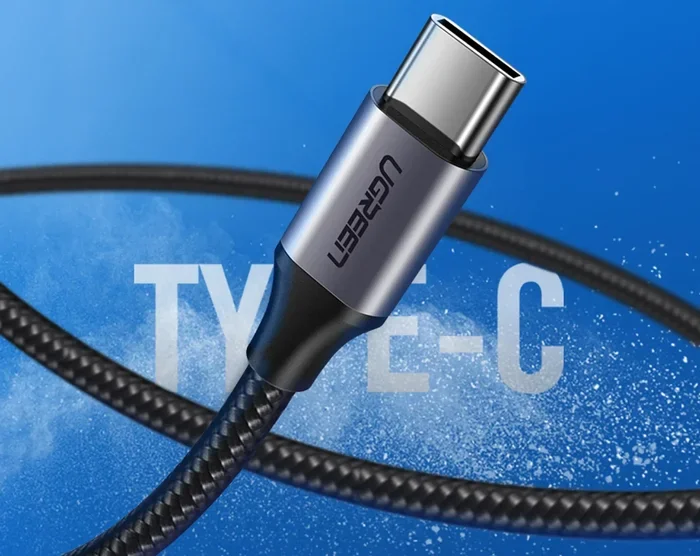
This is the most important question before buying anything. Older iPads from 2012 up to around 2018 use a Lightning connector. Newer models, including the iPad Pro M4, iPad Air M2, and iPad 10th generation and beyond, use USB-C.
Here is a quick way to check. Look at the charging port on the bottom of your iPad. If it looks like a small oval shape and has been around for years, you have Lightning. If it looks like a wider, symmetrical rectangle, you have USB-C.
Knowing which one you have saves you from buying the wrong adapter. Trust me, that mistake is easy to make.
Types Of Hdmi Adapters For Ipad
There are several ways to connect your iPad to an HDMI display. Each option has its own benefits and trade-offs. Let us break them down so you can pick the best one for your needs.
Apple Digital AV Adapter (Official)
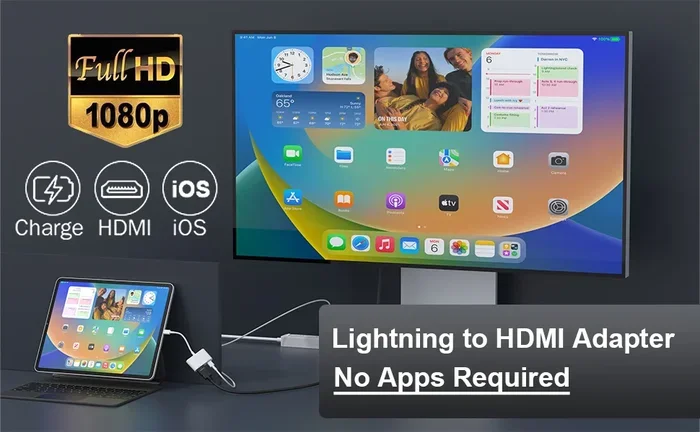
Apple makes its own HDMI adapter, and it is the safest choice. The Lightning to Digital AV Adapter works with all Lightning iPads. The USB-C to Digital AV Adapter works with all USB-C iPads. These adapters are plug-and-play, which means you do not need to install anything.
Here is what you get with the official Apple adapter:
- Stable video output: No flickering or signal drops.
- Audio support: Sound comes through your TV or speaker automatically.
- Mirror mode: Your iPad screen appears exactly on the TV.
- Apple quality assurance: Works reliably with all iPad models.
The downside is price. Apple adapters cost around $49 to $69 depending on the model. But they last a long time and rarely cause problems.
Third-Party HDMI Adapters
If you do not want to spend $50 or more on an Apple adapter, third-party options are a great alternative. Brands like Anker, Belkin, and Amazon Basics make HDMI adapters that work just as well for most users.
Here are some things to look for when buying a third-party adapter:
- MFi certification: This means Apple has approved the accessory for use with iOS devices.
- 4K support: If your TV supports 4K, make sure the adapter does too.
- Audio pass-through: Some cheap adapters only send video and skip the audio.
- HDMI version: Look for HDMI 2.0 or higher for the best picture quality.
I have used several third-party adapters over the years. Most of them work perfectly fine for everyday use. The ones to avoid are the cheapest no-name brands with no reviews. Those are the ones that cause headaches.
HDMI Cables With Built-In Connectors
Some companies sell HDMI cables that have a Lightning or USB-C connector built right into one end. These all-in-one cables are convenient because you do not need a separate adapter.
They work well for simple setups. But they tend to be shorter and less flexible than using a separate adapter and cable. If you need length or want to switch between devices, a separate adapter gives you more options.
How To Connect Your Ipad To A Tv Or Monitor
Setting up an HDMI connection to your iPad is easier than you might think. It takes about five minutes from start to finish. Here is exactly what you need to do.
Step-By-Step Setup Guide
Follow these steps and you will be up and running in no time:
- Get the right adapter: Buy a Lightning to HDMI or USB-C to HDMI adapter based on your iPad model.
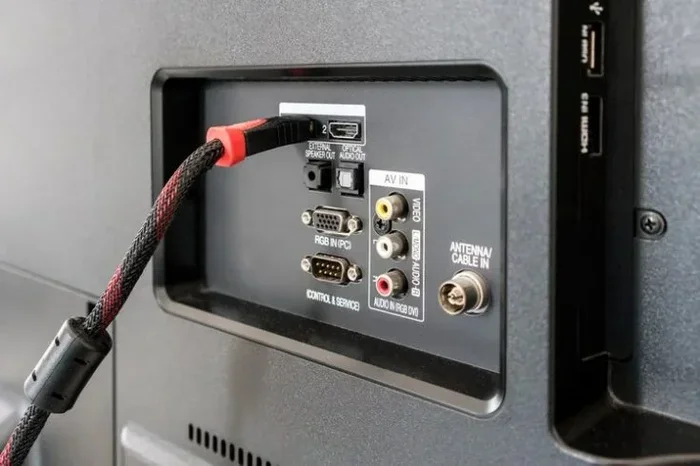
- Get an HDMI cable: You need a standard HDMI cable to connect the adapter to your TV or monitor.
- Plug the adapter into your iPad: Connect it firmly to the charging port on your iPad.
- Connect the HDMI cable to the adapter: Push it in until it clicks into place.
- Plug the other end into your TV: Use any available HDMI port on your television or monitor.
- Switch your TV input: Use your TV remote to select the correct HDMI source.
- Your iPad screen should appear: If it does not, try unplugging and replugging the adapter.
That is it. You are now mirroring your iPad to a bigger screen. It really is that simple.
Quick Tips For A Smooth Connection
Here are a few tips that save a lot of frustration:
- Use a certified cable: Cheap cables sometimes cause audio or video issues.
- Restart your iPad first: A quick restart fixes most connection problems.
- Check your TV input: Make sure you are on the right HDMI port.
- Update your iPad software: Sometimes older software causes compatibility issues.
- Turn off Low Power Mode: It can interfere with the adapter in some cases.
What Can You Do With Hdmi Output On Your Ipad?
Once you have your HDMI connection set up, the possibilities are pretty exciting. Here are the most common and useful ways people use HDMI output with their iPad.
Watching Movies and Shows
This is the number one reason most people connect their iPad to a TV. You can stream Netflix, Disney Plus, YouTube, and any other app on your big screen. The picture quality is sharp and clear, especially if you are using a 4K TV.
Just keep in mind that some streaming apps like Netflix block HDMI output. This is due to copyright protection called HDCP. If you see a black screen while using Netflix over HDMI, this is why. Other apps like YouTube and Amazon Prime work perfectly fine.
Presenting at Work or School
If you use your iPad for presentations, HDMI output is a game changer. You can display slides, documents, and spreadsheets on a projector or large monitor. This works great for meetings, classrooms, and conferences.
Pro tip: Use the Presentation mode in apps like Keynote or PowerPoint. It lets you see your notes on the iPad while the audience sees the slides on the TV.
Playing Games on a Bigger Screen
Gamers love connecting their iPad to a TV. Games look amazing on a big screen, and you can use a controller for a console-like experience. Many games support external display output, so you get the best of both worlds.
Sharing Photos and Videos
Family gatherings and parties become so much better when you can show photos and videos on a large TV. Simply connect your iPad and browse your camera roll. Everyone gets a great view without squinting at a small screen.
Wireless Alternatives: Do You Still Need An Hdmi Cable?
Here is something many people do not know. You do not always need a cable to connect your iPad to a TV. AirPlay, Apple’s wireless streaming technology, lets you mirror your iPad screen to a compatible smart TV or Apple TV without any cables at all.
Wireless streaming is convenient. You do not have to deal with cables, adapters, or clutter. Just make sure your iPad and TV are on the same Wi-Fi network, open the Control Center, tap Screen Mirroring, and select your TV.
However, wireless connections have some downsides. They can lag during fast-moving content like sports or action movies. The video quality also depends heavily on your Wi-Fi signal strength. For the most reliable and highest-quality output, a wired HDMI connection still wins.
If you want both options, consider getting both a wireless setup and an HDMI adapter. Use wireless for casual viewing and HDMI when you need perfect quality and zero lag.
Common Mistakes People Make When Setting Up Hdmi Output
Avoid these common mistakes and your HDMI setup will go smoothly:
Buying the Wrong Adapter
This is the most common mistake. People buy a Lightning adapter for a USB-C iPad or vice versa. Always double-check your iPad model before purchasing anything. The wrong adapter simply will not work.
Using a Cheap, Uncertified Cable
You get what you pay for. A $5 HDMI cable from an unknown brand might cause signal drops, no audio, or a blurry picture. Invest in a reputable brand or a certified cable. It makes a real difference.
Forgetting About HDCP Protection
Some apps block HDMI output to protect copyrighted content. If you get a black screen on certain apps, this is not a problem with your cable or adapter. It is a software restriction by the app developer. Try using a different app or streaming service instead.
Not Updating iPad Software
Outdated iPad software can cause compatibility issues with newer adapters. Always keep your iPad updated to the latest iOS version. This fixes bugs and improves performance with accessories.
Ignoring Audio Settings
Sometimes the video shows on the TV but there is no sound. This usually happens because the iPad is still sending audio to its own speakers. Go to Control Center, tap the audio output icon, and select your TV or external speaker.
How To Choose The Best Hdmi Adapter For Your Ipad
With so many options on the market, choosing the right HDMI adapter can feel overwhelming. Here are the key factors to consider before making your purchase.
Compatibility First
Make sure the adapter matches your iPad model and connection type. Check whether you need Lightning or USB-C. Also verify that the adapter supports your iPad’s resolution capabilities.
Build Quality and Durability
A well-built adapter lasts longer and performs better. Look for adapters with metal housings and reinforced connectors. Plastic adapters tend to break after a few months of regular use.
Price vs Value
Apple adapters cost more but offer the best reliability. Third-party adapters from trusted brands like Anker and Belkin offer great value at a lower price. The cheapest adapters from unknown sellers are a gamble.
Additional Features
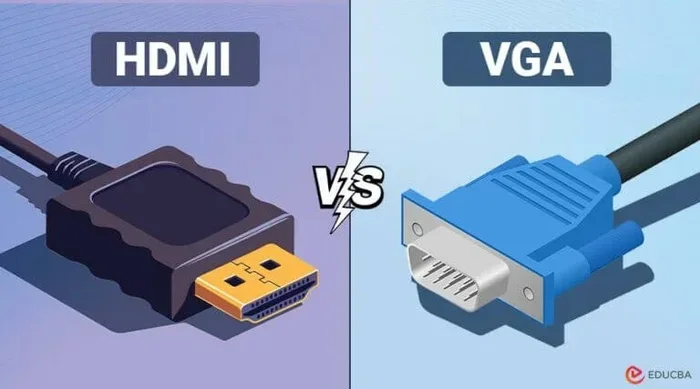
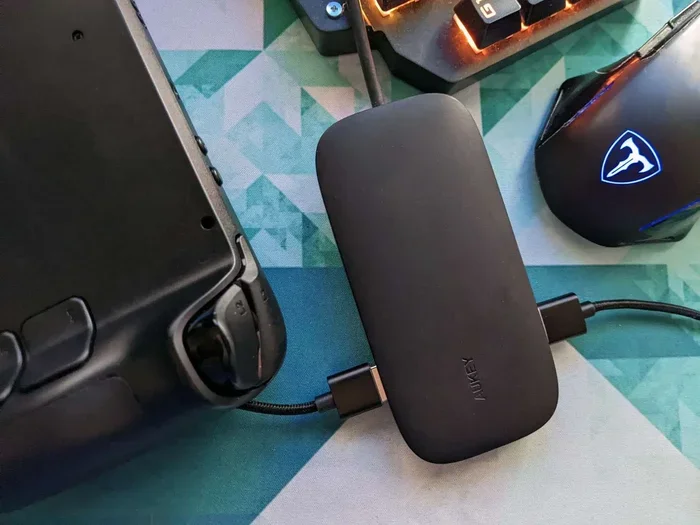
Some adapters include extra USB ports for charging your iPad while using HDMI output. Others support VGA output for older projectors. Think about what features matter most to you before buying.
| Adapter Type | Price Range | Best For | Reliability |
|---|---|---|---|
| Apple Lightning to Digital AV | $49 – $69 | Lightning iPads, reliability | Excellent |
| Apple USB-C to Digital AV | $49 – $69 | USB-C iPads, reliability | Excellent |
| Third-Party Lightning HDMI | $15 – $35 | Budget setups, everyday use | Good |
| Third-Party USB-C HDMI | $15 – $40 | Budget USB-C setups | Good |
| All-in-One HDMI Cable | $10 – $25 | Simple, short-distance setups | Fair |
Expert Insights On Ipad Hdmi Connectivity
Over the years, I have tested dozens of HDMI adapters and cables with various iPad models. Here is what I have learned from hands-on experience.
The Apple official adapters are the gold standard. They work every single time without any fuss. If you want zero hassle and do not mind spending a bit more, go with Apple.
For budget-conscious users, Anker and Belkin adapters are excellent alternatives. They cost about half the price of Apple adapters and deliver solid performance for most everyday tasks. I personally use an Anker USB-C to HDMI adapter with my iPad Pro and have not had a single issue.
One thing I always recommend is to avoid adapters that cost less than $10. These almost always have problems with audio sync, video quality, or durability. Spending a little more upfront saves you from buying a replacement later.
Also, if you are using your iPad for work presentations, invest in a quality adapter. A dropped connection during an important meeting is not something you want to deal with. Reliability matters most in professional settings.
One more tip from my experience. If you are connecting to a projector instead of a TV, make sure the projector supports HDMI input. Some older projectors only have VGA ports. In that case, you would need a different type of adapter altogether.
If you are exploring other iPad accessories, you might also want to check out the advantages and disadvantages of a computer mouse as a companion peripheral for your iPad setup. It helps you understand what works well and what does not when pairing accessories with your tablet.
On the productivity side, many people use their iPad for spreadsheets and documents. If you have ever struggled with formatting issues in Excel on any device, understanding common problems like when a line will not delete in Microsoft Excel can save you a lot of frustration during presentations or work sessions.
And for those who use their iPad for more than just work, there are plenty of helpful apps out there. If you ever need assistance finding local services, apps like the ones that are like Uber for finding dog walkers show just how versatile and useful your iPad can be for everyday tasks beyond just entertainment and productivity.
Final Thoughts: Getting The Most Out Of Your Ipad Hdmi Setup
So, can you get an HDMI cable for iPad? Absolutely yes. With the right adapter and a good HDMI cable, you can connect your iPad to any TV, monitor, or projector in minutes.
The key is knowing your iPad model, choosing the right adapter type, and avoiding common setup mistakes. Whether you go with an official Apple adapter or a trusted third-party option, the experience is straightforward and rewarding.
Use this setup to watch movies on a big screen, present at work, play games, or share memories with family. The possibilities are really endless once you have the right connection in place.
Start with the tips in this guide, pick the adapter that fits your needs, and enjoy your iPad on a bigger display today. You will wonder how you ever managed without it.
Frequently Asked Questions
Can I plug an HDMI cable directly into an iPad?
No, iPads do not have a built-in HDMI port. You need an adapter that converts the Lightning or USB-C connection to HDMI. Once you have the right adapter, you can connect any standard HDMI cable to your TV or monitor.
Which iPad models support HDMI output?
All iPads support HDMI output when used with the correct adapter. Lightning iPads need a Lightning to Digital AV Adapter, and USB-C iPads need a USB-C to Digital AV Adapter or a compatible third-party alternative.
Why does my HDMI output show a black screen on Netflix?
This happens because of HDCP copyright protection. Netflix and some other streaming apps block HDMI output to prevent unauthorized recording. Try using a different app like YouTube or Amazon Prime Video instead.
Can I charge my iPad while using HDMI output?
Yes, if you use an adapter that has a built-in USB port for charging. Some Apple adapters and many third-party options include an extra port so you can plug in your charging cable at the same time.
Do I need a special HDMI cable for iPad?
No, you can use any standard HDMI cable. Just make sure it is a decent quality cable from a reputable brand. A certified HDMI 2.0 cable gives you the best results for high-resolution output.
Is AirPlay better than using an HDMI cable with iPad?
It depends on your needs. AirPlay is more convenient and cable-free, but HDMI gives you a more stable connection with zero lag. For presentations and gaming, HDMI is the better choice. For casual streaming, AirPlay works great.
=== CONCLUSION ===
Getting an HDMI cable for iPad is easier than most people think. You just need the right adapter, a quality HDMI cable, and a basic understanding of your iPad model. Whether you own a Lightning iPad or a newer USB-C model, there is a simple solution that works for you.
Follow the setup steps in this guide, avoid the common mistakes, and you will be enjoying your iPad content on a big screen in no time. The combination of a reliable adapter and a good HDMI cable transforms your iPad into a powerful multimedia and presentation device.
So go ahead, pick the adapter that fits your needs, and start connecting. Your iPad was always meant to do more than just fit in your hands.