Can You Connect USB To USB C And What You Need To Know
Yes, you can connect USB to USB C using the right adapter or cable. Whether you are plugging in an older USB-A device into a modern USB-C port or charging your phone with a legacy cable, the right adapter makes it all work. This guide covers everything you need to know about USB to USB C connections, including cable types, data speeds, power delivery, and common mistakes to avoid.
Key Takeaways
- USB to USB C connections are fully possible with the correct adapter or cable, making older devices work with newer ports.
- USB-C is reversible, meaning you can plug it in either way, unlike traditional USB-A connectors.
- USB-C supports faster data transfer speeds up to 40Gbps with USB4, far surpassing older USB standards.
- USB-C Power Delivery can charge devices up to 240W, making it a versatile charging solution for laptops, phones, and tablets.
- Not all USB-C cables are the same — choosing the right one matters for speed, power, and compatibility.
- Common mistakes include using cheap cables and assuming all USB-C ports offer the same features.
- Adapters are affordable and widely available, making USB to USB C connections simple for everyday use.
📑 Table of Contents
- Can You Connect USB To USB C? Here Is Everything You Need to Know
- Understanding USB and USB-C Connectors
- How to Connect USB to USB C
- USB-C Data Transfer Speeds and Power Delivery
- Common USB-C Compatibility Issues
- Best Practices for Using USB to USB C Connections
- Expert Insights on USB to USB C Connections
- Key Takeaways
Can You Connect USB To USB C? Here Is Everything You Need to Know
You have a USB cable in your hand. You look at your new laptop, phone, or tablet. The port is smaller, oval-shaped, and reversible. It is USB-C. But your cable ends in the old flat rectangular shape. So the big question is simple: can you connect USB to USB C?
The short answer is yes. You absolutely can. But the details matter. Not every cable works the same way. Not every adapter delivers the same speed or power. And not every USB-C port is created equal. In this guide, we will walk you through everything you need to know about connecting traditional USB devices to modern USB-C ports. We will cover cables, adapters, speeds, power delivery, and the mistakes that trip up most people.
Whether you are trying to charge your phone, transfer files from an old flash drive, or hook up a legacy peripheral, this guide has you covered. We keep things simple and practical. No jargon overload. Just clear, helpful information you can use right away.
Why USB-C Has Become the Standard
USB-C is not just a new shape. It represents a major shift in how we connect devices. The connector is tiny, reversible, and incredibly versatile. It carries data, video, and power all through a single cable. This is why most modern laptops, smartphones, and tablets now use USB-C as their primary port.
The older USB-A connector is still around. You find it on flash drives, printers, keyboards, and many other peripherals. But the industry is moving toward USB-C. Understanding how these two connect is essential in today’s tech world. If you have ever wondered about USB to USB C compatibility, you are not alone. It is one of the most common tech questions we hear.
Understanding USB and USB-C Connectors
Before we dive into connections, let us understand what each connector type actually is. This helps you make smarter choices when buying cables and adapters.
What Is a Traditional USB (USB-A)?
USB-A is the classic rectangular connector. You have probably used it hundreds of times. It is the standard port found on computers, wall chargers, and older devices. USB-A comes in several versions:
- USB 2.0 — the most common. Max speed is 480Mbps.
- USB 3.0 — often blue inside. Max speed is 5Gbps.
- USB 3.1 — max speed is 10Gbps.
- USB 3.2 — max speed is 20Gbps.
USB-A connectors are not reversible. You have to flip them to find the right orientation. This is the number one frustration people have with older USB cables.
What Is USB-C?
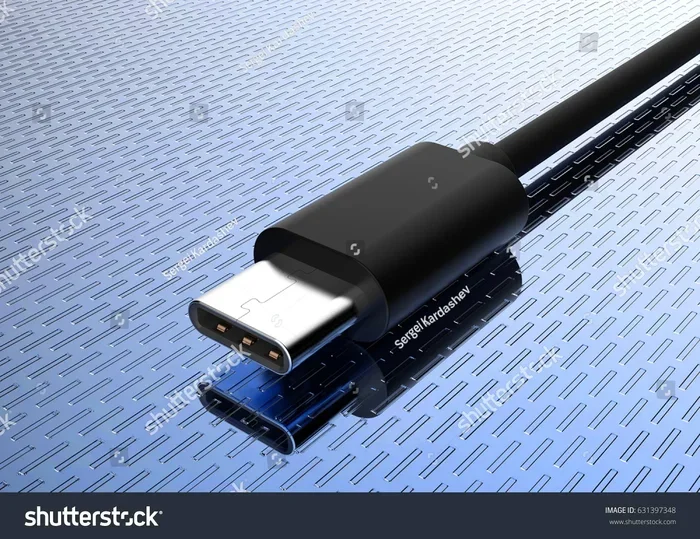
USB-C is the newer, smaller, oval-shaped connector. It is reversible, meaning you can plug it in either way. No more flipping. USB-C supports much faster data transfer and higher power delivery than USB-A. It is the connector you find on modern smartphones, tablets, and laptops.
Here are the key features of USB-C:
- Reversible design — plug it in either way.
- Compact size — about half the size of USB-A.
- High data speeds — up to 40Gbps with USB4.
- High power delivery — up to 240W with USB-C PD.
- Alt Mode support — can carry video signals to monitors.
The USB to USB C connection bridges the gap between older devices and modern ports. It is all about using the right adapter or cable to make them work together.
How to Connect USB to USB C
Connecting a traditional USB device to a USB-C port is straightforward. You just need the right link between the two. Let us break down the options.
Option 1: USB-A to USB-C Cable
This is the simplest solution. One end is a standard USB-A plug. The other end is a USB-C plug. You plug the USB-A end into your older device or charger. You plug the USB-C end into your modern device.
These cables are widely available. You can find them at most electronics stores or online. They work great for charging and basic data transfer. If you just need to charge your phone or plug in a USB flash drive, this is all you need.
When shopping, look for cables rated for the speed and power you need. A basic USB-A to USB-C cable handles everyday charging fine. But if you want fast data transfer, look for cables rated for USB 3.0 or higher.
Option 2: USB-A to USB-C Adapter
What if you already have a USB-A cable you love? An adapter is your best friend. You plug your existing USB-A cable into the adapter. Then you plug the adapter into the USB-C port on your device.
Adapters are small and portable. They are perfect for travel. Many people keep one in their laptop bag at all times. They are especially handy if you travel often and need to connect legacy devices to modern laptops. You might even find them useful alongside the kind of everyday tech solutions covered in 10 Gadgets To Make Moms Life Easier, where simple connectivity solutions make a big difference.
Adapters come in different designs. Some are dongle-style. Others are cable-integrated. Choose the one that fits your workflow best.
Option 3: USB-C Hub with USB-A Ports
If you need multiple connections, a USB-C hub is a great investment. These hubs plug into your USB-C port and provide several ports, including USB-A ports. You get the flexibility of connecting older devices alongside newer ones.
USB-C hubs are especially popular with laptop users. They expand a single port into many options. You can connect a flash drive, a mouse, a keyboard, and even an external hard drive all at once.
Quick Tips for Choosing the Right Connection Method
- For simple charging: a basic USB-A to USB-C cable works perfectly.
- For data transfer: choose a cable or adapter rated for USB 3.0 or higher.
- For multiple devices: a USB-C hub gives you the most flexibility.
- For travel: a compact adapter is lightweight and easy to carry.
USB-C Data Transfer Speeds and Power Delivery
One of the biggest reasons people ask about USB to USB C connections is speed. They want to know if they will lose performance by using an adapter or older cable. The answer depends on several factors.
Data Transfer Speeds
USB-C is capable of incredible speeds. But the actual speed depends on the USB standard your cable and device support:
- USB 2.0 — 480Mbps. Fine for charging. Slow for file transfers.
- USB 3.0/3.1 Gen 1 — 5Gbps. Good for most everyday tasks.
- USB 3.1 Gen 2 / USB 3.2 Gen 2 — 10Gbps. Great for large files.
- USB 3.2 Gen 2×2 — 20Gbps. Excellent for professionals.
- USB4 — 40Gbps. The fastest USB standard available today.
When you connect a USB-A device to a USB-C port through an adapter, the speed is limited by the slower of the two. If your USB-A flash drive is USB 2.0, your transfer speed will be USB 2.0 speeds, no matter how fast your USB-C port is.
USB-C Power Delivery
USB-C Power Delivery, also called USB-C PD, is a game-changer. It allows devices to negotiate the right amount of power through the cable. This means your phone, tablet, or laptop gets exactly the power it needs.
USB-C PD supports up to 240 watts of power. This is enough to charge even large laptops. Traditional USB-A ports typically deliver 7.5W to 15W. USB-C PD is vastly more powerful.
Here is what USB-C PD power levels look like:
- Basic charging: 5V at 3A (15W).
- Fast charging: 9V at 3A (27W) or 20V at 5A (100W).
- Maximum power: up to 48V at 5A (240W).
Using a proper USB-A to USB-C adapter or cable will still charge your device. But it may not support the fastest speeds unless the adapter supports USB-C PD.
Common USB-C Compatibility Issues
Not every USB-C connection works perfectly every time. Here are the most common issues people run into and how to fix them.
The Cable Does Not Fit
This sounds obvious, but it happens. USB-C is a specific connector shape. USB-A is a different shape. You cannot force a USB-A plug into a USB-C port without an adapter. Make sure you have the right adapter or cable for the job.
Slow Charging Speeds
If your device charges slowly through a USB-A to USB-C connection, the cable or adapter may be the issue. Cheap or damaged cables often limit power delivery. Look for cables that are certified and rated for the power your device needs.
No Data Transfer
Sometimes a USB-A to USB-C connection charges your device but does not transfer data. This usually means the cable is a charge-only cable. These cables have wires for power but not for data. Make sure your cable supports data transfer.
Intermittent Connection
If your connection keeps dropping, the adapter or cable may be loose or damaged. Try a different cable or adapter. Also, make sure the USB-C port on your device is clean and free of dust or debris.
Wrong Adapter Type
Not all adapters are created equal. Some only support charging. Others support data and video. Check the specs of your adapter before buying. If you need data transfer, get an adapter that explicitly supports it.
Best Practices for Using USB to USB C Connections
Getting the most out of your USB to USB C setup is easy when you follow a few simple rules. These practices will keep your devices safe and your connections fast.
Buy Certified Cables and Adapters
Look for cables that are USB-IF certified. This means they have been tested to meet official USB standards. Cheap, uncertified cables can damage your devices or deliver poor performance. A certified USB to USB C cable is worth the small extra cost.
Check Your Device Specifications
Before buying a cable or adapter, check what your device supports. Does your phone support USB 3.0 speeds? Does your laptop support USB-C PD? Knowing your device specs helps you choose the right accessories.
Keep Your Cables in Good Condition
USB cables take a beating. They get bent, pulled, and tossed in bags. Keep them clean and store them properly. A damaged cable can cause slow charging, data errors, or even safety issues.
Use the Right Cable for the Right Job
Not all cables are the same. Some are designed for charging only. Others handle data and video. Using the right cable for each task ensures the best performance. If you are unsure, check the cable specifications before using it.
Update Your Device Software
Sometimes connection issues are caused by outdated software. Keep your device updated. Manufacturers often release firmware updates that improve USB-C compatibility and performance.
Expert Insights on USB to USB C Connections
We asked tech experts about the most common mistakes people make with USB to USB C connections. Here is what they had to say.
Always check the cable rating. Many people buy the cheapest cable they can find. These cables often have thin wires that limit power and speed. A quality cable makes a huge difference.
USB-C is not just one thing. The USB-C connector is just the shape. The technology inside can vary widely. Some USB-C cables only support USB 2.0 speeds. Others support the latest USB4 standard. Always check the specifications.
Adapters are not permanent solutions. They work great for occasional use. But if you connect a USB device to USB-C every day, consider upgrading to native USB-C peripherals. It is more convenient and often faster.
If you are managing digital files across devices, keeping your connectivity organized matters. For instance, if you ever need to add prefixes to numbers on your iPhone, having reliable USB-C connections ensures your data transfers smoothly between devices.
Key Takeaways
- You can absolutely connect USB to USB C using the right cable, adapter, or hub.
- USB-A to USB-C cables and adapters are widely available and affordable.
- USB-C offers much faster speeds and power delivery than traditional USB-A.
- Not all cables support data transfer — some are charge-only. Always check the specs.
- Buy certified cables and adapters to ensure safety and performance.
- Common issues like slow charging or no data transfer are usually caused by cheap or incompatible cables.
- USB-C is the future of connectivity, but USB-A devices are still very much in use today.
The world of connectivity is moving fast. USB-C is leading the way with its compact design, high speeds, and powerful charging capabilities. But millions of USB-A devices are still in use. The good news is that connecting them is easy. With the right USB to USB C cable or adapter, you can bridge the gap between old and new technology seamlessly.
Remember to buy quality cables, check your device specifications, and avoid cheap uncertified accessories. These simple steps will save you time, frustration, and money. Whether you are charging your phone, transferring files, or connecting peripherals, the right USB to USB C connection makes everything work smoother.
Stay up to date with the latest USB standards and enjoy the benefits of modern connectivity. Your devices will thank you.
Frequently Asked Questions
Can I plug a USB-A cable directly into a USB-C port?
No, you cannot plug a USB-A cable directly into a USB-C port. The shapes are different. You need a USB-A to USB-C adapter or a cable that has a USB-A connector on one end and a USB-C connector on the other.
Will using a USB to USB C adapter slow down my data transfer?
It depends on the adapter and cable quality. A high-quality USB-A to USB-C cable that supports USB 3.0 or higher will maintain fast speeds. A cheap or damaged adapter may slow things down significantly.
Can USB-C charge faster than regular USB?
Yes, USB-C with Power Delivery can charge much faster than standard USB-A ports. USB-C PD supports up to 240 watts, while traditional USB-A usually delivers between 7.5 and 15 watts.
Are all USB-C cables the same?
No, USB-C cables vary widely. Some only support charging. Others support data transfer, video output, and high-speed connectivity. Always check the cable specifications before purchasing.
Can I connect a USB 2.0 device to a USB-C port?
Yes, you can connect a USB 2.0 device to a USB-C port using an adapter. However, the speed will be limited to USB 2.0 levels, which maxes out at 480Mbps.
Is USB-C the same as Thunderbolt?
No, USB-C and Thunderbolt are not the same. USB-C is a connector shape. Thunderbolt is a technology that can use the USB-C connector. Thunderbolt 3 and Thunderbolt 4 cables use the USB-C shape but offer much faster speeds and more features than standard USB-C.
=== CONCLUSION ===
The answer to can you connect USB to USB C is a clear yes. With the right cable, adapter, or hub, you can connect virtually any USB device to a modern USB-C port. The key is choosing quality accessories that match your needs. Whether you need basic charging, fast data transfer, or multi-device connectivity, there is a USB to USB C solution that works for you. Keep these tips in mind, invest in good cables, and enjoy seamless connectivity between your old and new devices.