Can You Connect A Wii To A Roku Tv And How To Do It
Yes, you can connect a Wii to a Roku TV, and the process is simpler than most people think. Whether you use an HDMI adapter or the original AV cables, this guide walks you through every method with clear, easy-to-follow steps. You will learn how to set up your Wii, configure audio and video settings, and troubleshoot common connection problems on your Roku TV.
Have you been sitting on a Nintendo Wii console and a Roku TV, wondering if these two devices can actually work together? The short answer is yes. You absolutely can connect a Wii to a Roku TV, and doing so lets you enjoy classic Nintendo games on a bigger, sharper screen. Whether you are dusting off an old console for family game night or setting up a retro gaming corner, this guide has everything you need.
Many people assume that older consoles like the Wii do not work with modern smart TVs. That is a common misconception. The Wii was released in 2006, and while it is not a high-definition native console, it still connects to today’s TVs through a few straightforward methods. The Roku TV platform supports multiple input types, which makes it surprisingly flexible for older gaming devices.
In this article, we will cover every connection method, walk you through setup step by step, and help you troubleshoot any issues you might run into. By the end, you will feel confident hooking up your Wii and getting back to playing your favorite games.
Key Takeaways
- Wii and Roku TV Compatibility: A Wii console can connect to a Roku TV using HDMI adapters or the original composite AV cables.
- Multiple Connection Methods: You can use an official Nintendo HDMI adapter, a third-party adapter, or the standard AV cable that came with your Wii.
- Audio Setup Matters: Getting the right audio output on your Roku TV requires selecting the correct input and adjusting settings on both devices.
- Common Issues Are Fixable: Most connection problems like no picture, no sound, or flickering screens have simple solutions you can do at home.
- Wii Remote Pairing: After connecting the console, you still need to pair your Wii remotes to complete the setup.
- Retro Gaming on Smart TVs: Connecting older consoles like the Wii to modern smart TVs opens up a world of nostalgic gaming without replacing your setup.
📑 Table of Contents
- Understanding Your Wii and Roku TV Setup
- Method 1: Connecting the Wii Using an HDMI Adapter
- Method 2: Connecting the Wii Using Composite AV Cables
- Configuring Audio and Video Settings on Your Roku TV
- Pairing Your Wii Remote After Connection
- Common Connection Problems and How to Fix Them
- Optimizing Your Wii Gaming Experience on a Roku TV
- Is It Worth Connecting a Wii to a Roku TV?
- Final Thoughts
Understanding Your Wii and Roku TV Setup
Before you plug anything in, it helps to understand what you are working with. The Nintendo Wii uses either composite AV cables (the red, white, and yellow RCA connectors) or an HDMI connection through a special adapter. Your Roku TV has multiple HDMI ports and often supports other input types as well.
The key thing to know is that Roku TV treats any connected device as an external input source. It does not matter whether the device is a streaming stick, a Blu-ray player, or a retro game console. The TV simply receives a signal and displays it. This makes the Wii a perfect match for your Roku setup.
What You Will Need
Here is a quick list of what you might need depending on your connection method:
- Nintendo Wii console and all its original cords
- HDMI adapter (either the official Nintendo one or a third-party option)
- Composite AV cables (if using the older RCA method)
- An available HDMI port on your Roku TV
- Wii remote and a sensor bar
- A stable power source for the console
Having these items ready before you start will make the process much smoother. You do not want to be halfway through setup and realize you are missing a cable.
Method 1: Connecting the Wii Using an HDMI Adapter
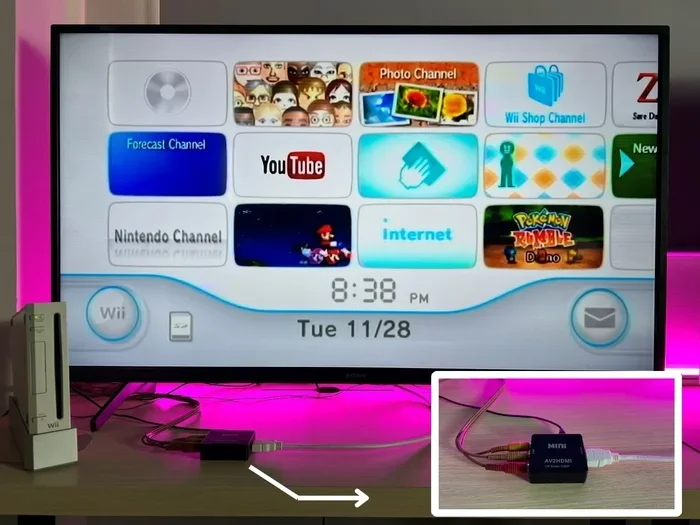
The HDMI adapter method is the most popular way to connect a Wii to a Roku TV. It gives you the best picture quality and the simplest setup. The official Nintendo Wii HDMI adapter was released a few years after the console and works beautifully with modern TVs.
Step-by-Step HDMI Connection
- Plug the HDMI adapter into the back of the Wii console. The adapter connects to the AV Multi Out port on the bottom of the Wii.
- Connect an HDMI cable to the adapter. Use any standard HDMI cable you have around the house.
- Plug the other end of the HDMI cable into an open HDMI port on your Roku TV. Note which port number you are using (HDMI 1, HDMI 2, etc.).
- Power on the Wii console. Make sure the power LED lights up.
- Switch your Roku TV to the correct HDMI input. Press the Home button on your Roku remote, then select the HDMI port where you connected the Wii.
Once you switch to the right input, you should see the Wii home screen on your TV. If the screen is black, do not worry. We will cover troubleshooting later in this guide.
Why HDMI Is the Better Option
Using an HDMI adapter gives you a cleaner, more reliable signal compared to the older composite cables. The image looks sharper, and you do not have to deal with multiple color-coded cables getting tangled behind your TV. If you have an HDMI port available, this is the method we recommend.
For those who want to learn more about managing cables and connections on different devices, check out our guide on troubleshooting display and connection line issues for helpful tips on resolving common signal problems.
Method 2: Connecting the Wii Using Composite AV Cables
If you do not have an HDMI adapter, you can still connect your Wii to a Roku TV using the original composite AV cables. These are the red, white, and yellow RCA cables that most people recognize. Every Wii comes with these cables in the box, so you likely already have them.
Step-by-Step Composite AV Connection
- Locate the AV Multi Out port on the back of your Wii. This is where the composite cables plug in.
- Connect the yellow cable to the video input. The yellow RCA connector carries the video signal.
- Connect the red and white cables to the audio inputs. Red is for the right audio channel, and white is for the left.
- Find the corresponding AV inputs on your Roku TV. Most Roku TVs have AV inputs labeled on the back or side panel.
- Match the colors. Yellow goes to video, red to right audio, and white to left audio.
- Power on the Wii and switch your Roku TV to the AV input. Use your Roku remote to select the correct source.
The picture quality will not be as crisp as HDMI, but it still works well for gaming. The Wii was designed for standard definition, so even on a modern TV, the image will look acceptable. Many gamers actually prefer the slightly softer picture because it feels more authentic to the original console experience.
Quick Tips for Composite AV Connections
- Make sure the cables are firmly seated in each port. Loose connections cause flickering or no picture at all.
- If your Roku TV does not have AV inputs, you will need an AV-to-HDMI converter. These are affordable and widely available online.
- Keep the cables organized behind your TV to prevent accidental disconnections during gameplay.
Configuring Audio and Video Settings on Your Roku TV
Once your Wii is connected, you need to make sure the audio and video settings are correct. Getting this right makes a huge difference in your gaming experience. A wrong setting can result in no sound, poor image quality, or an uncomfortable viewing angle.
Setting the Correct Input on Roku TV
Your Roku TV needs to know which input source to display. Here is how to do it:
- Press the Home button on your Roku remote.
- Navigate to Settings in the main menu.
- Select TV Inputs or Input depending on your Roku model.
- Choose the HDMI or AV port where your Wii is connected.
- The Wii home screen should appear on your TV.
If you do not see the Wii screen, try unplugging the Wii, waiting a few seconds, and plugging it back in. Sometimes the TV needs a fresh signal to recognize the new input source.
Adjusting Wii Video Settings
Inside the Wii menu, you can adjust the video output to match your TV:
- Go to Wii Settings on the Wii home screen.
- Select Screen and then TV Resolution.
- If using HDMI, select 480p for the best compatibility.
- If using composite cables, the Wii will output at 480i, which is standard definition.
Setting the resolution correctly ensures the image fills your screen properly and looks as good as the Wii can deliver.
Audio Configuration
For audio, make sure your Roku TV volume is not muted and that the correct audio output is selected. Most Roku TVs automatically detect the audio format from the Wii. You should hear game sounds and menus through your TV speakers or any connected sound system.
Setting up a family entertainment area with multiple devices can get complicated. If you are looking for smart home gadgets that simplify life, our article on 10 gadgets that make life easier for busy parents has some great ideas for streamlining your home tech setup.
Pairing Your Wii Remote After Connection
Connecting the console to your TV is only half the battle. You also need to pair your Wii remotes so you can actually play games. This is a separate step that many people forget about after setting up the video connection.
How to Pair Wii Remotes
- Press the red SYNC button on the Wii console. It is located inside the SD card slot on the front of the console.
- Remove the battery cover from the Wii remote you want to pair.
- Press the red SYNC button underneath the battery cover.
- Wait for the lights on the remote to stop blinking. When the lights stabilize, the remote is paired.
- Repeat for each additional remote.
Once your remotes are paired, test them by pointing at the sensor bar and moving the cursor on screen. If the cursor moves, you are all set to start playing.
Troubleshooting Remote Pairing Issues
- If the remote does not sync, try replacing the batteries. Weak batteries often cause connection failures.
- Make sure the sensor bar is properly placed above or below your TV screen.
- Keep the remote within a reasonable distance of the console, usually about 15 feet.
- If one remote works but another does not, the problem is likely with the second remote, not the console.
Common Connection Problems and How to Fix Them
Even with the right setup, you might run into some issues. This section covers the most common problems people face when connecting a Wii to a Roku TV and how to solve them.
No Picture on the Screen
If your Roku TV shows a black screen or “No Signal” message, try these steps:
- Check that the Wii is powered on and the LED light is glowing.
- Verify that the HDMI cable or AV cables are firmly connected on both ends.
- Make sure you have selected the correct input source on your Roku TV.
- Try a different HDMI cable or a different HDMI port on your TV.
- Restart both the Wii and the Roku TV by unplugging them for 30 seconds.
No Sound from the TV
No sound can be frustrating, but it is usually easy to fix:
- Check that the audio cables (red and white) are properly connected if using composite AV.
- Make sure your Roku TV volume is turned up and not muted.
- Go to Settings > Audio on your Roku TV and ensure the correct audio output is selected.
- If using an HDMI adapter, make sure the adapter supports audio transmission. Some cheap adapters only carry video.
Flickering or Distorted Picture
A flickering screen often points to a loose cable connection:
- Re-seat all cables and make sure they click into place.
- Replace any damaged or worn cables.
- If using composite cables, try a different set. Old cables can degrade over time.
- Check that the Wii is placed on a stable surface and not near any strong electromagnetic interference.
For more troubleshooting help with display and signal issues across different devices, our article on managing number displays and prefixes on devices offers additional insights that can help with signal and display configuration.
Optimizing Your Wii Gaming Experience on a Roku TV
Once your Wii is connected and working, you can take a few extra steps to improve your overall experience. These small adjustments can make a big difference in how enjoyable your gaming sessions are.
Positioning Your Wii Console
Place your Wii in a well-ventilated area. The console can get warm during extended play sessions, and good airflow helps prevent overheating. Keep it on a flat, stable surface and make sure the disc drive is easily accessible.
Sensor Bar Placement
The sensor bar is what your Wii remote uses to track movement. Place it directly above or below your TV screen. Make sure nothing blocks the infrared sensors, like a lamp or decorative item. The sensor bar should be centered on the screen for the best tracking accuracy.
Using a Soundbar or External Speakers
If your Roku TV supports external audio output, consider connecting a soundbar or external speakers. The Wii’s built-in audio is decent, but a good sound system adds a lot to the gaming experience. Most Roku TVs have optical audio output or support Bluetooth speakers.
Keeping Your Wii Games Organized
With a Wii connected to your Roku TV, you might find yourself playing more often. Keep your game discs organized in a shelf or case near the console. This prevents scratches and makes it easy to swap games quickly.
Is It Worth Connecting a Wii to a Roku TV?
The short answer is yes. Connecting your Wii to a Roku TV gives you the convenience of using your existing smart TV as a display for classic Nintendo gaming. You do not need a separate monitor or a vintage CRT television. The Roku TV handles the input switching seamlessly, and the picture quality is more than good enough for Wii games.
Many people who grew up with the Wii have fond memories of playing Mario Kart, Wii Sports, and The Legend of Zelda: Twilight Princess. Bringing that console back to life on a modern TV lets you relive those moments with better visuals and a more comfortable setup. It is also a great way to introduce younger family members to classic games they might not have experienced before.
The process is straightforward, the equipment is affordable, and the experience is rewarding. Whether you are a casual gamer or a dedicated Nintendo fan, connecting your Wii to your Roku TV is one of the best ways to get more use out of your existing devices.
Final Thoughts
Connecting a Wii to a Roku TV is entirely possible and much easier than most people expect. Whether you choose the HDMI adapter route or stick with the original composite cables, the process is simple and well worth the effort. You get to enjoy classic Nintendo games on a modern, high-quality display without any complicated equipment.
Remember to check your connections, set the correct input on your Roku TV, and pair your remotes before you start playing. If you run into any issues, the troubleshooting tips in this guide should help you get things working quickly.
Now that you know how to connect your Wii to your Roku TV, grab a controller, pick a game, and enjoy some retro gaming fun. The Wii has some of the best multiplayer games ever made, and playing them on a big Roku TV screen makes the experience even better. Happy gaming!
Frequently Asked Questions
Can You Connect A Wii To A Roku Tv Without an HDMI Adapter?
Yes, you can use the original composite AV cables that came with the Wii. These red, white, and yellow RCA cables plug directly into the AV inputs on most Roku TVs. The picture will be standard definition, but it works perfectly for Wii games.
Why Does My Wii Show No Signal on My Roku TV?
This usually happens when the TV is set to the wrong input source. Make sure you have selected the correct HDMI or AV port where the Wii is connected. Also check that all cables are firmly plugged in and that the Wii is powered on.
Do I Need a Special Cable to Connect a Wii to a Roku TV?
For the best quality, you need the official Nintendo Wii HDMI adapter and a standard HDMI cable. If you prefer the older method, the composite AV cables that came with the Wii work too. No special cables beyond these are required.
Can I Connect Multiple Wii Remotes to My Wii Console?
Yes, the Wii supports up to four remotes at the same time. Each remote needs to be paired individually using the SYNC button on the console and the remote. This makes it great for multiplayer gaming sessions.
Will My Wii Games Look Good on a Roku TV Screen?
Wii games are designed for standard definition, so they will not look as sharp as modern HD games. However, on a Roku TV, the image will be clean and clear. The upscaling features of modern TVs help improve the overall picture quality compared to older CRT screens.
Can I Use a Third-Party HDMI Adapter for My Wii?
Yes, third-party HDMI adapters work well for most users. They are often cheaper than the official Nintendo adapter. Just make sure the adapter you buy supports both video and audio output to avoid sound issues during gameplay.