Can I Remove Intel Wireless Bluetooth From My Laptop
Yes, you can remove Intel Wireless Bluetooth from your laptop, but you need to understand the consequences before doing so. This guide walks you through the entire Intel Wireless Bluetooth removal process safely. We cover why people remove it, how to do it step by step, and what alternatives exist. By the end, you will know exactly what to do and whether it is right for your setup.
Have you ever looked at your laptop and wondered, can I remove Intel Wireless Bluetooth from the system? Maybe the Bluetooth icon keeps showing errors, or perhaps you want a cleaner device list. Whatever your reason, the answer is yes. You can remove Intel Wireless Bluetooth from your laptop. But the real question is whether you should.
Removing Intel Wireless Bluetooth is not as simple as deleting a file. It involves handling drivers, device settings, and sometimes even BIOS configurations. This guide will walk you through every step with clarity and confidence. We will explain what Intel Wireless Bluetooth is, why people remove it, and how to do it without breaking your laptop.
By the time you finish reading, you will have a complete understanding of the Intel Wireless Bluetooth removal process. You will also know what to expect afterward and how to restore functionality if needed. Let us dive right in.
Key Takeaways
- Removal is possible: You can safely uninstall Intel Wireless Bluetooth through Device Manager or Settings.
- Know the risks: Removing it will disable all Bluetooth and sometimes Wi-Fi functionality on your laptop.
- Driver cleanup matters: Simply hiding the device is not enough; you must fully remove the driver for a clean uninstall.
- Alternatives exist: USB Bluetooth dongles and external adapters can replace Intel Wireless Bluetooth easily.
- Reinstallation is straightforward: You can always reinstall the driver if you change your mind.
- Check your needs first: Understand why you want to remove it before taking any action.
📑 Table of Contents
- What Is Intel Wireless Bluetooth?
- Reasons to Remove Intel Wireless Bluetooth
- How to Check If Intel Wireless Bluetooth Is Installed
- Step-by-Step Guide to Removing Intel Wireless Bluetooth
- What Happens After You Remove Intel Wireless Bluetooth?
- Alternatives and Solutions After Removal
- Common Mistakes to Avoid
- Expert Tips for Managing Wireless Hardware
- Conclusion
What Is Intel Wireless Bluetooth?
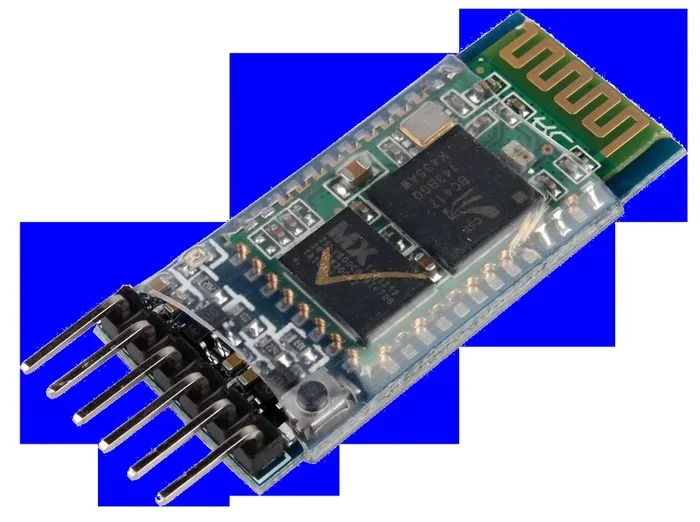
Intel Wireless Bluetooth refers to the combined wireless hardware and software that Intel builds into many laptops. It handles both Wi-Fi and Bluetooth connections through a single module. This design saves space inside your laptop and reduces power consumption.
Most modern laptops from Dell, HP, Lenovo, and Asus use Intel wireless modules. These modules combine a Wi-Fi adapter and a Bluetooth radio into one compact chip. The Intel Wireless Bluetooth driver is the software that tells your operating system how to communicate with this hardware.
How Intel Wireless Bluetooth Works
The Intel wireless module sits on your laptop motherboard. It connects to the system through a PCIe or M.2 slot. When you turn on your laptop, the Intel Bluetooth driver loads automatically. This driver enables Bluetooth functionality and sometimes Wi-Fi as well.
You can see Intel Wireless Bluetooth in your Device Manager under “Bluetooth” and “Network adapters.” The device name usually starts with “Intel Wireless Bluetooth” or “Intel Wireless-AC.” If you have ever checked your network adapter settings, you have likely seen it listed there.
Why Intel Wireless Bluetooth Matters
This module is essential for many everyday tasks. It lets you connect wireless headphones, keyboards, mice, and speakers. It also handles file transfers between your phone and laptop. Without it, your laptop loses all wireless short-range communication.
Some users rely on Bluetooth connectivity for their work setup. Wireless presenters, drawing tablets, and even printers use Bluetooth. Removing Intel Wireless Bluetooth means losing access to all of these devices unless you find a replacement.
Reasons to Remove Intel Wireless Bluetooth
People remove Intel Wireless Bluetooth for many different reasons. Understanding your motivation helps you make the right decision. Let us look at the most common reasons users want to remove this component.
Bluetooth Issues and Errors
The most common reason is persistent Bluetooth problems. Maybe your Bluetooth keeps disconnecting randomly. Perhaps you see a yellow exclamation mark next to the device in Device Manager. These errors can be frustrating and hard to fix.
Some users experience Bluetooth driver conflicts after Windows updates. The driver might stop working overnight. Others face compatibility issues with specific devices. Removing and reinstalling the driver can sometimes fix these problems.
Privacy and Security Concerns
Security-conscious users sometimes want to remove Bluetooth entirely. Bluetooth can be a vector for attacks if not properly managed. Turning off or removing the hardware eliminates this potential vulnerability.
If you work in a sensitive environment, disabling wireless features makes sense. You might not need Bluetooth functionality on a secure work laptop. Removing it adds an extra layer of protection.
System Cleanup and Performance
Some users simply want a cleaner system. They do not use Bluetooth and see no reason to keep the driver installed. Removing unused hardware components can reduce background processes and free up system resources.
While the impact on performance is usually minimal, some users report better battery life after removing unnecessary wireless modules. The Intel wireless module uses power even when idle. Removing it might extend your laptop battery slightly.
Hardware Upgrades
A few users remove Intel Wireless Bluetooth to upgrade their wireless hardware. They might replace it with a newer Wi-Fi 6 or Wi-Fi 7 card. This upgrade improves wireless speeds and range significantly.
Some users switch from Intel to other brands like Qualcomm or Broadcom. These alternatives sometimes offer better wireless connectivity for specific use cases. The removal process is the same regardless of your reason.
How to Check If Intel Wireless Bluetooth Is Installed
Before you remove anything, you need to confirm that Intel Wireless Bluetooth is actually on your laptop. Most laptops manufactured after 2015 have it built in. But it is always good to verify before proceeding.
Checking Through Device Manager
Open Device Manager by right-clicking the Start button and selecting “Device Manager.” Look for the “Bluetooth” section. You should see a device named “Intel Wireless Bluetooth” or something similar.
You can also check under “Network adapters” for your Intel wireless card. The device name usually includes “Wireless” or “Wi-Fi.” If you see both entries, Intel Wireless Bluetooth is installed on your system.
Checking Through System Settings
Go to Settings and click on “Bluetooth & devices.” If you see Bluetooth toggle and paired devices listed, your system has Bluetooth hardware. Click on “More Bluetooth settings” to see the hardware details.
You can also open the Command Prompt and type “netsh wlan show drivers.” This command shows your wireless adapter information. Look for the “Radio types supported” section to confirm Intel wireless hardware.
Checking Through BIOS or System Information
For a deeper check, open your laptop BIOS during startup. Look for wireless or network settings. You might see the Intel wireless module listed there.
You can also use the built-in System Information tool. Type “msinfo32” in the Run dialog. Look for “Bluetooth” and “Network Adapter” sections. This gives you detailed information about your Intel wireless hardware.
Step-by-Step Guide to Removing Intel Wireless Bluetooth
Now that you know what Intel Wireless Bluetooth is and why you might want to remove it, let us get into the actual process. Follow these steps carefully to ensure a clean removal.
Step 1: Back Up Your System
Before making any hardware changes, create a system restore point. This lets you undo changes if something goes wrong. Click Start, type “Create a restore point,” and follow the prompts.
Also, back up any important files. While removing Intel Wireless Bluetooth should not affect your personal files, it is always better to be safe. Use an external drive or cloud storage for your backup.
Step 2: Open Device Manager
Right-click the Start button and select “Device Manager.” This is the central hub for managing all hardware on your Windows laptop. You will see a list of all installed devices organized by category.
Take a moment to locate the Bluetooth section. You should see “Intel Wireless Bluetooth” listed there. Also note the Network adapters section for the Intel wireless card.
Step 3: Uninstall the Bluetooth Driver
Right-click on “Intel Wireless Bluetooth” and select “Uninstall device.” A dialog box will appear with options. Check the box that says “Attempt to remove the driver for this device.” This ensures a complete Bluetooth driver uninstall.
Click “Uninstall” to confirm. Windows will remove the device and its driver from the system. You might see a confirmation message saying the device has been removed.
Step 4: Remove the Intel Wireless Network Adapter
Since Intel Wireless Bluetooth often combines Wi-Fi and Bluetooth, you should also remove the network adapter. Go back to Device Manager and expand “Network adapters.”
Find your Intel wireless adapter. It might be named “Intel Wireless-AC” or “Intel Wi-Fi 6.” Right-click it and select “Uninstall device.” Check the box to remove the driver software as well.
This step ensures that all components of the Intel wireless module are fully removed from your system.
Step 5: Clean Up Residual Files
Open File Explorer and navigate to C:\Windows\System32\DriverStore\FileRepository. Look for folders containing “Intel” and “Bluetooth” or “Wireless.” Delete any folders related to Intel wireless hardware.
You can also use a tool like Display Driver Uninstaller (DDU) to clean up leftover driver files. While DDU is primarily for graphics drivers, it works well for wireless drivers too.
Step 6: Restart Your Laptop
After completing all removal steps, restart your laptop. This allows Windows to refresh its hardware detection. During startup, Windows will scan for new and removed devices.
After the restart, open Device Manager again. You should no longer see Intel Wireless Bluetooth or the Intel wireless adapter listed. If they still appear, repeat the uninstall process and restart again.
Step 7: Verify the Removal
Go to Settings and check the Bluetooth section. Bluetooth should no longer appear as an available option. Check your Wi-Fi settings as well if you removed the network adapter too.
You have now successfully completed the device removal process for Intel Wireless Bluetooth. Your laptop no longer has this hardware component active in the system.
What Happens After You Remove Intel Wireless Bluetooth?
Removing Intel Wireless Bluetooth has immediate effects on your laptop. Understanding these effects helps you prepare for the changes. Let us look at what happens right after removal.
Loss of Bluetooth Connectivity
The most obvious change is the loss of Bluetooth. You will no longer be able to connect wireless headphones, keyboards, or mice. Any Bluetooth device that was previously paired will not reconnect.
If you rely on Bluetooth for your daily workflow, this is a significant impact. You will need to find wired alternatives or use a USB Bluetooth adapter as a replacement.
Loss of Wi-Fi (In Some Cases)
Since Intel Wireless Bluetooth often combines Wi-Fi and Bluetooth, removing it might also disable your wireless internet. You will lose Wi-Fi connectivity and need to use a wired ethernet connection or install a replacement wireless card.
Some laptops have separate Wi-Fi and Bluetooth modules. In these cases, removing Intel Wireless Bluetooth only affects Bluetooth. Check your laptop specifications to understand your specific hardware setup.
System Tray Changes
The Bluetooth icon will disappear from your system tray. You will also lose the Wi-Fi icon if you removed the network adapter. This changes how you interact with wireless features on your laptop.
Some users find this actually improves their desktop experience. Fewer icons in the system tray mean a cleaner notification area.
Device Manager Changes
Your Device Manager will no longer show Intel Bluetooth or Intel wireless entries. The Bluetooth and Network adapter sections will appear shorter. Some users find this makes troubleshooting other hardware issues easier.
Windows might also show an “Unknown Device” briefly after removal. This is normal and usually resolves after a restart. If it persists, you may need to scan for hardware changes in Device Manager.
Alternatives and Solutions After Removal
If you removed Intel Wireless Bluetooth but still need wireless connectivity, you have several options. These alternatives can restore full functionality to your laptop.
USB Bluetooth Adapter
The easiest solution is a USB Bluetooth adapter. These small dongles plug into any available USB port. They provide Bluetooth functionality without needing internal hardware changes.
Popular options include adapters from TP-Link, ASUS, and Amazon Basics. Most support Bluetooth 5.0 or newer, which offers faster speeds and better range than older versions. You can find reliable adapters for under $20.
External Wi-Fi Adapter
If you also removed your Wi-Fi capability, an external USB Wi-Fi adapter can restore internet access. These adapters plug into USB ports and connect to wireless networks just like an internal card.
Look for adapters that support the latest Wi-Fi standards for the best performance. Wi-Fi 6 adapters offer excellent speeds and work well with modern routers.
Replacing the Internal Card
For a permanent solution, you can replace the Intel wireless module with a new card. This requires opening your laptop and accessing the internal hardware. It is a more advanced option but provides the best long-term results.
Make sure to buy a compatible replacement card for your laptop model. Check your laptop manufacturer’s website for approved hardware. Installing the new card involves removing the old one and securing the new module in place.
Using a Bluetooth Dongle with Wi-Fi
Some USB adapters combine Bluetooth and Wi-Fi in a single device. These all-in-one solutions save USB ports and provide both wireless features. They are a great middle ground between doing nothing and opening your laptop.
These combo adapters typically cost between $30 and $60. They offer good performance and easy installation. Simply plug them in and let Windows install the drivers automatically.
Common Mistakes to Avoid
Removing Intel Wireless Bluetooth can go wrong if you are not careful. Here are the most common mistakes users make and how to avoid them.
Skipping the Driver Cleanup
Many users simply uninstall the device without removing the driver files. This leaves residual software that can cause conflicts later. Always check the box to remove the driver when uninstalling.
Leftover driver files can also take up disk space and slow down Device Manager scans. A clean removal ensures no ghost devices or error messages linger in your system.
Removing the Wrong Device
Device Manager can be confusing, especially if you have multiple wireless devices. Double-check that you are removing the correct Intel device. Accidentally removing a different network adapter can cause bigger problems.
Before uninstalling, note the exact device name. You can also check the device properties to confirm it is an Intel product. Taking a screenshot of Device Manager before making changes is a smart precaution.
Not Having a Backup Plan
Removing Intel Wireless Bluetooth without a replacement plan can leave you stranded. If you need Bluetooth or Wi-Fi urgently afterward, you will have no easy fix. Always have a USB adapter ready before starting the removal process.
Even if you are sure you do not need wireless, having a backup option gives you peace of mind. Technology can be unpredictable, and having a safety net never hurts.
Ignoring BIOS Settings
Some laptops have Bluetooth and Wi-Fi disabled in BIOS rather than through Windows. If you remove the driver but the hardware is still enabled in BIOS, you might see it reappear after a restart.
Check your BIOS settings if the device keeps coming back after removal. You can usually find wireless settings under “Advanced” or “Security” in your BIOS menu. Disabling the hardware at the BIOS level ensures it stays off.
Expert Tips for Managing Wireless Hardware
Whether you keep or remove Intel Wireless Bluetooth, these expert tips will help you manage your laptop wireless hardware better.
Keep Driver Updates in Mind
Intel regularly releases driver updates for its wireless modules. These updates fix bugs, improve performance, and add new features. Even if you plan to keep Intel Wireless Bluetooth, staying current with driver updates is important.
You can download the latest drivers from Intel’s official website. Use the Intel Driver & Support Assistant tool for automatic updates. This tool scans your system and recommends the right drivers for your hardware.
Use Device Manager Wisely
Device Manager is your best friend when managing wireless hardware. Learn to use its features effectively. Right-click any device to update, roll back, or uninstall its driver.
The “Scan for hardware changes” option in Device Manager is useful after any hardware modification. It forces Windows to detect new or changed devices immediately. Use this after installing new hardware or removing old components.
Monitor Your Wireless Performance
Keep an eye on your wireless connection quality. If you notice slow speeds or frequent disconnections, it might be a driver issue. Updating or reinstalling the Intel wireless adapter driver often resolves these problems.
Windows has a built-in wireless troubleshooter that can diagnose common issues. Go to Settings, then Network & Internet, and click “Troubleshoot.” This tool can identify and fix many wireless problems automatically.
Consider Your Usage Patterns
Think carefully about how you use wireless features on your laptop. If you only use Bluetooth occasionally, a USB dongle might be a better solution than keeping the internal module active.
For users who always need wireless connectivity, keeping Intel Wireless Bluetooth and maintaining its drivers is the better choice. Regular driver updates and proper care will keep your wireless hardware running smoothly for years.
Conclusion
So, can I remove Intel Wireless Bluetooth from my laptop? Absolutely yes. The process is straightforward, and you have full control over your hardware. Whether you remove it to fix errors, improve security, or upgrade your wireless hardware, the steps are clear and manageable.
Just remember to back up your system first, follow each step carefully, and have a replacement plan ready. Removing Intel Wireless Bluetooth is not permanent. You can always reinstall the driver or add a USB adapter if you change your mind.
Take the time to understand your specific needs before making any changes. If Bluetooth and Wi-Fi are essential to your daily routine, consider alternatives like USB adapters instead of full removal. If you rarely use wireless features, removing Intel Wireless Bluetooth can simplify your system and potentially improve battery life.
The key is making an informed decision. Now you have all the knowledge you need to handle Intel Wireless Bluetooth removal confidently. Apply what you have learned and take control of your laptop wireless hardware today.
Frequently Asked Questions
Can I remove Intel Wireless Bluetooth without affecting Wi-Fi?
It depends on your laptop model. Some laptops have separate Bluetooth and Wi-Fi modules. If yours has a combined Intel Wireless Bluetooth module, removing it will also disable Wi-Fi. Check your laptop specifications to confirm your hardware setup before proceeding with removal.
Is it safe to remove Intel Wireless Bluetooth through Device Manager?
Yes, it is completely safe. Device Manager is designed to let you manage and remove hardware drivers. Simply right-click the device, select uninstall, and check the box to remove the driver. Your laptop will continue to function normally, just without Bluetooth or Wi-Fi capability.
Will removing Intel Wireless Bluetooth void my laptop warranty?
Removing a software driver through Device Manager does not void your warranty. However, physically opening your laptop to remove internal hardware might affect warranty terms. Check your manufacturer’s warranty policy before taking apart your device. Software-based removal is always safe and reversible.
How do I reinstall Intel Wireless Bluetooth after removing it?
You can reinstall the driver by downloading it from Intel’s official website. Use the Intel Driver & Support Assistant tool for an automatic reinstall. You can also use Windows Update to find and install the latest Intel wireless driver. Simply restart your laptop after reinstalling, and the hardware will work again.
Can I use a USB Bluetooth adapter after removing Intel Wireless Bluetooth?
Yes, a USB Bluetooth adapter is the simplest replacement option. Plug the adapter into any USB port, and Windows will install the necessary drivers automatically. Most adapters work within minutes and provide full Bluetooth functionality without any internal hardware changes.
Why does my Intel Wireless Bluetooth keep coming back after I remove it?
This usually happens if the driver files were not fully cleaned up. Check Device Manager and repeat the uninstall process, making sure to check the box that removes the driver software. You can also check your BIOS settings to ensure Bluetooth is disabled at the hardware level. A system restart after thorough cleanup should prevent the device from reappearing.
=== META DESCRIPTION ===
Learn if you can remove Intel Wireless Bluetooth from your laptop. Step-by-step guide on safely uninstalling Bluetooth drivers and alternatives.
=== QUICK SUMMARY ===
Yes, you can remove Intel Wireless Bluetooth from your laptop, but you need to understand the consequences before doing so. This guide walks you through the entire Intel Wireless Bluetooth removal process safely. We cover why people remove it, how to do it step by step, and what alternatives exist. By the end, you will know exactly what to do and whether it is right for your setup.
=== KEY TAKEAWAYS ===
Key Takeaways
- Removal is possible: You can safely uninstall Intel Wireless Bluetooth through Device Manager or Settings.
- Know the risks: Removing it will disable all Bluetooth and sometimes Wi-Fi functionality on your laptop.
- Driver cleanup matters: Simply hiding the device is not enough; you must fully remove the driver for a clean uninstall.
- Alternatives exist: USB Bluetooth dongles and external adapters can replace Intel Wireless Bluetooth easily.
- Reinstallation is straightforward: You can always reinstall the driver if you change your mind.
- Check your needs first: Understand why you want to remove it before taking any action.