Can I Hook A Tv To A Projector For A Better Viewing
Yes, you can hook a TV to a projector, and it opens up a whole new world of entertainment. This guide covers everything from cables and ports to wireless options and setup tips. You will learn how to connect your devices, improve picture quality, and create a stunning home theater setup with ease.
Have you ever wondered if you can hook a TV to a projector? The short answer is yes, and it is easier than you might think. Many people want a bigger screen for movie nights, sports events, or gaming sessions. But they also want the convenience of a TV for daily watching. The good news is that you can have both. Connecting a TV to a projector gives you the best of both worlds.
Setting up a projector and TV together might sound technical. But with the right guide, anyone can do it. You do not need to be a tech expert. This article will walk you through every step. You will learn about cables, ports, wireless options, and how to get the best picture quality. Let us dive in and make your setup simple and fun.
Key Takeaways
- Easy Connection: You can link a TV and projector using HDMI, wireless mirroring, or adapter cables.
- Better Viewing Experience: Combining both devices gives you flexibility for movies, gaming, and everyday TV watching.
- Simple Setup: Most modern TVs and projectors share common ports, making the process straightforward.
- Audio Matters: Don’t forget to set up sound properly for the full experience.
- Helpful Gear Exists: Small accessories like switchers and mounts make your setup cleaner and more functional.
- Quick Tips Help: A few adjustments to brightness and resolution can make a huge difference.
📑 Table of Contents
Why Hook a TV to a Projector?
There are many reasons to connect a TV and a projector. Some people want a larger screen for movie nights. Others want to use the projector for presentations and the TV for regular shows. Whatever your reason, the setup offers real benefits.
Bigger Screen, Better Experience
A projector can turn any wall into a massive screen. When you watch movies or sports on a big display, the experience feels completely different. You feel more immersed. Colors pop. Details stand out. And when you want to check the news or a quick show, you can simply switch to the TV.
Flexibility for Every Room
Having both devices means you are not stuck with one option. You can use the projector in your living room for movie nights. Then, during the day, use the TV for cooking shows or kids cartoons. This flexibility makes your entertainment setup much more versatile. It also works great for family gatherings and game nights.
Cost-Effective Entertainment Upgrade
Instead of buying a massive TV, you can use a projector for big-screen viewing. Projectors are often more affordable than large-screen TVs. By adding a TV to your setup, you get the big-screen experience without breaking the bank. It is a smart way to upgrade your home entertainment.
Understanding Your Devices
Before you start connecting anything, it helps to understand what you are working with. Both TVs and projectors have different ports and features. Knowing these basics saves time and frustration.
Types of Ports on Your TV
Most modern TVs come with several input ports. The most common one is the HDMI port. This is the go-to connection for most devices. Some TVs also have USB ports, VGA inputs, and audio outputs. Check the back or side of your TV to see what is available. If your TV has multiple HDMI ports, that is great. It gives you more options for connecting devices.
Types of Ports on Your Projector
Projectors also have various input options. HDMI is the most standard and reliable. Many projectors also have VGA ports for older devices. Some newer models support USB connections and even wireless streaming. Look at your projector’s manual or check the ports on the back. Knowing what is available helps you choose the right cable or adapter.
Device Compatibility Matters
Not all TVs and projectors work the same way together. Older projectors may not support HDMI. Newer TVs usually have multiple HDMI ports. Check the specifications of both devices before buying any cables. This small step prevents a lot of headaches later. If your devices are compatible, the setup process becomes much smoother.
How to Connect a TV to a Projector
Now let us get to the fun part. There are several ways to connect your TV to a projector. The method you choose depends on your devices and what you want to achieve.
Method 1: Using an HDMI Cable
HDMI is the simplest and most common way to connect devices. Here is how to do it step by step.
- Find an HDMI port on your TV and your projector.
- Plug one end of the HDMI cable into your TV.
- Plug the other end into your projector.
- Turn on both devices.
- Select the correct input source on your projector.
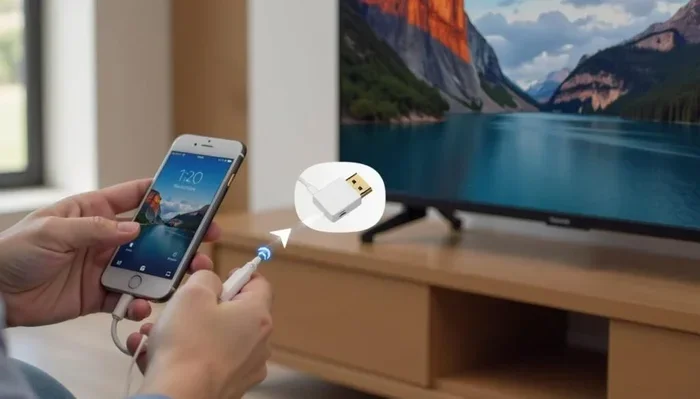
That is it. Your projector should now display what is on your TV. If the image looks blurry, check the resolution settings. Most projectors support 1080p or 4K. Adjust the settings on your TV to match. This simple cable connection works for most setups and delivers great picture quality.
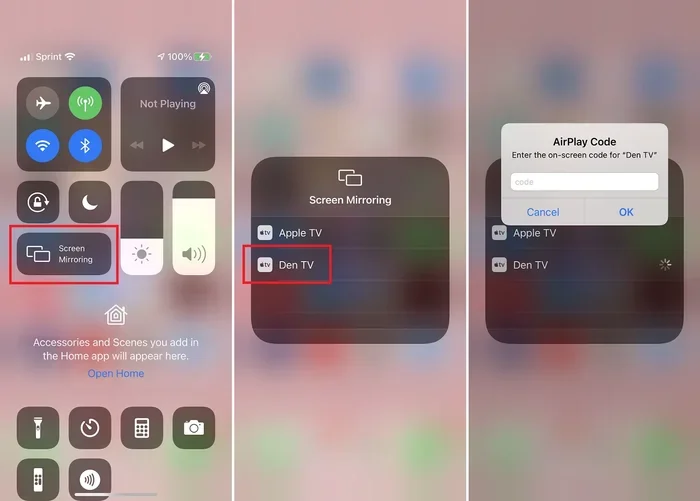
Method 2: Wireless Screen Mirroring
No cables? No problem. Many modern devices support wireless connections. Both smart TVs and projectors with smart features can mirror screens without wires.
For wireless mirroring, you need a few things. Your TV and projector should both be on the same Wi-Fi network. Some projectors come with built-in casting features. Others need a wireless adapter plugged into an HDMI port. Apple TV, Chromecast, and Roku are popular options that make wireless streaming easy.
Once connected, you can mirror your phone, tablet, or laptop screen to the projector. This is perfect for sharing photos, videos, or presentations. Wireless setups also keep your space tidy. No tangled cables to worry about.
Method 3: Using an Adapter or Converter
If your devices do not share a common port, adapters come to the rescue. For example, if your TV only has HDMI but your projector only has VGA, you need an HDMI-to-VGA adapter. These are affordable and widely available online.
Some adapters also carry audio signals. Others only carry video. Make sure you check the specs before buying. You may also need a separate audio cable if the adapter does not support sound. Adapters are a great solution for older equipment or mixed setups.
Method 4: Using an HDMI Switch or Splitter
An HDMI switch lets you connect multiple devices to one projector or TV. This is useful if you have a gaming console, a streaming stick, and a cable box. Instead of unplugging cables every time, you just switch inputs on the box.
An HDMI splitter does the opposite. It takes one signal and sends it to multiple displays. So you can watch the same content on both your TV and projector at the same time. This is perfect for sharing viewing with family or friends.
Setting Up the Best Picture Quality
Getting the picture right is one of the most important parts of this setup. A few simple adjustments can make a huge difference.
Brightness and Contrast Settings
Projectors work best in dim or dark rooms. Bright ambient light can wash out the image. If you cannot control the lighting, adjust the brightness settings on your projector. Most projectors have brightness modes like Dynamic, Normal, and Cinema. The Cinema mode usually gives the best color accuracy for home viewing.
Contrast settings also matter. Higher contrast makes dark scenes look deeper and more detailed. But too much contrast can lose detail in shadows. Find a balance that looks natural to your eyes. You may need to experiment a bit to get it right.
Resolution and Aspect Ratio
Make sure your TV and projector are set to the same resolution. If your TV outputs 1080p, set your projector to 1080p as well. Mismatched resolutions can cause blurry or stretched images. The aspect ratio should also match. Most content is in 16:9 format. Check that both devices are set to this standard ratio.
Keystone Correction and Focusing
Projectors often project a slightly tilted image. Keystone correction fixes this by adjusting the shape of the picture digitally. Most projectors have manual or automatic keystone settings. Use them to make the image rectangular and even.
Focusing is equally important. Turn the focus ring on the projector lens until the image looks sharp. A blurry image ruins the experience. Take a moment to fine-tune this before every movie night.
Audio Setup for Your Projector and TV
Picture quality gets a lot of attention. But sound is just as important for a great viewing experience. Projectors often have small built-in speakers. These speakers are okay for casual watching. But for movies and music, they usually fall short.
Here are some audio options to consider:
- HDMI ARC: This sends audio from your TV to an external sound system. It works through a single HDMI cable.
- Bluetooth Speakers: Many projectors and TVs support Bluetooth audio. Connect wireless speakers for easy setup.
- Soundbar: A soundbar improves audio without a complicated setup. Place it under your TV or projector screen.
- Home Theater System: For the full experience, a surround sound system is unmatched. It makes movies feel like they are happening right in front of you.
You can also use your TV’s speakers while the projector displays the image. This works well for everyday TV watching. For movie nights, switch to your external speakers. The flexibility is one of the best parts of this dual setup.
Helpful Accessories for Your Setup
A few extra items can make your setup much better. These small additions solve common problems and improve the overall experience.
Cable Management Solutions
When you have multiple cables running across a room, things can get messy. Cable ties, cable covers, and raceways keep everything neat. They also prevent tripping hazards. A clean setup looks better and lasts longer. You can find affordable cable management kits at most hardware stores.
Projector Screens
While you can project onto a blank wall, a dedicated screen makes a big difference. Projector screens reflect light evenly. They produce a brighter and clearer image than plain walls. You can choose from retractable screens, portable screens, or fixed-frame options. A good screen is worth the investment.
Mounts and Stands
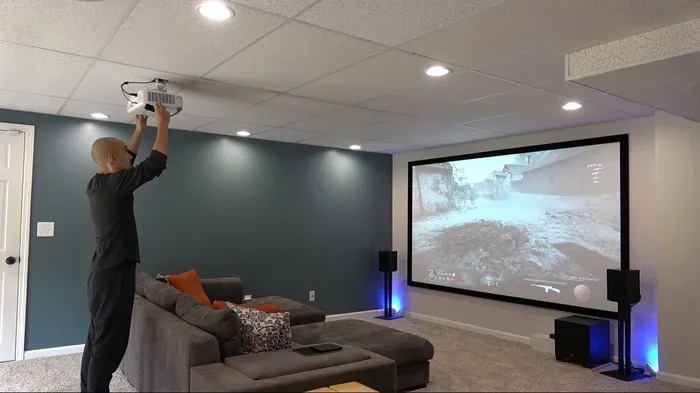
Your projector needs to be positioned correctly for the best image. Ceiling mounts are popular for permanent setups. They keep the projector out of the way and at the perfect angle. Table stands work well for temporary or adjustable setups. Make sure your mount or stand is compatible with your projector model.
Smart Gadgets That Make Life Easier
If you want to simplify your setup even further, consider some helpful smart gadgets. There are tons of tools and accessories that make managing your entertainment devices much simpler. For example, universal remotes let you control both your TV and projector with one device. Smart plugs let you turn everything on or off with your voice or phone. You can also explore helpful tools like 10 gadgets to make moms life easier for ideas on smart devices that streamline your daily tech routine.
These small additions save time and reduce clutter. They make your projector and TV setup feel polished and professional. Even simple things like a cable organizer or a labeled remote control pouch go a long way.
Common Mistakes to Avoid
Even with the best setup, mistakes can happen. Here are some common errors to watch out for.
- Using the Wrong Cable: Not all HDMI cables are the same. Older cables may not support 4K or high refresh rates. Buy a high-speed HDMI cable for the best results.
- Ignoring Audio Settings: It is easy to focus on picture and forget about sound. Always check that audio is routing to the right output device.
- Placing the Projector Too Close: Every projector has a throw ratio. Placing it too close or too far distorts the image. Check your projector manual for the recommended distance.
- Forgetting to Match Resolutions: Mismatched resolution causes blurry or stretched images. Always set both devices to the same resolution before connecting.
- Overlooking Ventilation: Projectors generate heat. Keep them in a well-ventilated area. Overheating can shorten the lifespan of the projector lamp and affect performance.
Avoiding these mistakes saves time and protects your equipment. A little planning goes a long way toward a smooth and enjoyable setup.
Expert Tips for the Best Viewing Experience
Here are some pro tips that make a real difference in your setup.
- Test Before the Big Night: Always test your setup before a movie night or gathering. Fix any issues early so you are not scrambling later.
- Use a Blue Light Filter: If you or your family watch for long periods, enable blue light filters on your TV. This reduces eye strain and fatigue.
- Clean Your Projector Lens: Dust on the lens affects image quality. Use a soft microfiber cloth to clean it gently before each use.
- Update Firmware Regularly: Both TVs and projectors receive software updates. These often improve performance and add new features. Check for updates every few months.
- Consider Ambient Light Rejection Screens: These special screens work well even in rooms with some light. They boost contrast and color vibrancy significantly.
These tips come from experience and help you get the most out of your equipment. Small efforts lead to big improvements in your daily viewing.
Final Thoughts
Hooking a TV to a projector is one of the best upgrades you can make to your home entertainment setup. It gives you a big screen for movie nights and the convenience of a TV for everyday use. The connection process is simple. Whether you use an HDMI cable, wireless mirroring, or an adapter, the steps are straightforward and easy to follow.
Take your time with the setup. Adjust your picture and audio settings until everything looks and sounds perfect. A little effort in the beginning pays off with years of enjoyment. You will wonder how you ever watched movies any other way.
Remember, the goal is to create an experience that fits your lifestyle. Whether you are a casual viewer or a dedicated movie lover, this dual setup delivers. So grab your cables, find the right ports, and start enjoying a bigger, better viewing experience today.
Frequently Asked Questions
Can I connect a TV to a projector using just one HDMI cable?
Yes, in most cases a single HDMI cable is all you need. Plug one end into your TV’s HDMI output and the other into your projector’s HDMI input. This works when your TV acts as a source device and your projector displays the content. If your TV does not have an HDMI output, you may need an adapter or a different connection method.
Do I need a special projector to connect to a TV?
No, you do not need a special projector. Most modern projectors with HDMI inputs work perfectly with TVs. Even older projectors can connect using adapters or converters. The key is to check the ports available on both devices and choose the right cable or adapter for your setup.
Can I use both my TV and projector at the same time?
Yes, you can use both devices simultaneously. An HDMI splitter sends the same signal to both the TV and projector. This is great for watching content on a big screen while still having your TV available for other tasks. Just make sure your splitter supports the resolution and features you need.
Why is my projected image blurry when connected to my TV?
A blurry image is usually caused by mismatched resolution settings or an out-of-focus projector. Check that both devices are set to the same resolution. Also, adjust the focus ring on your projector lens. If the issue persists, try a different HDMI cable, as damaged cables can degrade image quality.
What is the best way to get sound from a projector connected to a TV?
The best method depends on your devices. If both support HDMI ARC, use that for audio routing. Otherwise, connect external speakers via Bluetooth or a 3.5mm audio cable. Many people prefer a soundbar or home theater system for the best audio experience when watching movies or shows on a projector.
Can I wirelessly connect my TV to a projector without any extra devices?
This depends on your devices. Some smart TVs and smart projectors support built-in wireless mirroring. If either device lacks this feature, you will need a wireless adapter or streaming device like Chromecast or Apple TV. These small add-ons make wireless connection possible in almost any setup.