Can Anyone Connect To Airplay And How It Actually Works
Can anyone connect to AirPlay? The short answer is yes, but with some important conditions. AirPlay lets you stream audio, video, and your entire screen wirelessly from Apple devices to compatible receivers like Apple TV or AirPlay-enabled smart TVs. Understanding how AirPlay connection works helps you avoid frustration and get the most out of wireless streaming.
Have you ever been in a room full of people and wondered, “Can anyone connect to Airplay?” Maybe you are at a friend’s house and see their TV suddenly start playing a video from someone’s iPhone. Or perhaps you are at a party and someone is casting music to a speaker without a single cable in sight. It looks magical. But how does it actually work?
AirPlay is Apple’s wireless streaming technology. It lets you send audio, video, photos, and even your entire screen from one device to another. The technology has been around since 2010, and it has evolved a lot over the years. But one question keeps coming up: can anyone just connect to it? The answer is more nuanced than you might think.
In this guide, we will break down everything you need to know about AirPlay connection. We will cover how it works, which devices support it, how to set it up, and what to do when things go wrong. Whether you are a tech beginner or someone who just wants to understand the technology better, this article has you covered.
Key Takeaways
- AirPlay is not open to everyone: It requires compatible devices on the same Wi-Fi network or uses peer-to-peer mode for direct connections.
- Screen mirroring and streaming work differently: Mirroring duplicates your screen, while streaming sends content directly to the receiver for better quality.
- AirPlay 2 brought major improvements: Multi-room audio, smarter device discovery, and better security made AirPlay 2 a game-changer for home entertainment.
- Password protection exists for a reason: You can set an AirPlay password to prevent unwanted connections from strangers.
- Troubleshooting is usually simple: Most AirPlay issues resolve with a quick restart, network check, or software update.
- Non-Apple devices can use AirPlay too: Many smart TVs, speakers, and third-party apps now support AirPlay protocol.
📑 Table of Contents
- What Is AirPlay and Why Does It Matter?
- Can Anyone Connect To Airplay? Understanding the Basics
- How AirPlay Connection Works Step by Step
- AirPlay Compatibility: Which Devices Support It?
- Common AirPlay Connection Problems and How to Fix Them
- Tips for a Better AirPlay Experience
- Expert Insights on AirPlay’s Future
- Key Takeaways
- Conclusion
What Is AirPlay and Why Does It Matter?
AirPlay is a wireless streaming protocol built into Apple devices. It uses your Wi-Fi network to send content from a source device to a receiver device. Think of it like a invisible bridge between your phone and your TV.
The technology started as a simple way to mirror your iPhone screen to an Apple TV. But it has grown into something much bigger. Today, AirPlay supports audio streaming, video casting, screen mirroring, and even multi-room audio synchronization. You can stream a movie from your iPad to your living room TV. You can send music from your Mac to a pair of AirPlay speakers in different rooms.
Wireless streaming has become a huge part of how we consume media. Cables feel outdated. AirPlay offers a clean, simple alternative. You do not need to buy extra adapters or worry about finding the right cable. As long as your devices support the protocol, you are good to go.
How AirPlay Differs from Other Streaming Methods
There are other ways to stream content wirelessly. Chromecast, for example, works with Android and Chrome browsers. Bluetooth can also stream audio to speakers. But AirPlay has some unique advantages:
- Higher quality audio and video: AirPlay uses a more efficient encoding method than Bluetooth. This means better sound and picture quality.
- Full screen mirroring: Bluetooth cannot mirror your entire screen. AirPlay can.
- Multi-room audio: With AirPlay 2, you can sync music across multiple speakers in different rooms.
- Deep Apple ecosystem integration: AirPlay works seamlessly with iPhones, iPads, Macs, and Apple TV.
So when someone asks, “Can anyone connect to AirPlay?” the real question underneath is, “How does AirPlay compare to other streaming options?” And the answer is that it holds its own very well, especially within the Apple ecosystem.
Can Anyone Connect To Airplay? Understanding the Basics
Here is the part most people get confused about. The short answer to “Can anyone connect to AirPlay?” is both yes and no. Let us unpack that.
AirPlay is not an open network that anyone can tap into from anywhere in the world. It requires devices to be on the same local network, or it uses a special peer-to-peer mode. This means someone across the world cannot just connect to your AirPlay speaker. That would be a security nightmare.
But within your home or office, anyone who has a compatible Apple device can connect to an AirPlay receiver. If you are at home and your friend brings their iPhone, they can stream to your Apple TV. If you are in a conference room and someone has a MacBook, they can cast to the AirPlay-enabled display.
Same Network vs. Peer-to-Peer Mode
There are two ways AirPlay devices find each other:
- Same Wi-Fi network: Both the sender and receiver are connected to the same Wi-Fi router. This is the most common setup. Your iPhone sees your Apple TV because they are on the same network.
- Peer-to-peer AirPlay: The devices connect directly to each other without a router. This uses Bluetooth for discovery and Wi-Fi Direct for the actual data transfer. It is handy when you do not have access to a Wi-Fi network.
Peer-to-peer mode is especially useful when you are traveling or at a friend’s house where you do not know the Wi-Fi password. Your devices can still find each other and stream content.
Security and Privacy Considerations
Apple has built security into AirPlay. By default, your AirPlay receiver is not wide open for anyone to use. However, there are settings you can adjust:
- Require password: You can set an AirPlay password so only people you approve can connect.
- Limit to one device: Some receivers only allow one connection at a time.
- Disable discovery: You can turn off the feature that makes your device visible to others.
If you are concerned about strangers connecting to your speaker or TV, go into your settings and enable password protection. This is especially important in shared spaces like apartments or offices.
How AirPlay Connection Works Step by Step
Understanding the mechanics of AirPlay connection helps you troubleshoot when things do not work. Let us walk through the process.
Step 1: Device Discovery
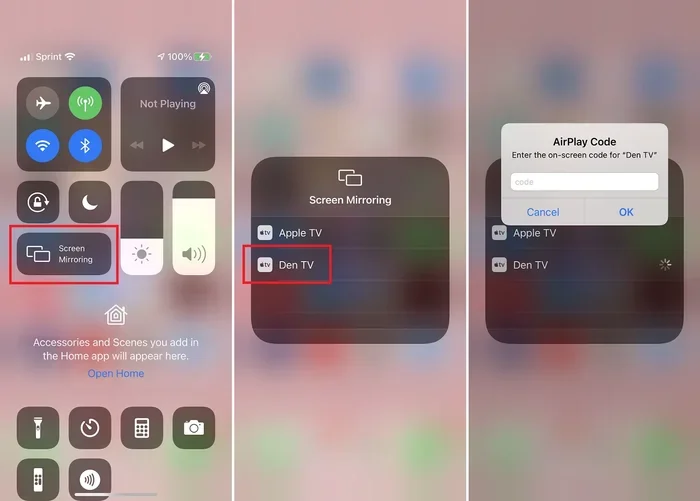
When you open the Control Center on your iPhone and tap the AirPlay icon, your device starts looking for receivers. It broadcasts a query over the network. Any AirPlay-compatible device within range responds with its name and capabilities.
This is why you sometimes see a list of available devices and sometimes you do not. If your Apple TV is turned off or not connected to Wi-Fi, it will not appear in the list.
Step 2: Pairing and Authentication
Once you select a receiver, the devices authenticate each other. This is a quick handshake process. If a password is required, you will be prompted to enter it. In peer-to-peer mode, the pairing happens even faster because there is no router involved.
Step 3: Data Transmission
After pairing, the actual streaming begins. AirPlay uses a combination of Wi-Fi and a custom audio/video protocol to transmit data. The quality depends on your Wi-Fi signal strength and the capabilities of both devices.
For screen mirroring, every pixel on your device screen is sent to the receiver in real time. For content streaming, the receiver fetches the content directly from the internet using your shared Wi-Fi connection. This is why streaming a movie from Netflix directly to your Apple TV often looks better than mirroring your entire screen.
Step 4: Synchronization and Control
Once streaming starts, your device acts as a remote control. You can pause, play, skip, and adjust volume from your phone. The connection remains active as long as both devices stay on the same network.
If you walk out of Wi-Fi range or your phone switches to cellular data, the stream will pause or stop. This is a common reason people think their AirPlay is broken. Always check your network connection first.
AirPlay Compatibility: Which Devices Support It?
Not every device can use AirPlay. The protocol is primarily designed for Apple products, but that has changed over the years. Let us look at what works.
Apple Devices That Support AirPlay
- iPhone: iPhone 4S and later models support AirPlay.
- iPad: All iPad models from iPad 2 onward are AirPlay compatible.
- Mac: Most Macs from 2012 and newer support AirPlay screen mirroring.
- Apple TV: Apple TV (2nd generation and later) serves as a primary AirPlay receiver.
- HomePod: All HomePod and HomePod mini models support AirPlay audio streaming.
Third-Party Devices That Support AirPlay
This is where things get interesting. Many non-Apple devices now support the AirPlay protocol:
- Smart TVs: Brands like Samsung, LG, Sony, and Vizio have built AirPlay 2 into their smart TVs.
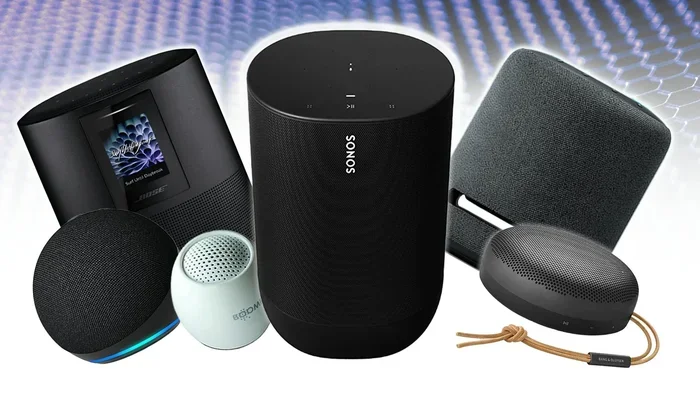
- Speakers: Companies like Sonos, Bose, and Bang & Olufsen offer AirPlay-compatible speakers.
- Receivers and amplifiers: Some AV receivers from Denon, Marantz, and Yamaha support AirPlay.
If you are shopping for a new TV or speaker and want AirPlay capability, look for the “AirPlay 2” logo on the product box. It means the device is fully compatible with the latest version of the protocol.
What About Non-Apple Devices Like Android?
If you are an Android user, you might be wondering if you can use AirPlay. The honest answer is: not natively. Android does not have built-in AirPlay support. However, some smart TVs and speakers that support AirPlay 2 will accept connections from any device that can discover them on the network.
There are also third-party apps on Android that can act as AirPlay senders. These apps are not officially supported by Apple, so they may not work perfectly all the time. If you frequently need to stream from Android to an Apple TV, you might want to explore gadgets and tools that make wireless streaming easier for mixed-device households.
Common AirPlay Connection Problems and How to Fix Them
Even though AirPlay is generally reliable, it is not perfect. Here are the most common issues and their solutions.
AirPlay Does Not Show Up in the Menu
This is the number one frustration. You tap the AirPlay icon, and your TV or speaker is nowhere to be found. Try these steps:
- Make sure both devices are on the same Wi-Fi network.
- Restart your Wi-Fi router.
- Turn AirPlay off and back on on the receiver device.
- Restart the device you are trying to stream from.
- Check for software updates on both devices.
Streaming Keeps Buffering or Lagging
Buffering is annoying. It usually happens when the Wi-Fi signal is weak or the network is congested. Here is what you can do:
- Move closer to your Wi-Fi router.
- Reduce the number of devices using the network at the same time.
- Switch to a 5 GHz Wi-Fi band if your router supports it. It is faster than the 2.4 GHz band.
- Restart your devices to clear any temporary network glitches.
Audio and Video Are Out of Sync
This happens more often with screen mirroring than with direct content streaming. The fix is usually to lower the streaming quality or to restart both devices. If the problem persists, try using content streaming instead of screen mirroring for a smoother experience.
AirPlay Disconnects Randomly
Random disconnections are often caused by network interference or sleep settings. Make sure your devices are set to stay awake during streaming. Also, check if other devices are causing interference, like microwaves or baby monitors that operate on the same frequency.
Tips for a Better AirPlay Experience
Want to get the most out of your AirPlay setup? Here are some practical tips that make a real difference.
Use a Dedicated Wi-Fi Network
If possible, set up a separate Wi-Fi network just for streaming. This reduces congestion from other devices like smart home gadgets, laptops, and phones that are just browsing the web.
Keep Your Devices Updated
Apple regularly releases software updates that improve AirPlay performance. Make sure your iPhone, iPad, Mac, Apple TV, and any AirPlay-enabled smart TV are running the latest software.
Use Content Streaming Over Screen Mirroring
When you want to watch a video, use the built-in AirPlay button within the app instead of mirroring your entire screen. Content streaming lets the receiver fetch the video directly, which gives you better quality and less lag.
Set Up an AirPlay Password
As we mentioned earlier, setting a password prevents unwanted connections. On your iPhone or iPad, go to Settings > General > AirPlay & Handoff and set a password. On your Apple TV, go to Settings > AirPlay & HomeKit > AirPlay Password.
Position Your Router Strategically
Your Wi-Fi router placement matters more than you think. Keep it in a central location, away from walls and metal objects. A strong, consistent Wi-Fi signal is the foundation of a great AirPlay experience.
Expert Insights on AirPlay’s Future
AirPlay has come a long way since its debut. Experts predict that Apple will continue expanding AirPlay compatibility to more devices and platforms. The introduction of AirPlay 2 was just the beginning.
Future updates may bring even lower latency, support for higher resolution video including 8K, and deeper integration with smart home ecosystems like HomeKit. The trend in wireless streaming is clear: convenience, quality, and interoperability will drive the next generation of the technology.
For now, AirPlay remains one of the best wireless streaming solutions available, especially if you live inside the Apple ecosystem. It is reliable, high-quality, and surprisingly easy to use once you understand the basics.
Key Takeaways
- Can anyone connect to AirPlay? Not just anyone. It requires compatible devices on the same network or peer-to-peer mode, plus proper authentication.
- AirPlay works best within the Apple ecosystem: iPhones, iPads, Macs, Apple TVs, and HomePods all support it natively.
- Third-party devices can use AirPlay too: Many smart TVs and speakers from Samsung, LG, Sonos, and others now support AirPlay 2.
- Security settings give you control: You can set passwords and limit who can connect to your AirPlay receivers.
- Most problems are easy to fix: Restart devices, check Wi-Fi, and keep software updated to resolve most issues.
- Content streaming beats screen mirroring: For the best quality, use the AirPlay button inside apps rather than mirroring your full screen.
Conclusion
So, can anyone connect to AirPlay? The answer depends on your setup, your devices, and your security settings. AirPlay is designed to be accessible within your personal network, but it is not an open door for the whole world. This balance of convenience and security is what makes it such a great technology.
Whether you are casting a movie to your TV, streaming music to your speakers, or sharing a presentation in a meeting room, understanding how AirPlay connection works helps you do it all smoothly. The technology is powerful, and once you get comfortable with it, you will wonder how you ever lived without it.
Take some time to explore your AirPlay settings. Try connecting different devices. Experiment with peer-to-peer mode when you are away from your home network. The more you use it, the more intuitive it becomes. Wireless streaming is the future, and AirPlay is leading the way.
Frequently Asked Questions
Can someone outside my home connect to my AirPlay?
No, not under normal circumstances. AirPlay requires devices to be on the same local Wi-Fi network or in peer-to-peer mode. Someone cannot connect to your AirPlay from the internet unless you have specifically set up remote access, which is not the default behavior.
Do I need an Apple TV to use AirPlay?
No, you do not. While Apple TV is the most popular AirPlay receiver, many smart TVs and speakers now support AirPlay 2 natively. You can also use third-party AirPlay receivers that plug into your TV’s HDMI port.
Why can’t my friend’s iPhone find my AirPlay speaker?
This usually happens when the devices are on different Wi-Fi networks. Make sure both devices are connected to the same network. Also check that AirPlay is enabled on the speaker and that it is not set to hidden or offline.
Is AirPlay the same as screen mirroring?
Screen mirroring is one feature of AirPlay, but they are not exactly the same. AirPlay also supports content streaming, where the receiver fetches the content directly from the internet. Screen mirroring duplicates your entire screen in real time, which uses more bandwidth and can result in lower quality.
Can I use AirPlay without Wi-Fi?
Yes, using peer-to-peer AirPlay. This mode lets devices connect directly to each other without a Wi-Fi router. It uses Bluetooth for discovery and Wi-Fi Direct for data transfer. It is perfect for situations where you do not have access to a Wi-Fi network.
Does AirPlay work with Android phones?
Not natively. Android does not have built-in AirPlay support. However, some AirPlay-enabled smart TVs and speakers will accept connections from any device that can discover them on the same network. There are also third-party Android apps that can act as AirPlay senders, though they may not work as reliably as on Apple devices.