How Do I Change My Device Name And Make It Personal
Changing your device name is quick, easy, and lets you personalize every gadget on your network. Whether you want to rename your phone, laptop, or tablet, this guide walks you through the process for all major devices. You will learn how to make your device name stand out and keep your network organized.
Have you ever looked at your WiFi router and seen a long list of devices with random names like “iPhone” or “DESKTOP-ABC123”? It can be confusing. What if you could change those names to something fun, personal, or easy to spot? That is exactly what this guide is all about.
Changing your device name is one of the simplest things you can do to make your home network feel more organized. It also helps you tell your devices apart when you are troubleshooting a connection or checking who is on your WiFi. Whether you use an iPhone, an Android phone, a Windows laptop, or a Mac, the process is straightforward and takes only a few minutes.
In this guide, we will walk you through every step. You will learn how to rename each type of device, why it matters, and some tips to make your device name both personal and useful. Let us get started.
Key Takeaways
- Easy to follow: Changing your device name takes just a few taps or clicks on any device.
- Personalize your gadgets: You can use your name, a fun nickname, or any label you like.
- Network organization: Renaming devices helps you spot them quickly on your WiFi.
- Works for all devices: The guide covers iPhone, Android, Windows PC, Mac, and more.
- No tech skills needed: The steps are simple enough for beginners.
- Boosts security: A clear device name helps you manage and monitor connected devices.
📑 Table of Contents
- Why You Should Change Your Device Name
- How To Change Your Device Name on iPhone
- How To Change Your Device Name on Android
- How To Change Your Device Name on Windows PC
- How To Change Your Device Name on Mac
- How To Change Your Device Name on Other Devices
- Best Practices for Naming Your Devices
- Troubleshooting Common Device Naming Issues
- How Device Names Affect Your WiFi Network
- Conclusion
Why You Should Change Your Device Name
Most devices come with default names that are generic and boring. Your phone might just show up as “iPhone” or “SM-G998B” on your network. A laptop could appear as “DESKTOP-XXXX” or “MacBook-Pro.” These names do not tell you much, and they can make it hard to manage your network.
Here are some good reasons to rename your devices:
- Easy identification: When you see “Johns iPhone” on your network, you know exactly which device it is.
- Better network management: If you need to block a device from using your WiFi, a clear name makes it much faster.
- Personal touch: You can add your name, a favorite color, or a fun emoji to make your gadgets feel like yours.
- Troubleshooting made easy: When you are dealing with connection issues, knowing which device is which saves time.
- Security awareness: If you see an unknown device name on your network, you can act quickly to protect your connection.
The good news is that changing your device name does not affect how the device works. It only changes how it appears to other devices and on your network. You can always change it back or rename it again later.
How To Change Your Device Name on iPhone
Renaming your iPhone is one of the most common reasons people search for this topic. The process is simple and takes less than a minute. Here is how you do it.
Step-by-Step Guide for iPhone
- Open the Settings app on your iPhone.
- Tap on General.
- Tap on About.
- Tap on Name at the top of the screen.
- Delete the current name and type your new name.
- Tap Done on your keyboard.
That is it. Your iPhone will now show up with your new name on WiFi networks, AirDrop, iCloud, and other devices. If you want to add a personal touch, you can include your last name or a fun identifier. For example, “Sarahs iPhone 15” or “Mikes iPhone Pro.”
Quick tip: If you use your iPhone as a nanny cam or a security camera, giving it a clear name helps you find it quickly on your network. You can also check out our guide on changing your iPhone WiFi name if you want to rename your network itself.
What About iPad and Apple Watch?
The same method works for your iPad and Apple Watch. Just go to Settings, tap General, then About, and tap Name. You can rename each Apple device to keep them organized. For example, “Sarahs iPad Pro” or “Mikes Apple Watch.”
How To Change Your Device Name on Android
Android phones also make it easy to change your device name. The steps may vary slightly depending on your brand, but the process is very similar across all Android devices.
Step-by-Step Guide for Android
- Open the Settings app on your Android phone.
- Scroll down and tap on About Phone or About Device.
- Tap on Device Name or Phone Name.
- Delete the current name and type your new name.
- Tap Save or OK.
Once you rename your Android device, the new name will show up on Bluetooth connections, WiFi networks, and when you share files. You can use any name you want. Some people like to use their first name, while others prefer something more creative like “PixelPro” or “GalaxyKing.”
If you want to rename your Android device for better network management, keep the name short and simple. Long names can sometimes cause issues with certain devices or apps that have character limits for device names.
Renaming Android Tablets
The same steps apply to Android tablets. Just go to Settings, find the About section, and look for the Device Name option. Rename it to something that helps you tell it apart from your phone.
How To Change Your Device Name on Windows PC
If you use a Windows laptop or desktop, your device probably has a default name like “DESKTOP-XXXX” or “LAPTOP-XXXX.” You can change this to something much more personal and recognizable.
Method 1: Using Settings
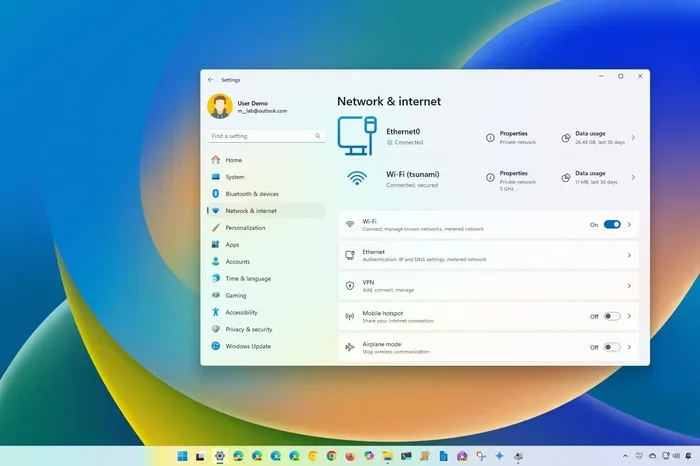
- Open the Settings app (press Windows key + I).
- Click on System.
- Click on About on the left side.
- Click on Rename this PC.
- Type your new name and click Next.
- Click Restart Now to apply the changes.
After your PC restarts, the new name will show up on your network, shared folders, and when other devices try to connect to your computer. Keep the name simple and avoid spaces or special characters, as some network systems do not handle them well.
Method 2: Using Control Panel
If you prefer the older method, you can also change your PC name through the Control Panel. Go to Control Panel, click System, and look for the “Change settings” option. From there, you can rename your computer under the Computer Name tab.
Quick tip: A good naming convention is to use your name and the device type. For example, “Johns-Windows-Laptop” or “Sarahs-Home-PC.” This makes it easy to spot on your network and helps when you need to connect your PC to WiFi or troubleshoot network issues.
How To Change Your Device Name on Mac
Mac computers also come with default names that are not very descriptive. You can easily change your Mac’s name to something that fits your style.
Step-by-Step Guide for Mac
- Click on the Apple menu in the top left corner.
- Select System Preferences (or System Settings on macOS Ventura and later).
- Click on General and then Sharing.
- Click on the computer name at the top.
- Type your new name.
- Close the window to save.
Your Mac will now appear with the new name on your WiFi network, AirDrop, and any shared connections. You can also change your Mac’s hostname through the Terminal if you want more control, but the method above is the easiest for most users.
Expert insight: If you have multiple Apple devices, try to use a consistent naming pattern. For example, “MacBook-Pro-Sarah,” “iPhone-Sarah,” and “iPad-Sarah.” This makes it easy to manage all your devices and keeps your network settings organized.
How To Change Your Device Name on Other Devices
The process for renaming devices goes beyond phones and computers. Here are some other common devices and how to rename them.
Smart Home Devices
Smart speakers, smart plugs, and smart cameras often come with generic names like “Smart Plug 1” or “Camera-Office.” You can rename these through the companion app for each device. For example, in the Google Home app, you can tap on a device and edit its name. In the Alexa app, you go to Devices and select the device to rename it.
Gaming Consoles
Want to rename your Xbox or PlayStation? On Xbox, go to Settings, then General, then Network Settings, and look for the device name. On PlayStation, go to Settings, then Account Management, then Account Information, and you can edit your online ID and console name.
Tablets and E-Readers
Kindles and other e-readers can also be renamed. On Kindle, go to Settings, then Device Options, then Advanced Options, and look for the device name. For other tablets, the process is similar to smartphones.
No matter what device you use, the goal is the same: make the name recognizable and personal. This helps you manage your connected devices and keeps your network running smoothly.
Best Practices for Naming Your Devices
Now that you know how to rename your devices, let us talk about some best practices. These tips will help you get the most out of custom device names.
Keep It Short and Simple
Shorter names work better on most networks. Try to keep your device name under 30 characters. Long names can cause issues with some routers and network management tools. A name like “Sarahs iPhone” is much better than “Sarahs Beautiful New iPhone 15 Pro Max.”
Use a Naming Convention
Using a consistent format across all your devices makes your network easier to manage. Here are some ideas:
- First Name + Device Type: “Sarah-iPhone,” “Sarah-MacBook,” “Sarah-Kindle”
- Room + Device Type: “LivingRoom-TV,” “Bedroom-Tablet,” “Office-Laptop”
- Person + Room: “Johns-Office-PC,” “Sarahs-Bedroom-Phone”
Pick a format that works for you and stick with it. This makes it much easier to find the right device when you need it.
Avoid Sensitive Information
While it is tempting to put your full name or address on your device name, it is best to avoid personal details. Keep it friendly but private. Using just your first name or a nickname is a great balance between personal and secure.
Update Names When You Change Devices
If you get a new phone or laptop, remember to rename it right away. Old device names can linger on your network and cause confusion. A quick rename keeps everything clean and organized.
Use Emojis and Fun Names
There is nothing stopping you from using emojis or playful names. Some people love naming their devices after characters, colors, or themes. Just make sure the name still helps you identify the device quickly.
Quick tip: If you want to share your WiFi with guests, a clear device naming system makes it easier to manage who is on your network. You can also check out our guide on creating a QR code for your WiFi to make sharing your network even easier.
Troubleshooting Common Device Naming Issues
Sometimes things do not go as planned when you rename a device. Here are some common issues and how to fix them.
The New Name Is Not Showing Up
If you changed your device name but it still shows the old name on your network, try restarting your device. Most devices need a reboot to update the name across the network. You may also need to restart your router to refresh the list of connected devices.
Name Keeps Reverting to Default
On some devices, especially those managed by an employer or school, the device name may reset after a restart. If this happens, check if there is a device management policy in place. For personal devices, make sure you saved the new name properly and restarted the device.
Special Characters Cause Problems
Some routers and network systems do not handle special characters well. If your device name includes symbols like @, #, or $, it may not display correctly on all devices. Stick to letters, numbers, and hyphens for the best compatibility.
Duplicate Names on Network
If you have two devices with the same name, it can be confusing. Make sure each device has a unique name. Adding a number or a location identifier can help differentiate between similar devices.
Expert insight: If you are managing a home network with many devices, consider using a network management app. These apps let you see all your connected devices, rename them, and even set up parental controls or device restrictions. This is especially helpful if you want to block specific devices from using your WiFi.
How Device Names Affect Your WiFi Network
You might wonder if changing your device name affects your WiFi performance or security. The short answer is no. Renaming a device does not change how it connects to the internet or how fast your connection is. However, it does have some indirect benefits for your network.
When you can easily identify each device on your network, you are better equipped to manage bandwidth, troubleshoot slow connections, and spot unauthorized devices. A well-organized network is a more secure and efficient network.
If you are interested in more WiFi-related tips, check out our guide on getting just WiFi at home or learn how to extend your WiFi with an ethernet cable for better coverage throughout your home.
Renaming your devices is a small step that makes a big difference. It takes just a few minutes per device, and the payoff is a more organized, more personal, and more manageable home network.
Conclusion
Changing your device name is one of the easiest and most rewarding things you can do for your home network. It takes just a few minutes, requires no special skills, and makes a real difference in how you manage your devices. Whether you are renaming your iPhone, Android phone, Windows PC, Mac, or smart home gadgets, the steps are simple and straightforward.
Use a consistent naming format, keep names short and clear, and avoid sensitive personal details. Your network will be more organized, more secure, and much easier to troubleshoot when something goes wrong. Start with one device today and work through the rest at your own pace.
The goal is simple: make your network yours. A few small changes now can save you a lot of frustration later. So go ahead, rename your devices, and enjoy a more personalized and organized digital life.
Frequently Asked Questions
Can I use emojis in my device name?
Yes, you can use emojis in most device names. However, some older routers or network devices may not display emojis correctly. If you run into display issues, stick to letters and numbers for the best compatibility across all devices on your network.
Will changing my device name affect my WiFi connection?
No, changing your device name does not affect your WiFi connection at all. It only changes how your device appears on the network. Your internet speed, connection stability, and all other settings remain the same.
How often should I rename my devices?
You only need to rename a device when you get a new one or when the current name no longer fits. There is no need to rename devices regularly. Just update the name when it helps you better manage your network.
Can I change my device name from my router settings?
In most cases, you rename devices directly on the device itself rather than through the router. However, some advanced routers allow you to view and manage device names from the router admin panel. Check your router’s settings if you prefer managing everything from one place.
What should I do if my device name reverts back after a restart?
If your device name keeps reverting to the default, make sure you saved the changes properly. Restart the device after renaming it. If the problem continues, check if a device management policy or parental control setting is overriding your custom name.
Is it safe to put my real name on my device name?
Using your first name or a nickname is generally safe. However, avoid using your full name, address, or other sensitive personal information. Keep it friendly but private to maintain good security practices on your home network.