Does Homepod Have To Be Connected To Wifi Right Now
Yes, a Homepod needs wifi to work properly. The device relies on a wireless connection for most of its features, including streaming music, using Siri, and accessing smart home controls. Without wifi, your Homepod loses its core functionality, though some basic features may still work over Bluetooth or a local network.
Key Takeaways
- Wifi is essential: A Homepod requires an active wifi connection to access most features like streaming, Siri, and smart home integration.
- Setup demands wifi: You cannot set up a Homepod without a wifi network and an Apple device nearby.
- Bluetooth offers limited use: Without wifi, some basic audio playback may work through Bluetooth, but you lose most smart features.
- Mesh wifi helps stability: If your Homepod keeps dropping connection, upgrading your router setup can make a big difference.
- Offline features are limited: A Homepod without wifi cannot access new music, podcasts, or smart home commands.
- Password matters: You need the correct wifi password during setup to get your Homepod running smoothly.
📑 Table of Contents
- Does Homepod Have To Be Connected To Wifi To Work
- Setting Up Your Homepod: Why Wifi Is Required From Day One
- Can You Use Homepod Without Wifi At All
- How To Connect Your Homepod To Wifi Step By Step
- What Happens When Homepod Loses Wifi Connection
- Tips For Keeping Your Homepod Connected To Wifi
- Homepod Mini Vs Full-Size Homepod: Does Wifi Need Differ
- Can You Use Airplay Without Wifi
- Final Thoughts On Homepod Wifi Requirements
Does Homepod Have To Be Connected To Wifi To Work
The short answer is yes. Does Homepod Have To Be Connected To Wifi is a question many new Apple users ask when they unbox their smart speaker for the first time. The Homepod is a wifi-dependent device. It needs a strong and stable wireless connection to do almost everything it was designed to do.
When you think about it, the Homepod is more than just a speaker. It is a smart home hub, a voice assistant, and a streaming device all rolled into one. All of those roles depend on being online. Without wifi, your Homepod becomes a very expensive paperweight in most cases.
But the full story is a bit more nuanced. There are some situations where a Homepod can still do limited things without wifi. And understanding those exceptions helps you plan better if your internet ever goes down. Let us walk through everything you need to know about Homepod wifi requirements and how to keep your device running smoothly.
If you have ever wondered whether you can skip the wifi setup or use your Homepod offline, this guide covers it all. We will look at setup, daily use, troubleshooting, and tips to keep your connection strong. Whether you own a full-size Homepod or the Homepod Mini, the wifi rules remain mostly the same.
Why Wifi Is Non-Negotiable For Most Homepod Features
Apple designed the Homepod to be a deeply connected device. It talks to Apple servers, streams content from online services, and responds to voice commands through cloud processing. None of that works without a live internet connection.
Here is what you lose when your Homepod has no wifi:
- Siri voice commands – Most Siri requests need internet access to fetch answers, set reminders, or control smart home devices.
- Music streaming – Services like Apple Music, Spotify, and Pandora require an active connection to stream songs.
- Podcasts and audiobooks – All content from these services is delivered online.
- Smart home control – HomeKit devices like lights, locks, and thermostats rely on the Homepod being online to process commands.
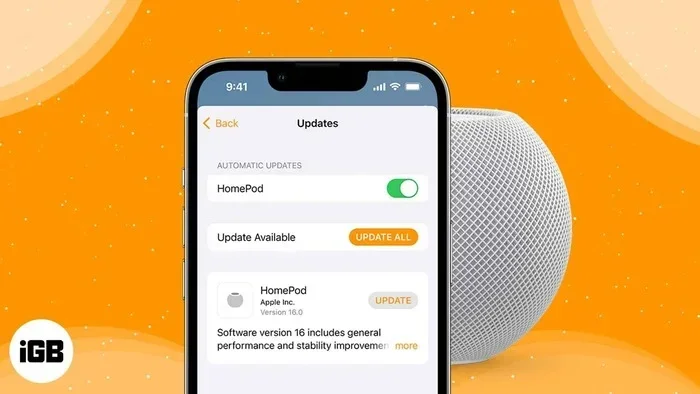
- Software updates – Apple pushes updates over wifi, so your Homepod stays current only when connected.
- Handoff features – The ability to send audio from your iPhone or iPad to the Homepod requires both devices to be on the same network.
As you can see, the list of things that stop working is long. This is why Does Homepod Have To Be Connected To Wifi really comes down to whether you want your device to function as intended or not.
Setting Up Your Homepod: Why Wifi Is Required From Day One
When you first take a Homepod out of the box, the very first thing it asks for is a wifi connection. You cannot skip this step. The setup process is designed to be simple, but it is also locked to a wifi network. You need an Apple device like an iPhone or iPad running the latest iOS to complete the pairing.
The setup process works like this. You place your Homepod near your Apple device. You bring the device close to the Homepod. A prompt appears on your phone asking you to confirm the connection. You enter your wifi password, and the Homepod joins your network. That is it.
But what if you do not have a wifi network yet? You cannot set up the Homepod at all. You need to have an active router and a working internet connection before you even begin. This is a hard requirement from Apple.
Some users wonder if they can use a mobile hotspot to set up the Homepod. The answer is yes, technically. You can connect your Homepod to a personal hotspot from your iPhone during setup. However, this is not a long-term solution. Hotspots are not designed to run a smart speaker 24/7, and they can drain your phone battery quickly.
If you are in a situation where you do not have home internet, you might want to check whether Can I Connect To Wifi Without Wifi Adapter is possible on your device. This could help if your setup device itself lacks wireless capabilities.
What Happens If You Enter The Wrong Password
Entering the wrong wifi password is one of the most common setup problems. The Homepod will simply fail to connect and ask you to try again. Make sure you are typing the password exactly as it appears in your router settings. Passwords are case-sensitive, so double-check capital letters and special characters.
If you have forgotten your wifi password, you can usually find it on the back of your router or in your internet service provider account portal. You can also reset your router to factory settings, but that will disconnect all your devices temporarily.
Can You Use Homepod Without Wifi At All
This is where things get interesting. The answer depends on what you mean by “without wifi.” There is a difference between having no internet at all and simply being disconnected from your home network.
If your internet goes down but your router is still on, the Homepod may still be connected to the local network. In this case, some features might work locally. For example, you can still play music stored on your device if it is on the same network. But you will not be able to stream anything from the cloud or ask Siri questions that require internet.
If your router is completely off, the Homepod loses all network access. In this state, it can barely do anything. You might still be able to use it as a basic Bluetooth speaker if you pair it with your phone. But even then, the experience is limited and not what the device was built for.
So to directly answer Does Homepod Have To Be Connected To Wifi Right Now: yes, for all practical purposes. The device is designed to be an always-online smart speaker. Taking it offline strips away almost everything that makes it useful.
Bluetooth As A Temporary Workaround
Bluetooth connectivity can save you in a pinch. If you have no wifi but want to play music from your phone, you can pair the Homepod via Bluetooth. This works for basic audio playback.
However, Bluetooth has its limits. You cannot use Siri over Bluetooth. You cannot control smart home devices. And the range is shorter than wifi. You also cannot stream from services like Apple Music directly through Bluetooth alone. The phone has to handle the streaming and send the audio to the Homepod.
Some users also ask about using Can A Bluetooth Device Be Hidden if they want to manage their Homepod’s visibility on the network. While this is more of a privacy concern, it does relate to how Bluetooth devices interact with your home network.
How To Connect Your Homepod To Wifi Step By Step
Connecting a Homepod to wifi is straightforward, but it helps to know the steps ahead of time. Here is a simple walkthrough that works for both the standard Homepod and the Homepod Mini.
Step 1: Plug in your Homepod and wait for the white light to appear. This means the device is ready to pair.
Step 2: Unlock your iPhone or iPad and bring it close to the Homepod. A setup prompt should appear automatically on your screen.
Step 3: Tap “Set Up” and follow the on-screen instructions. You will be asked to choose your home name and room location.
Step 4: Select your wifi network from the list. Enter the password carefully.
Step 5: Wait for the Homepod to connect. The light will turn solid white when it is ready.
That is the basic process. It usually takes less than two minutes. But sometimes things do not go smoothly. Here are some common issues and fixes.
Troubleshooting Common Wifi Connection Problems
If your Homepod fails to connect, do not panic. Try these simple fixes first:
- Restart your router – Unplug it for 30 seconds and plug it back in. This clears temporary glitches.
- Move closer to the router – Distance and walls can weaken the signal during setup.
- Check your password – Make sure there are no typos or extra spaces.
- Restart your Homepod – Unplug it, wait 10 seconds, and plug it back in.
- Update your iPhone – An outdated iOS version can cause compatibility issues.
- Forget the network and reconnect – Go to your iPhone wifi settings, forget the network, and try again.
If none of these work, you may have a deeper network issue. In that case, consider whether your router setup could be improved. Adding a mesh wifi system can help extend coverage throughout your home and keep your Homepod connected in every room.
Some users find that their existing router is simply not strong enough. If you are dealing with weak signals in certain rooms, learning about Can I Add Mesh Wifi To Existing Router can be a game changer for your smart home setup.
What Happens When Homepod Loses Wifi Connection
Wifi drops happen to everyone. Maybe your internet provider has an outage, or perhaps your router just needs a reboot. When your Homepod loses its connection, you will notice it right away.
The first sign is usually Siri becoming unresponsive. When you ask a question, the Homepod might say it cannot answer right now. Music playback might stop mid-song if it was streaming. And any smart home automations linked to the Homepod will pause until the connection returns.
Once wifi comes back, the Homepod reconnects automatically. You do not need to do anything. It remembers your network settings and joins again without manual input. This is one of the nice things about Apple’s design. The device handles reconnection quietly in the background.
However, frequent disconnections are not normal. If your Homepod keeps dropping wifi, there is likely a problem with your network. Possible causes include:
- A weak wifi signal in the Homepod’s location
- Too many devices on the same network
- An outdated router firmware
- Interference from other electronic devices
- Your internet service provider having consistent outages
Frequent disconnections can be frustrating. If you are dealing with this issue, you might want to explore whether Can I Connect My Pc To Wi Fi Without Ethernet offers any insights into improving your overall network setup, since the principles of wireless connectivity are similar across devices.
Tips For Keeping Your Homepod Connected To Wifi
Prevention is always better than fixing problems after they happen. Here are some practical tips to keep your Homepod connected to wifi at all times.
Place Your Homepod In A Central Location
The closer your Homepod is to your router, the stronger the signal will be. Avoid placing it in basements, closets, or far corners of your home. A central room usually gives the best coverage.
Use A Dedicated Network For Smart Home Devices
Many modern routers allow you to create a separate network for IoT devices. This keeps your smart home gadgets isolated from your main network. It also reduces congestion and can improve connection stability.
Keep Your Router Updated
Router manufacturers release firmware updates that fix bugs and improve performance. Check your router settings regularly and install updates when available. An outdated router can cause all kinds of connection problems.
Limit The Number Of Devices On Your Network
Every device on your network shares bandwidth. If you have dozens of smart home gadgets, phones, laptops, and tablets all connected, your Homepod might struggle to get enough bandwidth. Consider disconnecting devices you are not actively using.
Consider A Mesh Wifi System
If your home is large or has thick walls, a single router might not be enough. A mesh wifi system uses multiple nodes to spread coverage evenly throughout your home. This is especially helpful for keeping your Homepod connected in rooms that are far from the router.
If you are thinking about buying your own router or modem, check out Can I Buy My Own Wifi Box to understand your options better. Having the right equipment makes a huge difference in connection quality.
Use A Strong, Unique Password
This might sound basic, but a strong wifi password prevents unauthorized devices from connecting to your network. If too many strangers are using your wifi, your Homepod will suffer from slow speeds and dropped connections. Make sure your password is secure and that you change it periodically.
Homepod Mini Vs Full-Size Homepod: Does Wifi Need Differ
The Homepod Mini and the full-size Homepod share the same core wifi requirements. Both need a 2.4GHz or 5GHz wifi network to function. Both require the same setup process. And both lose their smart features when disconnected from the internet.
The only real difference is in range and audio power. The full-size Homepod has a stronger speaker and a slightly better antenna, which means it might hold a wifi connection a bit better in larger rooms. But the difference is not dramatic.
For most users, the Homepod Mini is more than enough. It is compact, affordable, and delivers great sound for its size. And it has the same wifi dependency as the larger model. So when asking Does Homepod Have To Be Connected To Wifi, the answer is the same regardless of which model you own.
Can You Use Airplay Without Wifi
Airplay is one of the most popular features of the Homepod. It lets you stream audio from your iPhone, iPad, or Mac directly to the speaker. But does Airplay work without wifi?
The short answer is no. Airplay requires both the sending device and the Homepod to be on the same wifi network. Without wifi, Airplay cannot function. You can still use Bluetooth to send audio, but that is a different protocol entirely.
If you are looking for ways to extend your wifi coverage so Airplay works seamlessly in every room, learning about Can I Extend Wifi With Ethernet Cable might give you some useful ideas. A wired backhaul can significantly improve your wireless network’s range and stability.
Final Thoughts On Homepod Wifi Requirements
To wrap things up, Does Homepod Have To Be Connected To Wifi is a question with a very clear answer. Yes, it does. The Homepod is built to be an always-connected smart speaker. It needs wifi for setup, daily use, Siri, streaming, smart home control, and updates.
There are a few workarounds for temporary situations, like using Bluetooth or a mobile hotspot. But none of these are long-term solutions. If you want your Homepod to work the way Apple intended, a reliable wifi connection is a must.
The good news is that keeping your Homepod connected is not hard. With a decent router, a central placement, and a few simple habits, you can enjoy uninterrupted smart speaker performance for years. Invest in a good network setup, and your Homepod will reward you with seamless voice control, great sound, and smart home automation that just works.
Take a few minutes today to check your wifi setup. Make sure your router is in a good spot. Update your firmware. And test your Homepod’s connection. A little effort now saves a lot of frustration later. Your Homepod will thank you for it.
Frequently Asked Questions
Can I use my Homepod if I do not have internet?
You can use very limited features without internet, such as playing music stored locally on your device through Bluetooth. However, most features like Siri, streaming, and smart home control require an active wifi connection. Without internet, the Homepod is essentially a basic speaker.
How do I reconnect my Homepod to wifi after a power outage?
After a power outage, the Homepod usually reconnects automatically once power is restored. If it does not, unplug the Homepod, wait 10 seconds, and plug it back in. It should rejoin your wifi network within a minute or two.
Does the Homepod Mini need a different wifi setup than the full-size Homepod?
No, both models use the same wifi setup process and require the same type of connection. Both support 2.4GHz and 5GHz networks and need an Apple device for initial setup. The wifi requirements are identical across both models.
Can I connect my Homepod to a guest wifi network?
Yes, you can connect your Homepod to a guest network as long as it has internet access. However, make sure the guest network allows Apple devices to communicate on the same network. Some guest networks isolate devices, which can prevent Homepod features from working properly.
Why does my Homepod keep disconnecting from wifi?
Frequent disconnections are usually caused by a weak signal, router issues, or too many devices on the network. Try moving your Homepod closer to the router, restarting your router, or reducing the number of connected devices. A mesh wifi system can also help solve persistent connection problems.
Can I set up a Homepod without an iPhone or iPad?
No, Apple requires an Apple device running iOS or iPadOS to set up a Homepod. You cannot set it up using an Android phone or a Windows PC. The Apple device acts as the bridge during the initial wifi configuration process.