How Do I Access Uva Wifi With Easy Step By Step Instructions
Accessing Uva wifi is simple once you know the right steps. This guide walks you through the entire process from registration to connection. You will learn how to set up your device, fix common issues, and keep your connection secure on the university network.
Have you ever walked across the University of Virginia campus only to realize you need to get online? Whether you are trying to submit an assignment, stream a lecture, or just stay connected with friends, access Uva wifi quickly becomes a top priority. The good news is that connecting to the Uva wireless network is easier than most people think.
This guide gives you step-by-step instructions to get your device online in no time. We will cover everything from initial setup to troubleshooting common problems. By the end of this article, you will feel confident connecting to Uva wifi on any device. Let us dive right in and get you online.
Key Takeaways
- Easy Setup: Connecting to Uva wifi requires a few simple steps including device registration and network selection.
- Multiple Networks Available: Uva offers different wifi networks for students, faculty, and guests with varying access levels.
- Troubleshooting Is Straightforward: Most common wifi issues can be resolved with basic steps like restarting your device or clearing cache.
- Security Matters: Following best practices ensures your data stays safe while using campus wireless networks.
- Performance Tips Help: Simple adjustments can significantly improve your Uva wifi speed and reliability.
- Guest Access Is Available: Visitors can also connect to Uva wifi with a straightforward guest registration process.
📑 Table of Contents
- Understanding Uva Wifi Networks
- How To Connect To Uva Wifi Step By Step
- Getting Wifi On Your Own Without University Infrastructure
- Troubleshooting Common Uva Wifi Problems
- Tips For Getting The Best Uva Wifi Performance
- Uva Wifi Security Best Practices
- Connecting Multiple Devices To Uva Wifi
- When To Contact Uva IT Support
- Conclusion
Understanding Uva Wifi Networks
Before you connect, it helps to know what networks are available. The University of Virginia runs several wireless networks for different users. Each network serves a specific purpose and comes with its own set of rules and access levels.
Uva Wifi Network Options
The main network for students and faculty is called UVA-WPA2. This is the primary secure network that handles most daily online activities. It requires a NetBadge username and password to join. Once you enter your credentials, your device stays connected and you can browse the web freely.
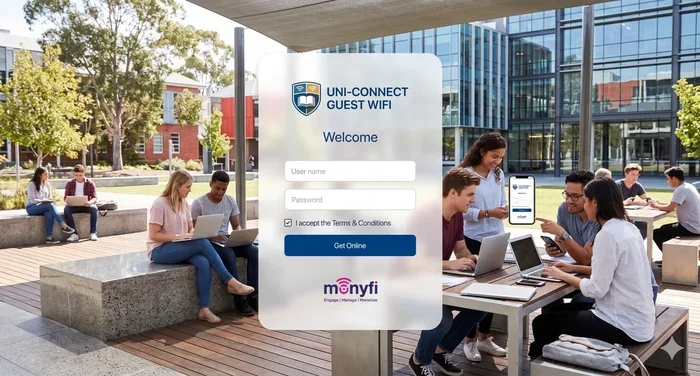
There is also a guest network for visitors who do not have a NetBadge account. This network provides limited access and is perfect for short-term use. If you are new to campus, understanding these options makes the whole process smoother.
Some buildings on campus also have specialized networks for academic departments. These networks may require additional setup steps. Always check with your department if the standard student network does not work in your building.
How To Connect To Uva Wifi Step By Step
Now let us get into the actual steps. This process works for laptops, tablets, and smartphones. Follow along carefully and you will be connected in just a few minutes.
Step 1: Make Sure Your Device Is Ready
First, turn on your device and make sure wireless is enabled. On most laptops, you will find the wifi toggle in the system tray at the bottom right of your screen. On phones and tablets, go to Settings and look for the wifi option. If your device does not have a built-in wifi adapter, you might need to connect to wifi without a wifi adapter using an external USB dongle.
Check that your device is fully charged or plugged in. A weak battery can sometimes cause connection drops during the setup process. It is also a good idea to update your device software before connecting to any new network.
Step 2: Find And Select The Uva Wifi Network
Open your wifi settings and look for the network name. On student and faculty devices, the network should appear as UVA-WPA2. Click or tap on it to start the connection process. Your device will search for the network signal and display a list of available options.
If you do not see the network, try moving closer to a window or an open area. Thick walls and distance from access points can weaken the signal. Walking near a common area or library often gives you a stronger connection.
Step 3: Enter Your Login Credentials
Once you select the network, a login window will pop up. Enter your NetBadge username and password. This is the same login you use for UVA email and other university services. If you have not set up your NetBadge yet, visit the university IT services page to register first.
Make sure you type your credentials carefully. Passwords are case-sensitive, so double-check before clicking connect. If you forget your password, the university IT help desk can help you reset it quickly.
Step 4: Accept The Terms And Connect
After entering your login details, you may see a terms-of-use page. Read through it and accept the conditions to complete the connection. This step ensures you understand the university’s internet usage policies.
Once accepted, your device should connect automatically. You will see a wifi icon in your status bar or system tray confirming the connection. Open a browser and try loading a webpage to make sure everything works.
Step 5: Verify Your Connection
Open your web browser and visit any website. If the page loads normally, you are successfully connected to Uva wifi. If not, try restarting your browser or toggling wifi off and back on. Sometimes a simple refresh is all you need.
You can also check your connection speed by running a quick speed test. This helps you understand if the network is performing well in your current location. Speed can vary depending on building congestion and time of day.
Getting Wifi On Your Own Without University Infrastructure
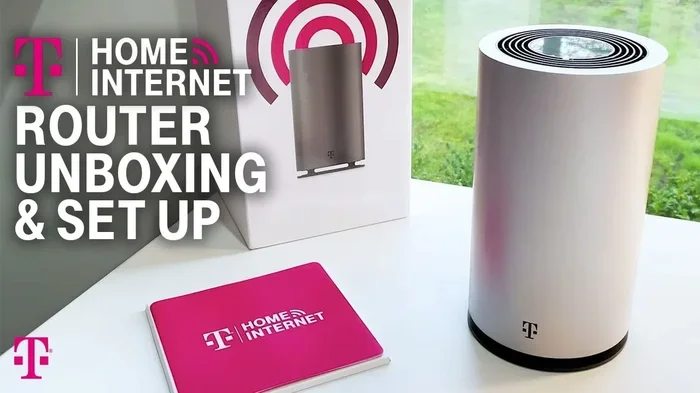
Sometimes you may want wifi access outside the standard campus setup. For example, you might be living off-campus or in a situation where the university network is not available. In these cases, you can get wifi on your own through a personal internet provider or a mobile hotspot.
Many students living in apartments set up their own wireless routers. This gives them full control over their internet connection. You can also use your phone as a hotspot to share mobile data with your laptop or tablet. Just be mindful of your data limits to avoid extra charges.
If you are exploring options for independent internet, check whether your area has fiber or cable providers available. Having a backup internet source is always a smart move for students who rely heavily on the web for coursework and research.
Troubleshooting Common Uva Wifi Problems
Even with the best setup, you might run into issues now and then. Do not worry. Most problems have simple solutions. Here are the most common issues and how to fix them.
Wifi Keeps Disconnecting
If your connection drops frequently, try moving to a different location. Some buildings have dead zones where the signal is weak. Also check if your device is set to automatically switch networks. Sometimes it jumps to a weaker signal and causes disconnections.
Restarting your device often resolves temporary glitches. Turn wifi off, wait a few seconds, and turn it back on. This refreshes your connection to the access point and often fixes the problem.
Login Page Will Not Load
Sometimes the login portal gets stuck or refuses to load. Clear your browser cache and cookies, then try again. If that does not work, try opening an incognito or private browsing window. This bypasses saved data that might be causing the issue.
Another quick fix is to forget the network on your device and reconnect. Go to your wifi settings, find UVA-WPA2, and select the option to forget it. Then search for the network again and log in fresh.
Slow Internet Speeds
Slow speeds are common during peak hours when many students are online. Try connecting during off-peak times for better performance. Early mornings and late evenings usually see less network congestion.
You can also check if other devices are using bandwidth in the background. Streaming videos or large downloads on another device can slow down your connection. Close unnecessary apps and browser tabs to free up speed.
Device Does Not See The Network
If your device cannot find the Uva wifi network, make sure wireless is turned on. Restart your wifi adapter if you are on a laptop. You can also try updating your wireless drivers through your device manager.
In rare cases, your device might need a network adapter driver update. Check the manufacturer’s website for the latest drivers. Once updated, restart your device and search for the network again.
Tips For Getting The Best Uva Wifi Performance
Want to get the most out of your campus wifi connection? A few simple tips can make a big difference. Here is what works best for most students.
- Stay close to access points: The closer you are to a wifi router, the stronger your signal will be. Study in areas near common wifi zones for the best speeds.
- Keep your device updated: Software updates often include improvements to wireless connectivity. Make sure your operating system is current.
- Limit background apps: Apps running in the background can eat up your bandwidth. Close them when you need a strong connection for important tasks.
- Use ethernet when possible: If your dorm or study space has an ethernet port, use it for a more stable connection. You can extend wifi with an ethernet cable to improve coverage in your room.
- Avoid peak hours for heavy downloads: Large file downloads work better late at night or early in the morning when fewer people are online.
- Restart your device weekly: Regular restarts clear temporary network glitches and keep your connection running smoothly.
Uva Wifi Security Best Practices
Security is important when using any wireless network, especially on a shared campus system. Follow these practices to keep your data safe while using Uva wifi.
Use Strong Passwords
Your NetBadge password is your first line of defense. Use a strong, unique password that you do not share with anyone. Avoid using simple passwords like birthdays or common words. A strong password keeps unauthorized users out of your accounts.
Enable Two-Factor Authentication
Turn on two-factor authentication for your university accounts whenever possible. This adds an extra layer of security beyond just your password. Even if someone gets your login details, they cannot access your account without the second verification step.
Avoid Sensitive Transactions On Public Networks
While Uva wifi is secure, it is still a shared network. Avoid entering sensitive financial information on public wifi when possible. If you must do so, make sure the website uses HTTPS encryption. Look for the padlock icon in your browser address bar.
Keep Your Device Protected
Run antivirus software on your laptop and keep it updated. This protects you from malware that could steal your data over any network. Also enable your device firewall for an extra layer of protection.
Never leave your device unattended in public spaces. Someone could physically access your open sessions or install tracking software. Lock your screen whenever you step away, even for a moment.
Connecting Multiple Devices To Uva Wifi
Most students have several devices they want to connect. Your laptop, phone, tablet, and maybe even a gaming console all need access. The good news is that you can register multiple devices under your NetBadge account.
Each device will need to go through the same connection process. Make sure you remember your login credentials for all of them. Writing them down in a secure password manager is a smart habit that saves time.
If you have trouble connecting a second device, try forgetting the network on your first device and reconnecting both. This refreshes the network profile and often fixes pairing issues. Some devices also benefit from a simple restart before attempting to join the network again.
When To Contact Uva IT Support
If you have tried all the troubleshooting steps and still cannot connect, it is time to reach out for help. The UVA IT help desk is there for students and faculty. They can walk you through advanced setup steps and identify network issues in your building.
Have your NetBadge credentials ready when you contact support. Describe the problem clearly, including what steps you have already tried. This helps the support team resolve your issue faster. You can reach them through the university website or by visiting the IT help center in person.
Keep in mind that getting wifi on your own through a personal provider is always an option if campus wifi does not meet your needs. Some students find that having both university wifi and a personal backup connection gives them the best experience throughout the semester.
Conclusion
Connecting to Uva wifi does not have to be complicated. With the right steps, you can get online in just a few minutes. From selecting the correct network to entering your NetBadge credentials, the process is straightforward and user-friendly.
Remember to follow security best practices and troubleshoot common issues when they arise. Keep your device updated and use the performance tips shared in this guide. A strong wifi connection makes your campus life so much easier and more productive.
Now that you know how to access Uva wifi with confidence, go ahead and connect your devices. Whether you are in the library, your dorm, or a coffee shop on the Lawn, you are ready to stay connected. Happy browsing and good luck with your studies.
Frequently Asked Questions
What do I need to access Uva wifi for the first time?
You need a device with wireless capability, your NetBadge username and password, and access to the UVA-WPA2 network. Make sure your device software is updated before you start the connection process. Having your credentials ready saves time and avoids frustration during setup.
Can I use my own wifi router on Uva campus?
Personal routers are generally not allowed on the university network because they can interfere with official access points. If you need better coverage in your dorm, consider using a wifi extender that connects to the existing network. Check with housing services for specific guidelines on approved devices.
Why can’t I see the Uva wifi network on my device?
This usually happens when wireless is turned off or your device is too far from an access point. Restart your wifi adapter and move to a different location to improve signal detection. Updating your wireless drivers can also help your device find the network more reliably.
Is Uva wifi free for students?
Yes, wifi access is included as part of your university enrollment. Students get full access to the secure UVA-WPA2 network using their NetBadge credentials. Guest networks are also available for visitors who need temporary internet access during their time on campus.
How do I fix slow speeds on Uva wifi?
Slow speeds often occur during peak usage hours when many students are online. Try connecting during off-peak times and close background apps that use bandwidth. Moving closer to a wifi access point and restarting your device can also improve your speed significantly.
Can I connect to Uva wifi from off-campus housing?
The UVA-WPA2 network is designed for on-campus use and may not be available from off-campus locations. However, you can set up your own personal internet connection through a local provider. Some students also use their phone hotspot as a reliable backup for off-campus wifi needs.