Can You Change Your WiFi Address Here Is Everything You Need
Yes, you can change your WiFi address — it is also known as your MAC address, and the process is simpler than most people think. Whether you want to protect your network privacy, bypass restrictions, or troubleshoot connection issues, changing your wireless network identity gives you more control. This guide walks you through every method for Windows, Mac, Android, and iPhone, so you can do it safely and confidently.
Key Takeaways
- Changing your WiFi address is possible: Every device has a MAC address that can be modified through simple settings or commands.
- It works on all major platforms: Windows, Mac, Android, and iPhone all support MAC address changes with built-in or free tools.
- Network privacy improves: Spoofing your WiFi address helps reduce tracking and enhances your network security.
- MAC filtering bypass is possible: You can get around MAC filtering restrictions by changing your hardware address.
- Risks exist but are manageable: Temporary changes revert on reboot, and permanent changes need careful handling.
- Router settings matter: Understanding your router settings helps you manage how devices connect to your wireless connection.
- Restart to revert: Most temporary changes reset after a device restart, keeping your setup flexible.
📑 Table of Contents
- Can You Change Your WiFi Address? Here Is Everything You Need to Know
- How to Change Your WiFi Address on Windows
- How to Change Your WiFi Address on Mac
- How to Change Your WiFi Address on Android
- How to Change Your WiFi Address on iPhone
- What Is MAC Spoofing and Is It Legal?
- Common Mistakes When Changing Your WiFi Address
- How to Verify Your New WiFi Address
- When Should You NOT Change Your WiFi Address?
- Benefits of Changing Your WiFi Address for Privacy
- Final Thoughts
Can You Change Your WiFi Address? Here Is Everything You Need to Know
Have you ever wondered if you can change your WiFi address? The short answer is yes. Your WiFi address — also called your MAC address — is a unique identifier assigned to your network adapter. But unlike what many people believe, this address is not set in stone. You can change it whenever you want.
People change their WiFi address for many reasons. Some want better network privacy. Others need to bypass a network restriction or fix a connection problem. Whatever your reason, this guide covers everything you need. You will learn what a WiFi address is, why it matters, and exactly how to change it on every device you own.
Let us start with the basics. Understanding your network identity makes the whole process much easier. Once you know what you are working with, the steps become simple and straightforward.
What Is a WiFi Address?
A WiFi address is a string of numbers and letters. It is also called a Media Access Control address, or MAC address for short. Think of it as your device’s permanent ID on a network. Every device that connects to WiFi has one. Your phone, laptop, tablet, and smart TV all have unique hardware addresses.
This address is usually assigned by the manufacturer. It is burned into the network card during production. The format looks something like 00:1A:2B:3C:4D:5E. Six pairs of characters separated by colons or dashes. It is always unique, which is what makes it useful for identifying devices on a wireless network.
Here is the key part. While the original address is permanent, you can override it. This process is called MAC spoofing or MAC address randomization. It tricks the network into seeing a different identity. More on that below.
Why Would You Want to Change Your WiFi Address?
There are several good reasons to change your WiFi address. Let us look at the most common ones.
Privacy protection. When you connect to public WiFi, your device broadcasts its MAC address. Networks and advertisers can use this to track your movements. Changing your address makes it harder for others to follow you across different networks.
Bypassing restrictions. Some networks use MAC filtering. They only allow specific devices to connect. If your address is not on the list, you get blocked. Changing your address can help you get past this.
Troubleshooting. Sometimes a network conflict causes connection problems. Two devices with the same address can interfere with each other. Changing one of them fixes the issue fast.
Testing and development. Network engineers often change addresses to test how systems behave. It is a standard practice in network configuration and security auditing.
Avoiding profiling. Some ISPs and websites track users by their device fingerprint. The MAC address plays a role in this. Spoofing it adds a layer of anonymity.
How to Change Your WiFi Address on Windows
Windows makes it pretty easy to change your network adapter address. You can do it through the settings or with a simple command. Let us walk through both methods.
Method 1: Using Device Manager
This method works on Windows 10 and Windows 11. Here is what to do step by step.
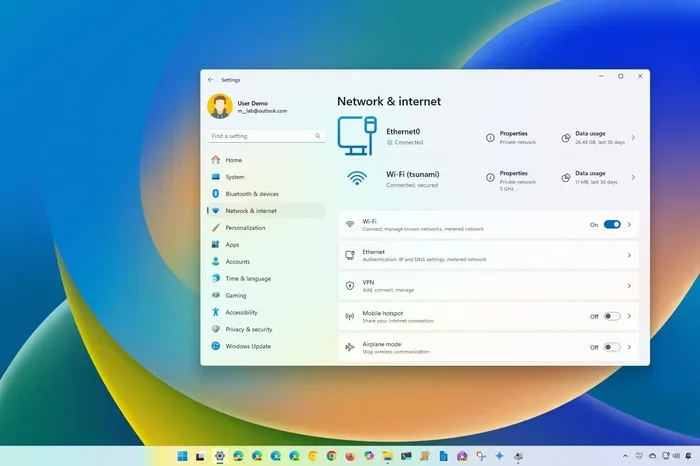
- Right-click the Start button and select Device Manager.
- Expand the Network adapters section.
- Right-click your WiFi adapter and choose Properties.
- Go to the Advanced tab.
- Look for Network Address or Locally Administered Address.
- Click the Value field and type your new MAC address.
- Click OK and restart your computer.
Make sure you use a valid format. Six pairs of hexadecimal characters. No spaces, just colons or no separator at all. For example, 00:11:22:33:44:55 works perfectly.
Method 2: Using Command Prompt
Some people prefer the command line. It is faster and gives you more control. Here is how to do it.
- Open Command Prompt as Administrator.
- Type
getmac /v /fo listand press Enter. - Note down your current physical address.
- Type
reg add "HKEY_LOCAL_MACHINE\SYSTEM\CurrentControlSet\Control\Class\{4d36e972-e325-11ce-bfc1-08002be10318}\000X" /v NetworkAddress /t REG_SZ /d YOURNEWMAC /f - Replace 000X with the correct adapter number.
- Restart your PC.
Quick Tip: Always write down your original MAC address before making changes. You will want to restore it later. It takes two seconds and saves a lot of headaches.
How to Change Your WiFi Address on Mac
Mac users have a built-in way to randomize their WiFi address. Apple added this feature in macOS High Sierra. It is designed to protect your network privacy by default.
Using System Preferences
Here is the easiest way to change your address on a Mac.
- Open System Preferences.
- Click Network.
- Select Wi-Fi from the left panel.
- Click Advanced.
- Go to the Hardware tab.
- Change the MAC address field to your desired value.
- Click OK and reconnect to your network.
Alternatively, you can use Terminal commands. Open Terminal and type sudo ifconfig en0 ether XX:XX:XX:XX:XX:XX. Replace the XX values with your new address. This method takes effect immediately.
On newer Macs running Ventura or Sonoma, Apple uses randomized MAC addresses by default for each wireless connection. This means your real address is already hidden in many situations. You may not need to change it at all unless you have a specific reason.
How to Change Your WiFi Address on Android
Android phones make it surprisingly easy to change your WiFi MAC address. Google added a feature called MAC randomization a few years ago. Most modern Android phones support it natively.
Using Android Settings
Follow these steps on your phone.
- Open Settings.
- Tap Network and Internet or Connections.
- Select Wi-Fi.
- Tap the network you are connected to.
- Look for MAC address or Device MAC.
- Tap on it and select Randomized.
- Disconnect and reconnect to the network.
Your phone will now use a different WiFi address each time it connects. This is great for network privacy. Even the network administrator cannot track your real device identity.
Some Android phones let you set a custom MAC address instead of a random one. This depends on your brand and Android version. Samsung, Pixel, and OnePlus phones tend to offer more options than budget models.
Using Third-Party Apps
If your phone does not offer enough options, you can try a third-party app. Apps like MAC Address Ghost or Change My MAC let you set a custom address. Just be careful. Only download apps from trusted sources like the Google Play Store. Fake apps can compromise your device security.
How to Change Your WiFi Address on iPhone
Apple iPhones also support MAC address randomization. This has been a default feature since iOS 14. Your iPhone uses a different wireless network address for each WiFi network you join.
Checking Your iPhone Settings
Here is how to see and manage your iPhone’s WiFi address.
- Open Settings.
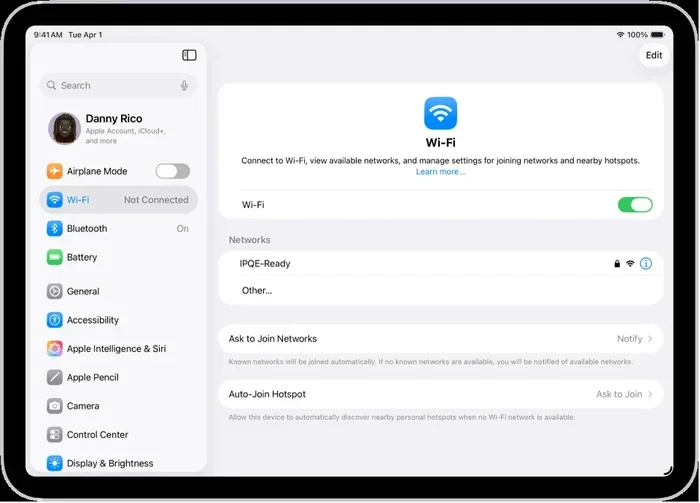
- Tap Wi-Fi.
- Tap the info icon next to your connected network.
- Look for the MAC address field.
- You will see a randomized address, not your real one.
Apple does not let you set a fully custom MAC address on iPhones. The randomization is automatic and cannot be fully disabled on newer iOS versions. This is a privacy-first approach. Apple wants to protect users from network tracking by default.
If you need a specific address for a particular network, you might need to use a configuration profile. These are advanced tools and are usually used by businesses. For most people, the built-in randomization is more than enough.
What Is MAC Spoofing and Is It Legal?
MAC spoofing is the act of changing your hardware address to pretend to be a different device. It is a common practice in networking. But many people wonder whether it is legal.
The short answer is yes, it is legal in most countries. Changing your own device’s address is not a crime. You are not hacking anything. You are simply modifying a setting on your own equipment.
However, there are some important caveats. Using MAC spoofing to break into a restricted network is illegal. Impersonating another device to bypass network security measures can get you in trouble. Always use this knowledge responsibly and ethically.
Expert Insight: Network professionals use MAC spoofing every day for legitimate purposes. It is a standard tool in network troubleshooting, security testing, and privacy protection. The key is intent and proper authorization.
MAC Filtering Explained
Many routers use MAC filtering as a security feature. The router maintains a list of approved addresses. Only devices on the list can connect to the wireless connection. This sounds secure, but it has weaknesses.
A skilled user can simply change their WiFi address to match an approved one. This is called MAC cloning. It is one of the reasons why MAC filtering alone is not considered strong security. Always pair it with WiFi password protection and encryption.
Common Mistakes When Changing Your WiFi Address
Changing your WiFi address is simple, but people do make mistakes. Here are the most common ones and how to avoid them.
- Forgetting to restore the original address. Some changes are permanent until you undo them. Always note your original network interface address before changing it.
- Using an invalid format. MAC addresses must follow a specific pattern. Using letters outside A-F or numbers outside 0-9 will cause errors.
- Changing the wrong adapter. Many computers have multiple network adapters. Make sure you are changing the WiFi one, not the Ethernet one.
- Not restarting after changes. Most changes require a restart to take effect. Skipping this step is the number one reason changes do not work.
- Ignoring router settings. Some routers bind your device identity to your account. Changing your address may require you to re-authenticate on the network.
- Using random addresses on secured networks. Some enterprise networks reject randomized addresses. You may need to use a specific cloned address instead.
Quick Tip: Before making any changes, write down your current WiFi address and store it somewhere safe. A simple note on your phone works perfectly. This way, you can always go back to your original settings.
How to Verify Your New WiFi Address
After you change your address, you should always verify it worked. Here is how to check on each platform.
On Windows: Open Command Prompt and type ipconfig /all. Look for the Physical Address line. It should show your new address.
On Mac: Open Terminal and type ifconfig en0. Look for the ether line. This shows your current wireless network address.
On Android: Go to Settings, then About Phone, then Status. The WiFi MAC address field shows your current address.
On iPhone: Go to Settings, then Wi-Fi, then tap the info icon. The address shown is your current randomized WiFi address.
Verifying the change takes just a few seconds. It gives you confidence that everything worked correctly. If the address did not change, double-check that you restarted your device.
When Should You NOT Change Your WiFi Address?
While changing your address is useful, there are times when you should leave it alone.
If you are on a corporate network. Many businesses track devices by their hardware address. Changing it can break your access and raise red flags with the network administrator. Always check with IT before making changes.
If you are using MAC filtering for security. If your own router uses MAC filtering as part of your security setup, changing your address will disconnect you. You will need to add the new address to the approved list.
If you are troubleshooting a specific issue. Sometimes the original address is needed for proper diagnosis. Changing it can make network troubleshooting harder, not easier.
Quick Tip: When in doubt, make temporary changes. Most methods let you revert easily. Permanent changes should only be made when you are sure of what you are doing.
Benefits of Changing Your WiFi Address for Privacy
Privacy is one of the biggest reasons people change their WiFi address today. Let us look at the specific benefits.
Reduced tracking. Every time you connect to a WiFi network, your device sends out its MAC address. Stores, airports, and cafes can log these addresses and build a profile of your movements. Randomizing your address breaks this tracking.
Better anonymity on public WiFi. Coffee shops, hotels, and airports often use captive portals. These pages track you by your device fingerprint. A changed WiFi address makes it much harder for them to follow you from session to session.
Protection from neighbor snooping. If your neighbors are curious, they might try to see what devices are on your wireless network. A randomized address makes it harder for them to identify your specific devices.
Enhanced network security overall. While changing your address is not a replacement for proper security measures like WiFi password protection and WPA3 encryption, it adds an extra layer of defense. It makes your wireless connection harder to target.
Final Thoughts
So, can you change your WiFi address? Absolutely. Whether you are on Windows, Mac, Android, or iPhone, you have the tools to do it. The process is straightforward and takes just a few minutes once you know the steps.
Changing your WiFi address gives you more control over your network privacy. It helps you bypass unnecessary restrictions and troubleshoot connection issues. But with this power comes responsibility. Always use these techniques ethically and legally.
Start with temporary changes if you are new to this. Get comfortable with the process before making anything permanent. And always keep a record of your original hardware address so you can revert when needed.
Your wireless network identity is yours to manage. Take charge of it today and enjoy a more private, flexible, and secure online experience.
Frequently Asked Questions
Is changing your WiFi address the same as changing your IP address?
No, they are different things. A WiFi address (MAC address) identifies your device on a local network. An IP address identifies your device on the internet. You can change both, but they serve different purposes in network configuration.
Will changing my WiFi address void my warranty?
No, changing your WiFi address does not void any warranty. It is a software setting, not a hardware modification. Your network adapter remains physically unchanged. Manufacturers do not consider this a tampering issue.
Can changing my WiFi address improve my internet speed?
Not directly. Changing your WiFi address does not make your internet faster. However, it can help resolve network conflicts that slow down your connection. If two devices had the same address, fixing that conflict can improve performance.
Do I need to be a tech expert to change my WiFi address?
No, you do not. The steps are simple and well-documented for every major platform. Even beginners can follow the instructions. The key is to be careful and follow each step exactly as described.
Does my WiFi address change automatically?
On modern devices, yes. iPhones, Android phones, and newer Macs use MAC address randomization by default. This means your WiFi address changes every time you connect to a new network. It is a privacy feature built into the operating system.
Can someone track me even if I change my WiFi address?
Changing your address helps, but it is not foolproof. Websites and networks can still track you through other methods like cookies, IP addresses, and browser fingerprinting. For stronger privacy, combine MAC randomization with a VPN and good browsing habits.
=== CONCLUSION ===
Can you change your WiFi address? Yes, and now you know exactly how. From Windows to Mac, Android to iPhone, every device gives you the tools to modify your WiFi address in minutes. Whether your goal is better network privacy, bypassing restrictions, or fixing a connection issue, the steps in this guide will get you there.
Remember to always note your original hardware address before making changes. Start with temporary modifications until you are comfortable. And use this knowledge responsibly. Your wireless connection is more under your control than you might think. Take the steps today and enjoy a safer, more private online experience.