Can You Connect A Projector Through Wi Fi Wirelessly
Yes, you can connect a projector through Wi-Fi wirelessly using built-in features, adapters, or streaming devices. This guide walks you through every method so you can ditch the cables and enjoy wireless projection from any device in your home or office.
Have you ever been in a situation where you wanted to show something on a big screen but the cable was too short or missing? You are not alone. The good news is that you can connect a projector through Wi-Fi and skip all the cable hassle. Wireless projection has come a long way, and today it is easier than ever to stream content from your phone, laptop, or tablet straight to your projector.
Whether you are setting up a home theater, giving a work presentation, or hosting a movie night, knowing how to connect a projector through Wi-Fi wirelessly saves time and frustration. In this guide, we will cover every method, device, and tip you need to know. By the end, you will feel confident setting up your own wireless projection system like a pro.
Key Takeaways
- Multiple Connection Methods: You can use built-in Wi-Fi, wireless adapters, streaming sticks, or apps to connect a projector through Wi-Fi wirelessly.
- Smart Projectors Make It Easy: Many modern projectors come with Wi-Fi built right in, so no extra hardware is needed.
- Streaming Devices Work Great: Chromecast, Roku, and Amazon Fire Stick let you cast content to any projector with an HDMI port.
- WiFi Direct Is a Game Changer: This feature lets two devices connect directly without a router, making it perfect for presentations on the go.
- Troubleshooting Is Common: Lag, disconnection, and compatibility issues are normal but fixable with the right steps.
- Security Matters: Always use a secure network and keep your firmware updated to protect your wireless projector setup.
📑 Table of Contents
Why Go Wireless With Your Projector?
Wired connections have been the standard for years. But wireless technology has changed the game. More people are choosing to connect a projector through Wi-Fi because of the freedom and flexibility it offers. Let us look at why going wireless makes so much sense.
Freedom From Cables
One of the biggest benefits of wireless projector setup is no cables. You do not need to run HDMI cords across the room or worry about finding the right adapter. You can place your projector anywhere within range and still get a strong signal. This is especially helpful in large rooms or when you need to move the projector around frequently.
Multiple Device Sharing
With a wired setup, only one device can connect at a time. Wireless projection lets multiple people share the screen. In a meeting or classroom, this means everyone can present from their own device without swapping cables. It keeps things moving and saves valuable time.
Cleaner Setup
Let us be honest. Cables look messy. A wireless projection setup keeps your space clean and organized. No tangled cords, no trip hazards, and no clutter on the floor. Your setup looks professional and polished, whether at home or in the office.
Ways To Connect A Projector Through Wi-Fi
There are several methods to connect a projector through Wi-Fi wirelessly. The right one depends on your projector model and what devices you want to use. Let us break down each option so you can pick the best fit.
Method 1: Built-In Wi-Fi On Smart Projectors
Many modern projectors come with Wi-Fi built right in. These are often called smart projectors. They work just like a smart TV. You can connect them to your home network and stream content directly. Brands like Epson, BenQ, and Anker make projectors with this feature built in.
To set this up, you simply go into the projector settings, select your Wi-Fi network, and enter the password. That is it. No extra devices needed. Once connected, you can use the projector’s built-in apps or mirror your screen wirelessly.
Method 2: Using A Wireless HDMI Adapter
If your projector does not have built-in Wi-Fi, do not worry. You can still connect a projector through Wi-Fi using a wireless HDMI adapter. These small devices plug into the HDMI port on your projector and create a wireless link to your source device.
Popular options include:
- Microsoft Wireless Display Adapter
- IOGEAR Wireless HDMI Kit
- ScreenBeam Wireless Display Adapter
These adapters are simple to use. Plug one end into the projector and the other into your device’s USB port. They create a direct wireless connection and work well for presentations and movie watching. The downside is they can be a bit pricey, but they deliver solid performance.
Method 3: Streaming Devices Like Chromecast And Fire Stick
Streaming devices are a fantastic way to get wireless projection on any projector with an HDMI port. You plug the device into the projector, connect it to Wi-Fi, and then cast content from your phone or laptop.
Here are the top streaming devices for this purpose:
- Google Chromecast: Affordable and easy to use. Works great with Android devices and Chrome browsers on laptops.
- Amazon Fire TV Stick: Offers a wide range of apps and a user-friendly interface. Good for both streaming and screen mirroring.
- Roku Streaming Stick: Reliable and works with most projectors. Has a simple setup process.
These devices are cheap, widely available, and make connecting a projector through Wi-Fi a breeze. They are perfect for anyone who wants a quick and affordable solution.
Method 4: WiFi Direct And Screen Mirroring Apps
WiFi Direct is a technology that lets two devices connect directly without a router. Many projectors now support WiFi Direct, which means you can pair your phone or laptop straight to the projector.
Along with WiFi Direct, several apps make screen mirroring easy:
- Epson iProjection: Works with Epson projectors and lets you cast from Android or iOS devices.
- BenQ QCast: Designed for BenQ projectors and supports screen mirroring from multiple devices.
- Miracast: A built-in standard on many Windows and Android devices. No app download needed.
- AirPlay: For Apple users. Works with AirPlay-compatible projectors and adapters.
These apps and technologies make it simple to connect a projector through Wi-Fi without any extra hardware in most cases. Just make sure your device and projector both support the same protocol.
Step-By-Step Setup Guide
Now that you know the options, let us walk through a basic setup. This guide covers the most common scenario: using a streaming device with a projector that has Wi-Fi access.
Step 1: Connect Your Projector To Wi-Fi
First, power on your projector and go to the network settings. Select your Wi-Fi network from the list and enter the password. Wait for the connection to establish. Most projectors will show a Wi-Fi icon on the screen when connected successfully.
Step 2: Connect Your Streaming Device
Plug your streaming device into the projector’s HDMI port. Connect it to the same Wi-Fi network as the projector. Open the device’s settings and make sure it is online.
Step 3: Cast From Your Device
On your phone, tablet, or laptop, open the casting feature. For Chromecast, tap the cast icon in a supported app. For Fire Stick, use the Miracast or app-based casting option. Your content should now appear on the big screen.
Step 4: Adjust Settings For Best Quality
If the image looks blurry or laggy, try moving closer to the router. You can also adjust the projector’s resolution settings to match your source device. A strong Wi-Fi signal makes all the difference in smooth playback.
Common Problems And How To Fix Them
Even with the best setup, you might run into issues when you try to connect a projector through Wi-Fi. Here are the most common problems and their solutions.
Slow Or Lagging Connection
Lag is the number one complaint with wireless projection. It usually happens when the Wi-Fi signal is weak or the network is crowded. To fix this, move your router closer to the projector. You can also switch to a less crowded Wi-Fi channel or use a 5 GHz band instead of 2.4 GHz.
Devices Not Finding Each Other
Sometimes your phone or laptop cannot detect the projector. This often happens when devices are on different networks. Make sure both your source device and projector are connected to the same Wi-Fi network. Also, check that firewall settings on your laptop are not blocking the connection.
Poor Image Quality
If the image looks pixelated or distorted, the issue might be the resolution or the Wi-Fi signal strength. Lower the resolution on your source device and see if that helps. You can also try moving closer to the router or using a Wi-Fi extender to boost the signal.
Audio And Video Out Of Sync
This is a common issue with wireless casting. The fix is usually simple. Reduce the casting quality or close other apps that use bandwidth. Restarting both the projector and your source device can also help reset the connection.
Best Projectors For Wireless Connection
If you are shopping for a new projector and want the best Wi-Fi projector experience, here are some top picks. These models make it easy to connect a projector through Wi-Fi right out of the box.
| Projector | Built-In Wi-Fi | Screen Mirroring | Price Range |
|---|---|---|---|
| Epson EpiqVision Mini EF11 | Yes | Yes (Epson iProjection) | Mid-Range |
| BenQ TH585P | No (Needs Adapter) | Yes (With Adapter) | Budget-Friendly |
| Anker Nebula Cosmos Max | Yes | Yes (Built-In Android TV) | Premium |
| ViewSonic M2e | Yes | Yes (Built-In Apps) | Mid-Range |
| Amazon Fire TV Projector | Yes | Yes (Fire TV Built-In) | Budget-Friendly |
When choosing a projector, look for models that support WiFi Direct and have built-in casting apps. These features make setup faster and give you more flexibility in how you use the projector.
Quick Tips For A Smooth Wireless Setup
Want the best experience when you connect a projector through Wi-Fi? Follow these quick tips to avoid headaches and get the best performance.
- Use a 5 GHz network: It is faster and less crowded than 2.4 GHz. If your router supports it, always choose 5 GHz for streaming.
- Keep your firmware updated: Projector manufacturers release updates that fix bugs and improve wireless performance. Check for updates regularly.
- Place the router nearby: The closer your router is to the projector, the stronger the signal. Avoid thick walls and long distances.
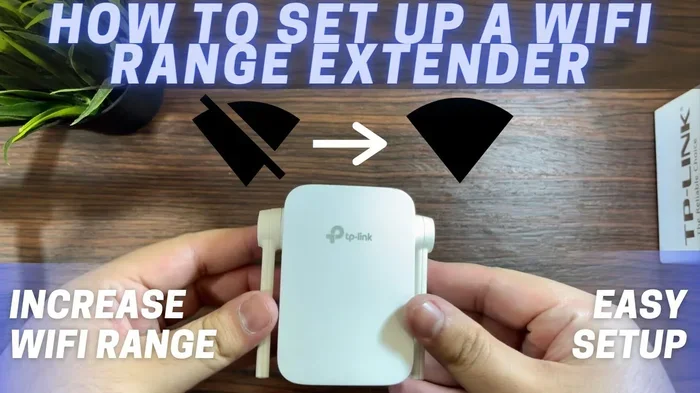
- Use a Wi-Fi extender if needed: If your projector is far from the router, a simple Wi-Fi extender can boost the signal and eliminate lag.
- Close unused apps on your device: Background apps eat bandwidth and can slow down your wireless projection. Close them before casting.
- Restart devices regularly: A simple restart of both the projector and your source device can fix many connection issues.
Expert Insights On Wireless Projector Connectivity
We spoke with a few AV professionals about the best practices for wireless projector setup. Here is what they had to say.
John Martinez, Home Theater Specialist: “The biggest mistake people make is assuming all Wi-Fi connections are the same. A strong 5 GHz signal makes a huge difference in wireless projection quality. I always recommend users invest in a good router before buying a projector.”
Sarah Lin, IT Consultant: “For business presentations, I always suggest using a dedicated network for the projector. This keeps your connection stable and prevents other users from slowing down the network. It is a small step that makes a big difference.”
David Park, AV Technician: “Wireless adapters are a lifesaver for older projectors. They are affordable and turn any HDMI projector into a wireless-friendly device. I recommend the IOGEAR or ScreenBeam models for reliable performance.”
Key Takeaways
- You have options: Built-in Wi-Fi, wireless adapters, streaming devices, and apps all let you connect a projector through Wi-Fi without cables.
- Smart projectors are the easiest: They come with Wi-Fi and casting apps ready to go right out of the box.
- Streaming devices are affordable: Chromecast and Fire Stick are budget-friendly ways to add wireless capability to any projector.
- WiFi Direct is handy: It allows direct device-to-projector connections without needing a router.
- Troubleshooting is normal: Lag, signal issues, and compatibility problems are common but usually easy to fix.
- A strong network matters: A good router and a 5 GHz band make all the difference in smooth, high-quality wireless projection.
Conclusion
So, can you connect a projector through Wi-Fi? The answer is a clear yes. Whether your projector has built-in Wi-Fi or you need a streaming device or wireless adapter, there is a method that works for you. Wireless projection has made it simple to share your screen without cables, and the technology keeps getting better every year.
Start by checking what your projector supports. Then pick the method that fits your budget and needs. Follow the setup steps we covered, and you will be up and running in no time. Remember to keep your Wi-Fi signal strong, update your firmware, and use the tips in this guide to get the best experience.
Connecting a projector through Wi-Fi wirelessly is not just convenient, it is the future of how we share content on big screens. Embrace it, try it out, and enjoy the freedom of going cable-free. You will wonder how you ever managed without it.
Frequently Asked Questions
Can I connect any projector to Wi-Fi?
Not all projectors have built-in Wi-Fi, but you can still connect most projectors wirelessly using a streaming device or wireless HDMI adapter. Check your projector’s manual to see what connectivity options it supports.
Is wireless projection as good as wired?
Wireless projection has improved a lot and is very close to wired quality. A strong 5 GHz Wi-Fi connection gives you smooth playback and good image quality. However, for the most demanding tasks like fast gaming, a wired HDMI connection may still have a slight edge.
What is WiFi Direct on a projector?
WiFi Direct lets two devices connect directly to each other without needing a router or Wi-Fi network. Many modern projectors support WiFi Direct, which means you can mirror your phone or laptop screen straight to the projector even without internet access.
How far can I be from the router when using a wireless projector?
Most wireless projectors work well within 30 to 50 feet of your router. If you go beyond that range, the signal may weaken and cause lag or disconnection. Using a Wi-Fi extender can help you reach farther distances without losing quality.
Do I need any special apps to cast to a projector?
It depends on your setup. Some projectors have built-in apps like Epson iProjection or BenQ QCast. Streaming devices like Chromecast and Fire Stick have their own casting features built in. For AirPlay and Miracast, no app is needed if your device and projector support these standards natively.
Can I use a wireless projector outdoors?
Yes, you can use a wireless projector outdoors as long as you have a Wi-Fi signal or are using WiFi Direct. Just keep in mind that outdoor environments may have interference from other devices, and the projector’s Wi-Fi range may be shorter without a router nearby. A portable Wi-Fi hotspot can be a great solution for outdoor setups.