Can I Make Labels With My Printer And Print Them Now
Yes, you absolutely can make labels with your printer and print them at home. With the right label paper, label design software, and a few simple steps, you can create custom labels for address, shipping, product, and organization needs. This guide walks you through everything from choosing the best printer labels to troubleshooting common printing issues.
Have you ever stared at a stack of envelopes or products and thought, “There has to be an easier way to label all of this”? Well, there is. Making labels with your printer is one of the simplest and most cost-effective solutions for home and business use. You do not need a fancy machine or professional equipment. Your everyday printer can do the job beautifully.
In this guide, we will walk you through everything you need to know about creating and printing labels at home. We will cover the types of printers that work best, the right label paper to buy, free tools you can use, and step-by-step instructions for getting great results. Whether you need address labels, shipping labels, or custom sticker labels, this article has you covered.
Key Takeaways
- Any home printer works: Both inkjet and laser printers can produce high-quality printable labels at home.
- Label paper matters: Choosing the right label sheets and adhesive labels ensures professional-looking results every time.
- Free tools are available: You do not need expensive label maker software to design great label templates.
- Practice makes perfect: Testing your label design before a full print run saves paper, ink, and frustration.
- Versatility is huge: From address labels to barcode labels, your printer handles a wide range of labeling tasks.
📑 Table of Contents
- Can I Make Labels With My Printer?
- Types of Printers That Work for Label Making
- Choosing the Right Label Paper
- Software and Tools for Label Design
- Step-by-Step Guide to Printing Labels at Home
- Common Mistakes to Avoid When Printing Labels
- Creative Uses for Homemade Labels
- Expert Tips for Perfect Label Printing
- Conclusion
Can I Make Labels With My Printer?
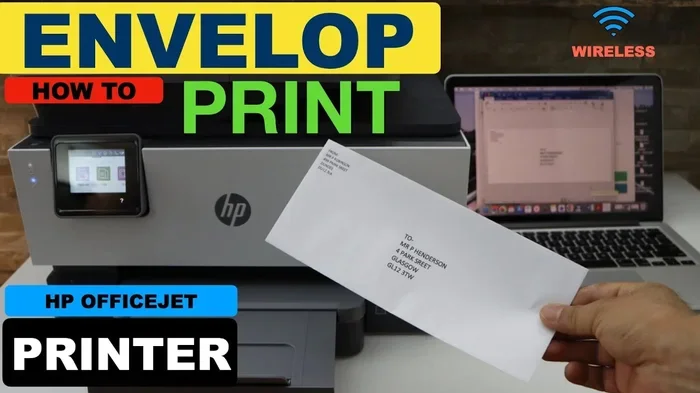
The short answer is yes. You can make labels with your printer and print them right away from the comfort of your home or office. Most modern printers handle label printing with ease. Whether you own an inkjet or a laser printer, you can produce clean, sharp, and professional-looking printable labels.
What makes this so appealing is the convenience. You do not need to visit a store or wait for an order to arrive. You simply design your labels, load the right paper into your printer, hit print, and you are done. Home printer labels have come a long way over the years, and today’s technology makes the process faster and easier than ever before.
The key is knowing what materials and tools work best together. Not all paper is the same, and not all printers handle adhesive labels the same way. That is exactly why we put together this guide. We want to help you avoid the trial-and-error phase and get great results from the very start.
Types of Printers That Work for Label Making
Not every printer is created equal when it comes to label printing. Let us look at the two most common types and how they perform with custom labels.
Inkjet Printers
Inkjet printers are the most popular choice for home label making. They use liquid ink that blends smoothly to create vibrant colors and sharp text. Most inkjet labels come out with excellent detail and rich color saturation.
Here is what you should know about using an inkjet printer for printable labels:
- Inkjet printers handle color label design beautifully. Photos, logos, and graphics all look stunning.
- They work well with most label sheets on the market.
- Ink can smudge if you handle the labels immediately after printing. Let them dry for a few minutes.
- Inkjet printers tend to be more affordable upfront, though ink replacements can add up over time.
Laser Printers
Laser printers use toner instead of liquid ink. They produce crisp, sharp text and are excellent for high-volume label printing. If you need shipping labels or barcode labels in large quantities, a laser printer is a great choice.
Here are some highlights of laser printers for label making:
- Laser prints are smudge-proof and water-resistant once they cool down.
- They are faster than inkjet printers, making them ideal for batch printing.
- Toner lasts longer than ink, so long-term costs can be lower.
- Laser printers excel at black-and-white text and simple graphics.
Which Printer Should You Choose?
For most people making home printer labels, an inkjet printer is the go-to option. It offers the best balance of quality, affordability, and versatility. However, if you run a small business and print labels every day, a laser printer might be the better investment. Consider what you will be using your label templates for before making a decision.
Choosing the Right Label Paper
The type of label paper you use makes a huge difference in the final result. Using the wrong paper can lead to smudging, poor adhesion, or jammed printers. Here is what to look for when shopping for printable sticker paper.
Understanding Label Sheet Sizes
Label sheets come in standard sizes that match common label templates. The most popular sizes include:
- Avery Standard (8.5 x 11 inches) with various label counts per sheet
- CD/DVD labels for circular disc labeling
- Small address labels for envelopes and packages
- Large product labels for bottles, jars, and boxes
Adhesive Options
Not all adhesive labels are the same. Some are designed for temporary use, while others are permanent. Here is a quick comparison:
| Adhesive Type | Best For | Removable? |
|---|---|---|
| Permanent Adhesive | Shipping labels, product packaging | No |
| Removable Adhesive | Temporary labels, indoor use | Yes |
| Freezer Adhesive | Food storage, freezer labels | No |
| Wet-Environment Adhesive | Beverage bottles, outdoor use | No |
Choose the adhesive type based on where and how long you plan to use the custom labels. If you are printing address labels for occasional mail, removable adhesive works well. For shipping labels that need to survive transit, permanent adhesive is the way to go.
Material Choices
Label paper comes in different materials too. The most common options are:
- Glossy paper: Gives a shiny, professional finish. Great for product labels and photos.
- Matte paper: Has a smooth, non-reflective surface. Ideal for easy reading and writing over.
- Vinyl paper: Waterproof and durable. Perfect for outdoor or beverage labels.
- Fabric paper: Creates iron-on labels for clothing and textiles.
Software and Tools for Label Design
Designing your label templates is the fun part. You do not need to be a graphic designer to create beautiful custom labels. There are many tools available, ranging from free options to professional software.
Free Options
If you are just getting started with label making, free tools are a fantastic place to begin. Many printer label manufacturers offer free software on their websites. These programs come pre-loaded with label templates that match their specific sheets.
Some popular free options include:
- Microsoft Word: Has built-in label templates and mail merge features for address labels.
- Google Docs: Offers simple label templates that work well for basic needs.
- Avery Design & Print: A free online tool with thousands of label templates for different sheet sizes.
- Canva: A drag-and-drop design tool with label templates and creative elements.
Paid Professional Tools
If you need more advanced features, paid software offers greater control over your label design. Programs like Adobe Illustrator, CorelDRAW, and Bartender give you the power to create complex barcode labels and detailed product labels with precision.
Tips for Great Label Design
Keep these quick tips in mind when designing your printable labels:
- Always use the correct template size for your label sheets.
- Leave a small margin around the edges to avoid cutoff.
- Use high-resolution images (at least 300 DPI) for crisp graphics.
- Choose fonts that are easy to read at a glance.
- Test your design on regular paper before committing to label paper.
Step-by-Step Guide to Printing Labels at Home
Now that you have your printer, label paper, and design ready, let us walk through the actual printing process. Follow these steps for the best results with your home printer labels.
Step 1: Select and Load Your Label Paper
Take your label sheets out of the packaging. Carefully load them into your printer’s paper tray. Make sure the labels are aligned properly and the sheet feeds in straight. Misaligned paper is one of the most common causes of crooked or incomplete prints.
Quick Tip: Fan the sheets gently before loading them. This prevents sheets from sticking together and causing jams.
Step 2: Design Your Labels
Open your chosen design tool and select the matching label template. Create your content, add graphics, and adjust the layout. Double-check spelling, alignment, and sizing before you proceed to the next step.
Step 3: Print a Test Page
Before you print on your actual adhesive labels, run a test print on regular paper. Hold the test page up to the light and compare it with your label sheet. This helps you confirm that the design lines up correctly with each label cell.
Step 4: Print Your Labels
Once you are happy with the test print, load your label paper into the printer and send the final print job. Print at the highest quality setting your printer offers for the best results. Let the labels dry completely before peeling them off the sheet.
Step 5: Apply and Enjoy
Peel your custom labels carefully from the sheet and apply them to your desired surface. Press down firmly on the edges to ensure a strong bond. Your printable labels are now ready to use.
Common Mistakes to Avoid When Printing Labels
Even with the best equipment, mistakes can happen. Here are some common pitfalls and how to avoid them when making printer labels.
Using the Wrong Paper
This is the number one mistake people make. Regular printer paper does not have adhesive backing, and it will not produce a label. Always use proper label sheets designed for your printer type. Check that the inkjet labels or laser labels you buy match your printer technology.
Ignoring Printer Settings
Your printer settings matter more than you might think. Always select the correct paper type in your printer settings before printing. If you tell your printer you are printing on regular paper when you are actually using label paper, the print quality and adhesion can suffer.
Overloading the Tray
Filling the paper tray too full can cause jams, especially with adhesive labels. Load only a small stack of label sheets at a time. This keeps the feeding mechanism smooth and prevents wasted sheets.
Skipping the Test Print
Jumping straight to printing on label paper without a test run is a recipe for wasted supplies. Always print a test page first. It costs nothing and saves you from frustrating misalignment issues.
Creative Uses for Homemade Labels
The possibilities for custom labels go far beyond simple address stickers. Here are some creative and practical ways to use your home printer labels.
Organizing Your Home
Use printable labels to organize drawers, shelves, spice racks, and storage bins. Color-coded label templates make it easy to find what you need in a hurry. Kids can even help design labels for their toy bins and school supplies.
Small Business Product Labels
If you sell handmade goods or small products, custom labels give your brand a professional look. Create product labels with your logo, ingredients, and pricing information. Printable sticker paper in vinyl material works great for products that may encounter moisture.
Party and Event Planning
Planning a birthday party or wedding? Design themed sticker labels for cups, plates, and favor bags. Personalized labels add a thoughtful, professional touch to any event.
School and Office Organization
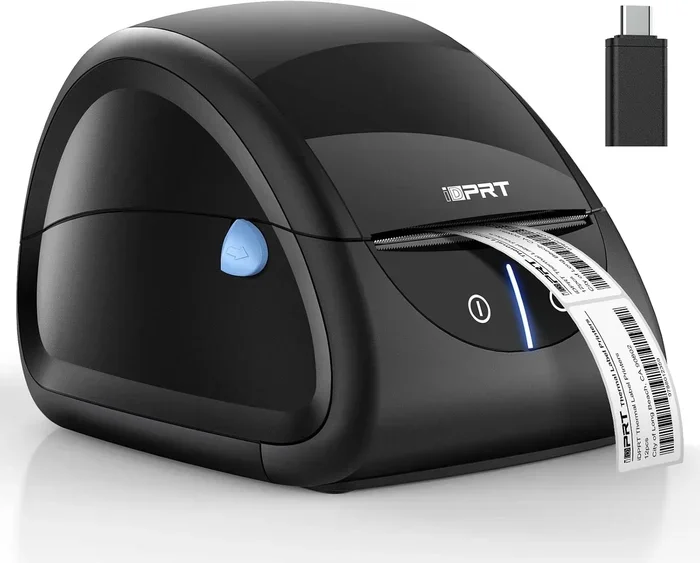
Teachers and office workers can benefit from label maker capabilities right at their desk. Print file folder labels, name tags, and supply markers in seconds. It is a simple way to keep everything neat and tidy.
Expert Tips for Perfect Label Printing
Want your home printer labels to look like they came from a professional? Here are some expert insights that make a real difference.
Store your label sheets properly. Keep unused label paper in a cool, dry place. Heat and humidity can warp the sheets and ruin the adhesive. A closed drawer or cupboard works perfectly.
Calibrate your printer regularly. Over time, printers can drift slightly out of alignment. Running a printhead alignment or calibration check ensures your printable labels come out precise every time.
Use high-quality designs. The better your label design, the better the final product looks. Invest a few extra minutes in choosing the right colors, fonts, and graphics. Your labels are a reflection of your brand or personal style.
Keep extra supplies on hand. Nothing is worse than running out of label sheets halfway through a project. Stock up on your favorite sizes and adhesive types so you are always ready when labeling needs come up.
For more ideas on organizing your home with simple tools and gadgets, check out 10 Gadgets To Make Moms Life Easier. It has great tips that pair perfectly with a well-organized labeling system.
Conclusion
Making labels with your printer is easier, cheaper, and more fun than you might have thought. With the right label paper, a good design tool, and a little practice, you can create beautiful custom labels for any purpose. Whether you need address labels for personal mail, shipping labels for your small business, or product labels for handmade goods, your printer can handle the job.
The key is to start simple. Pick a reliable label template, choose the correct label sheets for your printer, and follow the steps we outlined. Before long, you will be printing printer labels like a pro. The satisfaction of creating something professional and personalized with your own hands is truly rewarding.
So go ahead and give it a try. Set up your printer, grab some label paper, and start designing. You will be amazed at how quickly you can turn a basic printer into a powerful label maker. Happy printing!
Frequently Asked Questions
Do I need a special printer to make labels?
No, you do not need a special printer. Most standard inkjet and laser printers can handle label printing with the right label paper. Just make sure your printer supports the type of label sheets you are using.
What is the best label paper for home printers?
Avery brand label sheets are among the most popular and reliable choices. They offer a wide range of sizes and adhesive types that work well with both inkjet and laser printers. Look for printable sticker paper that matches your specific printer type.
Can I use my inkjet printer for waterproof labels?
Standard inkjet printers work best with paper-based label sheets. For waterproof custom labels, you will need to use vinyl or waterproof printable sticker paper designed for inkjet printers. Always check the product description to confirm compatibility.
How do I make sure my labels align correctly when printing?
The best way to ensure proper alignment is to print a test page on regular paper first. Compare the test print to your label sheet under bright light. Most label templates include alignment guides that help you get the positioning right.
Can I create barcode labels with my home printer?
Yes, you can create barcode labels with your home printer. Many free and paid design tools offer barcode generation features. Just make sure to print on the appropriate label paper and at a high enough resolution for the barcode to scan properly.
Is it cheaper to make labels at home or buy them pre-made?
Making labels at home is significantly cheaper in the long run. A pack of label sheets costs just a few dollars and can produce dozens or even hundreds of labels. Pre-made labels cost much more per label, especially for custom designs.