How Do I Boost My Wifi Network and Improve Signal Strength
Boosting your wifi network is easier than you think. You can improve signal strength by repositioning your router, updating firmware, using a wireless range extender, or switching to a mesh network setup. This guide walks you through simple, actionable steps that anyone can follow to get stronger, faster wifi everywhere in their home.
Key Takeaways
- Router placement matters: Centrally locating your router dramatically improves wifi coverage and signal strength.
- Update your firmware: Keeping your router software current boosts performance and fixes known bugs.
- Use a mesh network or range extender: These devices extend your wifi range to hard-to-reach areas.
- Switch wifi channels: Changing to a less congested channel reduces interference and improves speed.
- Reduce interference: Moving your router away from other electronics prevents signal degradation.
- Upgrade your equipment: Older routers may not support modern speeds or newer wifi standards.
📑 Table of Contents
How Do I Boost My Wifi Network and Improve Signal Strength
Slow wifi is one of the most frustrating problems in any home. You’re streaming your favorite show, and suddenly it buffers. Or you’re on a video call, and your screen freezes right in the middle of an important meeting. The good news is that you can boost your wifi network without spending a fortune or hiring a technician.
There are several simple methods that work surprisingly well. Some take just a few minutes. Others might need a small investment in new equipment. Either way, you’ll walk away with a stronger, more reliable connection. Let’s dive into the best ways to improve your wifi signal strength right now.
Before we start, it helps to understand what affects your wireless network in the first place. Walls, furniture, distance, and even other electronic devices can weaken your wifi signal. The goal is to remove or reduce these obstacles as much as possible. Once you know what’s working against you, fixing the problem becomes much easier.
1. Optimize Your Router Placement
Where you put your router has a huge impact on your wifi coverage. Most people hide their router in a closet or behind a TV. That might look neat, but it kills your signal. Walls and furniture block wireless signals more than you’d expect.
Here are some placement tips that make a real difference:
- Put your router in a central location. This gives every room an equal shot at getting a strong signal.
- Keep it elevated. Place it on a shelf or table instead of the floor. Signals spread downward and outward better from a higher position.
- Stay away from walls and metal objects. Brick, concrete, and metal block wifi signals significantly.
- Avoid placing it near other electronics. Microwaves, baby monitors, and cordless phones can cause wifi interference.
- Point the antennas straight up. This spreads the signal horizontally across your home.
If you’ve been keeping your router in a basement or corner room, try moving it to a more central spot. You might be shocked at how much better your internet speed gets. This is the single easiest and cheapest way to boost your network.
Why Central Placement Works So Well
Your router sends signals in all directions. When it sits at one end of your house, the rooms on the opposite side get a weak signal. By moving it to the center, you shorten the distance the signal has to travel. Less distance means less degradation. Think of it like light from a lamp — the farther you move from it, the dimmer it gets.
If your home is large or has multiple floors, one router might not be enough. In that case, consider adding a mesh network to your existing router. Mesh systems use multiple nodes to blanket your entire home with strong wifi coverage.
2. Update Your Router Firmware
Router manufacturers release firmware updates regularly. These updates fix bugs, patch security holes, and often improve network performance. Yet most people never update their router software. It’s one of the easiest ways to get better wifi signal strength without buying anything new.
Here’s how to update your router firmware:
- Log into your router’s admin panel. You usually do this by typing 192.168.1.1 or 192.168.0.1 into your browser.
- Find the “Firmware Update” or “Advanced Settings” section.
- Check for available updates and click install.
- Wait for the router to restart. This usually takes a minute or two.
Some modern routers update automatically. Check your router’s settings to see if this feature is enabled. If not, turn it on so you never miss an update again. Keeping your wireless router current is one of the simplest steps you can take.
What Happens If You Skip Firmware Updates?
Outdated firmware can cause slow speeds, dropped connections, and security vulnerabilities. Hackers often target routers with old software because they know the weaknesses. Beyond security, you miss out on performance improvements that manufacturers build into each update. A simple update can sometimes boost your internet speed noticeably.
3. Switch Your Wifi Channel
Your wifi network operates on specific channels. In crowded neighborhoods, many routers use the same channel. This creates congestion, much like traffic on a busy highway. Switching to a less crowded channel can significantly improve your wifi performance.
Here’s how to find the best channel for your router:
- Use a free app like Wifi Analyzer (Android) or NetSpot (Mac) to scan nearby networks.
- Look at which channels are least crowded in your area.
- Log into your router settings and manually switch to that channel.
- Test your speed to see if there’s an improvement.
For 2.4 GHz networks, channels 1, 6, and 11 are your best options because they don’t overlap with each other. For 5 GHz networks, there are more channels available, so congestion is usually less of a problem. Switching channels is a quick fix that can make a big difference in your wifi signal strength.
Understanding 2.4 GHz vs. 5 GHz
Most modern routers are dual-band, meaning they broadcast on both 2.4 GHz and 5 GHz frequencies. The 2.4 GHz band travels farther but is more prone to interference. The 5 GHz band offers faster speeds but has a shorter range. For the best results, connect devices that need speed to 5 GHz and devices that need range to 2.4 GHz. This simple split can improve your overall network performance.
4. Reduce Wifi Interference
Wifi interference comes from many sources you might not expect. It’s not just other routers — everyday household items can weaken your wireless signal. Identifying and removing these sources is a powerful way to boost your network.
Common sources of wifi interference include:
- Microwaves: They operate on the same 2.4 GHz frequency as many routers.
- Baby monitors and cordless phones: These devices compete for the same frequency band.
- Bluetooth devices: Speakers, keyboards, and mice can all cause minor interference.
- Thick walls and mirrors: Physical barriers absorb and reflect wifi signals.
- Fish tanks and water: Water absorbs wireless signals surprisingly well.
Take a look around your router. Move any of these devices further away, or at least move your router away from them. Even small changes in positioning can reduce interference and improve your wifi coverage.
Quick Tip: The Water Test
Here’s a fun experiment. Place your router near a large fish tank or a big glass of water. Then test your signal in another room. Now move the router away from the water and test again. You’ll likely see a noticeable difference. Water is one of the most underrated enemies of wireless signals.
5. Upgrade Your Equipment
Technology moves fast. Routers that were top-of-the-line five years ago may struggle with today’s demands. If your router is old, upgrading can transform your internet connection. Newer routers support the latest wifi standards, which means faster speeds and better range.
Here’s what to look for in a new router:
- Wifi 6 (802.11ax) support: This is the newest standard and offers significantly better performance.
- Dual-band or tri-band capability: More bands mean less congestion and faster speeds.
- Strong processor and RAM: These handle multiple devices without slowing down.
- Built-in mesh support: Some routers let you add nodes for whole-home coverage.
If you rent your router from your internet provider, consider switching to your own equipment. You’ll often get better performance and save money in the long run. Check out our guide on having your own personal wifi router to learn more about your options.
When Should You Replace Your Router?
A good rule of thumb is to replace your router every four to five years. If you’re constantly experiencing slow speeds, dropped connections, or dead zones, it might be time for an upgrade. Newer routers also come with better security features, which is important in today’s connected world.
Another option is to change out your router with your internet provider if you’re renting outdated equipment. Many providers offer newer models at little to no extra cost.
6. Use a Wifi Range Extender or Mesh System
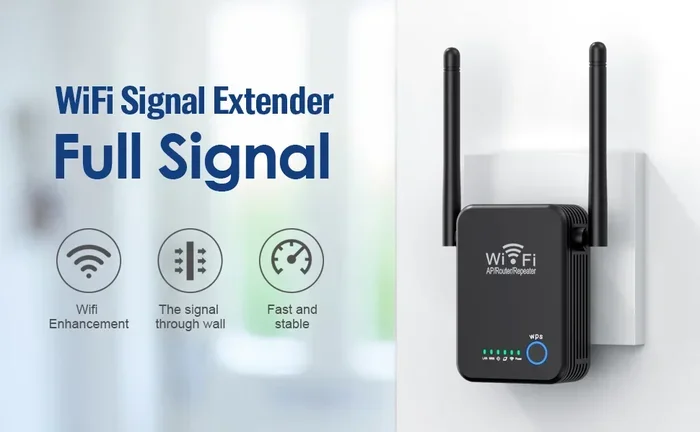
If you’ve tried everything and still have dead zones, it’s time to bring in reinforcements. Wifi range extenders and mesh network systems are designed to boost your signal to areas your router can’t reach on its own.
Range extenders are the budget-friendly option. They pick up your existing wifi signal and rebroadcast it to areas that need more coverage. They’re easy to set up and don’t require any wiring. However, they can sometimes reduce your overall speed because they use the same radio to receive and transmit data.
Mesh systems are a more advanced solution. They use multiple nodes placed around your home that work together as a single network. Unlike extenders, mesh systems use dedicated backhaul channels, so your speed stays strong even as the signal reaches far corners of your home.
Extender vs. Mesh: Which Is Right for You?
| Feature | Wifi Extender | Mesh System | Can I Extend Wifi With Ethernet Cable? |
|---|---|---|---|
| Price | $20-$60 | $100-$300+ | Depends on cable setup |
| Setup Difficulty | Easy | Moderate | Requires wiring |
| Speed Impact | Some loss | Minimal loss | No loss |
| Coverage | 1-2 extra rooms | Whole home | Unlimited |
| Best For | Small dead zones | Large homes | Stable long-distance links |
For most homes, a mesh system provides the best experience. It creates seamless coverage throughout your house, and your devices automatically connect to the strongest node. If you’re interested in learning more about extending your signal, check out our article on extending wifi with an ethernet cable for a wired alternative that delivers maximum speed.
If you live in a smaller space and just need basic coverage, a simple range extender might be all you need. They’re affordable and do a decent job of filling in small wifi dead zones.
7. Additional Tips to Boost Your Wifi
Beyond the main strategies above, there are several smaller tweaks that can help improve your wifi signal strength. These quick wins take just a few minutes and can make a noticeable difference.
Restart Your Router Regularly
Restarting your router clears its memory and refreshes its connection. Many people never restart their router unless it completely stops working. Try unplugging it for 30 seconds once a week. You’ll likely notice smoother performance and more stable speeds.
Use Quality of Service (QoS) Settings
Most modern routers have a QoS feature that lets you prioritize certain types of traffic. For example, you can give video calls and gaming priority over background downloads. This ensures your most important activities get the bandwidth they need.
Limit Connected Devices
Every device connected to your network uses bandwidth. Smart TVs, phones, tablets, smart home gadgets — they all add up. If you have too many devices connected at once, your network performance will suffer. Disconnect devices you’re not actively using, or consider creating a separate guest network for IoT devices.
Use an Ethernet Cable for Critical Devices
For devices that need the most stable connection, a wired ethernet connection beats wifi every time. Desktop computers, gaming consoles, and smart TVs benefit greatly from a direct ethernet connection. If running a cable isn’t practical, look into powerline adapters that use your home’s electrical wiring to carry data.
Consider Your Internet Plan
Sometimes the problem isn’t your router — it’s your internet plan. If you’re paying for slow speeds, no amount of boosting will fix that. Contact your provider and ask about faster plans. Also, run speed tests regularly to make sure you’re getting what you’re paying for.
Remember that getting wifi without a password isn’t just a security risk — it can also slow down your network if neighbors are leeching off your connection. Always keep your network secured with a strong password.
Conclusion
Boosting your wifi network doesn’t have to be complicated or expensive. Start with the easiest fixes — reposition your router, update your firmware, and switch to a less crowded channel. These steps alone can dramatically improve your signal strength and network performance.
If those don’t solve the problem, look into reducing interference, upgrading your equipment, or adding a range extender or mesh system. Each step builds on the last, and by the time you’ve worked through this list, you’ll have a faster, more reliable wireless network throughout your home.
The key is to take action one step at a time. Don’t try to fix everything at once — test each change and see how it affects your connection. Soon enough, you’ll enjoy strong, fast wifi coverage in every room. Your streaming, gaming, and video calls will never be the same.
Frequently Asked Questions
What is the best way to boost my wifi signal?
The best way is to move your router to a central, elevated location away from walls and electronics. This single change often improves wifi signal strength more than any other method. Combine this with a firmware update for the best results.
How can I extend my wifi range without buying new equipment?
You can extend your range by optimizing your router placement and switching to a less congested wifi channel. You can also reduce interference from other electronics. These free methods often make a surprising difference in coverage.
Does a wifi extender reduce internet speed?
Yes, most wifi extenders reduce speed slightly because they rebroadcast the existing signal. However, the reduction is usually small enough that you won’t notice it for everyday tasks like browsing and streaming. Mesh systems reduce this speed loss more effectively.
How often should I restart my router?
Restarting your router once a week is a good practice. It clears the memory, refreshes connections, and can resolve minor performance issues. Many people find that weekly restarts keep their network performance running smoothly.
What’s the difference between 2.4 GHz and 5 GHz wifi?
The 2.4 GHz band travels farther but is slower and more prone to interference. The 5 GHz band is faster but has a shorter range. Using both bands wisely — connecting speed-hungry devices to 5 GHz and range-needy devices to 2.4 GHz — improves your overall wireless network performance.
When should I upgrade my router?
Consider upgrading every four to five years, or sooner if you’re experiencing frequent slow speeds and dead zones. Newer routers support wifi 6 and other modern standards that deliver much better performance than older models.